How to Save Outlook Email to Hard Drive without PST - PST Alternatives
- 1. What is PST? An Overview of PST
- 2. Is There An Alternative to PST Files
- 3. 4 PST Alternatives - Save Outlook Email to Hard Drive
- 1) Save Outlook Email in PBD Format(Recommend)
- 2) Export Outlook Email in CSV Format
- 3) Download Outlook Email in PDF Format
- 4) Convert Outlook Email as A Word File
- 4. Final Thought
- 5. FAQ on How to Save Outlook Emails to Hard Drive without PST
What is PST? An Overview of PST
Outlook is a popular email client among Windows users that allows managing emails, contacts, and calendars in one place, offering features like email rules organization.
The PST file format, which stands for Personal Storage Table, is used by Microsoft Outlook to store data such as email messages, contacts, calendar items, and tasks. It is an open-source file format that can be created and opened in Outlook without any issues.

PST files are easy to use and transfer, but can become large and consume space, are prone to corruption, and can only be opened in Outlook.
To save Outlook email to hard drive without PST, you can use the "Save As" feature in Outlook to export emails to a .msg or .eml file, which can be saved on your hard drive.
Is There An Alternative to PST Files
There are alternative email client programs that do not use PST files, such as Mozilla Thunderbird, which uses a database to store email messages, and Microsoft Outlook, which uses a .pst file's counterpart, the .ost file, which is used for online storage.
Here are some popular alternatives to PST files for storing Outlook data on an external hard drive:
-
PBD Format
PBD files are used by Qiling Backup, a data backup and restore software, and are easily saved and recovered. They have a small size, taking up minimal space on your hard drive. Qiling Backup Home, a robust data backup utility, can create full, incremental, and differential backups of your Outlook data.
-
CSV Format
CSV stands for Comma Separated Values, a text file that stores data in a tabular format, easily editable in text editors or spreadsheet programs like Microsoft Excel.
-
PDF Format
PDF (Portable Document Format) is a file format developed by Adobe, used to present documents with text formatting and images, and is widely used due to its ability to preserve the original formatting of a document and facilitate easy sharing.
-
Word File Format
A Word file is a type of document created by Microsoft Word, easily opened and edited in various word processors. It is the default XML-based file format for Word 2019, 2016, 2013, 2010, and Office Word 2007.
4 PST Alternatives - Save Outlook Email to Hard Drive without PST
4 alternatives to PST were mentioned, and users can store Outlook emails on their hard disk in these 4 forms. Here's a brief summary: users can export emails to a PST file, save them as an EML file, use a mail client like Thunderbird, or export them to a database like SQL Server. Each method is explained step by step, from easiest to most complex.
- 1) Save Outlook Email in PBD Format(Recommended)
- 2) Export Outlook Email in CSV Format
- 3) Download Outlook Email in PDF Format
- 4) Convert Outlook Email as A Word File
1) Save Outlook Email in PBD Format(Recommended)
Qiling Backup uses the PBD format to store backup files, which can be easily restored when needed using the Qiling Backup software.
Qiling Backup Home is a reliable and professional Outlook backup and restore software that allows creating full, incremental, or differential backups of Outlook data, and supports backing up and restoring to various locations, including external hard drives, network locations, and cloud storage services. It also supports additional features like moving an OS to an SSD and system image recovery.
If you want to use PBD as an alternative to PST, you can follow these steps.
Step 1. Launch Qiling Backup on your computer, click File Backup on the home screen, and start the backup task.

Step 2. To backup your Microsoft Outlook emails, contacts, or calendars, navigate to your Outlook database folder and select the mailbox addresses you want to make a backup of.

Step 3. To save the Outlook backup, click the illustrated area to choose a location.

Step 4. The backup location can be another local drive, external hard drive, network, cloud, or NAS, with external physical drives or cloud storage being recommended for preserving backup files.

Step 5. The customization settings for automatic backup, including setting a schedule for daily, weekly, monthly, or upon an event, and making differential and incremental backups, can be accessed through the Options button. Upon clicking Proceed, the Outlook backup process starts, and the completed task is displayed on the left side in a card style.

2) Export Outlook Email in CSV Format
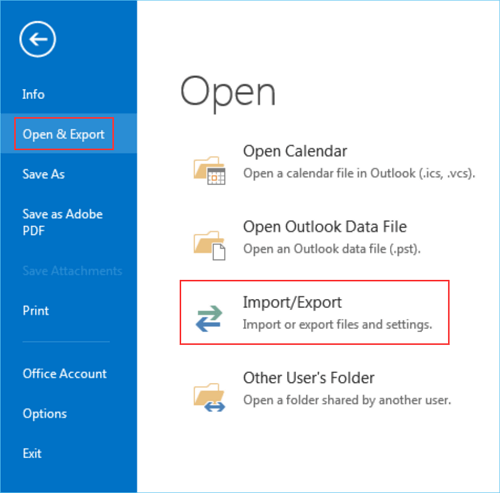
To export your Outlook data to a CSV file, go to the "File" tab, click on "Open & Export", and then select "Import/Export". Choose "Comma Separated Values (Windows)" as the file type, select the items you want to export, and choose a location to save the file. This will save your Outlook data in a CSV format that can be easily imported into other programs.
Step 1. To import contacts from an existing email account in Microsoft Outlook, go to File > Open & Export > Import/Export, select "Import from another program or file," choose "Comma Separated Values (Windows)," and then select the file you want to import. Next, choose the file type and select the destination folder where you want the contacts to be saved.
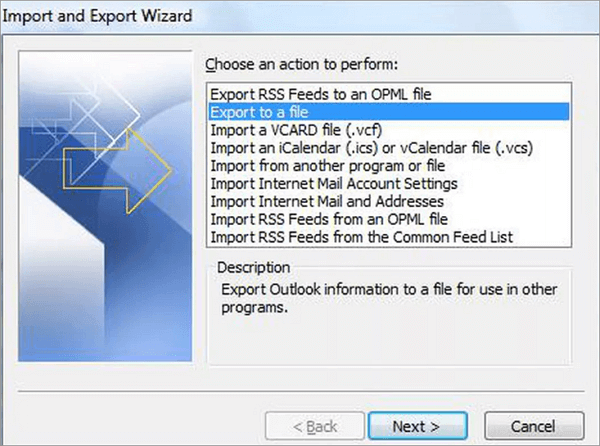
Step 2. In the Import and Export Wizard, choose Export to a file and click Next.
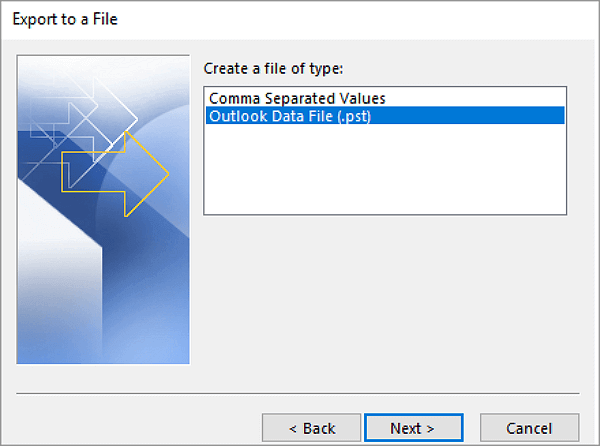
Step 3. Choose Comma Separated Values and click Next.
Step 4. You can select the folder you want to export to in the next step.
Step 5. You can choose a location to save the CSV file in the next window. Then click Finish.
Step 6. To save your Outlook data in a CSV format, follow these steps: Open Outlook, go to File > Open & Export > Import/Export, select "Export to a file", choose "Comma Separated Values (Windows)" as the file format, and select the folder where you want to save the file. Then, select the items you want to export, such as emails, contacts, or calendar events, and choose a filename.
3) Download Outlook Email in PDF Format
PDFs are widely used, and you can download Outlook emails in PDF format, but this method is only suitable for downloading emails one by one, not in bulk.
Follow the guide to convert the Outlook emails to PDF:
Step 1. Launch the Outlook APP, open the email you want to save, and then click on the "File" menu, select "Save As" and choose the PDF format.
Step 2. To print a file, tap the File on the top-left corner, click the Print option, and select Microsoft Print to PDF from the Printer dropdown.
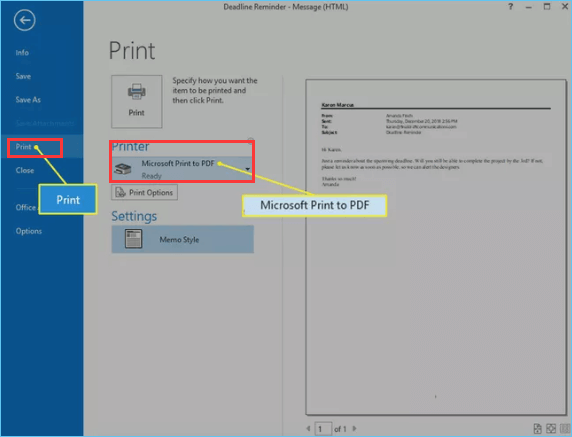
Step 3. To specify how you want the item to be printed, click the Print button.
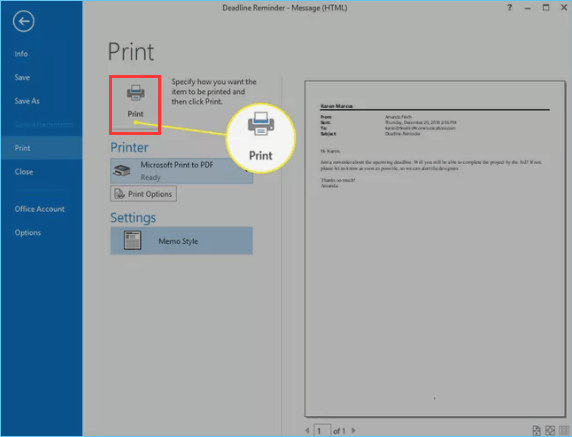
Step 4. In the Save Print Output As box, choose the location where you want to save the converted PDF file.
Step 5. To save your PDF file, give it a name in the "File name" box and select "PDF Document(*.pdf)" as the saved type, then click "Save".
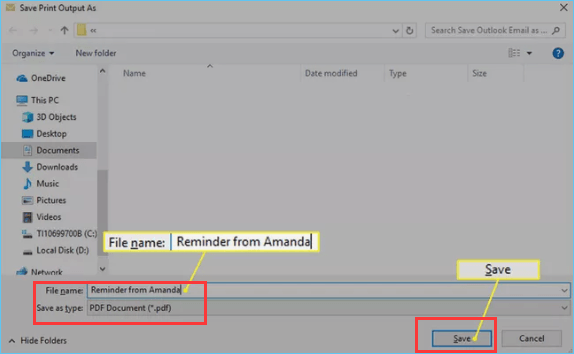
Step 6. The email is now saved in the location you specified.
4) Convert Outlook Email as A Word File
To save Outlook emails to a hard drive without using PST, you can convert emails to Word format for editing and modification, saving them in MHT format first and then opening them in Word.
The steps to convert an Outlook email into a Word file are as follows:
Step 1. Launch Outlook and open the email you want to convert into a Word file. Then, click on the "File" tab in the top left corner of the screen. Next, click on "Save As" in the left-hand menu.
Step 2. To save a document, click on the "File" option at the top-left corner of the screen, and then select "Save As" from the dropdown menu.
Step 3. To save the webpage as an MHT file, tap the "Save As Type" box and choose "MHT File(*.mht)" from the dropdown menu, then click the "Save" button to save the file on the hard drive.
Step 4. Launch Microsoft Word on your computer, and click File > Open.
Step 5. Double-click the MHT file you saved earlier to open it in the browser.
Step 6. When MS Word opens your MHT file, click File > Save As to save it in a different format.
Step 7. To save a file as a Word Document, select Word Document (*docx) from the Save As Type box and click Save.
Final Thought
You can save Outlook emails to your hard drive without using PST files, opting instead for formats like PBD, CSV, PDF, or Word, each with its own advantages and disadvantages, depending on your specific needs.
PDF and Word are widely used formats, but require manual operation of each email, with no bulk operation capability. CSV is a suitable option for those familiar with Excel, as it can be opened directly in Excel.
Qiling Backup Outlook Backup and Restore is our most recommended choice because it allows you to back up all your Outlook data with just one click, and then restore the backup files to any desired location. You can also use the built-in "Import and Export" feature in Outlook, a third-party tool, a script, or a cloud service like Microsoft 365 or Google Workspace. Note that these alternative methods may not work for all versions of Outlook.
FAQ on How to Save Outlook Emails to Hard Drive without PST
1. How do I export emails from Outlook without PST?
You can export emails from the Outlook APP to a CSV file by going to File > Open & Export > Import/Export > Export to a file > Comma Separated Values.
2. How do I save my Outlook to an external hard drive?
To back up Outlook emails to an external hard drive, start by installing the external drive into your computer. Once installed, select it as the storage location. For a more detailed guide, you can refer to an article on the process.
3. How do I save bulk emails from Outlook?
You can use the Print function in Outlook to convert emails into PDF or Word format, or use Qiling Backup to back up all your Outlook data with one click and restore the backup files to any location.
4. Are PST files necessary?
A PST file is an archive file that stores email messages, contacts, tasks, and other items in Outlook, allowing users to move data between computers or back up their data. However, PST files are not necessary, as Outlook data can also be saved in other formats.
Related Articles
- How to Set Up Windows Backup [You Must Know 2022]
- 2022 Windows XP Backup Software & Backup Utility Free Download
- Download Best SSD to SSD Cloning Software
- How to Backup Entire PC to External Hard Drive on Windows? Best Solutions
- How to Transfer/Copy Files from Hard Drive with Bad Sectors to Another
Download Qiling Disk Master, the best Windows easy transfer tool, to transfer files from a hard drive with bad sectors to another with ease. - How to Transfer Files from PC to Laptop in 9 Ways
Transferring files between a laptop and desktop PC running Windows 11, 10, 8, or 7 can be done in 9 ways using various methods, including third-party file transfer programs, Windows built-in tools, and external hardware or devices.
Products
Articles & Tutorials
- Data Recovery
- Data Backup
- File Recovery
- File Backup
- System Backup and Restore
- Disk and Partition Clone
- Technical articles
- Mobile articles
- Disk Master Help
- Windows Data Recovery Tutorials
- Windows Secure Delete Tutorials
- Windows Partition Management Tutorials
- Windows File Backup and Restore Tutorials
- Windows System Backup and Restore Tutorials
- Windows Disk Backup and Restore Tutorials
- Windows Clone Tutorials