How to Backup and Restore Thunderbird Emails (Windows & Mac Guide)
Mozilla Thunderbird is a popular email client used by millions worldwide, offering easy-to-use features for managing emails. However, if you plan to make changes or transfer data to another computer, it's essential to back up your Thunderbird emails first, which requires knowing how to back up and restore them on Windows and Mac PCs.
You should back up and restore Thunderbird emails to prevent data loss and ensure continuity in case of technical issues or system crashes. There are three main methods to do this: using Qiling Disk Master for automatic backup, manually copying the Thunderbird profile folder, or using the ImportExportTools NG add-on.
Why Do You Need to Backup and Restore Thunderbird Emails
Backing up your emails is a good idea, especially when switching to a new email client, as it ensures you keep important messages with valuable information.
Backing up your emails ensures access to them even if your computer crashes or gets a virus, preventing loss of emails if your device fails.
Backing up and restoring Thunderbird emails can save time when setting up a new computer, allowing you to restore your email settings with a simple file restore.
3 Methods to Backup and Restore Thunderbird Email on Windows & Mac PC
You can back up and restore Thunderbird emails on a Windows or macOS computer using three different methods. First, you can use Qiling Disk Master to automatically back up your Thunderbird email directory. Second, you can manually copy the Thunderbird profile folder to an external storage device. Third, you can use the ImportExportTools NG add-on to export and import emails.
Method 1: Use Qiling Disk Master to Backup & Restore Emails Automatically
Qiling Disk Master Pro is a backup and recovery tool that allows users to quickly and easily back up and restore thunderbird emails by creating an image of their thunderbird profile email directory and saving it to a safe location, which can then be used to restore emails on their computer, and also enables backing up emails to an external storage device.
With various types of backup, you can create a scheduled backup plan, and the software will automatically save a copy of your emails from Thunderbird, ensuring your data is safe and secure.
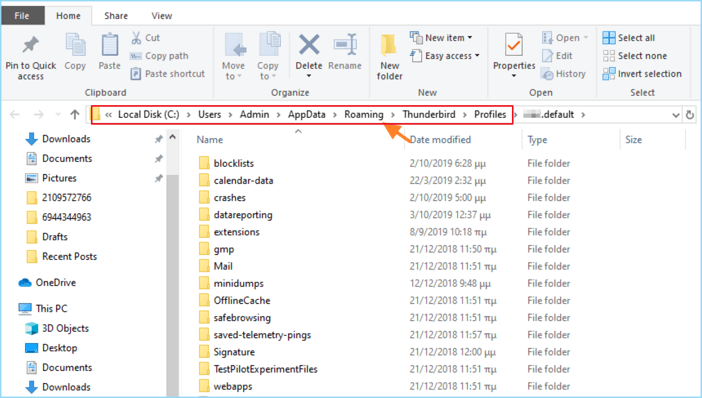
The Thunderbird email folder in Windows is located by default at C:\Users\YourUsername\AppData\Roaming\Thunderbird\Profiles\YourProfileName\ImapMail. To find this location, go to the Start menu, type "Thunderbird" in the search bar, and click on the application. Then, click on "File" > "Open Folder" to access the profile folder.
C:\Users\UserName\AppData\Roaming\Thunderbird\Profile\Mail.
Follow the steps to backup Thunderbird emails:
Step 1. To start the backup process, click on the "Backup and recovery" tab page.

Step 2. Four main categories of data backup are listed: File, Disk, OS, and Mail.

Step 3. The left-hand side of the screen displays lists of both local and network files, allowing you to expand the directory and select the files to back up.

Step 4. You can choose the place where you want to store the backup by following the guidance on the screen.

To set up a backup, ensure it's encrypted and schedule it by clicking on "Options" under "Backup Options". You can also specify a start time in "Backup Scheme" by clicking on "Options". Additionally, there are various other customizable options available.

Step 5. You can save the backup file on your computer, in Qiling's cloud service, or on a network-attached storage device (NAS).

Step 6. Qiling Disk Master allows customers to store backup copies of their files on a third-party cloud drive or the company's own cloud storage.
To back up your data on a third-party cloud drive, select Local Drive and scroll down to add Cloud Device, then fill in your account information.
Step 7. The backup process can be initiated by clicking on the "Proceed" button, which will start the backup process. Once the backup is complete, it will be displayed as a card on the left-hand side of the screen, and a right-click on the card will allow for further details about the backup job.
Here are the steps to restore Thunderbird emails:
Step 1. Launch Qiling Disk Master, click "Browse for Recovery".
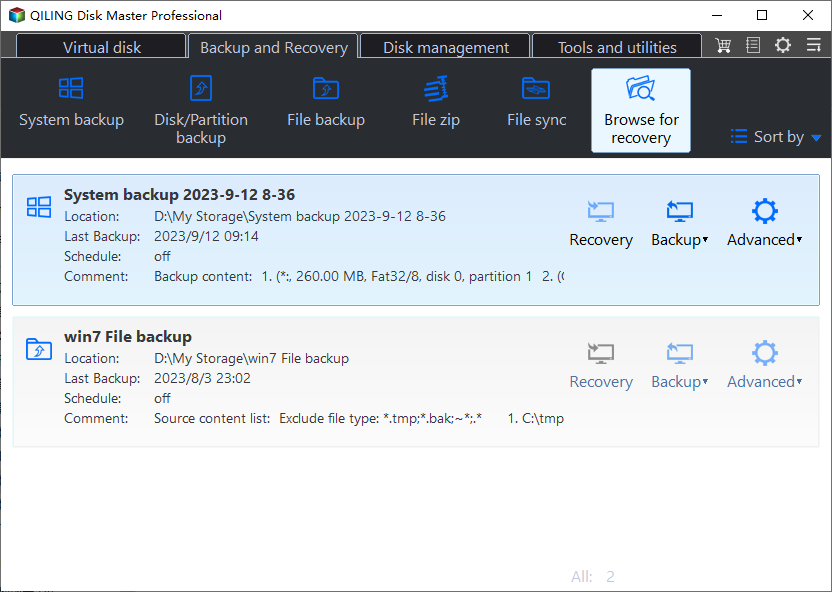
Step 2. To recover a file from a backup, navigate to your backup destination and select the backup file you want to recover, which is typically a pbd file created by Qiling Disk Master.
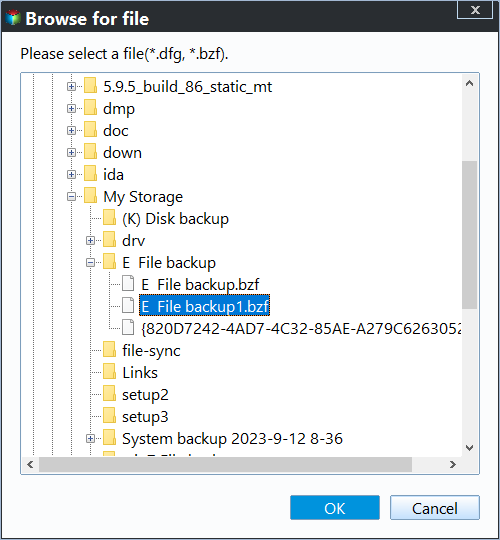
Step 3. You can choose to recover data to a specific location or to its original location.
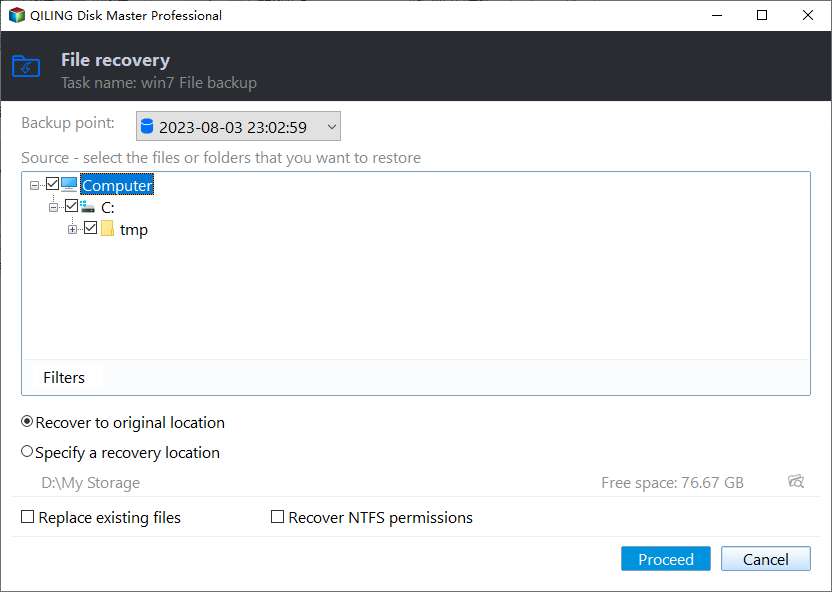
Step 4. Click "Proceed" and the recovery would start.
Method 2: Manually Copy and Paste Your Thunderbird Profiles
To manually copy and paste your Thunderbird profiles, you can copy the Thunderbird profile folder from its default location, typically C:\Users\YourUsername\AppData\Roaming\Thunderbird, to an external storage medium like a USB drive or Cloud storage service. Then, you can restore Thunderbird emails by copying the backup to its default location. This method allows you to transfer your Thunderbird profiles without using a third-party program.
- Warm Tip
- This method is suitable for manually transferring all emails to other mailboxes or locations at one time. If you want to backup frequently changing email content, then the automatic backup will be a more suitable option.
Now, follow the steps to copy the Thunderbird profile:
Step 1. Locate to the Thunderbird storage location.
Windows Thunderbird profile folder is located by default: C:\Users\UserName\AppData\Roaming\Thunderbird\Profile\Email.
macOS Thunderbird profile is located: ~/Library/ thunderbird.
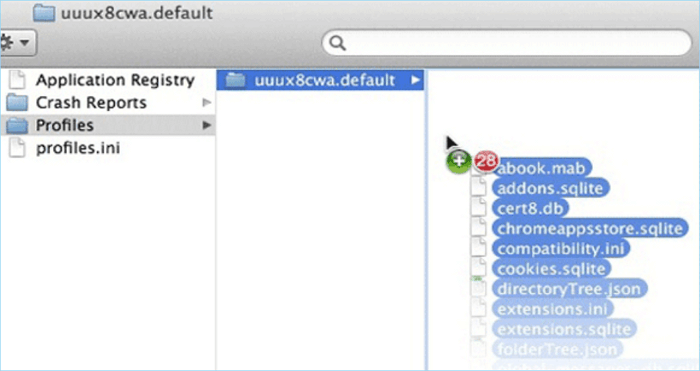
Step 2. Select the Thunderbird Profile folder and copy it to an external storage device or a Cloud storage service, such as Google Drive or Dropbox, to back it up.
Step 3. Copy the thunderbird profile from the old computer and paste it into the new computer's thunderbird location, typically located at C:\Users\Username\AppData\Roaming\Thunderbird or ~/Library/Application Support/Thunderbird on a Mac.
Step 4. To access all emails from your Thunderbird profile folder, simply open Thunderbird and you should be able to view all your emails in one place.
Method 3: Export & Import Thunderbird Emails with Add-on
You can export and import your Thunderbird emails using the ImportExportTools NG plugin, which is suitable for transferring emails from one computer to another. To do this, download the plugin and then export your emails in EML format. This method allows you to easily move your emails to a new computer or device.
Now follow the steps to export thunderbird emails:
Step 1. Open Thunderbird and install the ImportExportTools NG add-on, which allows you to export and import emails within Thunderbird.
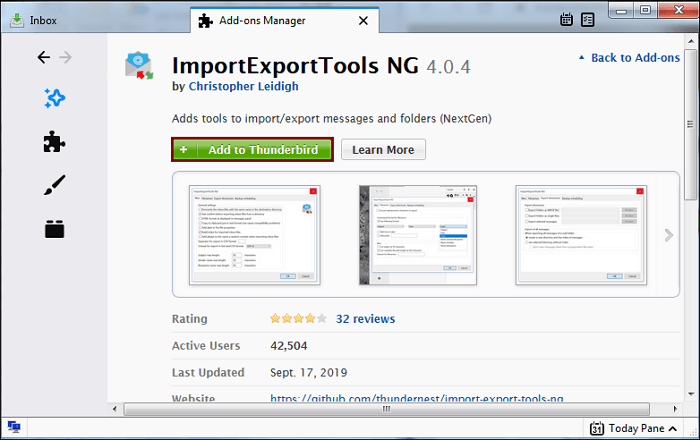
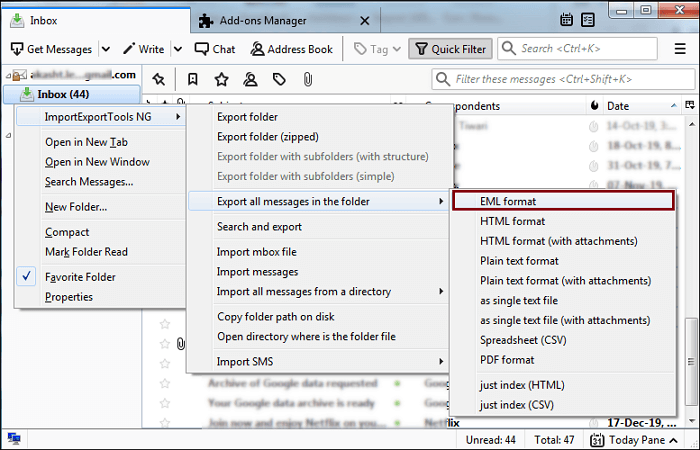
Step 2. After installing the add-on, restart Thunderbird. Then, select the emails you want to backup, right-click on them, and choose ImportExportTools NG > Export all messages in the folder > EML format.
Step 3. Choose a location where you want to save the Thunderbird emails backup, then select the "Select Folder" option.
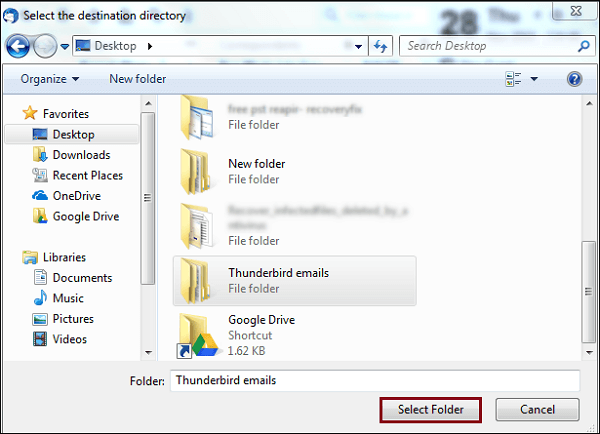
When you need to restore the emails, you can follow the steps below:
Step 1. Launch Thunderbird.
Step 2. To import all emails from a Thunderbird backup, right-click on any folder, select ImportExportTools NG, and then choose Import All Messages from a Directory. From there, select the Thunderbird backup you saved beforehand.
Step 3. Navigate to the location where you saved the Thunderbird email backup, select the folder, and press "OK" to confirm.
Step 4. The thunderbird emails will be imported to this account.
You may be interested:
Concluding Thoughts
Backing up and restoring Thunderbird emails is a straightforward process that can save you time and hassle in the long run. Whether you're using Windows or macOS, you can easily backup and restore your emails using various methods, making it a convenient task to manage your Thunderbird emails.
To recover Thunderbird emails, you can create an image of your profile folder using a disk imaging tool like Qiling Disk Master, and then restore the emails from the image. Alternatively, you can manually copy and paste the profile folder. Additionally, you can use the ImportExportTools NG add-on to export and import your Thunderbird emails.
To make backing up and restoring Thunderbird emails easier, consider using Qiling Disk Master Pro. Whichever method you choose, remember to regularly back up and restore your Thunderbird emails to ensure your data remains safe and secure.
FAQ on Thunderbird Backup and Restore Emails
How do I restore emails in Thunderbird?
To restore Thunderbird emails, you can either copy the Thunderbird profile folder from an external storage medium to its default location, or use a third-party program to create an image of the profile folder and restore the emails with it.
How do I back up my Thunderbird inbox?
Qiling Disk Master is a reliable program for backing up Thunderbird emails, allowing you to create an image of the Thunderbird profile folder and restore emails with it. Alternatively, you can manually copy the Thunderbird profiles and transfer them to an external storage device or cloud storage service for safekeeping.
Can I reinstall Thunderbird without losing my email?
If you have a backup of your Thunderbird Profile, you can reinstall Thunderbird without losing your emails. To do this, copy the thunderbird profile folder from an external storage device or cloud storage service and paste it into Thunderbird's default location after the installation is complete. This way, you can restore your emails and settings without having to reconfigure everything.
Does Thunderbird save emails locally?
Thunderbird saves emails locally in the user's profile folder, which can be found at Thunderbird's default location.
Related Articles
- Tech Support Scams Attack? No Worry!
- 2024 Best 5 Free Virus Removal for Windows 11/10
- How to Save Files Before Factory Reset Windows 11 [2024 Updated]
- Fix Windows Error Code 0x0 0x0 in Four Ways
- Run Disk Clone Windows 11 and Windows 10 with Qiling Disk Copy
- How Do I Get 100GB Free Cloud Storage
- Difference Among Full, Incremental and Differential Backup
Understand the key differences among full, incremental, and differential backup methods. Learn how each backup type works, their pros and cons, and which one is best for your data protection strategy.
Products
Articles & Tutorials
- Data Recovery
- Data Backup
- File Recovery
- File Backup
- System Backup and Restore
- Disk and Partition Clone
- Technical articles
- Mobile articles
- Disk Master Help
- Windows Data Recovery Tutorials
- Windows Secure Delete Tutorials
- Windows Partition Management Tutorials
- Windows File Backup and Restore Tutorials
- Windows System Backup and Restore Tutorials
- Windows Disk Backup and Restore Tutorials
- Windows Clone Tutorials