[3 Simple Ways] How to Backup Thunderbird Profile
Key Takeaways of Thunderbird Profile Backup:
- A Thunderbird profile is essentially a folder that stores all your email-related data, including emails, passwords, contacts, and settings, providing a centralized location for all your account information.
- Backing up your Thunderbird profile allows you to restore your data in case of emergencies or system crashes, ensuring your emails, contacts, and other important data are safe and recoverable.
- Three simple backup methods for Thunderbird profiles are available: making backup copies, using the export tool, and utilizing third-party software for automatic backups.
Mozilla Thunderbird Mail is an open-source email client that allows users to access multiple email accounts, calendars, tasks, notes, and more within a single interface. It is a highly customizable, secure, and user-friendly application that has been used by millions over the years.
The Mozilla Thunderbird profile is a folder that saves all data from your email accounts, passwords, contacts, settings, and other configurations, making it essential for keeping your important emails, passwords, contacts, and settings safe.
If you don't have a backup of your Mozilla Thunderbird profile, you'll have to manually re-enter your emails and passwords if something goes wrong, which is very time-consuming. But if you have a backup, you can restore lost data, save time, and avoid re-entering emails and passwords. You can also use a backup to reinstall Thunderbird on a new device or after a factory reset without losing any emails or data.
To ensure your Mozilla Thunderbird data is safe, it's essential to back up your profile folder and settings regularly. Losing data can be irreversible, so don't wait until it's too late. Qiling's post provides a simple guide on how to find and back up your Thunderbird profile folder, offering three easy ways to do so.
- 📢Announcement
- The methods mentioned in the post are applicable to Mozilla Thunderbird 68.4.1, which is compatible with Windows 11/10/8/7, Mac OS X 10.9 or later, and LINUX operating systems, providing a solution for users regardless of their OS.
Locate Mozilla Thunderbird Profile Folder Before Backup
To find the location of your Thunderbird profile folder, you need to locate the specific directory that contains all your account information, including settings, configurations, emails, and other data. This can be done by following the instructions for your operating system: on Windows, look for the AppData folder, on macOS, check the Library folder, and on Linux, search for the .thunderbird folder.
C:\Users\%USERNAME%\AppData\Roaming\Thunderbird\Profiles\
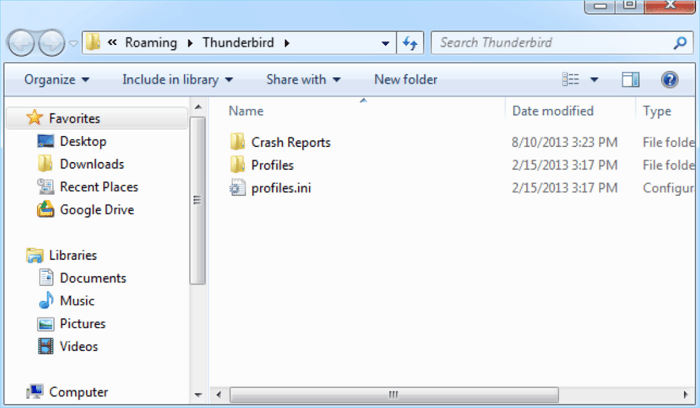
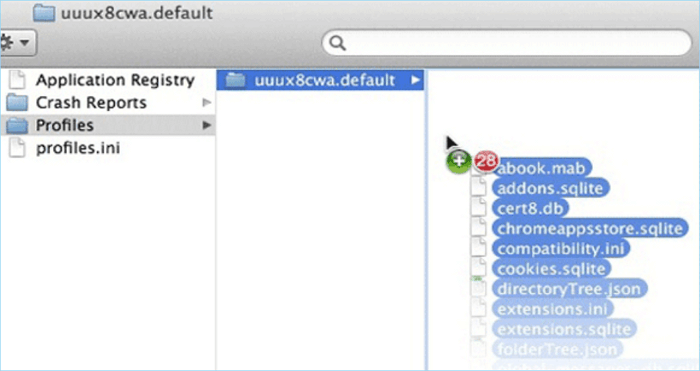
~/Library/Thunderbird/Profiles/
~/Library/Application Support/Thunderbird/Profiles/
~/Library is the home folder of Macintosh systems
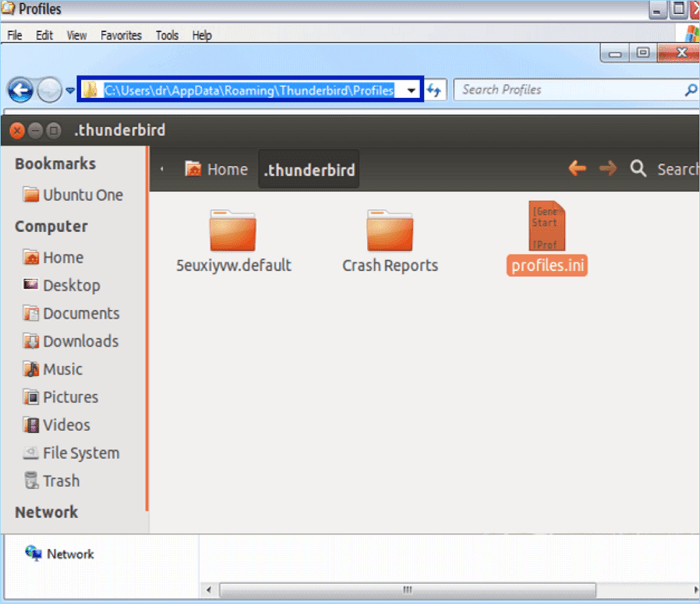
~/.thunderbird/
🍟Before we start
Back up your Thunderbird data profile folder with ease using one of three simple methods. While copying and pasting is an effective way to save a copy of your profile folder, there are two other methods to consider as well. These methods can help you back up your profile folder quickly and efficiently.
| Workable Solutions | Step-by-step Troubleshooting |
|---|---|
| Method 1: Copy and Paste - Manual | Locate your profile folder on your computer hard drive...Full steps |
| Method 2: Export Thunderbird Account Settings - Manual | Start Thunderbird and select "Tools" from the top menu bar....Full steps |
| Method 3. Use Backup Software - Automatically | To initiate a backup, click the Select backup contents option....Full steps |
- Tip
- To ensure the security of your data, it's recommended to store the backup on an external storage device or a Cloud server. This way, even if your computer experiences technical issues and your data is lost, you can easily restore it from the backup.
Method 1. Manually Copy and Paste
To back up profiles, locate your profile folder on your computer's hard drive, copy it, and paste it to a safe location such as an external hard drive or cloud storage. This straightforward method ensures your profiles are safely backed up.
❤️Kind Tip: The Thunderbird profile folder location can be found in the program's preferences or settings, by checking the "about:config" page, or by looking for the "profile" folder in the user's home directory. The default location is usually a hidden folder in your user directory.
To restore an email account or switch to a different device, simply copy and paste the backup to the desired location, and you'll be able to use your profile as before.
Step 1. Go to C:\Users\%USERNAME%\AppData\Roaming\Thunderbird\Profiles\.
Step 2. Right-click your profile folder, which might have the format xxxxxxxx.default, and select Copy.
Step 3. Right-click the target location, such as an external hard drive, and select Paste.
Method 2. Export Thunderbird Account Setting Manually
Another backup method is to use Thunderbird's built-in Export tool to export the profile folder to a ZIP file, which allows you to back up your profile information, including accounts, emails, settings, etc. This method is a good choice if you want to use the built-in tool to make the process easier.
- Warning
- This method is only suitable for profiles smaller than 2GB. For larger profiles, method 3 is recommended to ensure a complete and smooth Thunderbird backup.
Follow the steps to back up your profile folder with the Export tool:
Step 1. Start Thunderbird and select "Tools" from the top menu bar.
Step 2. Click the "Export" option, and then click the blue "Export" button.
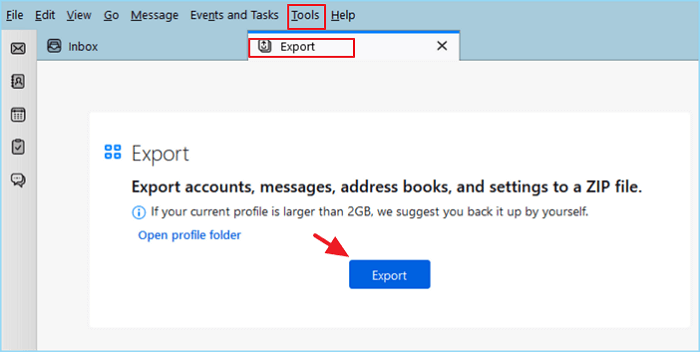
Step 3. Choose a location where you want to save the backup folder and give it a name, such as "Backup 2023" or "My Computer Backup".
Step 4. Finally, click "Save" to finish the backup process.
When you need to restore or migrate your Thunderbird profile to another device, you can unpack the backups and move all files to the new location, allowing you to use your previous account on the new device without losing any data.
📖You may be interested:
Method 3. Thunderbird Profile Backup Automatically 🔥
To save a copy of your Thunderbird profile, you can either manually copy and paste the profile folder to a safe location, or use automatic backup software for a more convenient solution. Both methods ensure your emails, settings, and account configurations are safely preserved.
Automatic scheduled backup software can be helpful for a more convenient backup solution.
Qiling Disk Master Pro is a Windows backup and recovery software that provides backup and restore functions for your computer system, files, folders, partitions, and disks, with customizable scheduled plans and support for multiple backup locations.
Qiling Disk Master is an excellent tool to back up Thunderbird emails or profiles, requiring only a few simple clicks to set an automatic backup and eliminating the hassle of manual operation. Its user-friendly design makes it suitable for those who need to handle large quantities of emails daily, and its incremental backup feature ensures that only changed data is backed up since the last backup, making it a robust tool to make your work easier.
Here is the guide on how to backup profile with Qiling Disk Master:
Step 1. To initiate a backup, click the Select backup contents option.

Step 2. There are four data backup categories, including File, Disk, OS, and Mail, and clicking on File backup is the next step.

Step 3. On the left, both local and network files will be shown, allowing you to extend the directory to pick the backup files.

Step 4. Follow the on-screen instructions to select a location to store the backup. You can choose a local drive, network drive, or cloud storage service.

To encrypt the backup with a password, click Options, then Backup Options, and select the desired encryption method. Next, click Backup Scheme to specify the backup schedule, such as daily, weekly, or monthly, and choose a start event, like a specific date or time. You can also customize additional settings to suit your needs.

Step 5. The backup may be stored on a local disk, Qiling's online service, or a Network-Attached Storage (NAS).

Step 6. Qiling Disk Master allows customers to back up data to both their own cloud drive and a third-party cloud drive.
To back up data to a cloud drive provided by a third party, select Local Drive, scroll down to add Cloud Device, and then add and log in to your account.
Step 7. Click Proceed to begin the backup process. The backup job will be presented as a card on the left side of the panel after it has been finished. Right-click the backup job to handle it further.

Thunderbird Export Email – Create A Backup of Thunderbird Email
If you're looking for a detailed guide on exporting emails from Mozilla Thunderbird, we can help you with that. We'll walk you through the process of backing up your emails using Thunderbird's built-in function. Additionally, we'll also provide you with a recommendation for a reliable alternative to this program.

The Wrap Up
You can now easily backup your Thunderbird profile using manual or automatic methods, ensuring your data is safe and accessible. Simply choose a method, follow the steps, and store the backup securely to have peace of mind. Regularly checking the backup will also give you confidence in your data's safety.
Qiling Disk Master Pro is a tool that will save you lots of effort and time to back up Mozilla Thunderbird profiles or profile folders, and is an all-in-one backup and recovery solution that helps backup folders and protect your data from being damaged or lost, and can also help you back up Thunderbird emails and restore Thunderbird emails. Download and give it a try!
FAQ on Backup Thunderbird Profile
1. Can I copy the Thunderbird profile folder to a new computer?
To transfer your Thunderbird email account to a new computer, follow these steps: locate the Thunderbird folder on your old computer, copy it to an external storage device such as a USB drive, connect the USB to the new computer, and then paste the profile to the new computer. This will transfer all your email accounts, settings, and data to the new computer.
2. How do I back up and restore Thunderbird?
To backup your Mozilla Thunderbird profile or folder, you can use the copy and paste method, the Thunderbird export tool, or Qiling Disk Master Pro. Once you have a backup, to restore, locate the backup file on your computer's hard drive or external storage device, then go to the Tools menu in Thunderbird and click "Import". Select "Export Accounts, Messages..." and choose the backup file to complete the restoration process.
3. How do I transfer my profile from one computer to another?
To transfer a profile folder from one computer to another, you can use a backup tool to create a backup of your profile on the source PC and then restore it on the target PC.
Related Articles
- 6 Solutions for Windows 10 Can't Create Recovery Drive
- Where Are the Backup Files Stored? Where Can I Find the Windows 10 Backup Files
- 2024: How to Install Windows 11 on M.2 SSD (with Pictures)
- How to Fix Outlook Favorites Not Syncing[2024 New Update]
- Windows 10 Backup Keeps Failing? Solutions to Fix It Quickly✅
- pCloud vs Dropbox: Which Wins?🏆
The battle between pCloud and Dropbox is the ultimate showdown to determine the best cloud storage software globally. Both tools offer top-notch file storage, backup solutions, robust data security, seamless file syncing, and comprehensive online support.
Products
Articles & Tutorials
- Data Recovery
- Data Backup
- File Recovery
- File Backup
- System Backup and Restore
- Disk and Partition Clone
- Technical articles
- Mobile articles
- Disk Master Help
- Windows Data Recovery Tutorials
- Windows Secure Delete Tutorials
- Windows Partition Management Tutorials
- Windows File Backup and Restore Tutorials
- Windows System Backup and Restore Tutorials
- Windows Disk Backup and Restore Tutorials
- Windows Clone Tutorials