How to Back Up Thunderbird Emails Windows 10 [Latest Tips]
To backup Mozilla Thunderbird data on Windows 10, go to the "File" menu, then select "Backup" and choose a location to save the backup. You can also use the built-in "Thunderbird Backup" add-on to automate the process. Additionally, you can use Windows built-in backup feature to back up the entire Thunderbird profile.
Thunderbird, an often-overlooked email program, is widely used by corporations for emailing and collaboration, rivaling the popularity of Outlook and Gmail in the productivity space.
Thunderbird is an email client that allows users to manage their emails, contacts, and calendar events. In Windows 10, backing up Thunderbird emails involves understanding how it works and what data needs to be saved. This includes backing up email accounts, contacts, and calendar events, as well as any custom settings and add-ons. To do this, users can export their data to an external drive or cloud storage service, such as Google Drive or Dropbox, or use a backup tool like MozBackup or Thunderbird Backup.
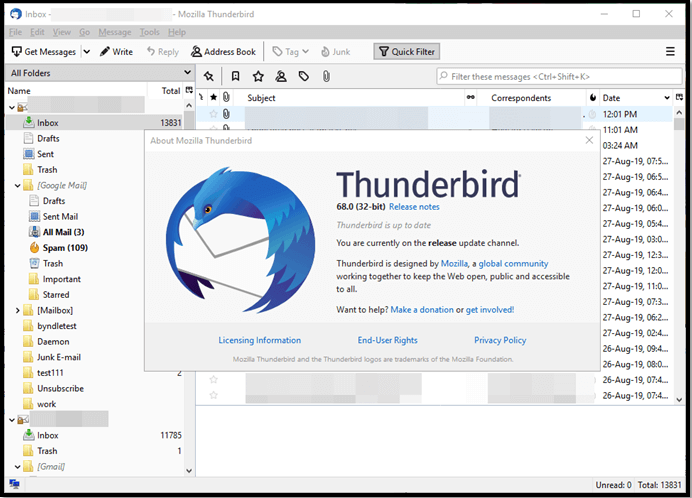
Introduction
Mozilla Thunderbird is a notable email client that makes it easy to send and receive emails across different platforms. However, despite its user-friendly interface, many users are unaware of the importance of backing up their data, which can be a critical step in ensuring their email accounts are secure and accessible even in case of technical issues or data loss.
Let's get started on how to back up Thunderbird emails in Windows 10. To do this, we need to understand the basics and necessities of Mozilla Thunderbird, which is a free email client that allows users to manage multiple email accounts and folders. By understanding its foundation, we can then proceed to learn how to back up its emails, ensuring that our important messages and data are safely stored.
What Is Thunderbird Email Windows 10?
Mozilla Thunderbird is a free email client that supports multiple platforms, including Windows, Linux, macOS, and FreeBSD, making it a popular choice in workplaces.
Based on an open-The source development method allows users to send emails across workplaces, defined parameters, or networks, making it a unique tool. However, its primary function is similar to other email clients like MS Outlook. What sets it apart is its ability to facilitate communication across different boundaries, making it a valuable tool for collaboration and communication.
- 5-50 GB of mailbox sizes;
- 10 different email aliases;
- 3-7 email group spaces;
- Supports up to 65 languages;
- Better security than usual email clients.
Trello offers high customizability, including an immersive in-built calendar, allowing for better scheduling and communication and workload management. This means that when settings and emails are saved, it's crucial to back them up.
If you want to know more about Outlook backup, you can read this article:

To ensure your Outlook data is safe, consider using one of the top 5 free Outlook backup software for Windows download. These tools, such as Qiling Backup, allow you to create automatic backups of your Outlook emails, contacts, and calendar events.
If you're looking for Outlook backup software, you'll find the top 5 best options that can be downloaded for free in 2022. These software solutions allow you to securely back up your Outlook data, including emails, contacts, and calendar events, ensuring that your important information is protected and easily recoverable in case of data loss or system crashes.

Why Need to Backup Thunderbird Email Windows 10?
There's a golden rule about computers and important data: if it can be lost, then it should be backed up. This applies to Mozilla Thunderbird emails, which can be vulnerable to accidents, data loss, virus attacks, and insecure networks.
Thunderbird users should regularly back up their data due to the risk of computer crashes, virus attacks, and software updates causing data loss, which can be mitigated by having a backup of their emails, contacts, and other important data.
Even with robust security measures in place, such as using Windows Defender or third-party software, you're still vulnerable to malware attacks. To mitigate this risk, it's essential to regularly back up your Thunderbird emails and data in Windows 10.
How to Back Up Thunderbird Emails Windows 10
Here are three effective ways to back up Thunderbird data:
Method 1. Export Thunderbird Emails
The first method of backing up emails involves saving the most important ones in a file format, which requires some time and effort. Once done, you can then do various things with your saved files, such as.
- Save it to an external device;
- Upload to a cloud service;
- Save it on another computer.
To be able to do that, you'll need to follow these steps: follow the steps below.
Step 1. Open Thunderbird and sign into your account.
Step 2. To back up your emails, choose the inbox or any other folder you need to back up, then click on the "Backup" button.
Step 3. Select one or multiple emails that you'd like to save.
Step 4. Click on the "slash button" to trigger the pop-up menu.
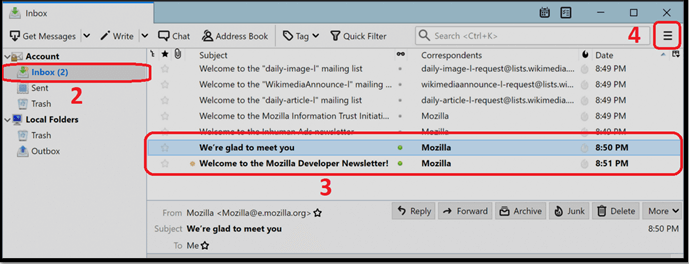
Step 5. Pick Save As then click "File".
Step 6. Pick the folder where you wish to save your files.
Saving emails in a common format allows you to open them in programs like Outlook, Gmail, and Thunderbird. It's essential to know how to save Outlook emails to your hard drive, and it's crucial to save them in a secure location and regularly update them to ensure you have the latest files backed up when needed.
Method 2. Copy Thunderbird Profile to Another Place
A Thunderbird profile is a file that stores all your email data, including login information, inbox emails, sent emails, and drafts. Saving this profile file creates a backup of your email data, allowing you to recover your information in case of data loss.
To find and save the file, go to the "File" menu, select "Save As" or "Save As Copy" depending on your desired action, and choose a location and file name. If you want to save it in the same location, you can simply click "Save" instead. You can also use the keyboard shortcut "Ctrl+S" (Windows) or "Cmd+S" (Mac) to save the file.
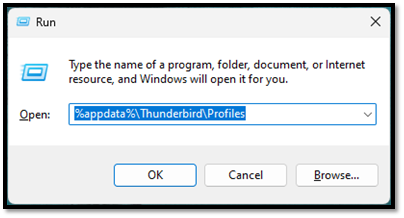
Step 1. Press "Windows + R" to bring up the Run command.
Step 2. Type "%appdata%\Thunderbird\Profiles" and press "enter".
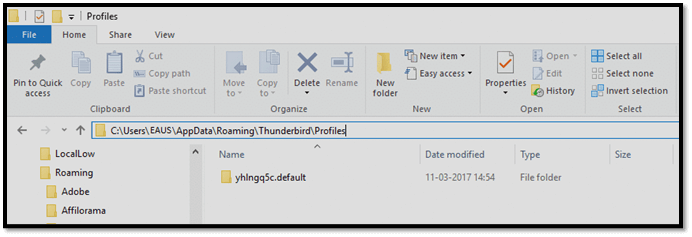
Step 3. Find the folder with the default extension.
Step 4. Copy and paste it into a folder of your choosing.
There are many cases of Windows 10 versions, and the latest release of Windows 11 annuls this process. Your Profile.ini might not be saved in the default location, and you'll need to find it. To do this, you'll need to locate the Profile.ini file, which might not be saved in the default location.
Step 1. Open the three-slash menu in Thunderbird.
Step 2. Head into Troubleshooting information.
Step 3. Find the Profile folder, and click "Open Folder".
Save your Profile.ini file to a secure location, such as cloud storage or an external device, to keep your Thunderbird backup updated and secure.
Bonus Tip: How to Back Up Email with Email Backup Tool
We can use a professional backup tool like Qiling Backup Home to effectively save our files, which can also back up our profile and Inbox and secure it on cloud storage all at once.
Qiling Backup is a reliable and affordable software tool that provides robust data protection with 13 years of experience, making it one of the top-rated backup tools. It offers advanced backup and disk imaging features, allowing for instant restoration of data anytime.
This backup software has a user-friendly interface but offers advanced features to create backups of disks, partitions, operating systems, and files. It allows for restoring and saving computers from OS crashes, system failures, and other issues, with the OS backup saved on local drives, NAS, network, or cloud.
This tool is ideal for backing up files and provides several benefits, including the ability to recover lost data, protect against hardware failure, and ensure business continuity in case of a disaster. It also allows users to schedule backups, set reminders, and monitor the backup process, making it a reliable and efficient solution for data protection.
- It helps save email files from Thunderbird, Outlook, etc.
- It offers 250GB of cloud storage.
- It offers a secure backup and recovery.
- It thoroughly updates the backup on your command.
These factors alone make it more than worth your time. So, how exactly does it help you save your Thunderbird emails? Simply put, it provides a straightforward and efficient way to export your emails, allowing you to save them in a format that suits your needs, such as EML, MSG, or HTML, among others. This means you can easily transfer your emails to other email clients or services, or even use them for archival purposes, giving you peace of mind knowing your important messages are safe and accessible.
Step 1. Click the "File backup" button to start backup.
Step 2. Both local and network files will be listed on the left, allowing you to expand directories to select the files you want to back up.

Step 3. Select the desired destination to save the backup, following the on-screen guide.

Step 4. Click "Options" to encrypt the backup with password in "Backup Options". You can also customize the backup task according to your needs by exploring other available options.

Set the backup schedule and choose to start backing up at certain event in "Backup Scheme".

Step 5. You can store the backup to local drive, Qiling's cloud service, and NAS.

Step 6. Qiling Backup allows users to save their data to both external cloud drives and its own cloud storage.
To back up data to a third-party cloud drive, select Local Drive, scroll down to add a Cloud Device, add and log in to your account.
Step 7. Click "Proceed" to start the backup task, which will then be displayed as a card on the left side of the panel. Once completed, you can click the "Advanced" button in the task card to further manage the backup.

Wrap Up
To ensure a thorough backup of your Thunderbird emails, you can use a combination of traditional methods and the Qiling Backup Home tool. This approach provides a comprehensive backup solution, allowing you to choose the method that suits you best. By regularly backing up your Thunderbird files, you can ensure that your important emails and data are safely stored, reducing the risk of loss due to system crashes or other issues.
Meta Description:
Thunderbird is a widely used email client, but backing up and recovering email and data can be a challenge. Fortunately, there are ways to back up Thunderbird email and data on Windows 10, which we'll explore in this article.
Backup Thunderbird Emails Windows 10 FAQs
Here are four frequently asked questions about God and the universe:
1. How do I backup Thunderbird Emails to an external hard drive?
This article discusses two methods to save individual emails or the entire profile of your Thunderbird account, allowing you to back up your data and transfer it to an external hard drive. By saving these files or the entire profile at regular intervals, you can keep your backup fresh and ensure your important emails and account information are safe and secure.
2. Where are my Thunderbird Emails files stored?
To find your Thunderbird email files, you can usually locate them in the "C:\Users\Username\AppData\Thunderbird" folder. Alternatively, you can access them through the Thunderbird menu by going to Help> Troubleshooting information, then finding the Application basic section and clicking on Profile Folder, and finally clicking on Open Folder to navigate directly to the email files.
3. How do I restore Thunderbird Emails in Windows 10?
You can either copy and paste the files into the same Appdata folder from where you copied them, or import the email files from within Thunderbird. However, for a smooth recovery/restore process, we recommend using Qiling Backup Home.
4. Which is the simplest method to back up Thunderbird Emails?
Using a dependable tool like Qiling Backup Home can greatly ease the process of backing up your computer, which can be time-consuming and problematic for novice users. While other methods, such as System Restore, Windows Backup, and external hard drive backups, are effective, they may require more time and effort, making Qiling Backup a convenient alternative.
Related Articles
- For Business of All Sizes: A Solid Way for Business Data Backup
- Tutorial: Windows 10 Offline Update Tips
- Windows 11 File History: Create File Backups and System Backup Image
- How to Install Windows 11 on Another Drive in Quick Steps
- Detailed Comparison | Virus Protection VS Internet Security
Are you wondering what to choose between Virus Protection vs Internet Security? Consider this guide to know the nitty-gritty information about Virus Protection and Internet Security. Also, have a look at the Qiling Backup tool, which is a bonus to strengthen the protection of your PC. - What Files Should Users Backup on A Computer
If you're concerned about losing your data, it's essential to back up your files on your computer. To do this, you can use various methods, and we've rounded up some of the easiest ones.
Products
Articles & Tutorials
- Data Recovery
- Data Backup
- File Recovery
- File Backup
- System Backup and Restore
- Disk and Partition Clone
- Technical articles
- Mobile articles
- Disk Master Help
- Windows Data Recovery Tutorials
- Windows Secure Delete Tutorials
- Windows Partition Management Tutorials
- Windows File Backup and Restore Tutorials
- Windows System Backup and Restore Tutorials
- Windows Disk Backup and Restore Tutorials
- Windows Clone Tutorials