macOS Sonoma Installation Failed | 4 Practical Methods to Fix it 2023
macOS Sonoma installation failedThis article will demonstrate four practical solutions for resolving the macOS Sonoma installation error and getting your Mac operating with the new OS.
This article provides methods to troubleshoot and resolve installation issues with macOS Sonoma, equipping readers with the tools to successfully install the latest macOS release on their Mac.
| Workable Solutions | Step-by-step Troubleshooting |
|---|---|
| Fix 1. Restart Mac | Click on the Apple logo, and choose Restart from the menu. Click Restart again to confirm...Full steps |
| Fix 2. Check Mac Storage | Select About This Mac from the Apple logo, and Mac estimates available capacity...Full steps |
| Fix 3. Check Mac Compatibility | Click the Apple logo to open About This Mac. A window will display your Mac's information...Full steps |
| Fix 4. Create macOS Sonoma Bootable Installer | Download a file, and it will be downloaded to your Downloads subdirectory on your Mac...Full steps |
Why macOS Sonoma Installation Failed
macOS Sonoma installation failed due to it being in testing phases, insufficient disk space, hardware mismatch, damaged data, or network issues.
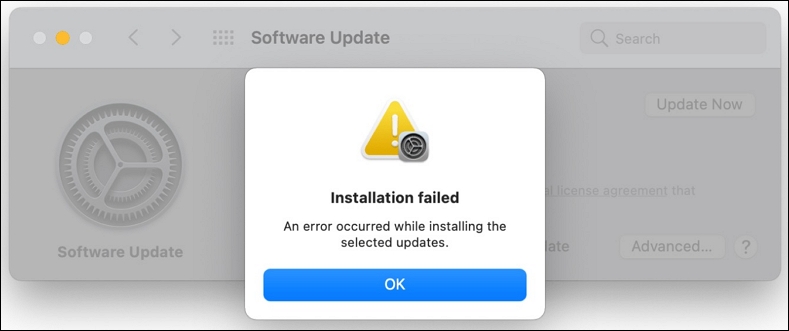
macOS Sonoma installation failure can occur due to several probable causes, including issues with the installation process, compatibility problems with the computer's hardware or software, corrupted installation files, or problems with the Apple ID or login credentials. Additionally, conflicts with other operating systems or software, outdated or incompatible drivers, or hardware malfunctions may also contribute to installation failure.
💾Low storage space: You need at least 20 GB of free storage space to download and install macOS Sonoma.
If your Mac deleted files are not freeing up space, it's likely because moving them to the Trash doesn't actually delete them. Instead, they remain on your Mac, taking up space. To permanently delete files and free up space, you can follow the steps outlined in this article.
🤖Software incompatibility:Mac users cannot install the macOS Sonoma update if their Mac is not on the list of supported models, as not all Mac models are compatible with the new operating system.
- iMac Pro in 2017
- MacBook Air, Pro, and Mac mini in 2018 and later
- iMac and Mac Pro in 2019 and later
- Mac Studio in 2022 and later
If your Mac is not on the list, don't worry, and read this article to install macOS 14 Sonoma on unsupported Mac models.
macOS Sonoma, also known as macOS 14, is now available for download. However, it may not be compatible with all Mac models.
This article will guide you on how to install macOS 14 Sonoma on an unsupported Mac with a step-by-step tutorial. install macOS Sonoma on an unsupported Mac
🍏Not registering as an Apple developer: macOS Sonoma, currently in beta, is only accessible to registered developers with an Apple ID, and a developer account is required to download or install the update.
😫No backup: Before installing a big update, back up your data with Time Machine to avoid losing important information or settings in case something goes wrong during the installation process. This way, you can recover your files even after a factory reset on your Mac.
❌Corrupted installer: The installation file may become corrupted or damaged during download or transfer, leading to installation issues or failures. To resolve this, delete and reinstall the installation app from the App Store.
🌐Network problems: A slow or unreliable internet connection can cause installation issues. You may encounter problems while downloading or verifying the installation file. To avoid this, use a stable private internet connection instead of a public or shared one.
⚠️System issues: If your Mac's hardware or software is experiencing issues, the installation of macOS Sonoma may not be successful. This could be due to problems with FileVault or the Firewall, or a need to reset NVRAM/PRAM or SMC, and creating a new macOS Sonoma USB installer may be necessary.
⏱️Temporary errors: If the installation fails due to temporary issues, try restarting your MacBook and reapplying the update after some time, as the problem may resolve itself.
How to Fix macOS Sonoma Installation Failed
Installing a new OS can be straightforward, but complications can arise. If you're experiencing issues with macOS Sonoma, don't panic - there are workable alternatives to get you back on track.
Here we'll go through four tried-and-true solutions to installation problems so you can have macOS Sonoma up and running on your Mac.
Fix 1. Restart Mac
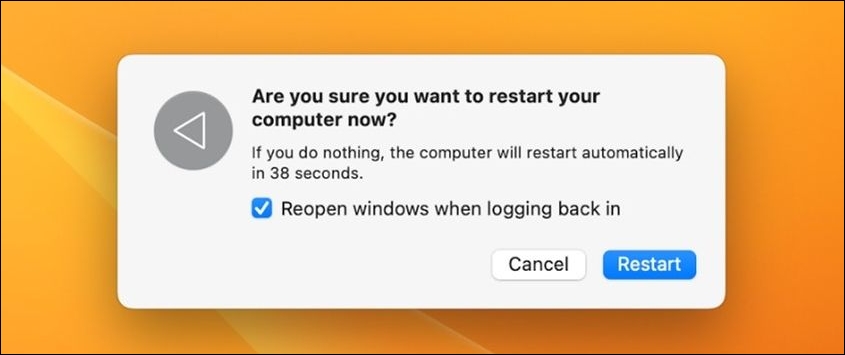
Restarting your Mac can sometimes solve various problems, including installation issues. A simple restart can clear its memory and restore the computer to regular speed. If you're experiencing difficulties using specific commands or apps, restarting your Mac can be a helpful solution. To restart your Mac, you can simply follow the easiest method.
Step 1. To access the Apple menu, click on the Apple logo in the toolbar of your Mac. This will display a menu with options such as System Preferences, Restart, Shut Down, and more.
Step 2. To restart your Mac, select "Restart" from the menu, then click "Restart" again to confirm, and it will instantly restart.
Fix 2. Check Mac Storage
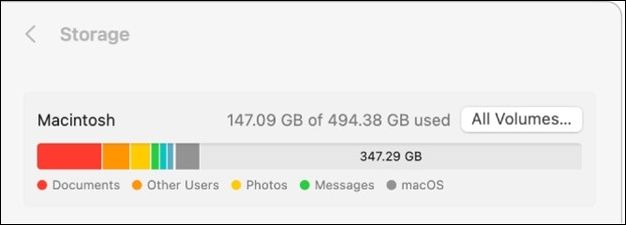
To download and install the macOS Sonoma update, you'll need at least 20 GB of free space on your Mac's startup disk. If your startup disk is running low, remove or move unnecessary files to free up space. To check your storage space, go to About This Mac, then click Storage, and finally click Manage. This provides an overview of your storage usage and suggest ways to free up space. If you're short on space, consider deleting unnecessary files, moving files to an external drive, or upgrading your storage to a larger SSD.
Step 1. To access the "About This Mac" feature, click on the Apple logo located in the upper-left corner of the screen. This will open a dropdown menu, and from there, select "About This Mac" to view information about your Mac's hardware and software specifications.
Step 2. After selecting "Storage", the Mac estimates available capacity.
Fix 3. Check macOS Sonoma Compatibility
To check if your Mac is compatible with macOS Sonoma, follow these steps:
Step 1. To view your Mac's specifications, click the Apple logo in the top left corner and select "About This Mac". This will open a window displaying your Mac's name, CPU, RAM, serial number, and other details.
Step 2. Check the "Model Name" or "Model Identifier" to see if your device works.
If your Mac's macOS Sonoma installation fails, don't worry - it's an easy fix! To resolve the issue, try restarting your Mac, then go to System Settings > Software Update and click on the "Update Now" button.
Fix 4. Create Bootable Installer macOS Sonoma
To create a macOS Sonoma bootable USB, you can follow these steps: First, ensure you have a compatible Mac with a USB drive that is at least 16GB in size. Then, download the macOS Sonoma installer from the App Store. Next, use the Terminal app to create a bootable USB drive by running the command `sudo /Applications/Install\ macOS\ Sonoma.app/Contents/Resources/createinstallmedia --volume /Volumes/USB\ Drive --applicationpath /Applications/Install\ macOS\ Sonoma.
Step 1. Download a file named InstallAssistant.kg. When complete, the file will be downloaded to your Downloads subdirectory. This is the first step in the installation process.
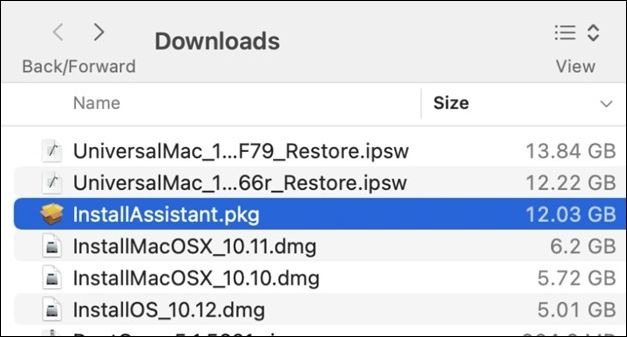
Step 2. To install the macOS Sonoma Beta, first, download the InstallAssistant.pkg file from your Downloads folder. This Apple package installer will transfer the "Install macOS Sonoma Beta app" to the Applications subdirectory.
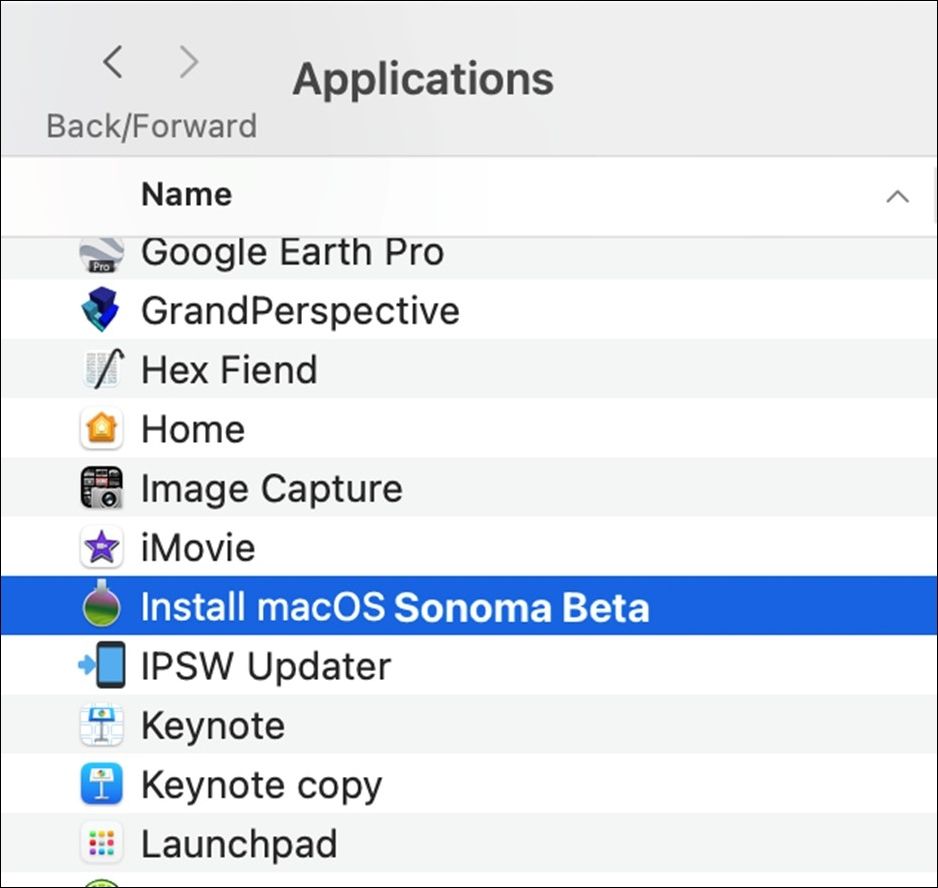
To install macOS Sonoma from a USB drive, start by creating a USB installer with the Install macOS Sonoma application in your Applications folder, ensuring the USB drive is at least 16 GB in capacity due to the installer's size of 12-14 GB.
Step 1. Connect the USB flash drive.
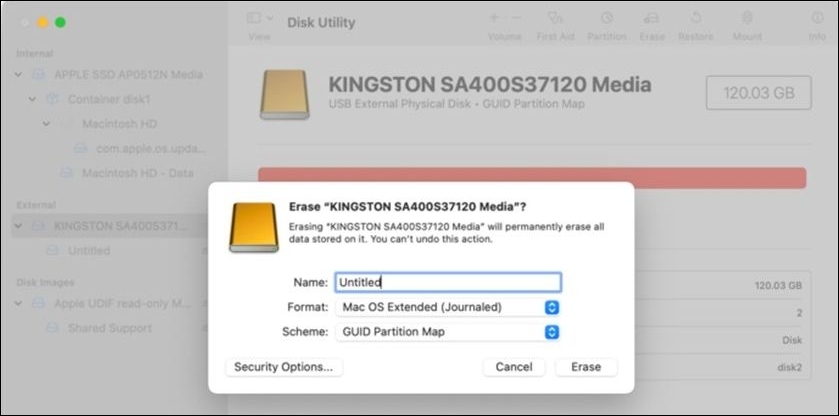
Step 2. To access the USB drive in Disk Utility, click the "View" icon, select "Show All Volumes", and then choose the name of the USB drive from the upper level.
Step 3. The "Top-level drive" typically refers to a USB drive. Click the "Erase" button to delete the contents of your USB Flash drive.
Step 4. Open Terminal from the /Applications/Utilities folder.
Step 5. Type sudo followed by a space.
Note: The installer application for macOS Sonoma should be dragged into the Terminal window.
Step 6. The complete command is sudo /Applications/Install macOS 14 Beta.app/Contents/Resources/createinstallmedia.
Step 7. To create a bootable USB Flash Drive, add the –volume option before dragging your USB Flash Drive into the terminal window. Then, when prompted, type in your account's password and press enter.
Note: The complete command will look like this:
sudo /Applications/Install\ macOS\ 14\ Beta.app/Contents/Resources/createinstallmedia --volume /Volumes/Untitled
Should You Install macOS Sonoma Beta
macOS Sonoma, the latest Mac operating system, offers several new features, such as Universal Control, enhanced AirPlay capabilities, improved Focus mode, and a revamped Safari browser.
Installing the beta version of macOS Sonoma can result in software flaws, system instability, and even data loss on your Mac, but if you still wish to test the beta version, you must follow Apple's official instructions and ensure your Mac meets the minimum requirements.
Or you can read the article below to downgrade Sonoma to Ventura.
Downgrade macOS Sonoma to Ventura | Uninstall Sonoma Beta
This article explores three practical methods to downgrade macOS Sonoma to Ventura, providing a solution for users who want to revert to the previous operating system.
If you've updated your Mac and lost all your data, don't worry, you can use professional data recovery software to retrieve your lost data and recover deleted files on macOS Sonoma.
Deep Data Recovery for Mac is a reliable software that efficiently recovers lost data, helping with accidental file deletion, data corruption, or formatting issues, with a user-friendly interface and advanced scanning algorithms.
The software can recover permanently deleted files on a Mac, including photos, videos, documents, and more. It can also recover lost files after a macOS Ventura update or Sonoma upgrade, making it a useful tool for those who have accidentally deleted important files.
Note: To create a backup, click on "Disk Backup" on the left, which allows you to recover data in case of disk damage or accidental deletion.
Step 1. Select the location
After updating to macOS Sonoma/Ventura/Monterey/Big Sur, select the disk where you lost data and click "Search for lost files".

Step 2. Find lost data after the scan
Deep Data Recovery for Mac scans the selected disk volume and displays the results, allowing users to find specific data using file type and path.

Step 3. Recover data after macOS update
Select the target files that were unknowingly lost during or after the update and click the "Recover" button to restore them all.

Conclusion
macOS Sonoma Beta offers exciting new features, but users should be aware of the potential risks of bugs, system instability, and data loss that come with using beta software.
If you're moving on from macOS Sonoma, it's essential to have a reliable data recovery solution, such as Deep Data Recovery for Mac, to ensure your files are safe. Qiling's robust and dependable recovery features can provide peace of mind during the beta testing phase.
macOS Sonoma Installation Failed FAQs
Here are some questions people frequently ask related to macOS Sonoma installation failure:
1. How to install macOS Sonoma on my Mac?
To install macOS Sonoma on your Mac:
Step 1. Go to the Apple Developer site and sign up for an account.
Step 2. Navigate to "Settings > General".
Step 3. Click the "Software Update" button.
Step 4. Choose the "i" symbol to the right of the Beta Updates section.
Step 5. To upgrade to macOS Sonoma, click the "macOS Sonoma Developer Beta" button, and then choose "Upgrade Now" from the "macOS 14 Beta" option.
Step 6. Select "Install Now" after it has finished downloading.
2. Why is macOS Sonoma failing to install?
macOS Sonoma installation failure can be caused by various factors, including insufficient disk space, hardware incompatibility, and network issues. To troubleshoot, check your Mac's storage capacity to ensure it meets Apple's system requirements, and establish a stable internet connection to avoid any connectivity problems.
3. Is my Mac too old to install Sonoma?
macOS Sonoma may have system requirements that limit its compatibility with older Mac models, potentially restricting its use on certain devices.
- iMac Pro in 2017
- MacBook Air, Pro, and Mac mini in 2018 and later
- iMac and Mac Pro in 2019 and later
- Mac Studio in 2022 and later
If your Mac doesn't meet the required specifications for Sonoma, it won't be compatible with the new operating system.
Related Articles
- How to Factory Reset M1/M2 Mac in 2023 [for MacBook, iMac, Mac mini]
- (Solved!) How to Backup Gmail Emails to Another Gmail Account
- 5 Proven Ways to Fix Zsh Command Not Found Error on macOS [Bash & Zsh]
- How to Change Network Names on Windows
- Hard Drive Recovery| Recover Files from a Hard Disk
Have you ever lost your hard drive data? We compiled super easy methods to perform hard drive data recovery on Windows 11/10/8/7 and restore hard drive data on Mac. Read on to get the full guide to recover hard drive data in no time. - What Is Intranet? Everything You Need to Kow about It
Still new to the concept of the intranet? As it is involved from the networking family, here is a detailed guide containing everything you need to know about the intranet, from the basic concept to its benefits and drawbacks.
Products
Articles & Tutorials
- Data Recovery
- Data Backup
- File Recovery
- File Backup
- System Backup and Restore
- Disk and Partition Clone
- Technical articles
- Mobile articles
- Disk Master Help
- Windows Data Recovery Tutorials
- Windows Secure Delete Tutorials
- Windows Partition Management Tutorials
- Windows File Backup and Restore Tutorials
- Windows System Backup and Restore Tutorials
- Windows Disk Backup and Restore Tutorials
- Windows Clone Tutorials