How To Switch Monitors 1 and 2 On Windows 10 Computer
PAGE CONTENT
Using dual monitors can significantly boost productivity by displaying more information on the screen. While setting up multiple monitors on a Windows PC can be straightforward, fine-tuning may be required to get everything just right. Whether you want to use a different monitor as your primary display or relocate one, switching displays on a Windows 11/10 computer is a simple process that can be completed quickly. This post will guide you through the steps to switch between monitors 1 and 2 on a Windows PC.
What are Multiple Monitors? How's It Beneficial
A multiple monitor arrangement involves connecting multiple screens to a single computer, providing more screen space and control. This can be done using cables like HDMI, DisplayPort, VGA, or DVI, or wirelessly with a wireless display adapter.
Multiple monitors provide more screen space, allowing users to navigate between them and slide apps across them, effectively creating an extra-large desktop. This enables simultaneous work on multiple tasks without frequent window switching, and is also useful for gamers who want a broader field of view and traders who can load multiple charts and platforms.
You may be interested:
Why Switch Monitor Positions on Windows
Windows may not always recognize the monitor arrangement, especially in cases where users have limited space for two monitors. As a result, the secondary monitor may be incorrectly identified as the primary one, such as being placed on the left instead of the right. However, users can take control of their workspace by switching displays, which can help reduce glare, improve viewing angles, and prevent eye strain.
Working on multiple projects or having multiple software components open can be efficiently managed with a larger monitor as your primary display, allowing you to view more information at once.
To determine which monitor should be your primary display, consider factors such as the monitor's resolution and refresh rate, as using the one with the higher resolution or refresh rate can improve visual quality. Your specific needs and usage will also influence the decision, and it may be helpful to experiment with different setups to find the best configuration for you.
Prerequisites
A dual monitor setup involves using two separate monitors to increase productivity and multitasking capabilities. The monitors can be positioned side by side, one on top of the other, or even in a corner of a room.
- Two Monitors: To switch between two monitors, you need at least two displays, which can be two separate monitors or a laptop screen and an external monitor.
- HDMI/VGA/DisplayPort Cables: To connect a secondary monitor, you'll need the right cables and wires, which can be obtained based on your display's compatibility.
- Compatible Graphics Card: To set up a dual monitor setup, ensure your graphics card supports this feature, otherwise you may need to upgrade it.
- Drivers: In rare instances, Windows may not automatically install drivers for a secondary monitor, requiring manual installation of the drivers on your Windows PC.
- Administrator Privileges: To modify computer settings, you must be logged in with an administrator account.
How to Switch Monitors 1 and 2 on Windows 10
To toggle between primary and secondary displays in Windows, ensure the projection options are set to PC screen only, secondary screen, or extend. This will allow you to switch between monitors.
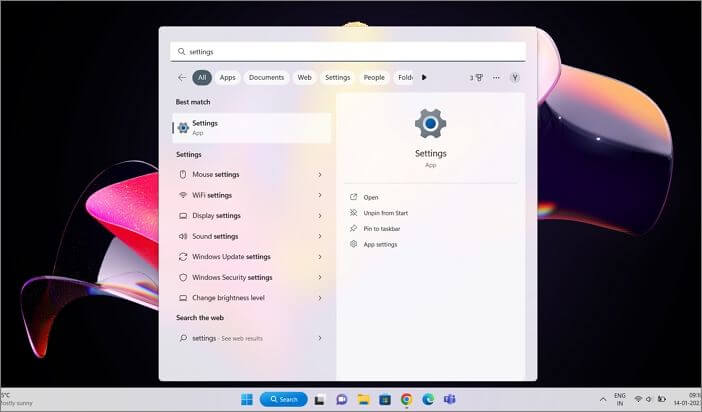
Step 1: To locate the Settings application on your Windows 11 computer, click the Start button, search for Settings, or press the Win + I keys on your keyboard.
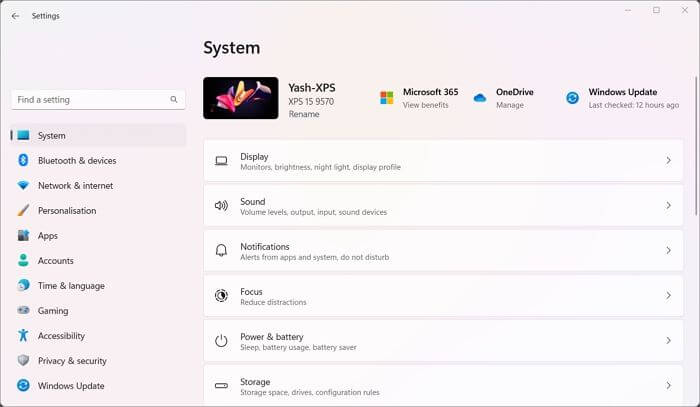
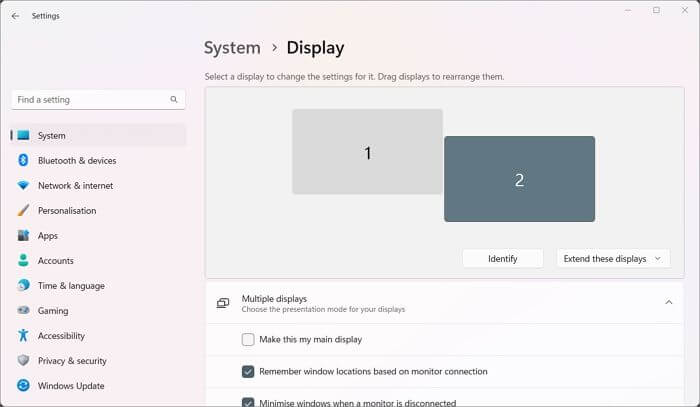
Step 2: To view a list of all the displays connected to your computer, navigate to the System > Display menu in Settings. Here, you'll see the primary display labeled as 1 by default and the secondary monitor labeled as 2.
Step 3: If you're unsure which of your two monitors is 1 and which is 2, you can use the Identify button on this page to find out. This will make it easier to determine which one you're moving by displaying a large number on the matching monitor.

Step 4: To switch monitors, click on the monitor number you want to relocate, then click and drag it to the desired spot. For example, to make monitor 1 your primary monitor, click and drag it to the left of monitor 2.
Step 5: To save your changes, click the Apply button. This will finalize your changes and you're done.
To switch between primary and secondary displays, select the display you want to make primary, tap on the "Multiple Displays" section to expand the available options, and choose "Make this my main display".
To switch between multiple monitors on a computer, first, ensure that the correct monitor is set as the primary display. This can be done by going to the display settings on your computer and selecting the desired monitor as the primary one. Once the primary monitor is set, you can switch between the other monitors by clicking on the taskbar and selecting the monitor you want to switch to.
Conclusion
Swapping monitors on a Windows 10 computer Customizing monitor settings is a straightforward process that can be completed in simple steps. This guide offers presented all of the details you need to customize the settings of your monitors to fit your needs, whether you're a professional or a home user.
You can easily switch between primary and secondary displays by going to Settings, identifying the monitors, swiping the monitor locations on the screen, and clicking the Apply button, which can help you be more productive, have a better gaming experience, tailor your work environment, and multitask more effectively.
Related Articles
- 2 Ways to Force Update Windows 10 to the Latest Build
- Google Drive for Desktop VS Backup and Sync [What's the Differences]
- WD Easystore VS My Passport: Which One to Pick?🔥
- C Drive VS D Drive: What Are the Main Differences?
- How to Find IE Account and Password? Look Here!
Are you looking for IE Account and Password? Do you want to remove it? The guideline below will help you locate the IE account and password. - How to Find or Recover Microsoft Office 2010 Product Key Already Installed
If you're reinstalling Office 2010 and need the 25-character product key, but can't find it, you can try various methods to recover it. - Fix Windows 11 Brightness Not Working (2026 Guide)
Products
Articles & Tutorials
- Data Recovery
- Data Backup
- File Recovery
- File Backup
- System Backup and Restore
- Disk and Partition Clone
- Technical articles
- Mobile articles
- Disk Master Help
- Windows Data Recovery Tutorials
- Windows Secure Delete Tutorials
- Windows Partition Management Tutorials
- Windows File Backup and Restore Tutorials
- Windows System Backup and Restore Tutorials
- Windows Disk Backup and Restore Tutorials
- Windows Clone Tutorials