How to Set Separate Wallpapers on Dual Monitors in Windows 10/11
Dual monitors have become a staple for many users, especially after the internet boom, with setups used for trading, gaming, entertainment, and work. Microsoft has invested in providing an exceptional visual experience for desktops. To personalize your dual-monitor setup, you can set a dual-monitor wallpaper for Windows 10/11, allowing you to customize your visual experience with features available in the software.
Setting different wallpapers for different monitors can make your workspace more appealing, especially for users who want detail-oriented wallpapers that reflect their thoughts and interests. Although this feature is hidden in the settings, it's possible to configure a Windows PC to set multiple wallpapers for dual screens or the same wallpapers for both screens, and even extend a single image over two monitors. There are various ways to achieve this, and reading on will reveal the different methods for setting the same and different wallpapers for dual monitors.
Set Different Wallpapers in Windows 10/11
There are multiple methods by which you can set wallpapers for the monitors. Let us know the different ways to do so.
- Method 1. Use the setting app
- Method 2. Setting Wallpapers using the Windows directory
- Method 3. Setting the Wallpaper using the Run Command dialog
Method 1. Use the setting app
Setting wallpapers for dual monitors is the easiest and fastest way to personalize your desktop. To set different wallpapers for each monitor, go through the following steps below.
Step 1. To open the settings or Search for the app, click the Windows + L keys at a time.
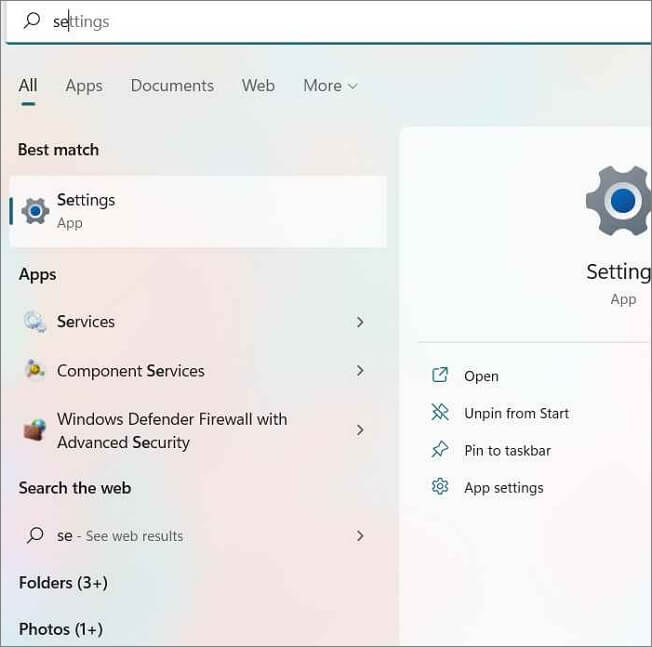
Step 2. In the Settings app, Select Personalization.
Step 3. Navigate to the Background Settings.
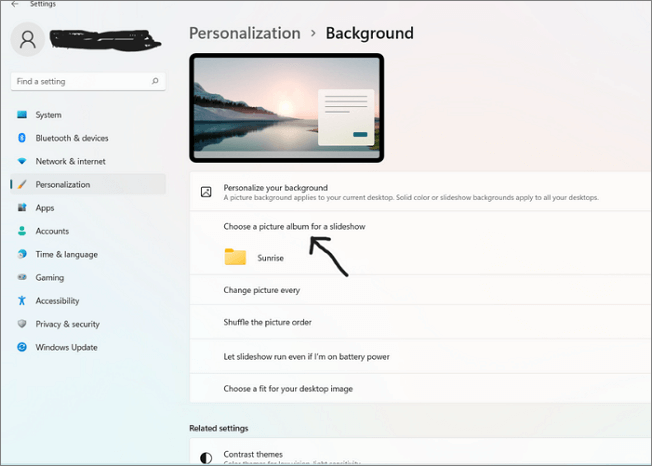
Step 4. Scroll down to the Choose your Picture section to select the picture or pictures for the monitor screen.
Step 5. Choose a photo for your background from the default pictures, and you can use the Browse button to select from your computer.
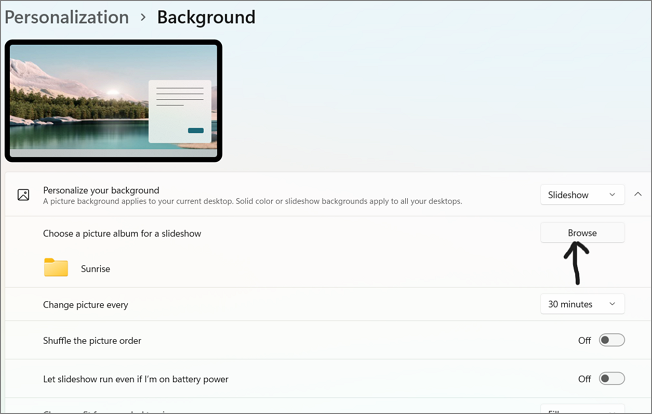
Step 6. To set the wallpaper, right-click on the selected photo and choose the monitor you want to set the wallpaper for.
This action displays three options:
- Set for all monitors
- Set for monitor 1
- Set for monitor 2
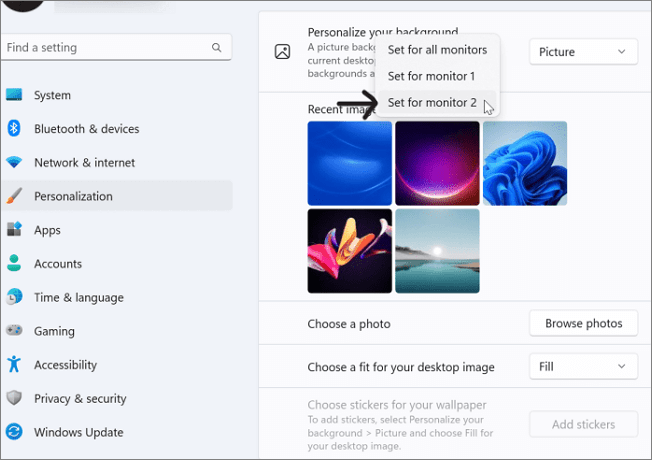
Step 7. To add a wallpaper to a monitor, select the monitor you want to add the wallpaper to, click on the "Wallpaper" option, choose a wallpaper from the available options, and then click "Apply" or "OK" to confirm your selection. Repeat this process for any additional monitors you want to add the wallpaper to.
Method 2. Setting Wallpapers using the Windows directory
To add pictures to your monitors, you can use the Windows directory. Simply copy the photos you want to display and follow the steps below to add them to your monitors.
Step 1. Choose the images you want to add to the Windows directory from your computer.
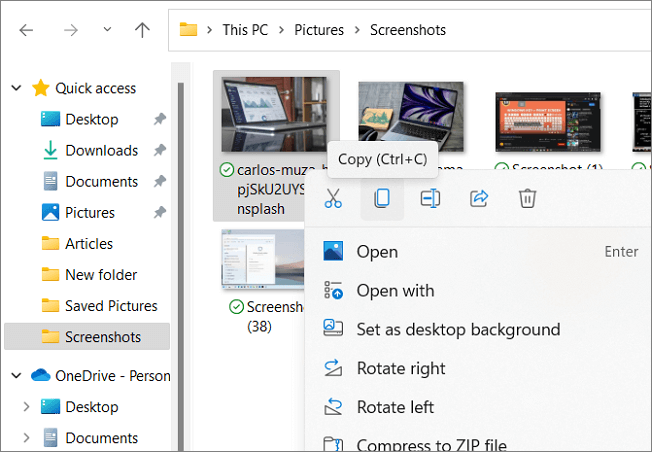
Step 2. Paste those pictures in the directory using the directions: C: Windows/Web/Wallpaper/Windows

Step 3. Paste the files into the directory and click on "Continue" on the Windows prompt to add them to the directory.
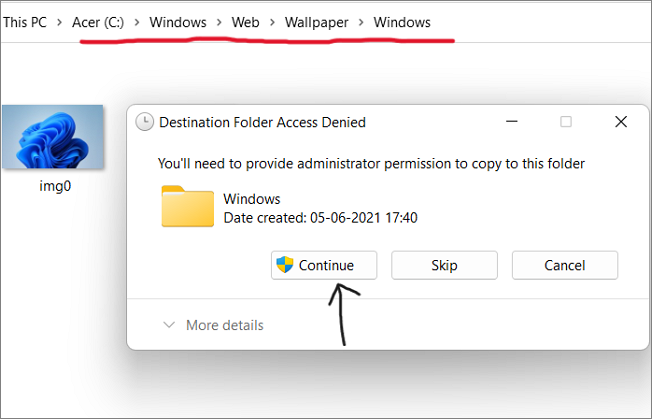
Step 4. To synchronize the desktops of two monitors, go to the settings app and follow the steps in method 1 to select the images for both monitors.
Step 5. To update the monitors, restart the device. This will apply the changes made to the monitors.
Method 3. Setting the Wallpaper using the Run Command dialog
Step 1. To open the Run window, click the Windows and R keys simultaneously at the same time. This will open a small window where you can type a command or program name to execute it.
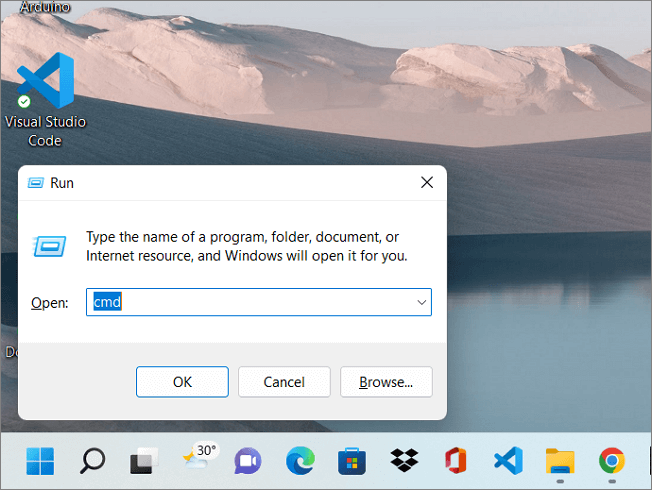
Step 2. Copy and paste the following command in the Run Window:
shell:::{ED834ED6-4B5A-4bfe-8F11-A626DCB6A921} -Microsoft.PersonalizationpageWallpaper
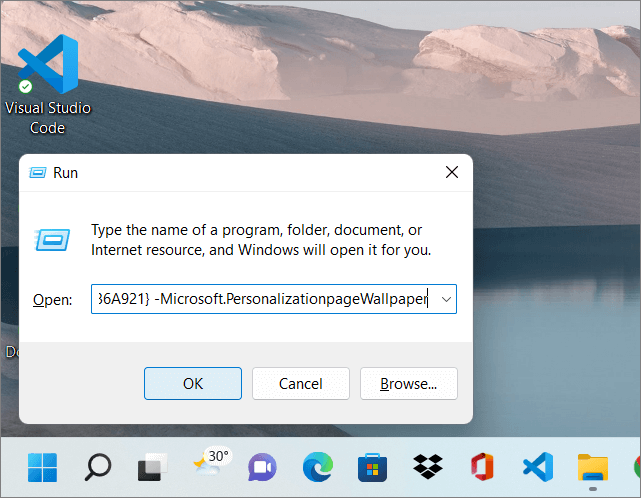
Step 3. Click on "Desktop Background" to access the settings.
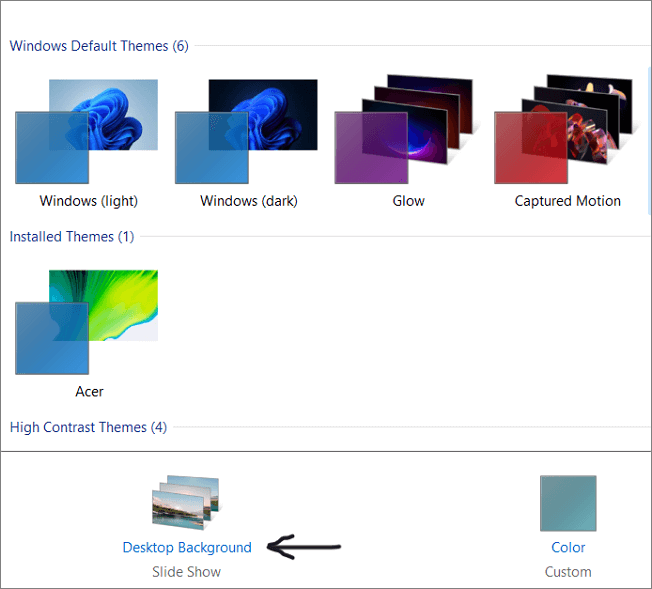
Step 4. To set a desired wallpaper, first, choose the desired wallpaper, right-click on it, and select the monitor you'd like it to appear on.
Step 5. Repeat the process for the other monitor by following steps 4-6, and then restart the device to see the changes.
When setting wallpapers for dual monitors, consider visiting Unsplash's free images website to find a wallpaper of your choice.
Set Same Wallpaper for Dual Monitors in Windows 10/11
Let us look at ways to choose the same wallpapers for dual monitors. This is similar to setting different wallpapers except for a few changes.
Step 1. Press the Windows + L keys at a time to open the settings.
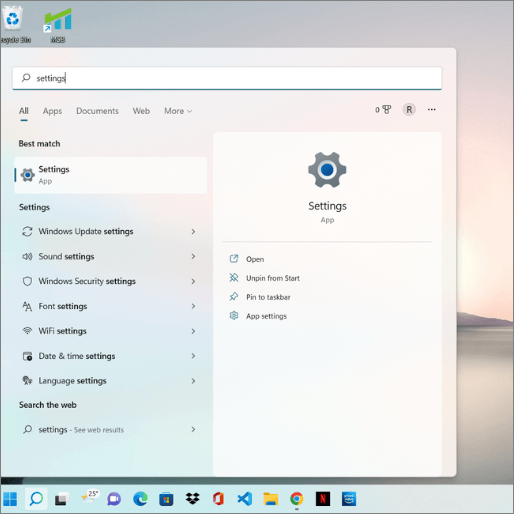
Step 2. Go to the Personalization section and click on the Background settings.
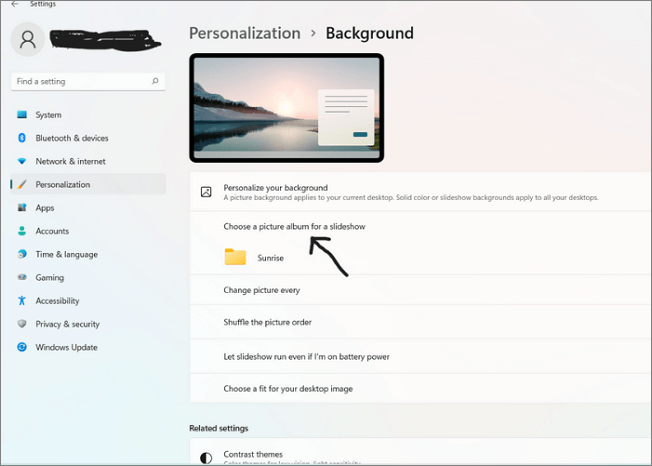
Step 3. You can either select an image from the default ones provided or browse through your computer's image library to choose the one you prefer.
Step 4. To view monitor options for an image, select the image, right-click on it, and a list of options will appear.
The monitor options are:
- Set for all monitors
- Set for monitor 1
- Set for monitor 2
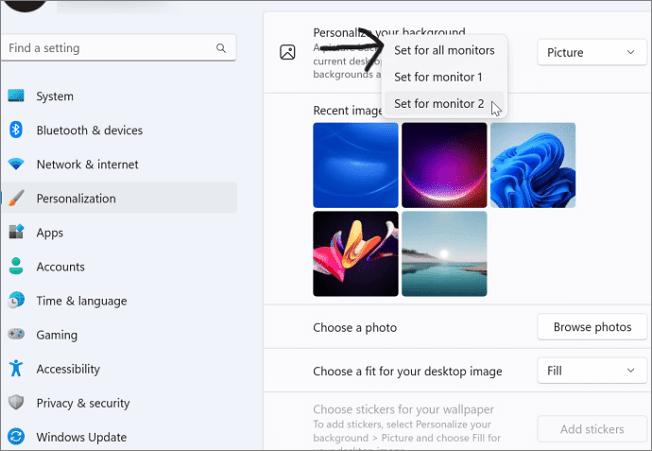
Step 5. To set the same wallpaper for both monitors, choose the "Set for all monitors" option. This will apply the same background image to both screens, ensuring consistency across your dual-monitor setup.
You can see the image fill both monitors, and by choosing a fit option, you can spread the single image across the monitors.
How to Extend Wallpaper Across the Two Windows 11 Monitors
Most dual monitor users like having a single image spread across both screens rather than having the same one on both screens. Windows exclusively offer the extended option for dual monitors to have a complete picture. Here are the instructions you need to follow to extend an image across the dual monitors.
Step 1. Open the Settings app using Windows + L keys.
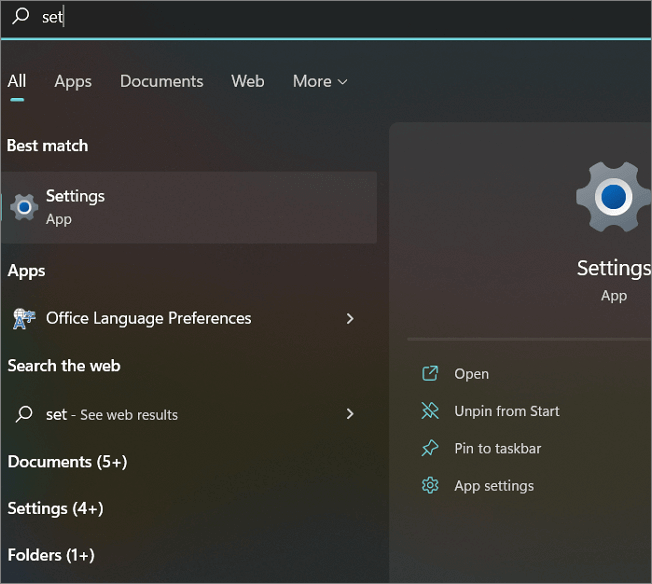
Step 2. Navigate to the System settings ad click on "Display".
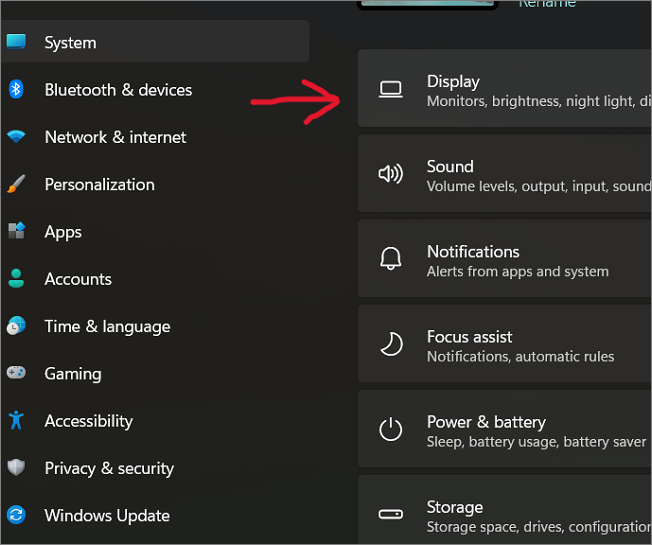
Step 3. In the Display Options, select the "Advanced Display" option to invoke a drop-down menu.

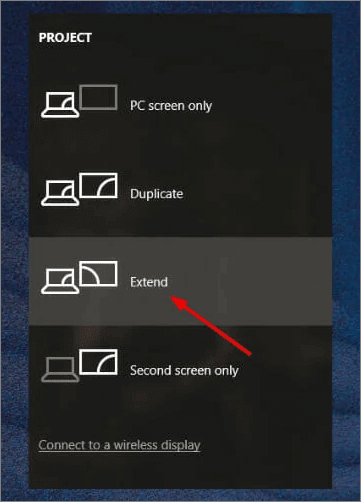
Step 4. To spread the wallpaper across both monitors, click on the "Extend" option.
Final Verdict
Dual monitors have become increasingly popular due to their numerous benefits and uses, leading to a significant increase in productivity for users across various fields. They offer a more appealing setup, especially with eye-catching wallpapers, and once accustomed to them, many find it difficult to revert to a single monitor setup.
Setting dual monitor wallpaper can be done in various ways, and the article focuses on this specific topic. You can either set the same image for both monitors or choose different images for each one. Additionally, using Remote Desktop is also an option to set up dual monitor wallpaper.
To personalize the Windows 10/11 lock screen, head to the Settings app and follow the steps to change the images to your liking. This is the fastest and most viable way to customize your lock screen. If you found this article helpful, consider sharing it with your friends.
FAQ
1. Can Windows 10/11 have live wallpapers?
Windows 10/11 allows live wallpapers, but it doesn't have a built-in feature. Instead, users can download third-party apps from the Microsoft store to add videos, webpages, and GIFs as their desktop wallpapers. These apps are available for free and can be used to securely set live wallpapers for monitors.
2. Why are my wallpapers blurry on Windows?
Blurry wallpapers often result from a mismatch between the picture file and the screen size. Most computer monitors come with a resolution of 1280x1024 pixels. If the chosen wallpaper image has fewer pixels, the operating system will stretch it to match the screen size, disrupting the original resolution. To resolve this issue, consider choosing an image that matches or exceeds the monitor's pixel resolution.
Related Articles
- How to Fix Atomic Heart Keeps Crashing Issue on PC
- Games Keep Crashing on Windows 10/11 - 13 Quick Fixes
- Enable Macros in Excel 🎖️| Microsoft Excel
- Fixed: CHKDSK Failed to Transfer Logged Messages to the Event Log with Status 50
- 2 Ways to Log in as Administrator in Windows 10
An administrator account in Windows 10 possesses all the privileges.The are two primary ways to log in as an administrator in Windows 10. This article will share how to log in as an administrator in Windows 10 using Microsoft or a local account. - How to Make Bookmark Folders to Organize Bookmarks
Bookmark folders provide great utility to manage all your bookmarks in an efficient way. This article discusses how to make bookmark folders in top-tier browsers like Google Chrome, Safari, and Firefox.
Products
Articles & Tutorials
- Data Recovery
- Data Backup
- File Recovery
- File Backup
- System Backup and Restore
- Disk and Partition Clone
- Technical articles
- Mobile articles
- Disk Master Help
- Windows Data Recovery Tutorials
- Windows Secure Delete Tutorials
- Windows Partition Management Tutorials
- Windows File Backup and Restore Tutorials
- Windows System Backup and Restore Tutorials
- Windows Disk Backup and Restore Tutorials
- Windows Clone Tutorials