How to Make Bookmark Folders to Organize Bookmarks
Bookmarks can be a huge time-saver, allowing you to access your favorite and most frequently visited websites with just one click. However, they can become cluttered and disorganized, which is where bookmark folders come in - they provide an even more efficient way to keep your bookmarks organized and easily accessible.
Having too many bookmarks on your home page can be overwhelming, but creating a bookmark folder can help keep everything organized. By categorizing websites into different folders, you can easily access the right website quickly, making your browsing experience more efficient and streamlined.
How to Create Bookmark Folders
Creating bookmark folders is a simple process that requires just a couple of extra clicks beyond creating a basic bookmark. This process can be applied in various browsers, and we will explore how to make bookmark folders in each of them.
Google Chrome
Google Chrome is miles ahead of every other browser in the number of active users, and organizing bookmark folders is quite easy. To sort bookmarks in Google Chrome, you can use the "Sort" feature by clicking on the three dots next to a folder, selecting "Sort" from the dropdown menu, and choosing the desired sorting order. This allows you to arrange your bookmarks in alphabetical order, by date added, or by most visited, making it easy to find what you need.
Create bookmark folders
Step 1. Open Chrome on your computer.
Step 2. At the top right, click the three parallel dots icon, open "Bookmarks" and then select "Bookmark Manager" from the dropdown menu.
Step 3. To create a new folder, click on the three parallel dots icon in the top right corner and select "Add a new folder" from the dropdown menu.
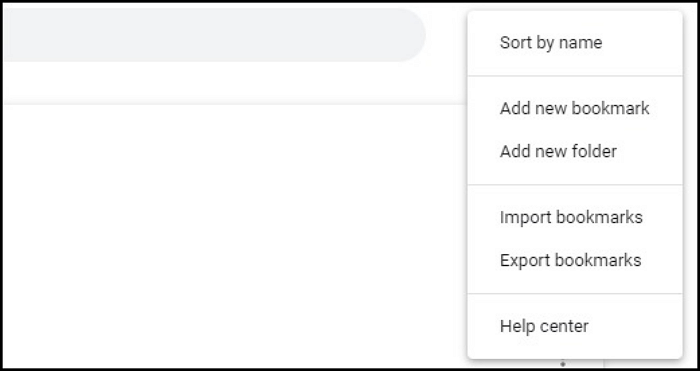
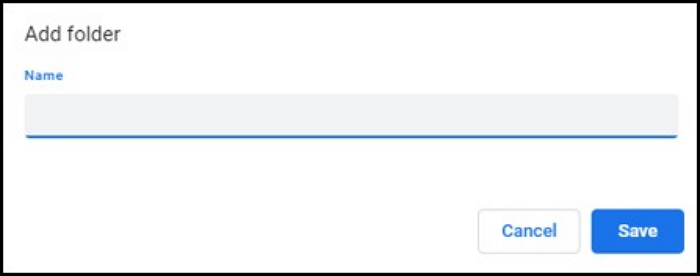
Step 4. To rename the folder, open the folder, click on the three dots at the top right corner, and select "Rename". Then, type the new name in the box and press "Save".
Add bookmarks to the folders
Step 1. Open Chrome on your computer.
Step 2. To access the Bookmark Manager, click the three parallel dots icon at the top right, select "Bookmarks," and then click on "Bookmark Manager" in the dropdown menu.
Step 3. Now you can drag & drop or copy & paste existing bookmarks to the bookmark folders on the left.
If you want to know more about hhow to backup Chrome bookmarks and passwords, you can read the following article.

[2 Easy Ways] How to Backup Chrome Bookmarks and Passwords
Google Chrome plays a significant role in our daily work and life, storing vast amounts of critical information related to our privacy.
Safari
Safari is the default browser for Apple devices. It has all the modern-day functionalities you look for in a good browser. Plus, its integration with Apple devices is impeccable. Below is the process to create bookmark folders in the Safari browser.
Create bookmark folders
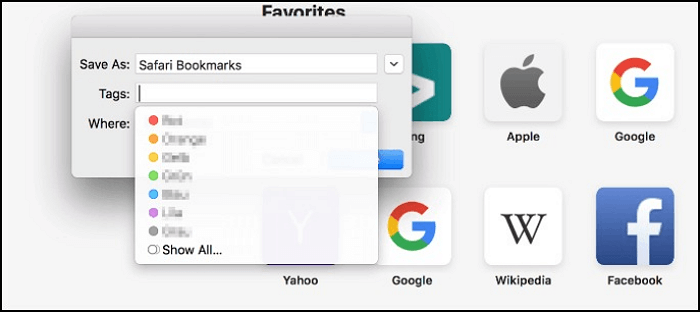
Step 1. Open the Safari app, click the "Sidebar" button in the toolbar, and select "Bookmarks."
Step 2. Here, control-click and then select "Add Bookmark Folder."
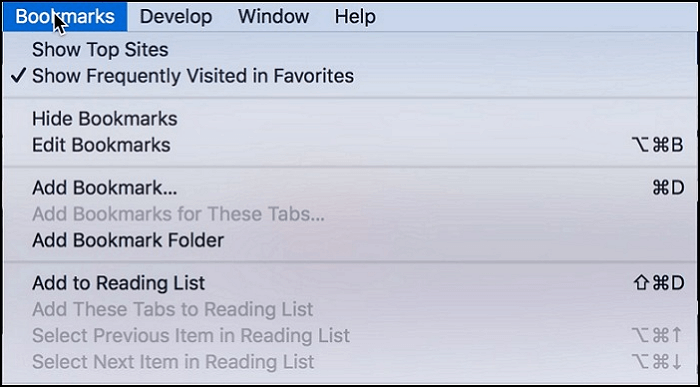
Step 3. To move a folder, enter its name and drag it to the desired location.
Add bookmarks to the folders
Step 1. To view bookmarks in Safari, open the app, click the "sidebar" button in the toolbar, and select "Bookmarks" from the dropdown menu. Alternatively, you can use the "Show Bookmarks" option in the "Bookmarks" menu.
Step 2. You can either use drag and drop one-by-one or hold the "Shift" or "Command" key to select multiple bookmarks to copy and paste into a folder.
Mozilla Firefox
Firefox by Mozilla is a high-To create bookmark folders in Firefox, you can easily do so by following these steps: First, open the Firefox browser and click on the "Bookmarks" button in the top right corner, then select "Show Bookmarks Library" from the dropdown menu. From there, you can create a new folder by clicking on the "New Folder" button, and then give it a name. You can also drag and drop existing bookmarks into the new folder to organize your bookmarks in a way that suits your needs. With these simple steps, you can create bookmark folders in Firefox and enjoy a more streamlined browsing experience.
Create bookmark folders
Step 1. Click the "menu" button (with three parallel dashes) appearing in the top right corner.
Step 2. To manage bookmarks, go to the "Bookmarks" menu and select the "Manage Bookmarks" option. This will open a new window where you can view, edit, and organize your bookmarks.
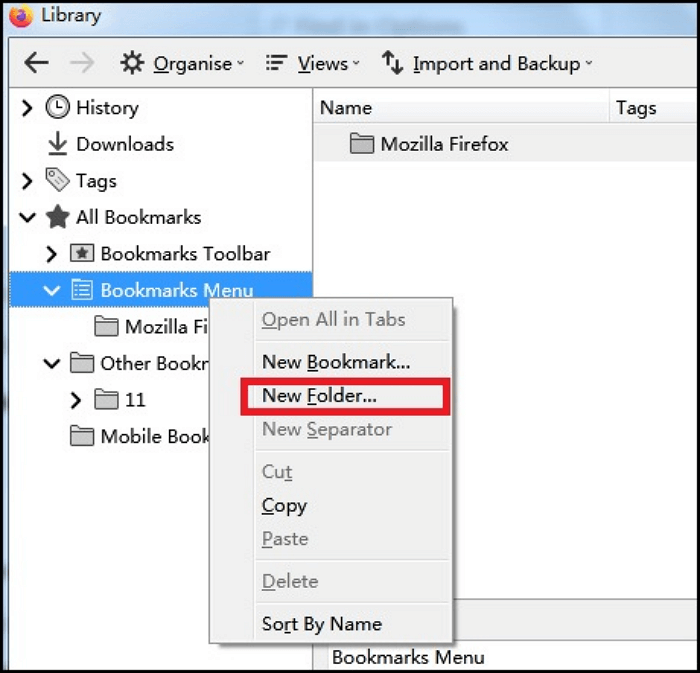
Step 3. To create a new folder, right-click on the folder that will contain the new folder and select "New Folder" from the drop-down menu.
Step 4. The folder name is "Completed Projects" and it contains a description "Archives of completed projects, including final reports, presentations, and documentation."
Add bookmarks to the folders
Step 1. To access the menu, click the "menu" button (with three parallel dashes) appearing in the top right corner.
Step 2. Open "Bookmarks" and select "Manage Bookmarks" at the bottom.
Step 3. You can now drag and drop the existing bookmarks into the newly created bookmark folders.
Conclusion
People use many websites and web apps for work and entertainment, and manually typing website names in the URL bar is an outdated method of accessing frequently used sites.
Using simple bookmarks is an easy way to access different websites, but taking it a step further by creating bookmark folders can make your life even easier. This feature is available on almost all leading browsers, allowing you to organize your bookmarks in a more structured and accessible way.
How to Make Bookmark Folders FAQs
If you want to know something more, you can refer to the FAQs below:
1. Can you create bookmark folders on smartphones?
All major browsers, including Safari, Google Chrome, Mozilla Firefox, and Microsoft Edge, allow users to create bookmark folders on their mobile apps for both iOS and Android devices.
2. Is Safari available for Windows and Android?
Safari is a web browser developed by Apple, exclusively available for Apple devices such as iPhones, iPads, and Macs. It is not available for Windows or Android devices.
3. Does Google sync bookmarks across different devices?
Google syncs bookmarks across multiple devices with the same Google account.
Related Articles
- How to Fix Virtual Disk Service Error: The Disk Is Not Empty [Full Guide]
- SanDisk Extreme Pro Portable SSD Not Detected: Troubleshooting and Data Recovery
- Solved: CMD.exe/CMD Keeps Popping up in Windows 10
- What Happens If an SD Card Is Corrupted [Full Guide on 10 Fixes]
This page explains what happens if an SD card is corrupted and provides ten full guides on how to fix SD card corruption. - I Forgot My Dropbox ID and Password | What Should I Do?
Dropbox allows you to store and share files online. Here is a complete guide to regaining control of your account quickly. Click here to find out more. - Forgot OneDrive Password, How Do I Restore It [2022 Guide]
OneDrive may be showing an incorrect password message if you've forgotten your password or made typing mistakes while entering it.
Products
Articles & Tutorials
- Data Recovery
- Data Backup
- File Recovery
- File Backup
- System Backup and Restore
- Disk and Partition Clone
- Technical articles
- Mobile articles
- Disk Master Help
- Windows Data Recovery Tutorials
- Windows Secure Delete Tutorials
- Windows Partition Management Tutorials
- Windows File Backup and Restore Tutorials
- Windows System Backup and Restore Tutorials
- Windows Disk Backup and Restore Tutorials
- Windows Clone Tutorials