How to Fix Atomic Heart Keeps Crashing Issue on PC
To fix the Atomic Heart keeps crashing on the PC, check the game's system requirements, update drivers, and disable any conflicting programs or mods, and try running the game in compatibility mode or as an administrator. If the issue persists, try verifying the game's cache, checking for any updates, or reinstalling the game.
| Workable Solutions | Step-by-step Troubleshooting |
|---|---|
| Fix 1. Check the System | It's critical that your computer meets Atomic Heart's minimum...Full steps |
| Fix 2. Disable Useless Processes | Disable as many needless background processes as possible to give the game a smooth performance. This can be done by checking the game's settings and closing any unnecessary programs or processes. Additionally, closing any unnecessary programs or processes on the computer can also help improve the game's performance. By disabling these unnecessary processes, the game can run more efficiently and smoothly, reducing lag and improving overall performance.Full steps |
| Fix 3. Turning Off 3D Vision | If a bug in 3D Vision is causing crashes, it is recommended to turn it off to resolve the issue.Full steps |
| Fix 4. Disable Antivirus Protection | To prevent game crashes, antivirus protection can be temporarily disabled, allowing the game to run without interference. This can be done by adding the game's executable file to the antivirus program's list of allowed or trusted programs, or by temporarily disabling the antivirus software altogether. However, this should be done with caution and only when necessary, as disabling antivirus protection can leave the system vulnerable to malware and other online threats. It's also worth noting that some antivirus programs have a "game mode" or "exception list" that allows specific programs to run without interference, which can be a more controlled and safer way to prevent game crashes.Full steps |
| Fix 5. Underclocking Memory or CPU | If your RAM or storage is causing unexpected behavior, changing the settings may help resolve the issue.Full steps |
The first-The game "Atomic Heart" was developed by Mundfish and published by Focus Entertainment and 4Divinity, and was released on February 21, 2023, for Microsoft Windows, PS4, PS5, Xbox One, and Xbox Series X/S. It received generally positive reviews at the time of its release.
The game Atomic Heart is set in a parallel universe where the Soviet Union has achieved a utopia through the use of advanced AI and robotics. Despite the game's exhilarating experience, many PC players have encountered issues such as graphic problems, stuttering, and drops in FPS, leading to the game crashing. Let's first identify the possible causes of the Atomic Heart crashing issue on your PC.
Why Does Atomic Heart crash
Due to various factors, PC users may experience Atomic Heart crashing issues, which can be caused by outdated operating systems, corrupt game files, overuse of system resources, or compatibility problems.
Reason 1. Incompatible Drivers
An outdated or incompatible GPU driver is a common cause of high-end games crashing, often due to the driver's inability to handle the game's demands.
Reason 2. There Is No More Space on the Disk
If your PC runs out of storage space, remove some files or applications to free up space on the SSD, which should prevent the Atomic Heart from crashing.
Reason 3. 3D Vision Interferes with Atomic Heart
The 3D Vision feature on compatible PCs has been disabled due to a recent NVIDIA upgrade, which may cause Atomic Heart to crash on high frame rate screens.
Reason 4. Atomic Heart Blocks Caused by Third-Party Applications
Any background operations that interfere with gameplay could cause Atomic Heart to crash.
Reason 5. Overclocked RAM or Graphics
Overclocked GPU or RAM can cause Atomic Heart to crash, but it's often a sign of a deeper issue with the computer's drive. This can be due to a variety of factors, including overheating, power supply problems, or even a failing hard drive. In these cases, the game may crash or experience other stability issues, leading to frustration for players.
Reason 6. Settings for Vsync and Tessellation
Game crashes are often caused by two specific graphic settings that conflict with the default GPU settings, particularly when players upgrade their character.
Atomic Heart Keeps Crashing: Fixed in 5 Solutions
If you're experiencing crashes with Atomic Heart, the steps below can help. We've compiled a list of potential fixes for the problem, which can be found below. These solutions may help resolve the issue and get you back to playing the game without interruptions.
If you're experiencing issues with Atomic Heart, you can try checking out which method with fix suits your problem.
- 1. Check the System and Update Graphics Driver
- 2. Turn Off Irrelevant Background Processes
- 3. Turning Off 3D Vision
- 4. Disable Antivirus Protection
- 5. Underclocking the CPU or Memory
Fix 1. Check the System and Update Graphics Driver
To ensure a smooth gaming experience and prevent crashes, it's essential that your computer meets Atomic Heart's minimum or recommended system requirements.
The minimum requirement:
| CPU | 64-bit |
| OS | Windows 10 (20H1 version or newer, 64-bit versions) |
| Processor | AMD Ryzen 3 1200 or Intel Core i5-2500 |
| Memory | 8 GB RAM |
| Graphics | 4 GB VRAM, AMD Radeon R9 380 or NVIDIA GeForce GTX 960, DirectX 12. |
| DirectX | Version 12 |
| Storage | 90 GB available space |
| Additional Notes | 30 FPS, 1920x1080 in low |
The recommended requirement:
| CPU | 64-bit |
| OS | Windows 10 (20H1 version or newer, 64-bit versions) |
| Processor | AMD Ryzen 5 2600X or Intel Core i7-7700K |
| Memory | 16 GB RAM |
| Graphics | 8 GB VRAM, AMD RX 6700 XT or NVIDIA GeForce RTX 2070. |
| DirectX | Version 12 |
| Storage | 90 GB available space |
| Additional Notes | SSD recommended, 60 FPS, 1920x1080 in ultra |
The most common cause of Atomic Heart crashes and performance issues is outdated graphics drivers. To resolve this, check the official website of your GPU manufacturer (Nvidia or AMD) for the latest driver version and download a new one if necessary. This simple step can often resolve issues related to graphics performance and stability.
Fix 2. Turn Off Irrelevant Background Processes
To optimize Atomic Heart's performance, disable unnecessary background processes to free up system resources and reduce the risk of interference causing crashes. This can be achieved by following these steps:
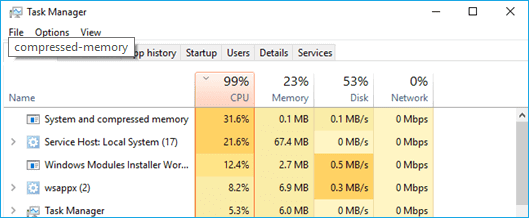
Step 1. Click the Taskbar's right arrow to access Task Management.
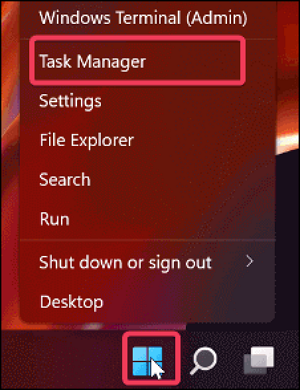
Step 2. Make sure the Processes tab is selected.
Step 3. To stop a process, select the process you want to stop, then click on "End Task" to terminate it.
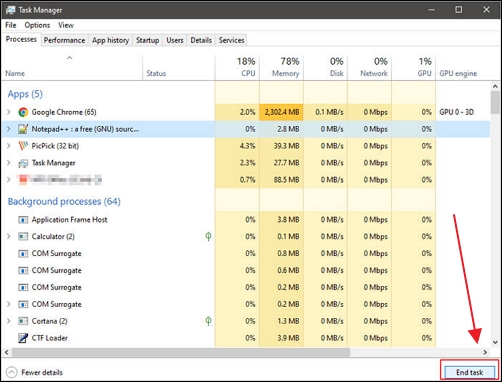
Step 4. Any pointless background tasks connected to third-party applications can be optimized by implementing the principle of least privilege, which means restricting the access and permissions of these tasks to only what is necessary for their specific function, thereby minimizing potential security risks and resource utilization. This can be achieved by reviewing and revising the application's code to ensure it only performs the required actions, and by configuring the task's permissions to be as limited as possible.
Fix 3. Turning Off 3D Vision
If Atomic Heart keeps crashing, it's recommended to turn off 3D Vision due to a bug in it, and be prepared for potential issues with NVIDIA's periodic visual settings updates.
To resolve the issue without affecting the game's settings, simply delete and reinstall the drivers to fix the problem.
Follow the instructions below to do that.
Step 1. To open the Programs and Features window in Windows, press the Windows Key + R to open the Run dialog box, then type "appwiz.CPL" and press Enter.

Step 2. Choose the category and programs option under View by.
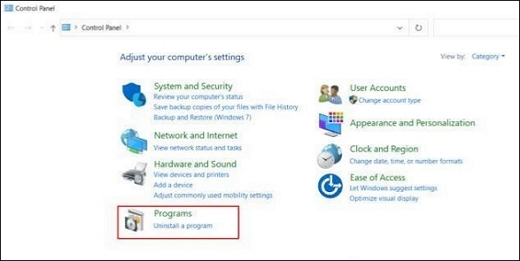
Step 3. To proceed, review the spelling before clicking "OK". Then, navigate to the Programs and Features folder, scroll down, and locate the NVIDIA 3D Vision Driver application card.
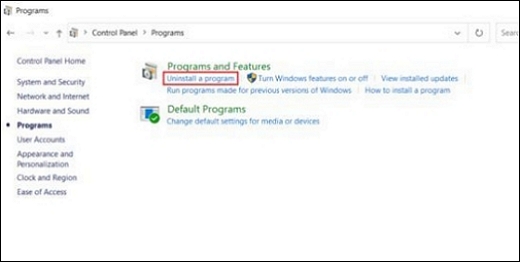
Step 4. To uninstall a driver, locate the driver in the list of installed drivers, click on it, and select "uninstall". Follow the on-screen instructions to complete the uninstallation process.
Once you've completed the steps, restart your computer and verify that the driver issue has been resolved.
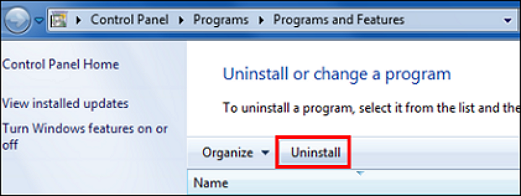
Fix 4. Disable Antivirus Protection
To fix Atomic Heart crashes, disable antivirus protection by preventing it from obstructing the game. Temporarily disable third-party antivirus software, and if that doesn't work, uninstall and reinstall the antivirus product after making registry adjustments.
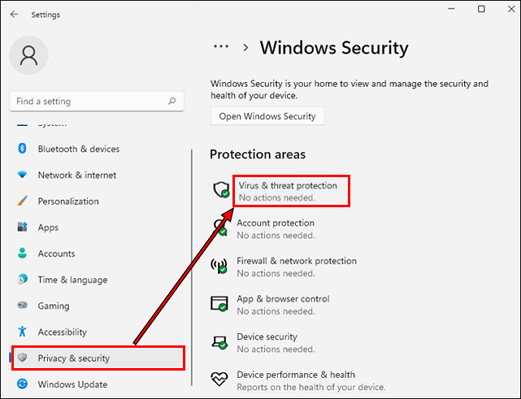
Adjusting the settings may resolve the issue, even if you need to uninstall a third-party application.
- Pressing Alt + Shift + Esc on your keyboard will quickly open the Task Manager, allowing you to view and manage running applications and processes.
- Go to the section labeled Startup.
- To disable your antivirus software, first, open the Start menu and click on "Settings." In the Settings window, click on "Update & Security.
You can also follow the instructions below to disable any third-party antivirus protection, which may be interfering with the installation process.
- Launch the outside program.
- Access settings
- You can find the exceptions option on the left side of the screen.
- To add a security exception, click the exception.
Even without installing the application, this will turn off the app and block the external firewall.
Fix 5. Underclocking the CPU or Memory
If your Atomic Heart game is crashing unexpectedly, you can try adjusting the settings to see if it resolves the issue. This might involve tweaking your RAM or storage settings, as these can sometimes cause problems.
To fix the crashes, you need to reset the RAM settings to their original factory settings, which will also overclock the RAM modules again. This should resolve the issue.
Please check the ram stick's frequency before attempting this approach to avoid more issues.
To overclock your CPU or RAM, follow these methods: First, ensure your system is stable and running smoothly at its stock settings. Next, use software tools like CPU-Z or AIDA64 to monitor your CPU's temperature, voltage, and clock speed.
Step 1. Navigate to FSB & Memory Config in the BIOS Configuration,
Step 2. Search for Advanced chipset features.
Step 3. Press enter to take 50 MHZ off the clock speed now.
To potentially fix the Atomic Heart crashing issue, try increasing the CPU's speed without altering memory settings or GPU frequencies. This can be done by adjusting the CPU's clock speed, and then restarting the game to see if the crashing persists.
Several players have successfully used various fixes to resolve the Atomic Heart crashing issue. These fixes have proven to be effective, and if one of them helps resolve the problem, it's worth sharing on social media platforms like Facebook, Twitter, Instagram, and others.
Bonus Tip: How to Recover Game Data After it Crashes
To recover lost game data, use data recovery software like Deep Data Recovery, which is designed to restore crashed, corrupted, or lost games, offering a simple and comprehensive way to recover data lost due to random errors or system failures.
Deep Data Recovery
- Recover lost or deleted files, documents, pictures, videos, audio, music, and emails easily with effective recovery methods. Whether it's a digital disaster, accidental deletion, or hardware failure, you can breathe new life into your lost data.
- It recovers deleted PC game files, including Hogwarts Legacy, Atomic Heart, Call of Duty, Elden Ring, and more.
- Data recovery support is available for various situations, including sudden deletion, formatting, hard drive corruption, virus attacks, and system crashes. This assistance helps recover lost data, providing a solution for users who have experienced data loss due to unexpected events.
If your PC crashes while playing games, you can recover the lost or deleted games by following these three steps. First, you need to restart your PC in safe mode and then check if the game files are still present in the system.
Step 1. Select a folder to scan for lost files
To recover a lost folder, launch Deep Data Recovery, select "Select Folder" under Specify a location, and click "Scan" to initiate the scanning process.

Step 2. Find and preview found files in the lost folder
If you remember the folder name, type it in the search box to quickly find the lost files. You can then open the found folder and double-click to preview the scanned files, or use the Filter feature to find a specific type of file.

Step 3. Recover and save the lost folder
To recover your files, select the folder and files you need, click "Recover", and choose a new and secure location on your PC to keep the recovered data.

In Conclusion
If your Atomic Heart game is crashing or you're missing game data, Qiling data recovery software can help. This program can quickly recover lost or deleted game data, even if you don't have a backup. Download it to rapidly restore your lost game data.
Atomic Heart Keeps Crashing FAQs
Here are 4 additional questions about Atomic Heart crashes. Check here for the answers.
1. Why does Atomic Heart keep crashing?
- Atomic Heart may crash at startup or while playing if your computer's specs don't meet the system requirements.
- An outdated graphics card driver is a common cause of high-end games crashing, as it may not be compatible with the game's requirements.
- Some graphics cards, even with the latest drivers, may struggle to perform well due to their age.
2. What game engine does Atomic Heart use?
Unreal Engine 4 was used in the game's development. Initially, a Q4 2022 release was hinted at in a February 2022 trailer, but the game was later revealed to debut on February 21, 2023.
3. How do I restore my Atomic Heart data?
- Download the free Qiling data recovery program.
- Click the Scan button after choosing the game drive.
- To recover game data from Atomic Heart, choose the game data after scanning, then click Recover.
4. Does Steam back up game data?
Game data can be backed up via Steam, allowing you to restore it without having to download the entire game after deletion.
Related Articles
- Service Host: Local System High Disk, CPU and Memory Usage [100% Solved]
- [Step-by-step Guide] How to Reset Only C Drive in Windows 10 Safely
- How to Change Boot Drive Windows 10? [Updated 2023]
- [2023] Efficient Ways To Fix PS4 Disc Drive Not Working! Error Reading!
- [Quick Fixed] No Login Screen on Windows 10/11 Issue
No login screen on startup may sometimes occur when you boot into your computer, resulting in you can't enter your account and password. This issue can be resolved by trying six quick and practical solutions, which are provided in the post to help you fix the problem. - How to Solve There Is No Partition Selected in Diskpart [Best Ways]
If you're unfamiliar with the workings of Diskpart, we recommend you utilize the Qiling Disk Master to operate on your disk. The tool works marvelously and will save you from typing the wrong commands on Diskpart.
Products
Articles & Tutorials
- Data Recovery
- Data Backup
- File Recovery
- File Backup
- System Backup and Restore
- Disk and Partition Clone
- Technical articles
- Mobile articles
- Disk Master Help
- Windows Data Recovery Tutorials
- Windows Secure Delete Tutorials
- Windows Partition Management Tutorials
- Windows File Backup and Restore Tutorials
- Windows System Backup and Restore Tutorials
- Windows Disk Backup and Restore Tutorials
- Windows Clone Tutorials