[Quick Fixed] No Login Screen on Windows 10/11 Issue
- ?User Case
-
"Today, as I turned on my laptop, it wasn't showing a login screen, I can't log in right now. It does show only the wallpaper and the buttons below ... And then it always does when I have stuff to do ... Restart wasn't working, get into troubleshooting, and I tried, but so far, not been successful so far. Do you have any other ideas? By the way, I am using a Windows 10 Lenovo laptop. Thanks in advance for your time."
-post from Reddit
The Windows 10 login screen is a page that appears after booting the computer, requiring you to enter your Windows username and password to access your account.
If you're experiencing the "No login screen problem on Windows 10," it can be difficult when your computer doesn't respond as expected. The issue may arise when booting into your PC, leaving you with limited options.

If you're experiencing the No Login Screen on Windows 10 issue, don't worry - this guide covers the issue. It provides six quick solutions to help you resolve the problem and get back to your normal Windows experience.
- ?Kind Tip
- The following six methods are available for everyone, whether you are a beginner or a specialist. Try them one by one, and get your problem fixed.
A Quick Navigation:
- Press Ctrl + Alt + Delete Shortcut
- Boot in Safe Mode
- Disable Fast Startup
- Run Startup Repair
- Create a New User Account
- Rebuild MBR
Method 1. Press Ctrl + Alt + Delete Shortcut
Some users have found that pressing the keys Ctrl + Alt + Delete simultaneously can sometimes bring up the login screen when it's not showing up as expected.

If your Windows login screen is missing, you can try pressing the Windows key + D to see if it reappears. If it doesn't, try pressing the Ctrl + Alt + Del keys. If that doesn't work, try restarting your computer in safe mode and see if the login screen appears.
Method 2. Boot in Safe Mode
Here are the steps to boot your Windows 10 computer in Safe Mode:
Step 1. Power off your computer, and press the power button continuously until you see a Windows 10 starting icon. Then hold the power button until the computer is shut down again and enter into the winPE.
Step 2. To resolve the issue, go to the "Choose an option" menu, then select "Troubleshoot", followed by "Advanced options", then "Startup Settings", and finally "Restart".
Step 3. To enter safe mode, your PC will restart automatically, then choose "Enter Safe Mode" from the options that appear.
Step 4. Press the "Windows + R" keys together to open the Run task, enter "netplwiz" and click "OK" to access the User Accounts window.
Step 5. Under the "User Account" window, uncheck the "Users must enter a username and password to use this computer" option, and click OK.
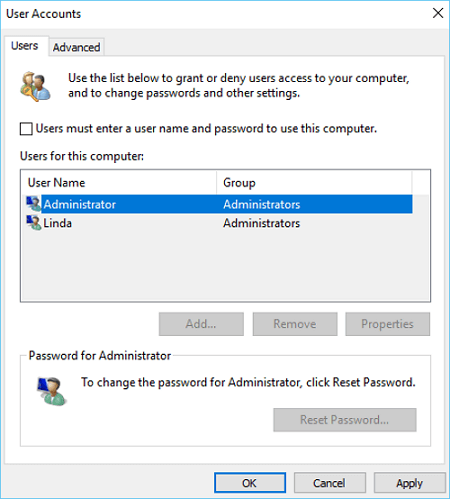
Step 6. Reboot your computer, and you can get access to your Windows account now.
Method 3. Disable Fast Startup
Fast startup is a feature on Windows 10 that helps you start your PC quickly after shutting it down. However, it may cause issues like the no login screen problem. To resolve this, you can try disabling the Fast startup feature in Safe Mode, which can be done by following the provided steps.
Step 1. Boot into Safe Mode To fix the issue, go to the Start menu, type "Services.msc" in the search bar, and press Enter. In the Services window, find and stop the Windows Search service, then start it again.
Step 2. To access the additional power settings in Windows, click the Start button, then select Settings, followed by System, Power & sleep, and finally Additional power settings.
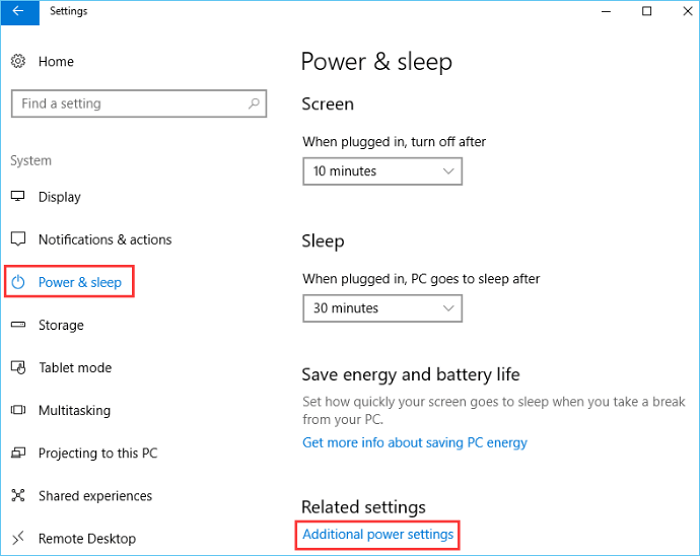
Step 3. To disable fast start-up, go to the Power Options, click on "Choose what the power button does", then click on "Change settings that are currently unavailable", uncheck the "Turn on fast start-up (recommended)" option, and finally click the "Save Changes" button.
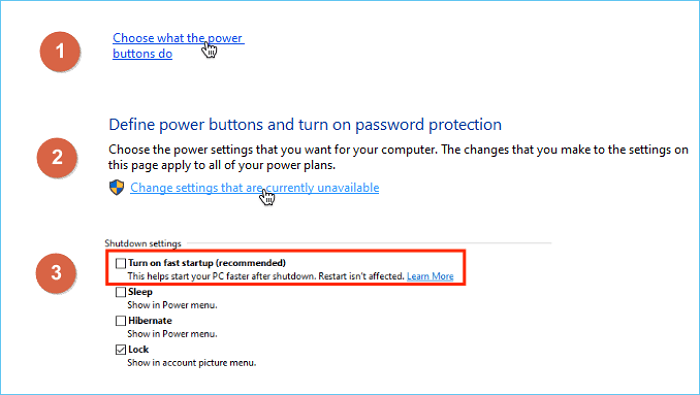
Method 4. Run Startup Repair
To resolve the issue of no login screen on Windows 10, running a Startup Repair can be an effective solution. This process can help fix various problems that might be causing the issue, allowing you to access the login screen again.
Step 1. To shut down your computer, press the power button to power it off, then hold the power button for 5-8 seconds until it shuts down automatically. Repeat this process two times, and you should see an "Automatic Repair" window appear.
Step 2. Follow the path: Advanced options > Startup Repair.
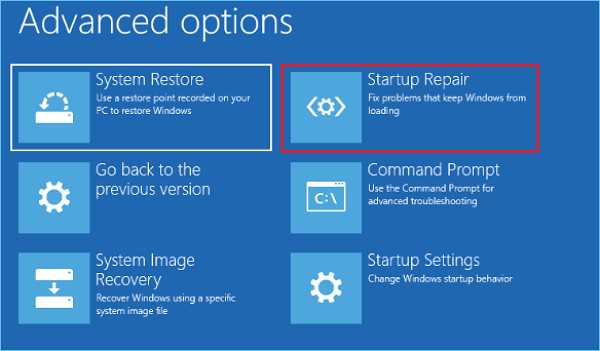
Then the Startup Repair will fix the issue automatically.
If your Windows Startup Repair is not working, the article provides four effective solutions to help resolve the issue.
Method 5. Create a New User Account
If your current Windows account is corrupted, you'll need to create a new user account to access your computer. This will allow you to boot into your system and potentially troubleshoot or resolve the issue with your original account.
Step 1. Enter Safe Mode with the steps in Method 2.
Step 2. To add a user account to Windows, go to the Start button, then select Settings, followed by Account, Family & Other people, and finally Add someone else to this PC.
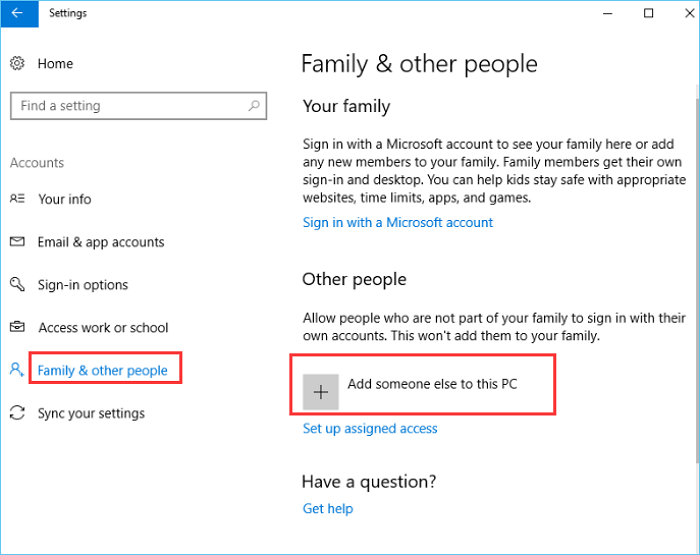
Step 3. To create a new user account, go to the website's sign-up page, fill out the required information, and submit it. Once you have a new account, log in with your new credentials.
Method 6. Rebuild MBR
If you're unable to enter Safe Mode when the No Login Screen on Windows 10 issue occurs, you can try rebuilding the Master Boot Record (MBR) using the Command Prompt to resolve the problem. To do this, follow these steps:
Step 1. To enter WinPE, turn your PC off, then press the power button to turn it back on. As Windows 10 starts, hold the power button until it shuts down again. Repeat this process until you successfully enter WinPE.
Step 2. To open Command Prompt, follow the path: Troubleshoot > Advanced options > Command Prompt.
Step 3. Execute the following three command lines one by one, and press Enter key after each one.
- bootrec /fixmbr
- bootrec /fixboot
- bootrec /rebuildbcd
Bonus: Perform System Restore
If you're still unable to access the login screen on your Windows 10 computer, you can try performing a System Restore to revert your system to a previous state, which may resolve the issue. You can do this by running a system restore from the Command Prompt.
- ?Notice
- To use this method, you must have previously created a system image and use it to restore the system to the original state.
Step 1. To enter Safe Mode with Command Prompt, click on the Start button, hold the Shift key on your keyboard, and click on the Restart button. This will bring up the Windows Recovery Environment. Click on Troubleshoot, then on Advanced options, and finally on Startup Settings.
Step 2. To access the Recovery utility in Windows 10, open the search box, type "recovery" and select the "Recovery" option from the search results. This will open the Recovery utility where you can perform various tasks related to system recovery, such as creating a recovery drive, resetting your PC, or using the built-in troubleshooting tools.
Step 3. Click on "Open System Restore", and click Next.
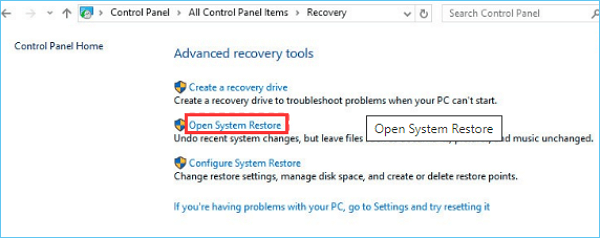
Step 4. Select one of the restore points, and click Next.
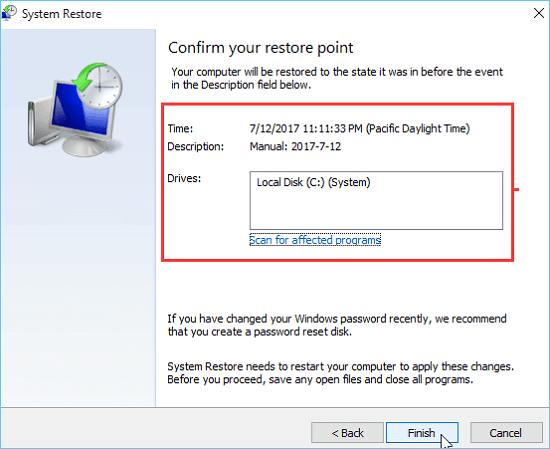
Step 5. Confirm the restore point, and click the "Finish" button to start the recovery process.
No Login Screen on Windows 10 FAQs
1. How do I fix Windows 10 no login screen?
If you're experiencing issues with the Windows 10 login screen, try one of the six methods mentioned in the post, which include troubleshooting the login screen, checking for software conflicts, resetting the login screen, using the built-in troubleshooter, resetting the Windows 10 settings, and performing a System Restore. These methods can help resolve common problems such as a blank or black screen, password issues, or other login-related errors.
- Press Ctrl + Alt + Delete Shortcut
- Restart Your Windows 10 PC
- Boot in Safe Mode
- Run Startup Repair
- Create a New User Account
- Rebuilt MBR
If all of the troubleshooting steps above do not resolve the issue, you can perform a system restore to retrieve your PC to a previous state when the issue was not present. This will essentially revert your PC's settings and programs to a point in time when everything was working normally.
2. Why won't my computer show the login screen?
Many reasons may cause the login screen to be missing, including a corrupted Windows account, enabled Fast Startup, corrupted system files, or a hidden login screen. Try the solutions in the post one by one to fix the issue effectively.
3. How do I force a Windows login screen?
To force a Windows login screen, you can try booting in Safe Mode, performing a System Restore, or using the built-in Startup Repair feature to troubleshoot and potentially resolve the issue, allowing you to access the login screen again.
Related Articles
- How to Stop Apps from Opening on Startup Mac | Detailed Tutorial and Tips
- [100% Working] 3 Easiest and Successful Ways to Unprotect Excel
- How to Fix Grayed Out Folders or Files on Mac
- Can't Read From the Source File or Disk? Find Your Solutions Here
- Windows 10 Thinks My Hard Drive is Removable
Windows 10 mistakenly identifies an internal hard drive as removable, causing it to appear in the 'Safely Remove Hardware and Eject Media' section. Two potential solutions are presented, one of which is high-risk and requires a backup before proceeding. - Windows 11 22H2 Slows Down Copying of Files
The latest version of Windows has been found to slow down copying files from a hard drive. If you are experiencing this issue, read on for the solution.
Products
Articles & Tutorials
- Data Recovery
- Data Backup
- File Recovery
- File Backup
- System Backup and Restore
- Disk and Partition Clone
- Technical articles
- Mobile articles
- Disk Master Help
- Windows Data Recovery Tutorials
- Windows Secure Delete Tutorials
- Windows Partition Management Tutorials
- Windows File Backup and Restore Tutorials
- Windows System Backup and Restore Tutorials
- Windows Disk Backup and Restore Tutorials
- Windows Clone Tutorials