Can't Read From the Source File or Disk? Find Your Solutions Here
The "cannot read from the source file or disk" error often occurs when transferring large files from external hard drives to a computer, which is a common task in the digital work world.
If you encounter an error, rest assured that it can be resolved without affecting your important data. By continuing to read, you'll learn about the various reasons behind this error and discover multiple solutions to fix it.
About "Can't Read from the Source File or Disk" Error Message
If you're experiencing the error "cannot read from the source file or disk," there are several possible causes. These include issues with the source file itself, such as corruption or being in use by another program, as well as problems with the disk or storage device where the file is located, such as disk errors or low disk space. Additionally, conflicts with other software or drivers on your system, outdated or corrupted system files, and hardware issues like faulty RAM or a failing hard drive can also contribute to this error.
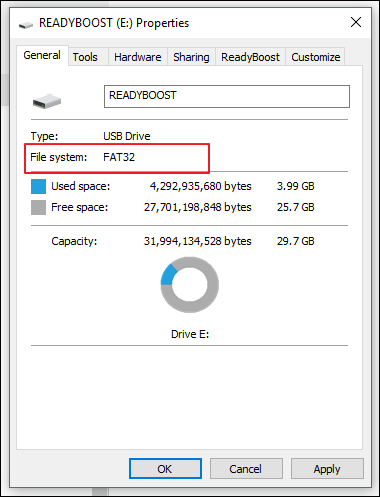
- Mismatched File Systems: This error occurs when file systems of hard drives are not the same, especially when dealing with large-size files. The file size limit in a FAT32 file system is 4GB, and trying to copy a file larger than that into a FAT32 system drive can result in this error.
- Bad Sectors: Hard drive bad sectors can cause files to become unresponsive and trigger an error due to mechanical failure, wear and tear, power loss, or physical damage.
- Improper USB Connection: If the USB ports on your system are faulty or a SATA cable is damaged, it can cause the system to malfunction, resulting in an error. This can happen when trying to connect an external device, such as a storage drive, to your system. The improper connection can lead to system instability and display an error message. To resolve this issue, try using a different USB port or swapping the SATA cable with a new one.
- Unsupported File Name: Using unsupported names for your files can also result in Windows displaying this error when opening the targeted files, as Windows has specific standards for file names that need to be followed for them to be processed correctly.
- Inadequate Storage Space: This error occurs when trying to transfer a file to a hard drive with insufficient storage, requiring the targeted hard drive to have enough space for the transfer to complete.
How to Solve "Can't Read from the Source File or Disk"?
Now that we've explored the reasons behind the "cannot read from the source file or disk" error, it's time for a solution. To resolve this issue, consider the 6 most common and productive methods discussed earlier, which include checking disk space and permissions, running a disk check, disabling antivirus software, updating drivers, using a different USB port, and booting in safe mode. By trying these methods, you should be able to identify and fix the problem.
- Method 1. Matching File Systems
- Method 2. Use CHKDSK to Fix Bad Sectors
- Method 3. Restart Your PC
- Method 4. Check USB Connection
- Method 5. Rename the File
- Method 6. Use Another Program to Access the File
Method 1. Matching File Systems
When transferring files between two different drives, the "cannot read from the source file or disk" error is often caused by mismatched file systems. Windows typically uses NTFS or FAT32, but external hard drives may still use FAT32, even if your PC uses NTFS. To troubleshoot this issue, you can check the file systems of your hard drives using the following steps.
Step 1. To check the file system of a source hard drive, right-click on it, select Properties, and view the file system in the General tab.
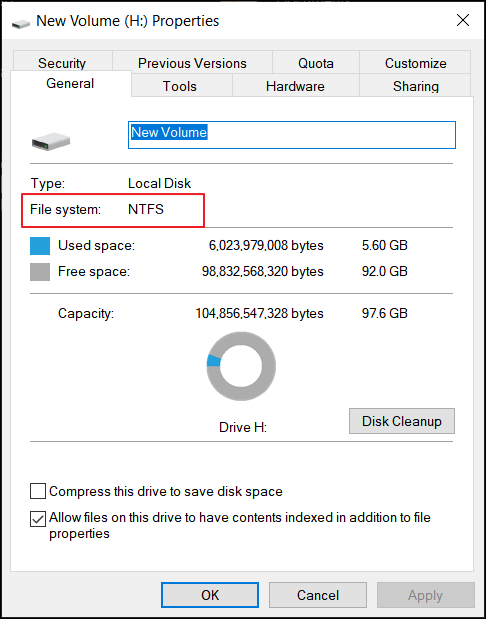
Step 2. If the file systems of your source and destination drives are different, you can resolve the error by using hard drives with the same file system, such as both using NTFS or both using FAT32.
Method 2. Use CHKDSK to Fix Bad Sectors
Bad sectors on a hard drive can also cause the "cannot read from the source file or disk" error. This occurs when parts of the storage drive are permanently damaged and won't respond to read or write requests. To identify and resolve bad sectors, you can use the CHKDSK command.
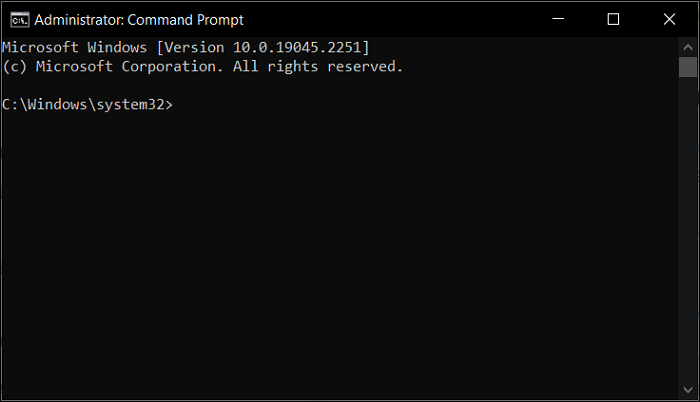
Step 1. To start the process, open Command Prompt as Administrator by using the "Win + X" key, the Windows search bar, or the Windows Run function.
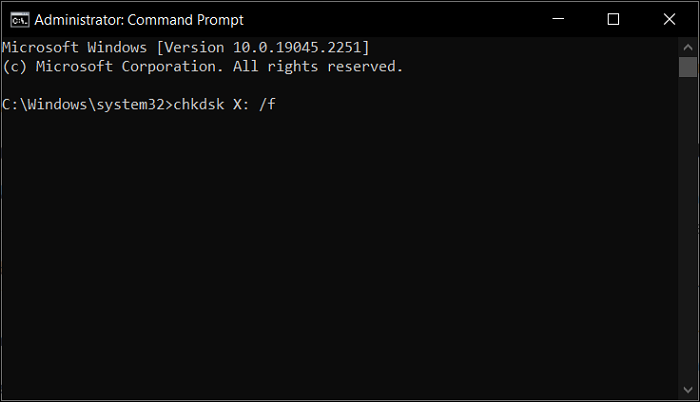
Step 2. Run the command "chkdsk X: /f" to fix bad sectors on the hard drive, replacing "X" with the actual drive letter of the targeted hard drive.
Method 3. Restart Your PC
In some cases, the "cannot read from the source file or disk" error in Windows may be caused by glitches or bugs within the operating system or interference from another program or process. To resolve this issue, you can simply restart your computer, which will often resolve the problem without requiring any further action. To restart your computer, you can follow the standard steps for shutting down and restarting Windows.
Step 1. To shut down your computer, click on the "Start" button located at the bottom left corner of the screen and select "Power" from the menu that appears. From the Power options, choose "Shut down" to immediately turn off your computer.
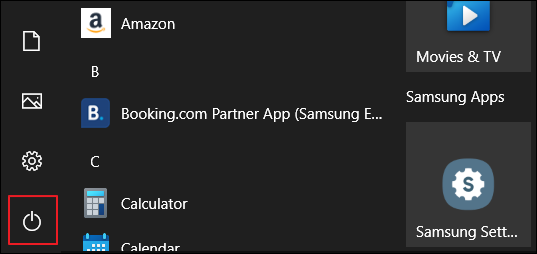
Step 2. To reboot your Windows system, you can either tap the "Re"Proceed to restart your computer or use the shortcut keys "Ctrl + Alt + Del" to initiate the reboot process.
Method 4. Check USB Connection
The error "cannot read from the source file or disk" when transferring a file to an external device may also be caused by an improper USB connection, such as a faulty USB port or the external device not being properly connected. To resolve this, you can try disconnecting and reconnecting your external device. This simple step can often secure a stable USB connection and allow the file transfer to complete successfully.
Step 1. To safely remove the external storage device, go to "My Computer", right-click on the external drive, and select "Eject".
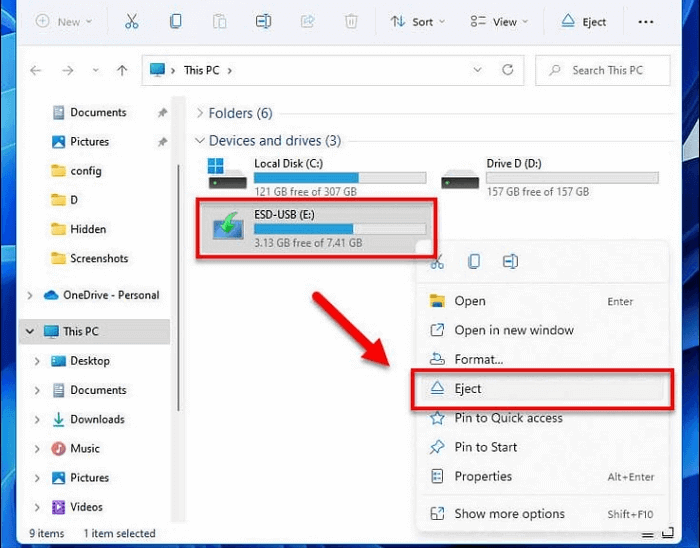
Step 2. You can now unplug the device from your system. Replug the device properly or use another USB port to connect it to your system.
Method 5. Rename the File
If you're experiencing the "cannot read from the source file or disk" error, it might be due to a file name that's incompatible with the file system. Different file systems have their own naming standards, and a file with an unsupported name won't be recognized, making it untransferable or unmodifiable. To resolve this, you can try renaming your files.
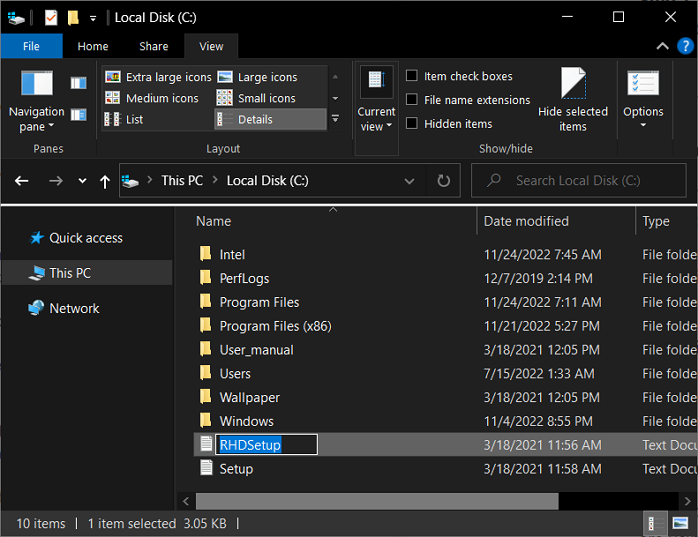
Step 1. Locate the targeted file using "My Computer" or File Explorer. Right-click on the file that is causing the error.
Step 2. To rename a file, select it and use the "Rename" option from the menu or press F2 on your keyboard.
Method 6. Use Another Program to Access the File
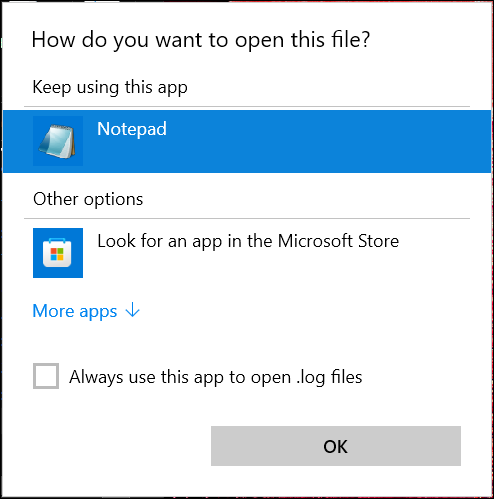
The error "cannot read from the source file or disk" can occur due to the program used to open the file, even if Windows has chosen it as the default. This might be because the file contains data that isn't supported by the default program. To resolve this, try opening the file with a different program by selecting it from the list of available options.
Step 1. Right-click on the targeted file, then select "Open With" to choose a different program.
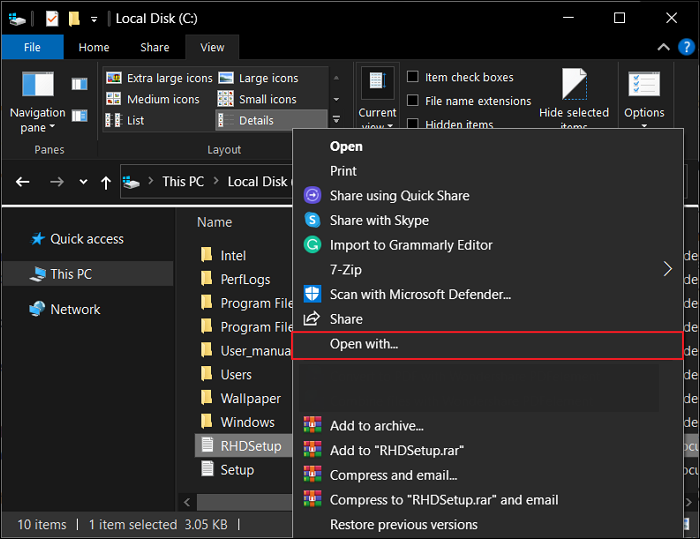
Step 2. Once you've clicked "Open With", Windows will show a list of compatible programs. Select a different program than the default one to open your file.
Concluding Thoughts
When working on a Windows computer and dealing with a large number of files, the "cannot read from the source file or disk" error is likely to occur. Completely avoiding it isn't possible, but there are certain precautions and solutions you can use to resolve this error. The most common solutions have been given in detail for your ease in this article.
FAQs
This article covers the common causes behind the "cannot read from the source file or disk" error and their solutions. If you have further questions, we've also answered some frequently asked questions in this part.
1. How do I fix the source file not found?
When encountering a source file not found error, there are several solutions to try. You can restart your computer, check the USB connection, rename files, or run the CHKDSK command if you suspect bad sectors on your hard drive. For a more detailed guide on these steps, you can refer to the article.
2. Why does it keep saying it can't open the file?
The "file can't be opened" error often occurs on .exe files, which can be due to Windows security blocking the file, or Windows internet properties marking it as unsafe. This issue can be resolved by resetting Internet Explorer, modifying the internet properties, or adding a specific registry value for the file.
3. How do I force open a file in Windows 10?
If your file in Windows is not opening, you can run it as an Administrator. To do this, right-click on the file and select "Run as Administrator."
Related Articles
- How to Update Mac [Detailed Written and Video Tutorials]
- (Solved!) How to Backup Gmail Emails to Another Gmail Account
- How to Recover Your Deleted Firefox Browsing History
- How to Recover Deleted Emails from Hotmail
- Samsung 990 Pro vs 980 Pro: Which SSD to Choose?
If you're considering upgrading to a Samsung SSD, you're probably wondering whether to opt for the latest 990 Pro or the previous model 980 Pro. This review compares the two in terms of specs, read and write speeds, costs, and other factors to help you make an informed decision. - Samsung 990 Pro vs WD Black SN850X: How to Choose?
Compare Samsung 990 Pro and WD Black SN850X SSDs by speed, gaming performance, reliability, and upgrade value.
Products
Articles & Tutorials
- Data Recovery
- Data Backup
- File Recovery
- File Backup
- System Backup and Restore
- Disk and Partition Clone
- Technical articles
- Mobile articles
- Disk Master Help
- Windows Data Recovery Tutorials
- Windows Secure Delete Tutorials
- Windows Partition Management Tutorials
- Windows File Backup and Restore Tutorials
- Windows System Backup and Restore Tutorials
- Windows Disk Backup and Restore Tutorials
- Windows Clone Tutorials