How to Find IE Account and Password? Look Here!
You often save passwords when opening an app, as it saves time and reduces hassle, making it easier to manage multiple passwords.
When logging into a different system, you may forget your credentials, especially when there are multiple accounts. This can be frustrating, and you might recall a few passwords but struggle to remember them all. You might be looking for a way to access saved passwords, and for your convenience, Internet Explorer saves passwords for you.
Where Can I Find Internet Explorer Account and Password?
Internet Explorer allows you to save your username and password for a website, so that it can automatically fill them in for you when you visit the site again.
The information is stored in the Credential Manager of your PC, under the name 'Web Credentials', although Windows 7 does not have a Credential Manager. To find your credentials, follow the detailed steps.
How to Find IE Account and Password on Window 11/10/8/7?
As we access shared drives or network storage, the question arises where our passwords are stored. To find the account and password on Windows 11/10/8/7, we can follow certain steps. One way to find the stored passwords is by exploring the system's storage, where we can uncover the credentials.
Two Options:
Option 1. View Stores Passwords in Credential Manager
Option 2. Get Account and Password Via Qiling Key Finder
Option 1. View Stores Passwords in Credential Manager
You can find your stored passwords in the Credential Manager, a built-in function in system settings that allows you to view your passwords on any system, including Windows.
To find the stored passwords in the credential manager, press the Windows key + R to open the Run dialog box, type "control keymgr.dll," and press Enter.
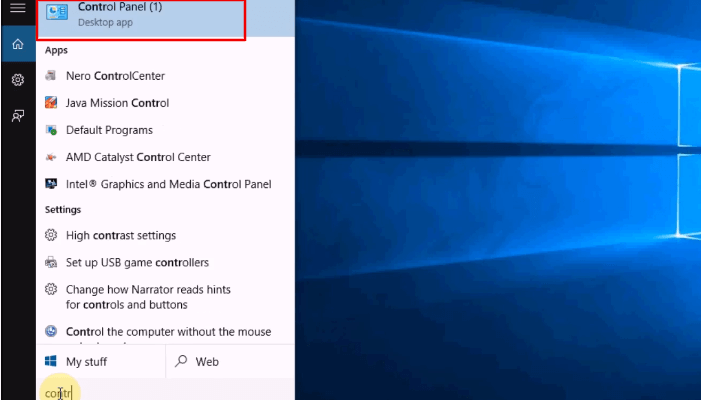
Step 1. Go to the start menu and open Control Panel.
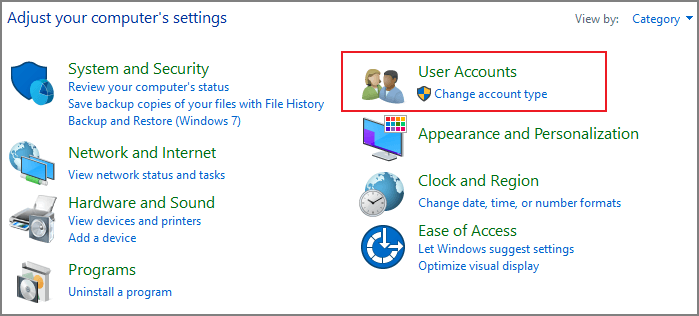
Step 2. From the control panel click on User Account.
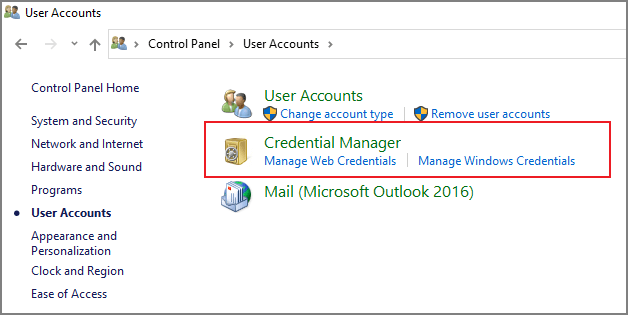
Step 3. To access the list of credentials, navigate to the Credential manager. The Credential manager is a feature in Windows that allows you to view and manage the credentials stored on your computer. This includes usernames and passwords for websites, networks, and other resources.
Step 4. To select a menu item, click on it and choose the "Show" option from the drop-down menu.
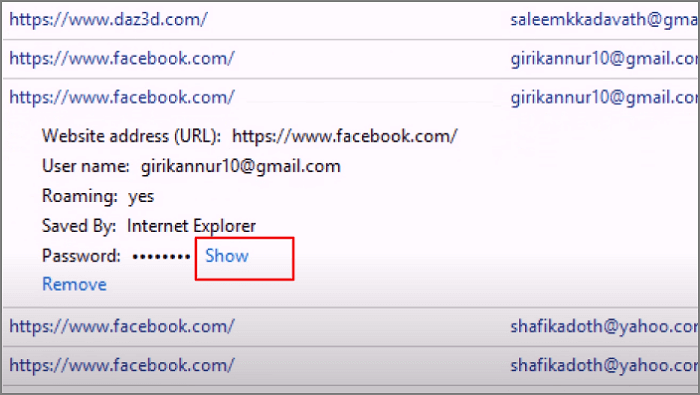
Step 5. Here you will enter the PIN to view the stored password.
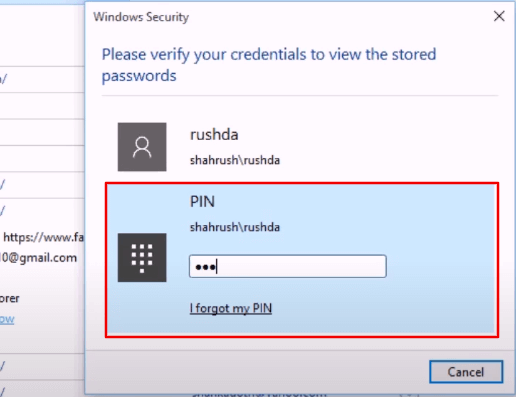
Step 6. Now you can see the stored password.
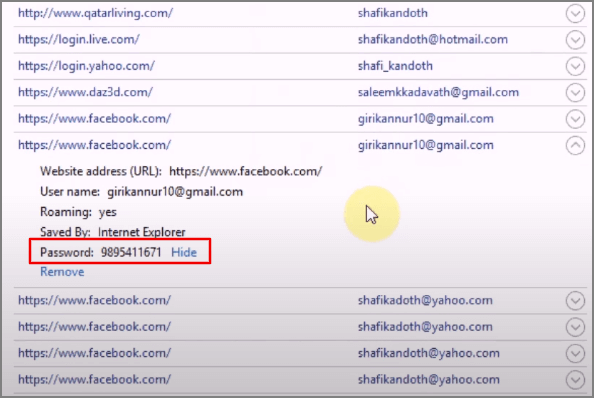
Once you've opened the credentials, you can update, remove, or add new credentials by following the procedures above, and we will find the saved password we are looking for.
Option 2. Get Account and Password Via Qiling Key Finder
We've shown how to find Internet Explorer passwords using its default features, but for a quicker and more efficient approach, we recommend using a third-party utility like Qiling Key Finder. This tool can simplify the process and make it more straightforward to locate your Internet Explorer account and password.
This software aims to streamline PC reinstallation by providing an easy and user-friendly interface, reducing the time and cost associated with the process. Additionally, it offers the capability to recover product keys from machines that are no longer functioning.
Qiling Key Finder offers a range of features, including the following:
- It can easily access the Internet Explorer account and password.
- It can read saved web user names and passwords from various browsers such as Chrome, Edge, Internet Explorer, Firefox, and others.
- Find Windows 11/10/8/7 and Windows Server product keys.
- It can detect wireless accounts and passwords that laptops have logged in to.
- To scan and find installed software product keys, you can use the built-in Windows utility called "System Information" or third-party software like Product Key Finder or Magical Jelly Bean Keyfinder. These tools can scan your system and display a list of installed software, along with their respective product keys. For Office, Adobe, Autodesk, and other software, you can also check the "Control Panel" > "Programs and Features" (in Windows) or "Applications" (in macOS) to see the list of installed software and their product keys.
- If your computer is dead or unbootable, you can still retrieve the product keys of Windows and installed software using specialized tools. One option is to use a software like ProduKey or Magican, which can scan the computer's registry and extract the product keys, even if the computer won't boot.
Here are the key features of Qiling Key Finder:
- Find product keys for SQL, Exchange Server, etc., server applications.
- It can read Windows Credentials' user names and passwords.
Note: This feature will unveil in November. You can download and avail the available option from Qiling Key Finder's official website.
The software offers a free trial, after which you can choose a plan that suits your needs and pay for it.
Step 1. Click "Internet & Network" under Password.
Step 2. Check the browser accounts and passwords for Chrome, Edge, Firefox, and Internet Explorer to ensure they are secure and up to date.
"Copy" - Click it, then directly paste.
"Save" - Save as a PDF file.
"Print" - Connect Printer to print.
More Tips: How to Remove Saved Password
Here are the steps to remove saved passwords from your system:
Step 1. Go to Start and open the Control panel.
Step 2. From all Control Panel items. Navigate to Credential Manager.
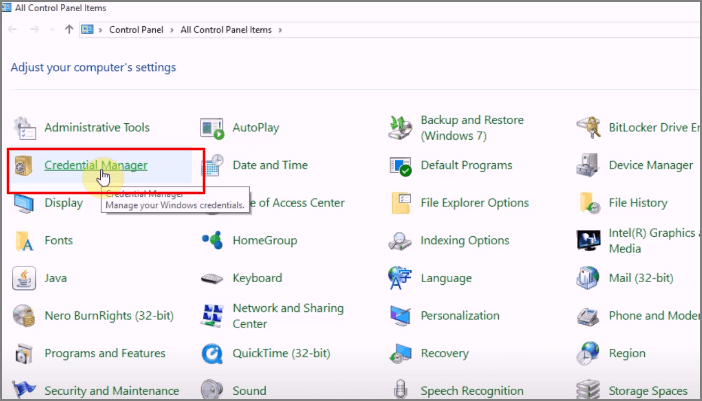
Step 3. In the 'Manage your Credential Menu', select the Credential from which you want to delete Account and Password, specifically choosing the Web Credentials.
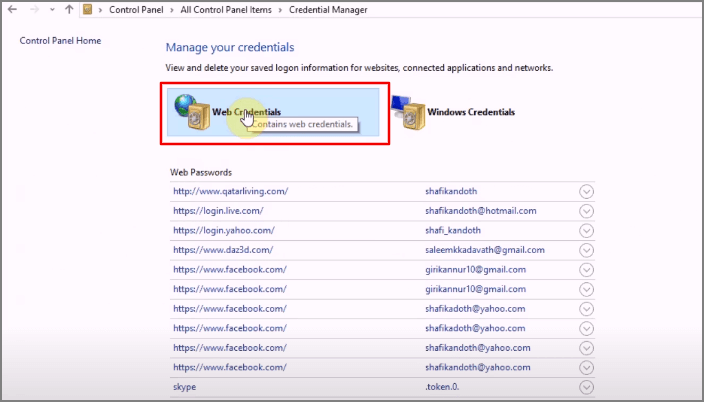
Step 4. Select an item to delete. A drop-down menu will appear.
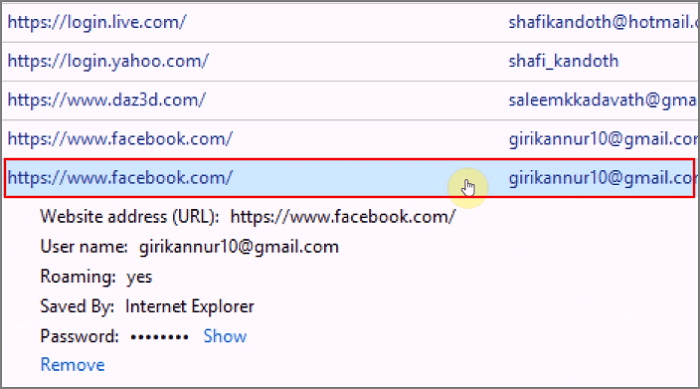
Step 5. To remove a link, select the "Remove" option from the bottom of each link.
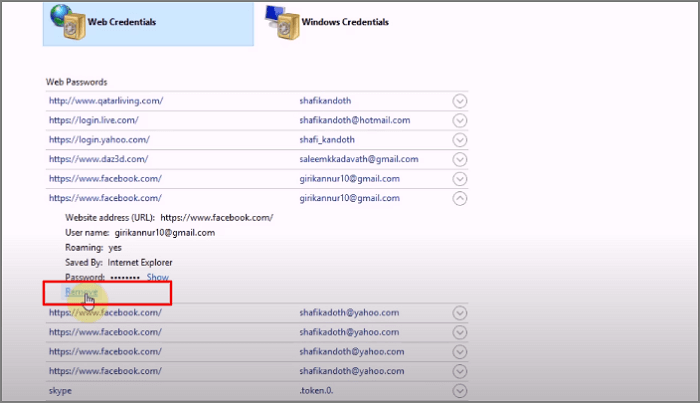
Step 6. To delete a file, select the file you want to delete and click on the delete button. It will ask for your permission to delete it permanently. Click on Yes to delete.
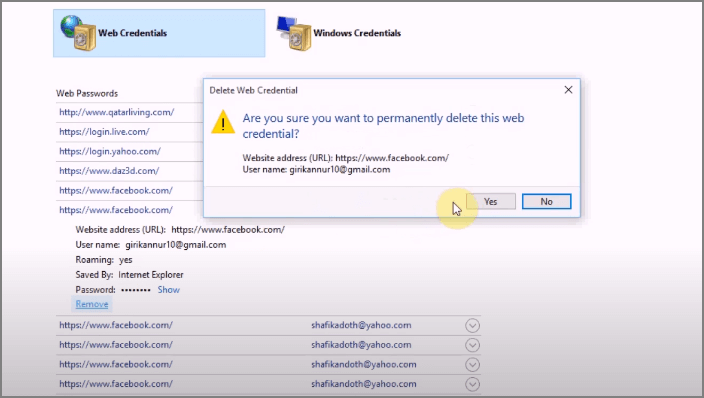
Now your stored password is deleted from the system.
Final Words
We've discussed ways to find your Internet Explorer account and password, including a step-by-step analysis of the techniques and procedures. You can either use the default method or a third-party utility, such as Qiling Key Finder, which is a good option to quickly locate the password and account. You can try the trial version to see for yourself.
Related Articles
- How to Find VMware License Key: View Reliable Ways to Locate VMware Workstation
- How to Check and Find Exchange 2016 Product Key/License
- 3 Methods | How to Find and Recover Microsoft Visual Studio Product Key
- Where and How Do I Find or Recover Origin Password
- Samsung T5 VS T7: Which One to Choose?
Samsung T5 vs T7: which is better and which one to choose? If you have no idea, you have come to the right page. This article will tell you the difference between Samsung T5 SSD and Samsung T7 SSD. After reading this article, you can pick the right one. - Samsung T7 vs. T9: Which SSD to Choose?
A post comparing the Samsung T7 and T9 SSDs provides valuable insight into the performance and features of these drives, highlighting the pros and cons of each model to help users make an informed decision when choosing an external SSD.
Products
Articles & Tutorials
- Data Recovery
- Data Backup
- File Recovery
- File Backup
- System Backup and Restore
- Disk and Partition Clone
- Technical articles
- Mobile articles
- Disk Master Help
- Windows Data Recovery Tutorials
- Windows Secure Delete Tutorials
- Windows Partition Management Tutorials
- Windows File Backup and Restore Tutorials
- Windows System Backup and Restore Tutorials
- Windows Disk Backup and Restore Tutorials
- Windows Clone Tutorials