Samsung T5 VS T7: Which One to Choose?
Samsung T5 and T7 are two of the leading portable SSDs. So, which one should you choose?
Portable storage devices have made it possible for users to store and access their data on the go, making life easier and more convenient for them.
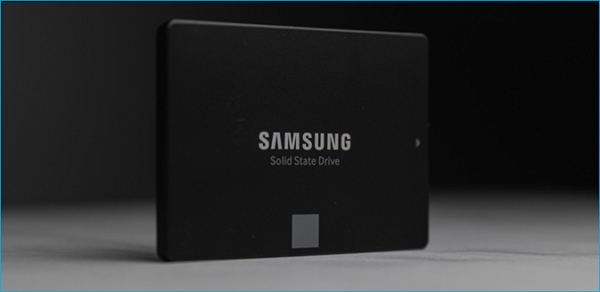
The Samsung T5 and T7 are two of the top-tier portable SSDs, widely considered the best in their category. But which one reigns supreme? To determine the best, we'll thoroughly analyze and compare each model, pitting the Samsung T5 against the T7 in a head-to-head showdown. Let's dive in.
What Is Samsung T5 SSD
The Samsung T5 is a high-speed portable SSD that utilizes V-NAND flash memory, enabling transfer rates of up to 540MBps, significantly faster than a standard external hard drive.
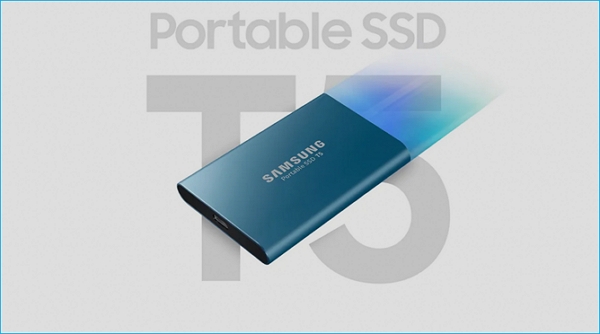
The USB 3.1 interface allows for fast data transfer speeds of up to 10 Gbps, ideal for gaming or streaming high-quality videos up to 4k. This makes it compatible with the latest devices, including computers and consoles.
This app has a lot of features, including a calendar, reminders, a task list, and a note-taking app. It also has a built-in browser and email client, as well as a media player and a file manager. Additionally, it has a weather app, a clock, and a calculator.
- Transfer speed of 540MBps
- USB 3.1 Type-C interface (C to C or Type-C to USB Type-A)
- Weighs just over 50 grams
- Solid metal build
- Colors: Blue(250-500GB) and Black (1-2TB)
The device is compact, measuring less than 3 inches in length, making it portable and easy to carry, which is a significant advantage for many users.
What Is Samsung T7 SSD
The Samsung T7 is a fast portable SSD that offers password protection and a small touchscreen, making it one of the quickest portable SSDs available, and it uses the latest USB 3.2 GEN 2 interface.
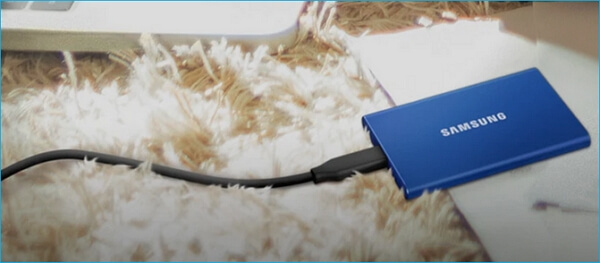
This device achieves twice the speed of sequential writes and reads, reaching 1000 Mbps and 1050 Mbps respectively, and operates at the MLC NAND memory type, making it significantly faster than most SSDs in its price segment.
Here are the key features of the speedy SSD:
- The use of a metallic body as a thermal solution helps to keep it comparatively cooler, making it a suitable option for various applications.
- A touchpad/screen to unlock the SSD
- The device supports connecting two devices with Type C to Type C or Type A 3.2 Gen 2 connectors, allowing for fast data transfer and power delivery.
- Just over 58 grams, and lengths just over 3.3 inches
- Titan Grey, Indigo Blue, and Metallic Red colors
Besides, the SSD has 256-The drive features AES hardware encryption at a PCIE 3.0 x2 bus speed, providing top-notch security. Its compact design and sleek appearance make it easy to carry around, while the vibrant colors add a pop of personality to your setup. The overall package is a great combination of form and function, making it a great choice for those who value both style and substance.
Samsung T7 vs T5: Which Is Better
Samsung considers the T7 to be the successor to its T5 brand, boasting improved NAND flash and overall speeds that surpass the T5 series.
The price of the portable drive is a major consideration for users, as they want to know how much storage they get for their money, and the T7's use of the latest tech makes it a tad bit expensive.
While some users may be content with the standard speed, many others are willing to spend a bit more for significantly faster speeds. To put this into perspective, a comparison of the two speeds in a table can help illustrate the value proposition.
| Comparison | Samsung T7 | Samsung T5 |
|---|---|---|
| Cost |
|
|
| Capacity |
|
|
| USB Interface |
|
|
| NAND Flash Type |
|
|
| Top Read Speed |
|
|
| Top Write Speed |
|
|
| Warranty |
|
|
| Best for |
|
|
The Samsung T7 stands out in most aspects, with Samsung even advertising it as "twice as fast" compared to the T5 model.
The T7 is the clear winner in this comparison, standing out for its exceptional price-to-performance and compatibility ratio.
Bonus Tip: How to Update Hard Drive to New SSD
Upgrading an old hard drive with a solid-state drive (SSD) is a great way to boost your computer's performance, but it's essential to keep data secure when transferring between them. To do this, you'll need to follow a necessary tip for computer users to ensure a seamless transition.
You can clone the original hard drive to the new SSD using a cloning software, such as Qiling Disk Master, to transfer the operating system, programs, and data to the SSD without reinstalling the OS or risking data loss. This way, you can enjoy the benefits of SSD without the hassle of reinstalling the OS and losing your data.
If you find yourself in a situation where you need to transfer data from an old HDD to a new SSD without losing any important information, cloning is the way to go. You can use professional best SSD cloning software, such as Qiling Disk Copy, to make the process smooth and hassle-free.
Qiling Disk Copy is a comprehensive tool that enables users to transfer files from one storage to another, featuring capabilities to clone systems, disks, partitions, and more, including the ability to clone a hard drive with bad sectors, upgrade a disk to a larger one without reinstalling Windows, and clone the C drive to an external hard drive.
This tool is useful because it allows users to quickly and easily generate a wide range of text-based content, from short paragraphs to longer documents. It can also help with tasks such as writing articles, creating social media posts, and even generating ideas for creative writing projects. Additionally, the tool's ability to learn and adapt to a user's writing style and preferences can make it a valuable asset for writers and content creators who want to produce high-quality content efficiently.
- Upgrade hard drive without risking essential data
- Transfer C drive to new SSD
- Clone your older storage to a newer one, i.e., HDD to SSD
- Transfer from one storage to another with a few clicks
- Install Windows 7 on NVMe SSD
To upgrade your old storage to a new SSD using this tool, you can follow these steps:
Step 1: In "Disk Mode", select the HDD that you want to clone.
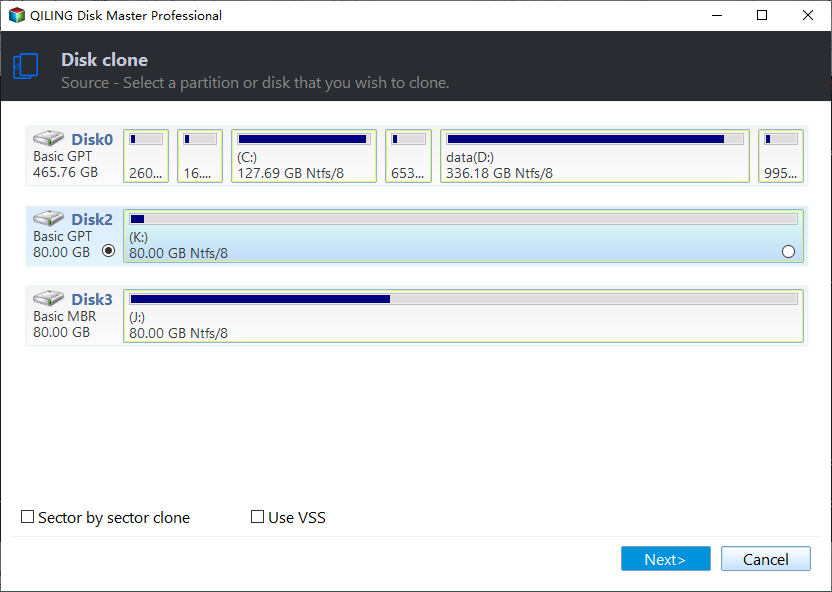
Step 2: Select the SSD as your destination.
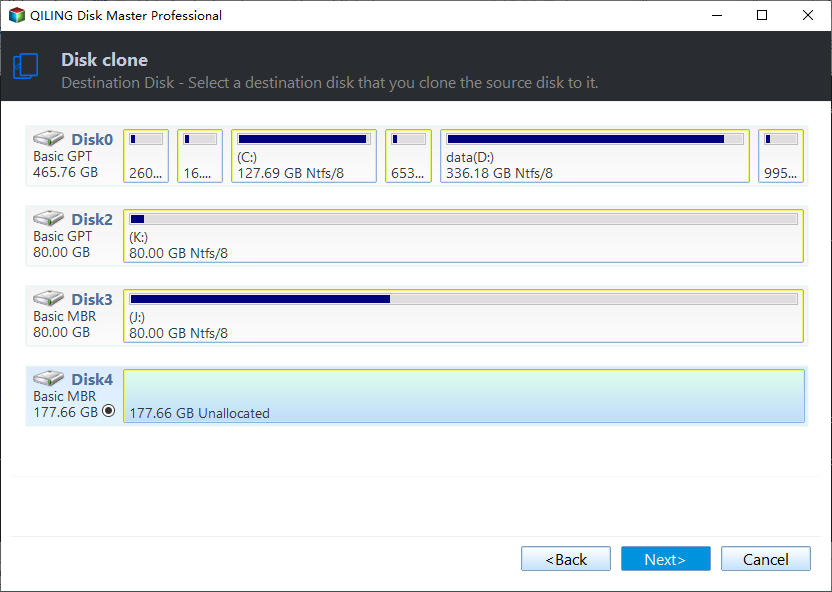
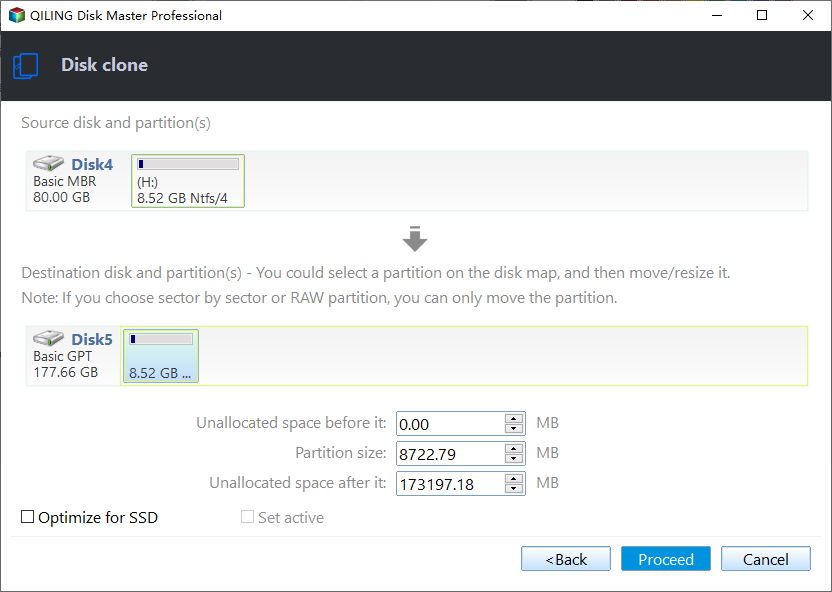
Step 3: Edit the disk layout and then click "Proceed" to continue.
As the destination is an SSD, you are suggested to check the option if the target is SSD.
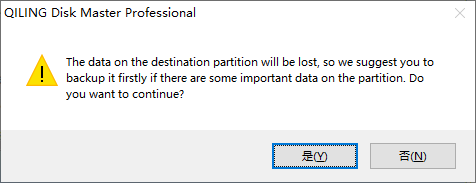
A warning message is displayed stating that the data on the SSD will be erased. If you don't have important data on the destination disk, click "OK" to continue.
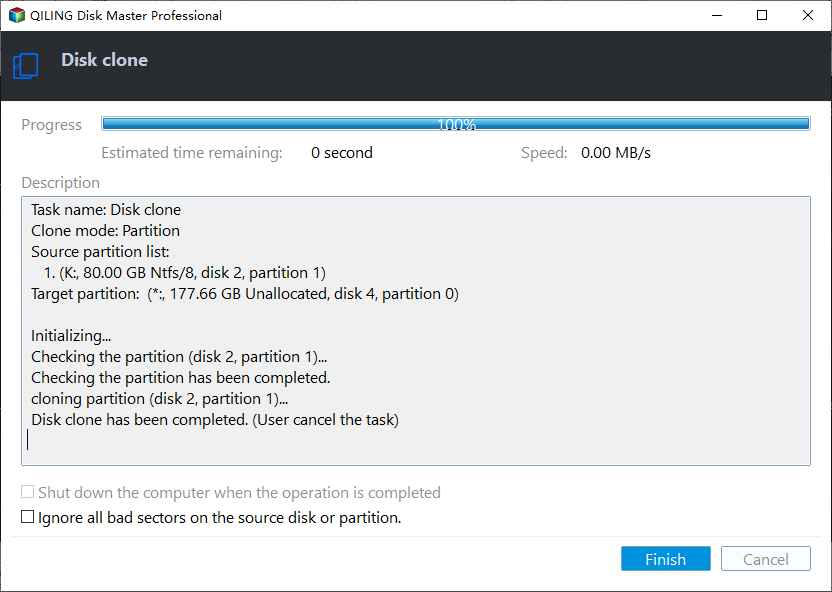
Step 4: Wait for the process to complete.
The Bottom Line
Samsung's T7 is the latest and perhaps best option for portable storage, outshining the T5 in terms of speed, interface, and design. With faster speeds and a sleeker design, the T7 is a top choice for users across computers and consoles.
The Samsung T7 is a more affordable option compared to the Seagate BarraCuda, making it the better value. Both devices are portable and easy to carry, but the T7's lower price point gives it an edge. Once you receive the T7, you can use the Qiling Disk Copy tool to transfer your old storage data to the new SSD. This tool is a practical disk cloning solution that you can download and try.
FAQs
1. Does Samsung SSD have cloning software?
Samsung offers a tool called Samsung Migration Software, but it only supports Samsung to Samsung hardware, not other hard drives. If you want to clone your drive, you'll need to use a third-party tool like Qiling Disk Copy.
2. Do I need to format Samsung SSD before cloning?
Samsung SSDs are often pre-formatted from the factory, but if you need to format it for a specific file system, such as NTFS, you can do so.
3. Is SSD lifespan longer than HDD?
The lifespan of a storage device can be estimated based on its warranty period. If a manufacturer offers a 5-year warranty, it's likely the device will last at least 6-7 years. Similarly, the 3-5 year warranty on modern SSDs suggests they will also last around 6-7 years.
4. Is it better to put games in SSD or HDD?
Games load faster on SSDs compared to HDDs due to their faster data retrieval, making SSDs the preferred storage option for games.
Related Articles
- How To Switch Monitors 1 and 2 On Windows 10 Computer
- How to Solve Mouse Not Working Windows 10? [Step by Step]
- [Quick Fixed] No Login Screen on Windows 10/11 Issue
- How to Uninstall Sonoma Without Losing Data
Do you want to discover how to uninstall Sonoma without losing data on your Mac? Let's learn efficient fixes and backup methods for a worry-free process. - Fixed: "Server DNS Address Could Not Be Found"
The article discusses fixes to resolve the 'Server DNS address could not be found' error on chrome. Anyhow, many factors are reasons for this error, from router memory to DNS server settings. Dive into all those throughout this article to resolve the issue. - How to Fix 'Switch User' Option Missing in Windows 10/11
Fix the Switch User option missing in Windows 10 or 11. Check user accounts, policies, services, and system settings to restore switching.
Products
Articles & Tutorials
- Data Recovery
- Data Backup
- File Recovery
- File Backup
- System Backup and Restore
- Disk and Partition Clone
- Technical articles
- Mobile articles
- Disk Master Help
- Windows Data Recovery Tutorials
- Windows Secure Delete Tutorials
- Windows Partition Management Tutorials
- Windows File Backup and Restore Tutorials
- Windows System Backup and Restore Tutorials
- Windows Disk Backup and Restore Tutorials
- Windows Clone Tutorials