C Drive VS D Drive: What Are the Main Differences?
When using a Windows system, you may wonder about the difference between the C drive and the D drive. In simple terms, the C drive is the primary drive where the operating system is installed, while the D drive is an additional drive used for storing files, programs, and data. The C drive is typically smaller in size and has faster access speeds, making it ideal for storing the operating system, programs, and frequently used files. In contrast, the D drive is larger and has slower access speeds, making it suitable for storing less frequently used files, such as documents, videos, and games.
C Drive VS Drive: Definition
The C and D drives in a Windows system are separate disk partitions. To better understand the difference between them, let's look at the C drive first. The C drive is typically the primary partition where the operating system is installed, containing the Windows installation files, programs, and user data. In contrast, the D drive is usually a secondary partition used for storing additional files, programs, and data, often used for backup purposes or to free up space on the C drive. By understanding the roles of these drives, users can manage their storage more efficiently.
What Is C Drive?
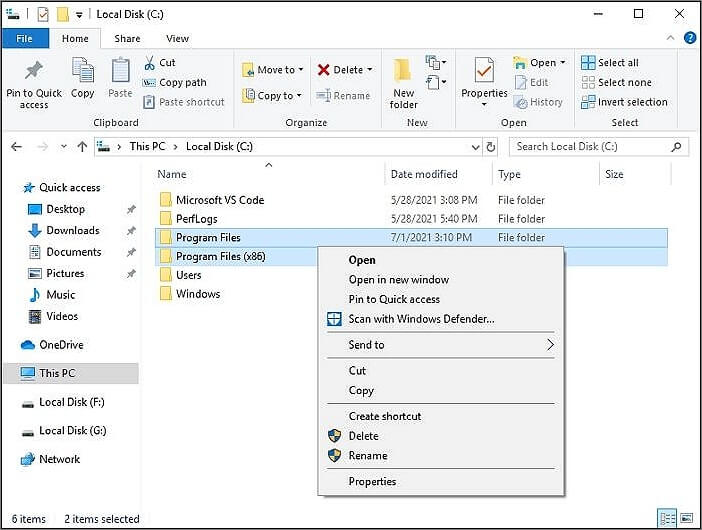
The C drive, also known as the "Local Disk C," is the primary disk in a computer system where the operating system and other data are stored. It is the active primary disk where the manufacturer or user installs the operating system, making it the central storage for the computer's data.

The C drive contains all operating systems, critical information, and boot sectors, making it the primary drive for booting up the system. It also stores all applications by default, which can lead to a notification from Windows that the C drive is full, prompting a need for additional storage or organization.
What Is D Drive?
The D drive in a Windows system serves as the second drive after the C drive, but its function can vary across different systems. It may be used as a recovery disk by manufacturers, or in systems with internal and external disks, it could be labeled as the external disk, depending on the specific setup.
Users trust D drive for storing personal data and information, keeping it separate from system data, which is believed to improve system performance. Additionally, there is a help link available in case of any issues, such as troubleshooting problems.
The age-old debate between C drive and D drive has been ongoing, with some users swearing by one over the other. While some argue that C drive is the primary drive for most operating systems, others claim that D drive offers more flexibility and customization options. However, a closer look at their definitions reveals that both drives have their own strengths and weaknesses, making it difficult to declare a clear winner.
C Drive VS D Drive: Functions & Size & Speed
The C drive is used to store system data, while the D drive is used to store personal data, with the user's usage of the D drive being flexible and dependent on their preferences.
The C drive and D drive have different functions, sizes, and speeds. The C drive is typically used for the operating system, programs, and data, while the D drive is often used for data storage. The size of the C drive is usually smaller, around 20-30 GB, while the D drive is larger, around 400-500 GB.
| Features | C Drive | D Drive |
|---|---|---|
| Functions |
|
|
| Size |
|
|
| Speed |
|
|
The C drive and D drive have distinct main functions, sizes, and speeds, making it easy to understand the difference between them. This knowledge allows users to better manage their files and start saving them on the appropriate drive.
If you want to transfer programs from C drive to D drive, you can refer to the link provided for assistance. This will help you move your programs to the D drive, freeing up space on your C drive.
Should I Save Files on C Drive or D Drive?
The C drive is used by the internal system for its data, such as Windows files, so it's best to keep personal data separate. Saving important data on the C drive can also risk losing it during a reboot, making it not the best option for personal files.
The D drive is typically used as a recovery drive in many systems, making it a safe option for storing files and data. It's often the first storage drive available for management after the C drive.
When saving files, consider the C drive for system files and the D drive for personal files. After saving files, we can compare the best drive option for games between the C drive and the D drive.
C Drive VS D Drive for Games?
When it comes to saving files on the C drive or D drive, the best option is to store games on the D drive. This is because the C drive contains system data and operating system files, and any loss to the system can result in a loss of game data stored on the C drive.
Saving games on the C drive can slow down the system and impact performance, as it takes up limited space meant for system data files.
The D drive can be safely backed up during data backup, and it has ample memory space and speed compared to the C drive, making it ideal for storing game files for an ultimate gaming experience. If games are already on the C drive, a link is available to assist with transferring them to the D drive.

How to Move Games from C Drive to D Drive?
To move games from C drive to D drive, you'll need to follow these steps: First, locate the game files on your C drive, then copy them to the D drive. Next, update the game's shortcut to point to the new location on the D drive. Finally, delete the original game files on the C drive to free up space. This process may vary slightly depending on the type of game and its installation method, but these general steps should help you successfully transfer your game data.
However, users can seek the help of a professional tool like Qiling Partition Master to extend the capacity of the C drive. Qiling Partition Master Professional 17.0 is the all-in-one partition manager for Windows 7/8/8.1/10 and Windows 11, allowing users to extend their C drive by downloading and following its steps.
Option 1. Extend System C drive with unallocated space
- 1. Right-click on the System C: drive and select "Resize/Move".
- 2. To resize the system partition, drag the end of the system partition into the unallocated space to add it to the C: drive.
- 3. To extend the C drive, you can use the built-in Disk Management tool in Windows. First, open the Disk Management tool by searching for it in the Start menu. Then, click on the "Extend Volume" option to increase the size of the C drive.
Option 2. Extend System C drive without unallocated space
- 1. Right-click a big partition with enough free space on the system disk, select "Resize/Move" to free up more space.
- 2. To allocate space for the System C drive, select the system drive at the "Allocate Space From (*) To" section, and drag the end of System C drive into the unallocated space.
- 3. The changes will be saved and the C drive will be extended.
The tool is perfect for Windows beginners looking to optimize their disk performance, as it can adjust disk space, create new partitions, and merge partitions. It supports various file system formats, including exFAT, FAT 12/16/32, EXT2/3/4, and NTFS. Additionally, it has other functions beyond just disk management.
What Else Can Qiling Partition Master Do?
Qiling Partition Master is a professional disk manager for Windows that can help with managing C and D drives, offering a clear interface and various features.
- Transfer system
- Extend C drive
- Move space from D to C
- Format C drive and D drive
- Convert NTFS to FAT32 and vice vista
- Add unallocated space to D drive and C drive
- Merge C drive and D drive in Windows 11/10
You can quickly download Qiling Partition Master on your Windows system and use it to manage your C drive and D drive.
C Drive VS D Drive: Verdict
The operating system is typically stored on the C drive, while the D drive is used for personal data, recovery files, and other user-specific files. This allows for easy organization and management of system and user data.
The C drive is best used for system files, while the D drive can be used for personal data, allowing users to optimize Windows system performance by storing games on the D drive and files on either the C or D drive based on convenience.
FAQs About C Drive VS D Drive
After going through a detailed review of the C drive VS D drive, you may have certain questions related to the same. Some of the frequently asked questions related to the C drive and D drive are:
1. Can games be installed on the D drive?
It's easy to install games on the D drive, and defining the installer location while running the installer file makes it straightforward. However, some functions should be installed on the same drive as the Windows drive to avoid installing components in the operating system.
2. What is the D drive used for?
The D drive is the secondary hard drive on the system, used for storing specific files and has less space than the C drive, often used for a restore partition or additional storage.
3. Can you transfer data from the C to the D drive?
Using a file transfer tool, it's simple to transfer data from the C drive to the D drive. You can transfer various types of data, including documents, installed programs, system files, and folders.
Related Articles
- [Solved] How to Fix DISM Error 2 Unable to Access the Image Windows 11/10
- How to Fix "Mac Documents Folder is Empty" Error
- Effective Methods of How to Make Space on Mac with Handy Tools
- How to Open Control Panel in Windows 10
- How to Turn off Windows Defender on Windows10 [A Complete Guide]
Windows Defender, now called Windows Security on Windows 10 and 11, is the default anti-malware program that comes with the Windows system. - 2023 Guide | How to Turn On Offline Sync Google Drive/Google Docs
This article covers the full explanation of offline sync Google Drive and provides the methods to turn on offline sync Google Docs and offline sync google drive on Windows or Mac. Read this article to turn on offline sync Google Drive and Google Docs.
Products
Articles & Tutorials
- Data Recovery
- Data Backup
- File Recovery
- File Backup
- System Backup and Restore
- Disk and Partition Clone
- Technical articles
- Mobile articles
- Disk Master Help
- Windows Data Recovery Tutorials
- Windows Secure Delete Tutorials
- Windows Partition Management Tutorials
- Windows File Backup and Restore Tutorials
- Windows System Backup and Restore Tutorials
- Windows Disk Backup and Restore Tutorials
- Windows Clone Tutorials