[Solved] How to Fix DISM Error 2 Unable to Access the Image Windows 11/10
Windows has a built-in tool called DISM that helps fix issues or replace corrupted files, but it's not immune to problems itself and can sometimes cause issues for users.
Today, we'll analyze the leading issue of DISM Error 2, exploring what it is, how it happens, and ways to resolve it.
DISM Error 2 Overview
DISM (Deployment Image Servicing and Management) is a tool used to repair Windows, and it can be used both online and offline. However, when you try to use it to fix your Windows, you might encounter a DISM Error 2, which can be frustrating. Despite this, DISM remains a useful tool for maintaining your Windows system, and it can be used to perform various tasks such as repairing and servicing your Windows image.
- Downloading and replacing files that might be causing the issue;
- Repairing bad or corrupted files;
- Replacing missing or corrupted files;
- Repair the overall health of your Windows.
DISM Error 2 is a common issue that occurs when the System File Checker (SFC) and the Deployment Image Servicing and Management (DISM) tools in Windows fail to repair corrupted system files. This error typically appears when running the DISM command with the /Online /Cleanup-Image /RestoreHealth option, indicating a problem with the Windows image or the system files. To resolve this issue, users often try various methods, including running the SFC and DISM commands with different options, using the Windows Update Troubleshooter, and even reinstalling Windows. However, these methods may not always be effective, leading to continued frustration. The DISM Error 2 issue is often associated with corrupted system files, a faulty Windows image, or issues with the Windows Update process.
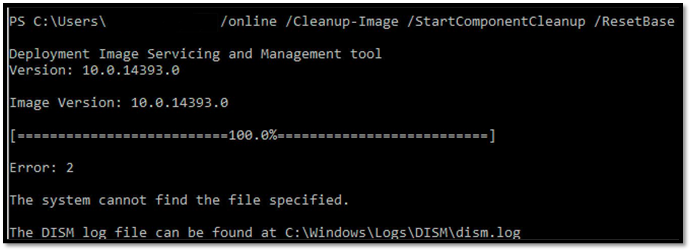
Many things can cause this annoying issue. For instance:
- The system is unable to find the files required to conduct repair or replacement
- Error caused by a bad internet connection
- Antivirus tools or software getting in the way of DISM
- Corrupted DISM service—hence needing a complete reinstall
- Lousy sector on your hard drive or general hardware issue
DISM Error 2 can be caused by various reasons, with hardware issues being rare but not entirely ruled out. It's essential to ensure the integrity and health of your hardware before attempting any fixes.
DISM Error 2 may be caused by a poor internet connection, as Windows may not have the necessary files to use DISM properly, and may need to download them from Microsoft.
Bad internet can prevent Windows from downloading required files, while an antivirus tool (not Windows Defender) might also block the download of necessary files, potentially causing the issue.
Recover Lost Files Before Windows Repairment
Before attempting to fix DISM Error 2, it's crucial to recover and restore any lost files, as DISM errors can sometimes result in the loss of important data, especially on the C drive.

You need a powerful and reliable recovery tool like Deep Data Recovery, which is a comprehensive tool that allows you to recover and restore any lost files during multiple instances, such as.
- Restore files lost during DISM has gone bad
- Recovery of deleted files
- Recover in case of a damaged or broken hard drive
- Restore files lost in formatting or partitioning
To restore DISM-related files, you can use the DISM tool with the /restore-image option. This option allows you to restore a corrupted Windows image to a previous state. The process involves mounting the Windows image, scanning for corrupted files, and then restoring them.
Note: To increase the chances of successful data recovery, install Qiling data recovery software on a separate disk, rather than the original one where the files were lost.
Step 1. Launch Deep Data Recovery on your Windows computer, and click "Fast Scan" to initiate the recovery process.
Note: You can choose different search modes based on where and why the data was lost.
Select the disk partition or storage location where you lost data and click "Scan".

Step 2. The recovery software will start scanning the disk to find all lost and deleted files, and once the scan is complete, you can filter the results by file type.

Step 3. Preview and restore lost Windows files by scanning them, double-clicking to preview, selecting the target data, and clicking the "Recover" button to save them to a safe spot.
It is so easy to use, right? So download it and utilize it!
How to Fix DISM Error 2 Option Is Unknown
This section will explore five different methods to resolve DISM Error 2, caused by various reasons such as corrupted system files, missing or incorrect system files, or incorrect DISM registry entries. By addressing these underlying issues, you can get DISM up and running again.
We'll assist you in resolving DISM error 2 beyond the steps mentioned in this section. The following methods are available to help with this issue.
- Method 1. Refresh DISM Tool
- Method 2. Run CHKDSK Tool
- Method 3. Uninstall or Disable Antivirus
- Method 4. Restore Windows System
- Method 5. Reset the PC or Laptop
Method 1. Refresh DISM Tool
To resolve a DISM Error 2, you can refresh the DISM tool using the command prompt. This is done by running the command "dism /online /cleanup-image /checkhealth" followed by "dism /online /cleanup-image /restorehealth". This will refresh the DISM tool and resolve any pending commands, allowing it to complete any new commands without error.
Step 1. Press the Windows button on your keyboard.
Step 2. Open CMD as administrator on Windows.
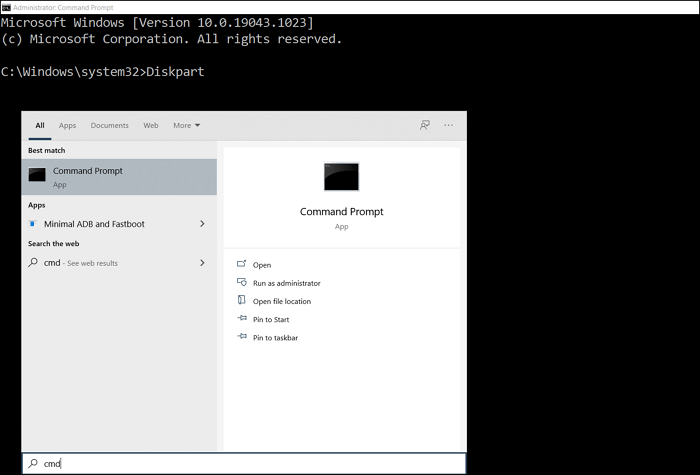
Step 3. Type "dism.exe /image:C:\ /cleanup-image /revertpendingactions" and press enter
Step 4. Wait for it to finish
To refresh the DISM tool, open Command Prompt as administrator, type `dism /online /cleanup-image /restorehealth`, and press Enter. This command will refresh the DISM tool and allow it to restore to its neutral state, making it possible to apply DISM commands again to replace or fix corrupted files.
Method 2. Run CHKDSK Tool
To ensure your PC runs smoothly, it's essential to remove junk files that can hinder the DISM process. This can be achieved by using the Check Disk method, which not only fixes errors but also cleans up other junk data, allowing DISM to download or use additional files without any issues. By doing so, you'll be able to keep your PC in top shape and ensure that all system functions run smoothly.
Step 1. Open my computer and right-click on C Drive.
Step 2. Navigate to the bottom and click on the properties.
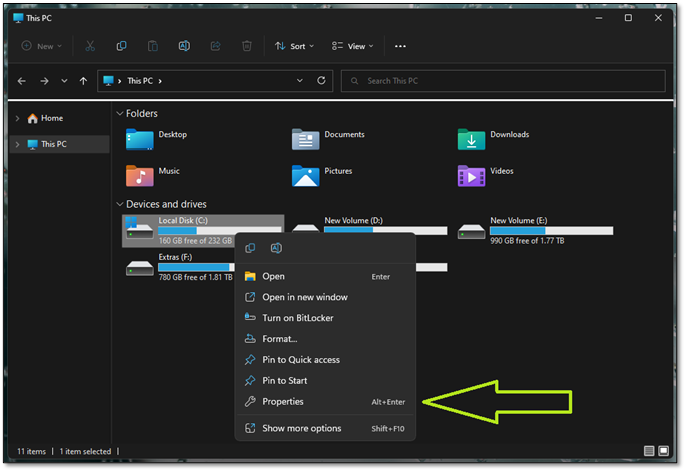
Step 3. Head into the Tools tab.
Step 4. Press Check under the "Error Checking" section.
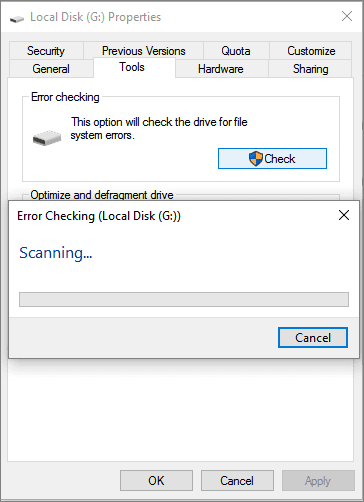
Step 5. Click on "Scan drive" when Error checking prompt shows up.
Step 6. Wait for it to finish.
Step 7. Allow the scan to finish.
Once the scan is through, you can use the DISM commands again. This scan will likely resolve any errors or remove any files that were causing the issue, making it unlikely for Error 2 to occur again.
Method 3. Uninstall or Disable Antivirus
One of the main things that might be getting in the way of your DISM fixes could be your antivirus program, although Windows Defender rarely stops your PC from using an in-built method like the DISM.
So, if you have a third-party antivirus installed, you may need to disable it. To disable Microsoft Defender, go to Settings > Update & Security > Windows Security > Virus & threat protection > Virus & threat protection settings > Manage settings, and toggle off the switch for "Real-time protection".
Step 1. Open Microsoft Defender from the system tray.
Step 2. Head into Virus & Threat protection.
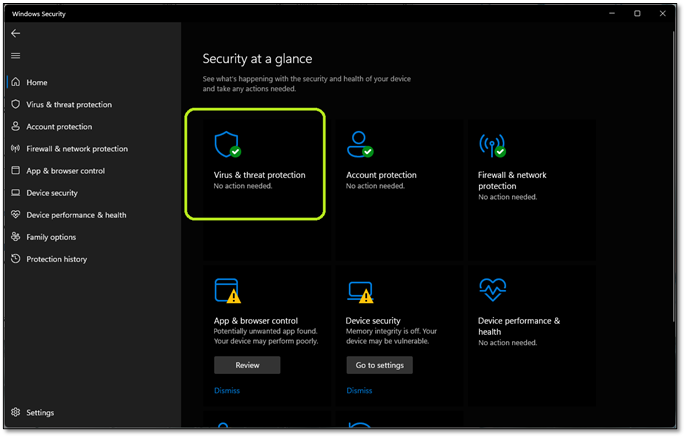
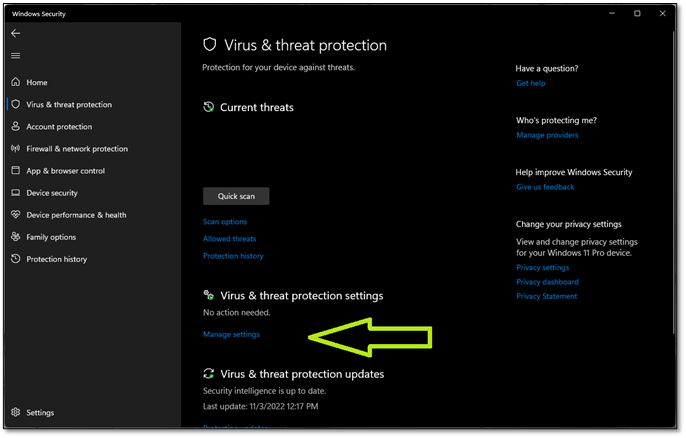
Step 3. Find the Manage Settings option and click on it.
Step 4. Inside the settings, turn Real-Time Protection off.
Step 5. And turn Cloud-delivered protection off as well.
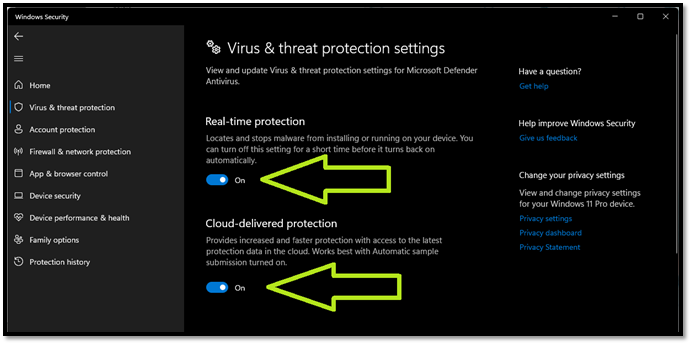
After you've completed the steps, run DISM to fix any errors or issues with your Windows. Once it's done, we recommend turning these settings back on immediately.
Method 4. Restore Windows System
Sometimes, you may need to revert to a system restore point to resolve DISM issues. This can be caused by a driver update or a Windows Update that interferes with DISM's functionality. To resolve this, you can restore Windows System by using the system restore point feature.
Step 1. To access the Control Panel, go to the Start menu on your computer, type in "Control Panel" in the search bar, and click on the result that appears. This will open the Control Panel window, where you can find various settings and tools to manage your computer's hardware, software, and other features.
Step 2. In the Control Panel search, look for Recovery.
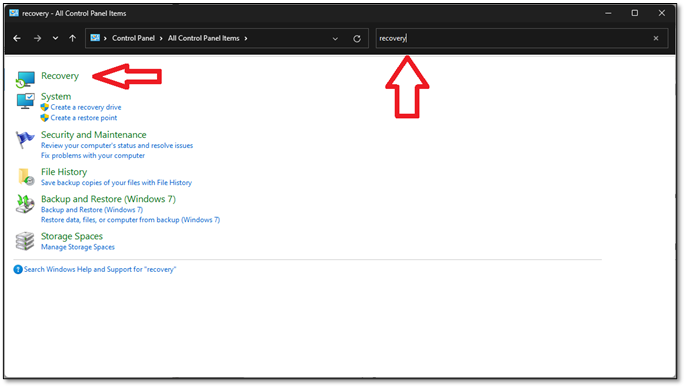
Step 3. Click on "Open System Restore".
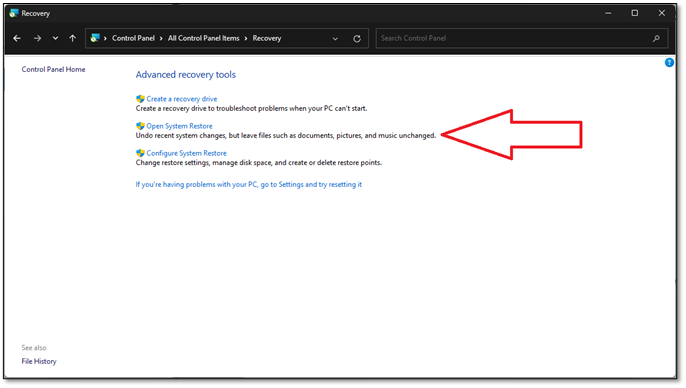
Step 4. Next up, find the System Restore option and click on it.
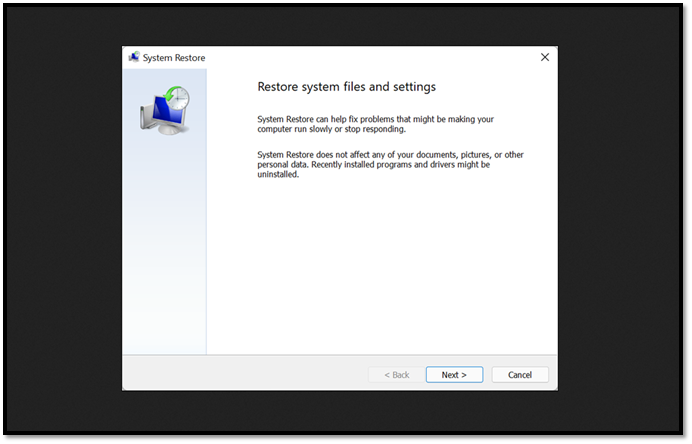
Step 5. Click "Next" when the System Restore wizard opens.
Step 6. Pick the restore point and click on "Next".
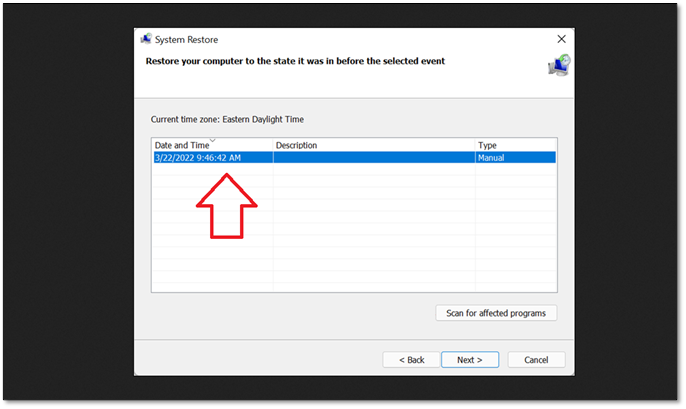
Step 7. Allow it to restore to that point.
Step 8. Finish and restart your PC.
The DISM (Deployment Image Servicing and Management) tool can be used to repair a corrupted Windows image. If the DISM tool is corrupted, you can use the Windows Recovery Environment to run a command prompt and use the DISM tool to repair itself.
Method 5. Reset the PC or Laptop
Before proceeding, be aware that resetting your PC to its original settings will delete or remove any custom configurations and installed software, so it's essential to have a backup file in place to restore your settings.
Step 1. Open Settings and go into System options
Step 2. Find Recovery options and click on "Reset PC".
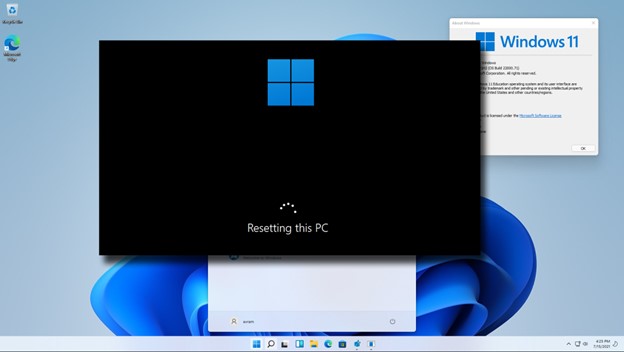
Step 3. In the next option, select "Keep my files".
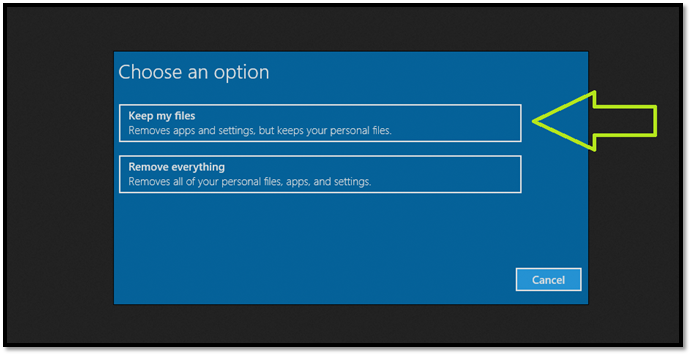
Step 4. Follow the on-screen instructions until your PC restarts.
In a last resort, you can reset your PC to its default settings, which will allow you to run DISM commands. This will, however, require reinstalling drivers and other software.
Summary
To fix DISM Error 2 in Windows 10 or 11, try running the DISM tool with the /Online /Cleanup-Image /RestoreHealth option, then restart your computer. If that doesn't work, try running the System File Checker tool (SFC) with the /scannow option, followed by a restart. If that also fails, try running the DISM tool with the /CheckHealth option, then restart your computer. If none of these methods work, try running the DISM tool with the /RestoreHealth option and specifying the correct Windows version, followed by a restart.
To recover and restore lost files, use a capable tool like Deep Data Recovery, and ensure you're using the proper methods to restore your files and implement fixes for DISM Error 2.
DISM Error 2 FAQs
If you encounter DISM Error 2, these frequently asked questions and answers may help you resolve the issue:
1. How do I fix Windows update DISM?
Microsoft recommends using the System Update Readiness tool to resolve any problems with your Windows installation.
2. Can DISM repair Windows?
DISM can repair Windows if the problem is related to missing or corrupted files, but may not be able to fix issues beyond that, potentially requiring a full reinstall.
3. Should you run SFC or DISM first?
SFC will scan your system for issues related to operating system files, so it's recommended to run it before running DISM commands.
4. How long should DISM RestoreHealth take?
The time it takes to fix Windows issues can vary depending on the severity of corruption and the number of missing files, but on average, it can take around 10 minutes to an hour to resolve the problems.
Related Articles
- How to Solve "No Usable Free Extent Could Be Found" [Efficient Solutions]
- Fix Deleting Files Does Not Free Up Space Error in Windows 10/8/7
- Service Host: Local System High Disk, CPU and Memory Usage [100% Solved]
- [Detailed Info] How to Upgrade to macOS Ventura Without Losing Data
- New 16TB External Hard Drive Released: Perfect for Storing Large Data Files
A 16 TB External Hard Drive can hold a huge amount of documents, various forms of media, software, and applications. This article will introduce the 5 best 16 TB External Hard Drive and talk about the perks of each one. - What Is Apple Universal Control, All You Need to Know
Apple Universal Control is a feature that allows users to control multiple Apple devices with a single keyboard and mouse, making it easy to switch between Mac and iPad.
Products
Articles & Tutorials
- Data Recovery
- Data Backup
- File Recovery
- File Backup
- System Backup and Restore
- Disk and Partition Clone
- Technical articles
- Mobile articles
- Disk Master Help
- Windows Data Recovery Tutorials
- Windows Secure Delete Tutorials
- Windows Partition Management Tutorials
- Windows File Backup and Restore Tutorials
- Windows System Backup and Restore Tutorials
- Windows Disk Backup and Restore Tutorials
- Windows Clone Tutorials