[Detailed Info] How to Upgrade to macOS Ventura Without Losing Data
Should I Upgrade to macOS Ventura
The new macOS Ventura operating system is out, offering various new features, but some users have reported issues. Despite the concerns, there are still reasons to upgrade, as Ventura may not have the same visual improvements as previous versions like Big Sur or Monterey.
- New features. macOS Ventura offers several new features that enhance the user experience, such as Stage Manager, Continuity Camera, Passkeys, and updated apps like Mail and Messages, along with improved Spotlight functionality.
- Higher security. The new version of any operating system (OS) includes security patches and fixes for vulnerabilities, and macOS Ventura is no exception, making it more secure than the previous version.
- Faster running speed. The latest version of macOS, Ventura, is reportedly faster than its predecessor, Monterey, with users who tested the beta version noting a slight improvement in speed.
Can All Mac Computers Get the Upgrade
Before upgrading to macOS Ventura, it's essential to check if your Mac device is compatible with the latest OS. Not all Macs can run macOS Ventura, and to ensure a smooth upgrade, you must verify that your device is on the compatibility list. Fortunately, Apple provides a full list of compatible models, allowing you to determine whether your Mac can run the latest OS.
- iMac 2017 and later
- iMac Pro 2017 and later
- MacBook 2017 or later
- MacBook Pro 2017 or later
- Mac Mini 2018 or later
- MacBook Air 2018 or later
- MacPro 2019 or later
- Mac Studio 2022
If you've bought a Mac in recent years, you can upgrade your Mac computer to macOS Ventura.
What to Do Before Upgrading to macOS Ventura
It's a good idea to back up your Mac before upgrading to macOS Ventura, using Time Machine or third-party software, to ensure a restore point in case something goes wrong during or after the upgrade.
| Workable Solutions | Step-by-step Troubleshooting |
|---|---|
| Solution 1. Backup your Mac with Time Machine | Time Machine is a built-in feature of a Mac computer for creating...Full steps |
| Solution 2. Backup your Mac via Professional Backup Software | Time Machine is an excellent backup tool for Mac devices, but its...Full steps |
Solution 1. Backup your Mac with Time Machine
Time Machine is a built-The Time Machine feature on a Mac computer allows for creating a backup of your entire system using an external drive. It can automatically back up your files, but it has a limitation: it cannot back up system files, boot camps, or external drives that are not connected when the backup is initiated.
- iOS devices
- iCloud content
- Network settings
- Email messages or accounts
- Certain system files or applications

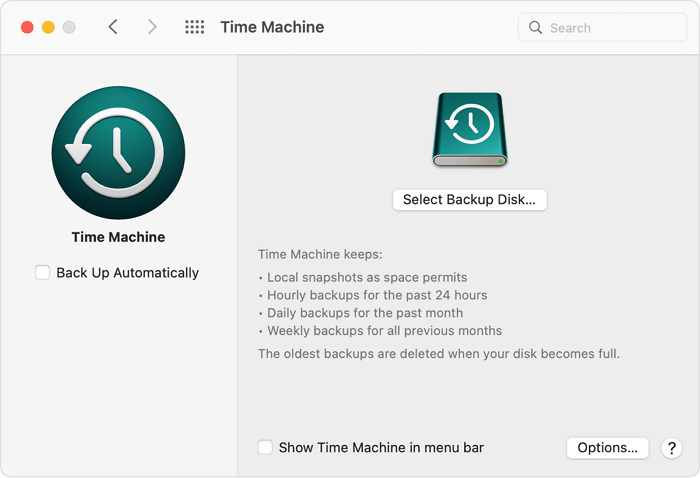
To use Time Machine on your Mac, first make sure you have an external hard drive or a Time Capsule connected to your computer. Then, go to System Preferences, click on Time Machine, and select the drive you want to use.
Solution 2. Backup your Mac via Professional Backup Software
Time Machine is a reliable backup tool for Mac devices, but it also has its limitations. Fortunately, third-party backup software like Qiling Backup, the best backup software for Mac, can fill in the gaps. Whether you're planning to clean install macOS Ventura or simply back up your Mac computer, Qiling Backup is a handy tool to have.
Qiling Backup for Mac is a reliable backup utility that supports full, incremental, and differential backups, and is compatible with macOS Ventura. It allows users to archive files to various storage options, making it a suitable companion for Time Machine, and also enables cloning of USB drives and disks.
To back up your Mac computer, you can perform the following steps.
Step 1. Launch and run Qiling Backup for Mac.
To create a backup project, click the first "Backup" tab or the "+" button in the bottom-left corner, name the backup project, and then click "OK".
Step 2. Set up the backup destination where you want to store Mac files as backups, automatic backup frequency, etc and click OK.
Step 3. Add files and folders to the backup project.
To back up your Mac, click on "File+" to select specific files and folders to include in the backup, and then click the blue "Start" button to initiate the backup process, which will save your data to an external drive or another device.
How to Upgrade your Mac to macOS Ventura
To upgrade to macOS Ventura, start by clicking the Apple logo in the top left corner of your screen, then select System Settings. Click on General, then click on Software Update. If an update is available, click on the Update Now button. Follow the on-screen instructions to complete the installation.
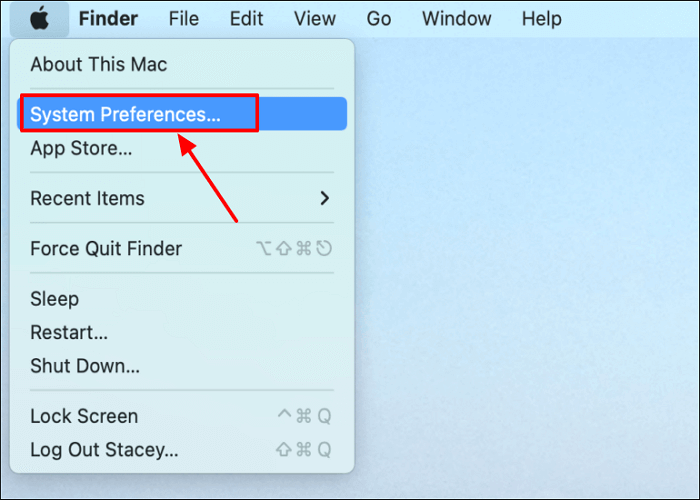
Step 1. Open System Preferences by clicking the Apple icon on the top-left corner of the screen.
Step 2. To update the software, click on the "Software Update" option, and it will check if the upgrade is available.
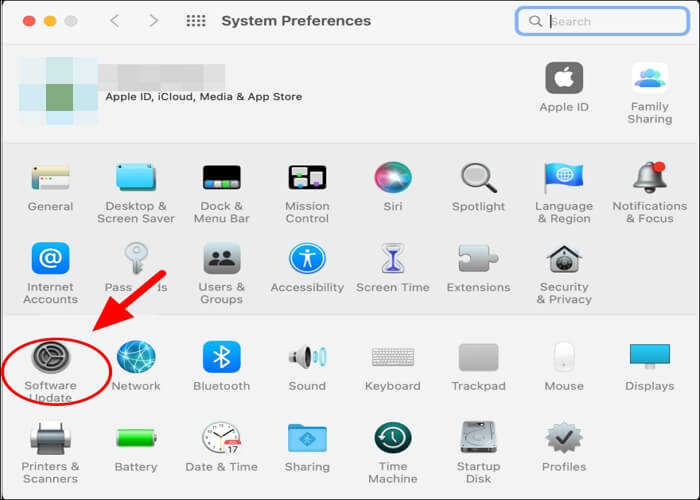
Note: If you don't see Software Update in System Preferences, you can try the following: check if your Mac is connected to the internet, restart your Mac, or check if your Mac is running the latest version of macOS. If none of these steps resolve the issue, you can also try resetting the System Preferences by quitting the System Preferences application and then relaunching it.
- You can use the Search function in the corner of the window to search for specific content.
- If your older Mac doesn't have Software Update, you can find updates by opening the App Store app, clicking on the Updates tab, and searching for software by name.
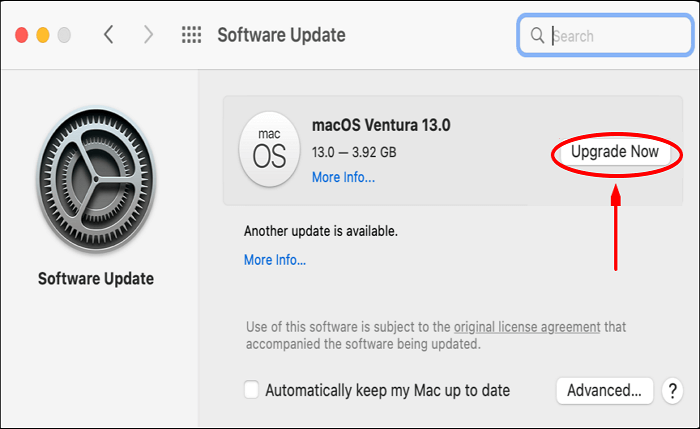
Step 3. Click Upgrade Now.
Step 4. If prompted, enter your user (admin) password.
Step 5. Click Agree when you see the Software License Agreement.
Step 6. macOS Ventura will be downloaded to your Mac, taking a few minutes. After that, you'll see "Preparing macOS Ventura 13.0…", which may take a long time.
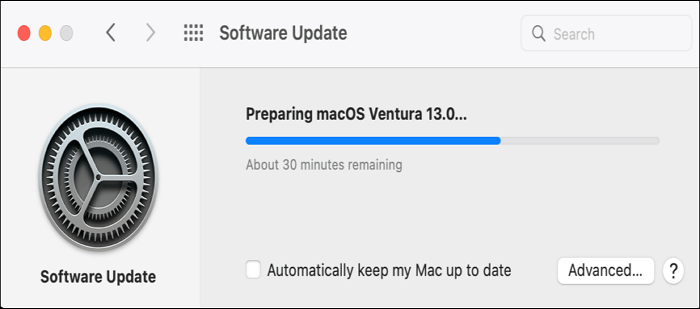
Step 7. When the update is ready, your Mac will restart, and you may receive a notification. Wait for the process to be finished before using your Mac again.
The Bottom Line
To upgrade to macOS Ventura without losing data, create a backup of your Mac using either Time Machine or Qiling Backup, and I recommend using Qiling Backup for its additional features and fewer limitations.
FAQs
1. Can you go back to an old Mac version?
Downgrading to an older version of macOS is a straightforward process that can be completed using the built-in macOS Recovery tool, which requires internet access to download the older version.
2. How long until a MacBook is outdated?
When a MacBook is around 5-7 years old, Apple considers it outdated and may no longer provide repair parts, making it harder to get it fixed. However, you might still be able to find replacement parts online, although not from Apple.
3. Why can't I update my Mac?
The most common reason you can't update your Mac is due to a lack of storage space. To install updates, your Mac needs sufficient space to download the new files, so it's recommended to keep at least 15-20GB of free storage space available. This will allow the update process to proceed smoothly.
4. Is it worth keeping old MacBook?
Most used MacBooks retain their value well, making them worth something, especially if they're in good condition and only a few years old, which can fetch a high price on the used market.
Related Articles
- How to Format Unallocated Disk [Step-by-Step Guide]
- Nintendo Switch SD Card Format: How to Format SD Card for Nintendo Switch
- [Fixed] The File Is Corrupted and Cannot Be Opened in Excel/Word
- How to Delete a User Profile From Windows 10 [Fixed]
- MOV Repair: Top 6 Ways to Repair Corrupted MOV Files
Learn how to repair corrupted MOV files with 6 proven methods. Fix MOV videos that won't play on Windows, Mac, or online using VLC, QuickTime, and top repair tools. - MSI File Extension - What Is .MSI? How to Open or Install It?
Here you'll know about the msi file extension. How you can easily open it automatically not manually. There are two main steps to open msi file extension. Also, you'll know the difference between MSI File and EXE File.
Products
Articles & Tutorials
- Data Recovery
- Data Backup
- File Recovery
- File Backup
- System Backup and Restore
- Disk and Partition Clone
- Technical articles
- Mobile articles
- Disk Master Help
- Windows Data Recovery Tutorials
- Windows Secure Delete Tutorials
- Windows Partition Management Tutorials
- Windows File Backup and Restore Tutorials
- Windows System Backup and Restore Tutorials
- Windows Disk Backup and Restore Tutorials
- Windows Clone Tutorials