How to Delete a User Profile From Windows 10 [Fixed]
To delete a user profile from Windows 10, you can follow these steps:
Windows 10 allows you to delete a user profile without deleting the associated user account. This means you can remove a user's personal settings, files, and data without affecting the user account itself, which remains intact. This is useful for situations like when a user leaves the organization and you want to remove their profile without deleting their account, or when you want to reset a user's profile to its default state.
What is a User Profile on Windows
A user profile is a collection of settings and information related to a user account, stored in a directory for easy access and management.
Step 1. To access your computer's drive, ensure your PC/laptop is powered on and running with Windows 10 as the operating system. Then, click on the "This PC" icon, which is usually located on the desktop or in the Start menu. This will open a window displaying all connected drives, including your internal hard drive, external drives, and other storage devices.
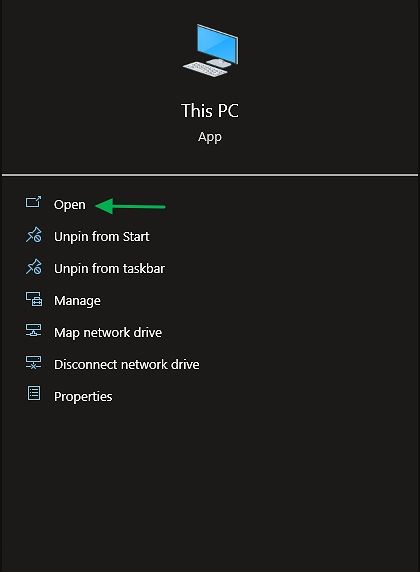
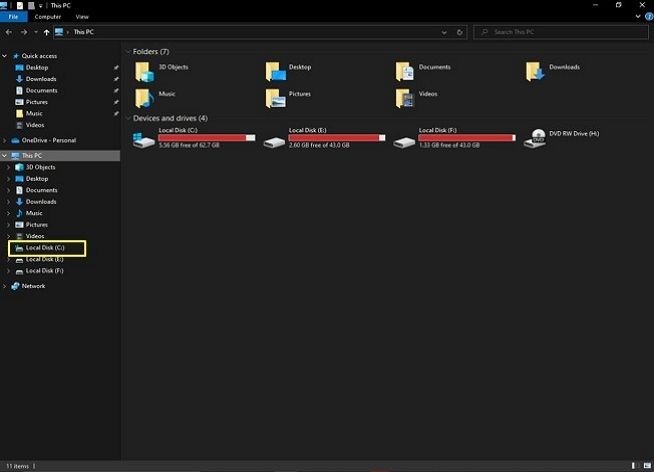
Step 2. Here, you will probably see a drive with the name Local Disk (C:), click on it. This will take you to the main directory of your computer, where you can find all your files and programs.
Step 3. To check all user profiles on your system, click on the "users" option.
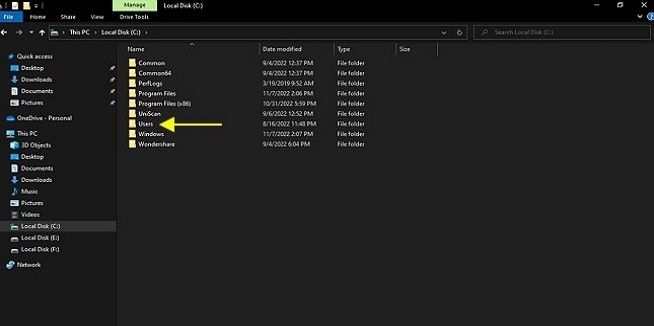
A user profile typically contains various files and folders that store information, allowing users to view the content within.
A user account is created during Windows 10 setup and allows you to sign in and create multiple user profiles.
How to Delete a User Profile From Windows 10
In Windows 10, there are three ways to delete a user profile: you can use the built-in "Remove User Profile" tool, delete the user's profile folder manually, or use the Windows Settings app to delete the profile.
- Method 1. Manually delete a user profile
- Method 2. Delete a user profile through system properties
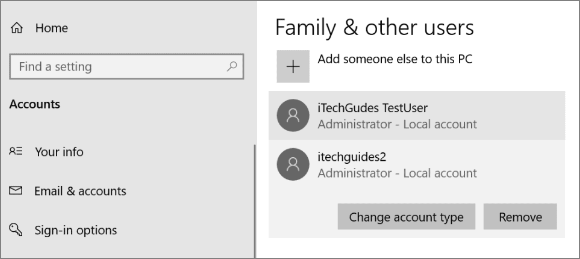
- Method 3. Delete a user profile from the settings app
Step-by-step process to manually delete a user profile
Step 1. To access the This PC icon, follow these steps: Power on your PC/laptop with Windows 10 operating system, and then click on the "This PC" icon.
Step 2. To access the Disk Management console, click on the Start button, then select "This PC" or "Computer" and click on it. In the "Devices and Drive" section, you'll see one or multiple hard drives listed. Click on the drive that has the Windows icon or is labeled as "Local Disk (C:)" to access its properties.
Step 3. To see all user profiles on your system, click on the "Users" option. This will display a list of all user profiles currently available on your system.
Step 4. Right-click on the user profile you want to delete
Step 5. Click on the delete option in the drop-down menu.
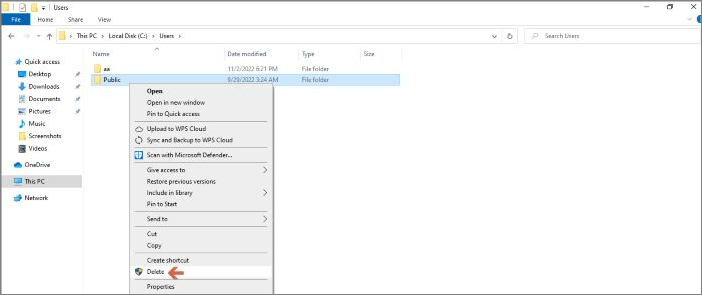
Step 6. After this, press the Windows + R key to open the run command window.
Step 7. Now, type "regedit" and click on the "Ok" button.
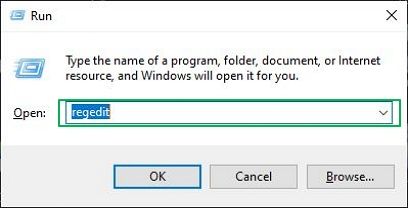
Step 8. Copy and paste the following Registry Key into the registry editor.
HKEY_LOCAL_MACHINE\SOFTWARE\Microsoft\Windows NT\CurrentVersion\ProfileList
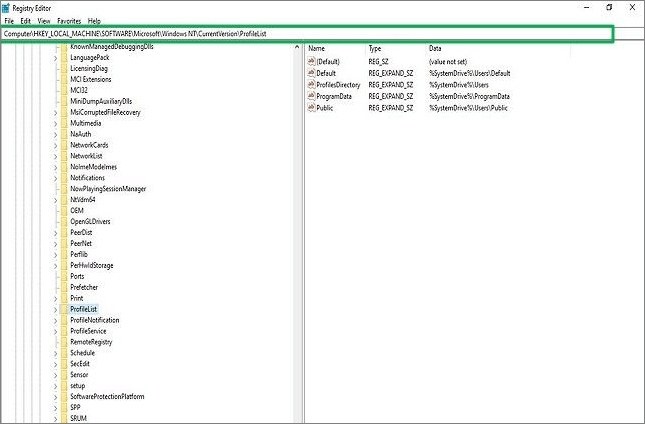
Step 9. To find the "FileList" folder, navigate to the "ProfileImagePath" which is typically located at "C:\Users\YourUsername\AppData\Local\Temp\Microsoft\Windows\ProfileImagePath".
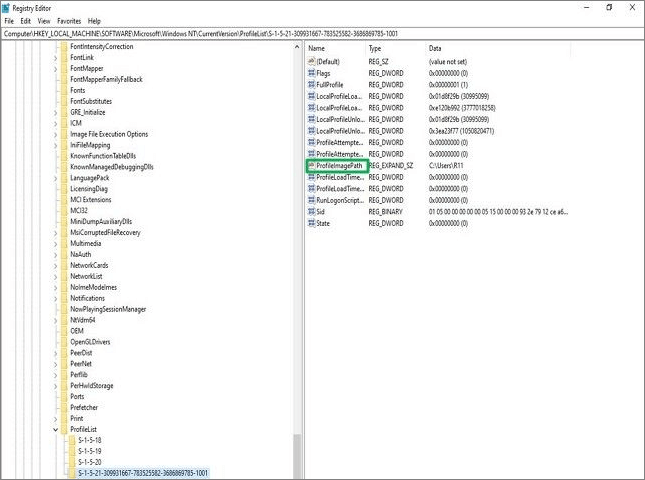
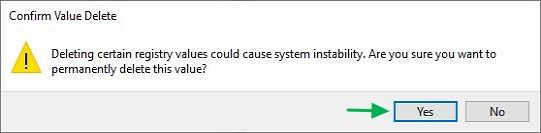
Step 10. Right-click on the file and select delete, then confirm the deletion by clicking "Yes" in the warning message that appears.
Step 11. Close the registry editor and restart your PC. Upon restarting, the deleted profile will no longer be visible in the "Users" folder.
Step-by-step process to delete a user profile through system properties
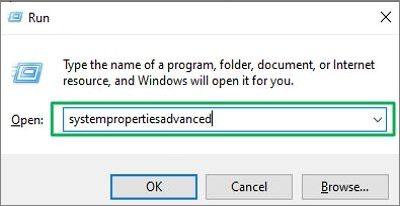
Step 1. Open the run command by pressing Windows+R.
Step 2. Type "systempropertiesadvanced" and click "Ok."
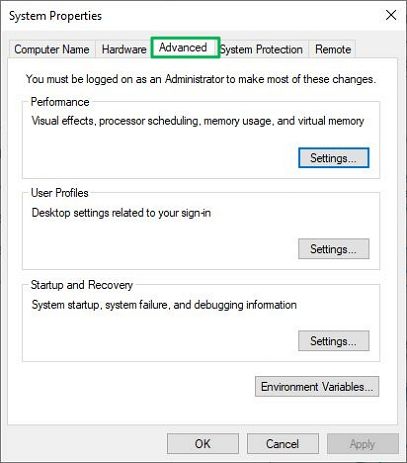
Step 3. Now, open the "Advanced" tab from the top menu.
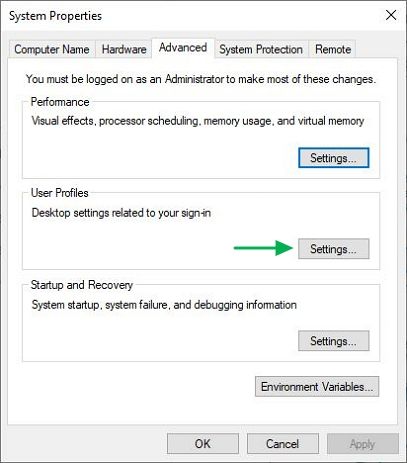
Step 4. Click on the Settings button inside the "User profile" option.
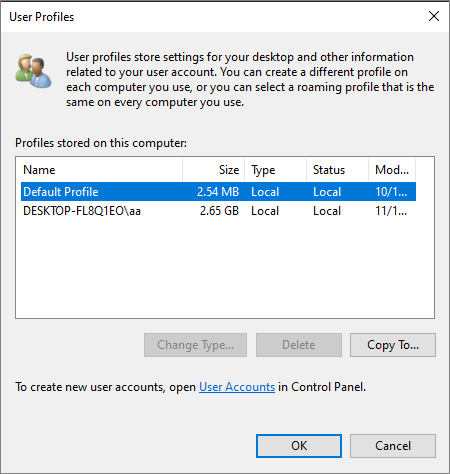
Step 5. To delete a user profile, open the User Profiles window, select the profile to delete, click the "Delete" button, and confirm the deletion by clicking "Yes" in the subsequent window. This will remove the profile from the system, and it will no longer appear when restarting the PC.
Step-by-step process to delete a user profile from the settings app
Step 1. Type "Settings" in the search bar to open the application.
Step 2. Click on "Accounts" and then open "Family & other users."
Step 3. To delete a profile, select the one you want to remove and remove it.
You can copy and transfer your user profile to the new device. This will save you time and effort in setting up the new device.
Bottom Line
Deleting a user profile on Windows 10 can be a great way to keep your data safe and separate from unauthorized access, especially if you share your PC with family or colleagues. If you need to delete a user profile you've created, there are two authentic ways to do so, which can help you keep your data secure and organized.
Related Articles
- C Drive VS D Drive: What Are the Main Differences?
- Format FS=FAT32 Quick: Full and Comprehensive Guide on Use It
- How to Recover Your Deleted Firefox Browsing History
- How to Backup Thunderbird Emails to External Hard Drive [Three Ways]
- How to Find Motherboard on Windows 11, 10, 8 and 7
Learn how to find your motherboard model in Windows using System Information, Command Prompt, PowerShell, or third-party tools. - How to Fix Physxloader.dll Is Missing or Not Found Errors
Fix Physxloader.dll is missing or not found errors by reinstalling PhysX, repairing games, or checking system files.
Products
Articles & Tutorials
- Data Recovery
- Data Backup
- File Recovery
- File Backup
- System Backup and Restore
- Disk and Partition Clone
- Technical articles
- Mobile articles
- Disk Master Help
- Windows Data Recovery Tutorials
- Windows Secure Delete Tutorials
- Windows Partition Management Tutorials
- Windows File Backup and Restore Tutorials
- Windows System Backup and Restore Tutorials
- Windows Disk Backup and Restore Tutorials
- Windows Clone Tutorials