How to Fix Physxloader.dll Is Missing or Not Found Errors
How to Fix Physxloader.dll Is Missing or Not Found Errors
The physxloader.dll missing or not found error is often caused by a malware attack that corrupts or removes the Physxloader DLL file, leading to the error.
Physxloader.dll is a trustworthy file linked to the NVIDIA PhysX Physxloader Dynamic Link Library. However, if you're experiencing issues with it, it's likely due to problems such as corrupted windows registry, hardware failure, or even computer viruses.
To resolve the issue of the "Physxloader.dll is missing or not found," you can try reinstalling the PhysX SDK, which is a software development kit that includes the Physxloader.dll file.
This can be done by downloading the latest version of the PhysX SDK from the official website and following the installation instructions.
To be clear, the error message may appear in various forms, such as:
- There is a missing file in Physxloader.dll.
- Cannot begin (Name of the Game).
- There is a physxloader.dll missing. Please Reinstall (Game Name) if you can.
- This program won't run properly if you don't have Physxloader.dll on your PC.
- Unable to find Physxloader.dll.
- The Physxloader.dll file was missing, causing the application to crash. To fix this, you can try reinstalling the program. This may resolve the issue.
The Physxloader.dll missing error is often caused by issues in the DDL file. Fortunately, there are three effective solutions to resolve this problem, which can be implemented to fix the Physxloader.dll missing error.
When Does Physxloader.dll Missing Error Occur
The error "Physxloader.dll is missing" occurs when the PhysX system DLL file is missing or damaged. You can verify this by opening System Properties and checking the "Details" tab, where a message saying "PhysX system DLL not found" would indicate the issue.
Causes of the Physxloader.dll missing error:
- The "Physxloader.dll Is Missing" error occurs because the computer hasn't been updated with the latest PhysX System Software version.
- The problem can also be caused when you are unable to run programs or games requiring PhysX in Windows 10, 8/8.1, 7/Vista/XP or any other operating system.
- A computer virus or malware infection can also cause the Physxloader.dll Missing error on your computer screen.
- The most common reason for this problem is that your computer does not have enough RAM or processing power for the game.
Solution 1: Download NVIDIA PhysX System Software
The issue with the Physxloader file is likely caused by Nvidia PhysX, which can be downloaded from the official website if it is not already installed on your PC. To install the software, follow the step-by-step method outlined below.
Step 1. First, visit the NVIDIA Physx official site.
Step 2. Select the Download Now button.
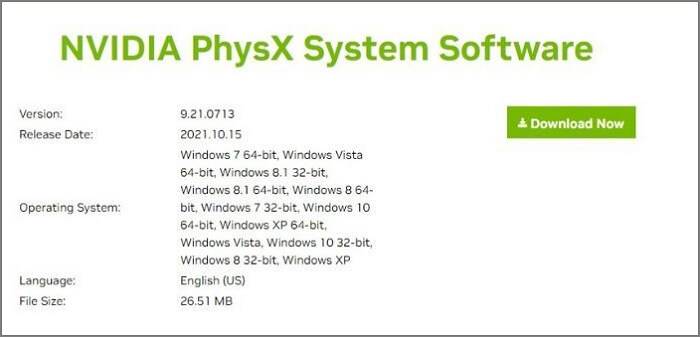
Step 3. After entering your product number, the website will take you to the Download Drivers page, where you can press the Download button to start the download process.
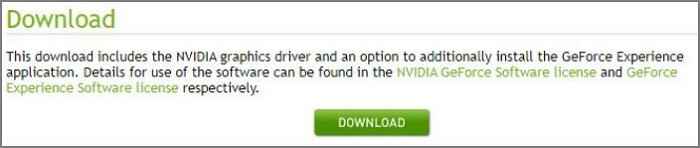
Step 4. The download will begin. Once the download is complete, double-click the file to start the installation process.
Step 5. When the UAC prompt permissions appear, click on the Yes button.
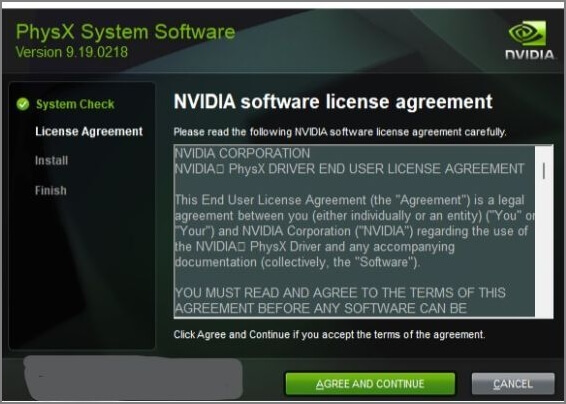
Step 6. The NVIDIA Installer has been launched, and to proceed, select the "Agree and Continue" button from the menu.
Follow the on-screen instructions to complete the installation process. Once the installation is finished, restart your computer to ensure all changes take effect properly.
Solution 2: Copy Physxloader.dll from Another PC
If you're experiencing issues with the Physxloader.dll file, you can try transferring it from a friend's computer with the same hardware configuration. To do this, simply copy and paste the file from your friend's computer. To ensure both computers are set up properly, follow the instructions below.
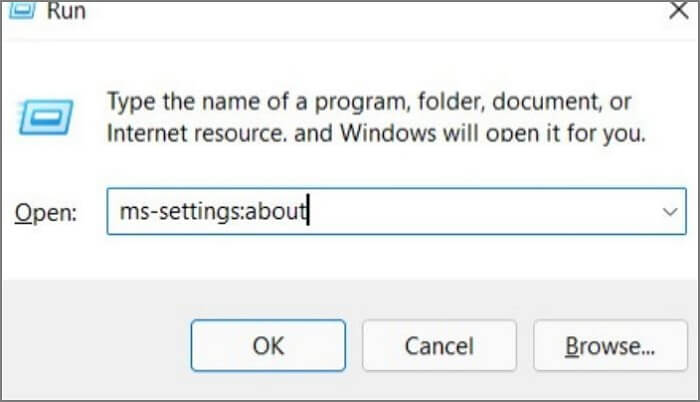
Step 1. Firstly, hold down the Windows+R keys to start the Run Terminal.
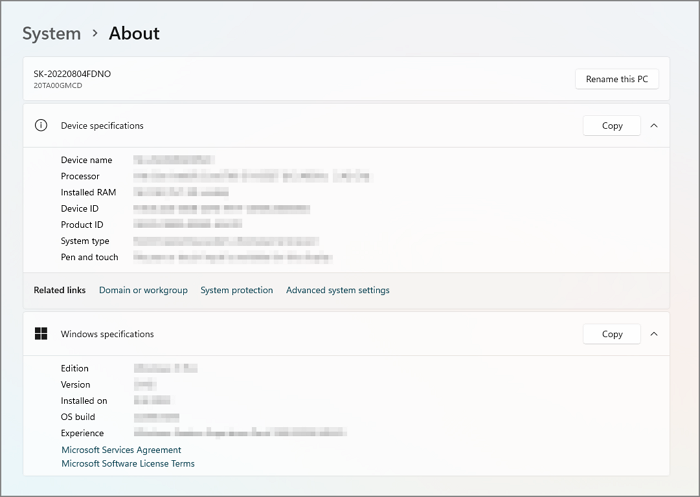
Step 2. To access the About page in Windows Settings, you can type the command ms-settings:about in the search bar and press the enter button. This will directly take you to the About page where you can find information about your device, such as the operating system version, processor, and other system details.
Step 3. Examine both the Device requirements and Windows Specifications to see if they match.
Step 4. If the setup configuration is compatible, go on with the next steps.
Step 5. After copying the file, restart your PC to ensure the new Physxloader.dll file is properly recognized by the system.
Step 6. Press Windows + R to start the Run terminal.
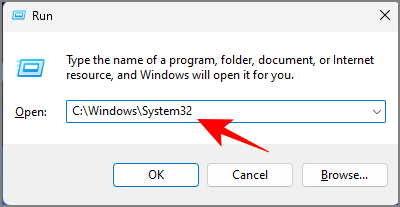
Step 7. Type the command "C:\Windows\System32" into the terminal window and press Enter.
Step 8. Find the Physxloader.dll named file in the opening window.
Pro Tip: If the file isn't in the System 32 folder, look for it in the C:\Windows\SysWOW64 location.
Step 9. When you find the file, copy and transfer it to your PC using a USB drive or cloud storage options.
Step 10. After copying the file, go back to the original folder and paste it there.
Step 11. Next, start up the game and see if it fixes anything.
Solution 3: Update Your Graphics Card Driver
To resolve the issue, upgrade to the most recent video card driver version by using the device manager to update the drivers. This should fix the error.
Step 1. To open the Run dialogue box, press the Windows key+R.
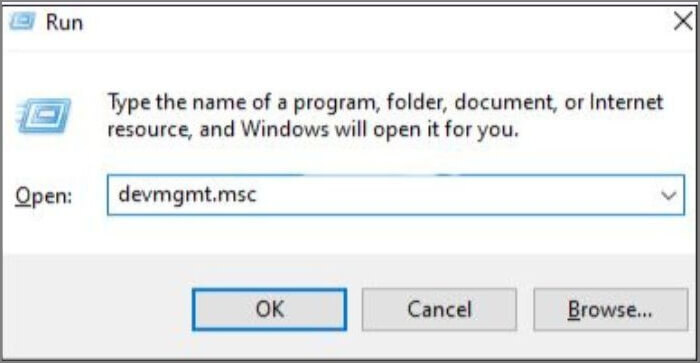
Step 2. To open the Device Manager, type the command "devmgmt.msc" in the Run dialog box and then click the OK button.
Step 3. Once you've opened Device Manager, expand to the Display Adapters section.
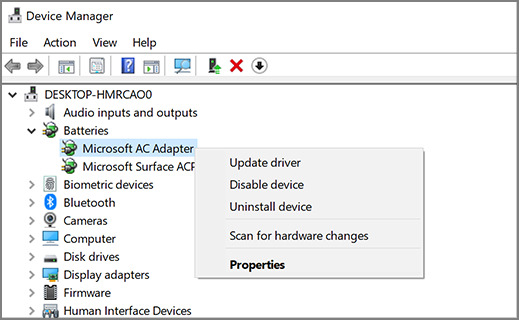
Step 4. To update your graphics card driver, right-click on the Device Manager's entry for your graphics card and select the Update Driver option from the context menu.
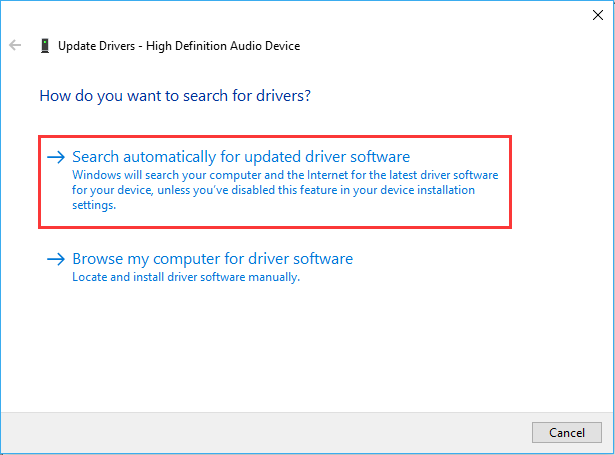
Step 5. Click the "Search automatically" button to find the most recent drivers automatically.
Conclusion
Having trouble with Physxloader is a common issue, but the solutions mentioned in this article can help resolve the problem. The cause may vary, but looking for the best solution in this guide and restarting your computer may be enough to resolve the issue.
If you continue to experience the Physxloader.dll missing error, you may also try running a full system scan with your antivirus software to rule out malware infections. Additionally, ensure that your system meets the minimum requirements for the game or application you are trying to run, as insufficient hardware can sometimes cause DLL-related errors.
Related Articles
- What Is Win32 Disk Imager? A Complete Guide on It
- ReFS vs NTFS: Which Is a Better File System?
- What Is Rufus? Your Best Answers in 2024
- How to Make Bookmark Folders to Organize Bookmarks
Bookmark folders provide great utility to manage all your bookmarks in an efficient way. This article discusses how to make bookmark folders in top-tier browsers like Google Chrome, Safari, and Firefox. - 4 Ways | How to Stop Windows 11 Update Pending Restart
If you're seeing a 'Windows 11 update pending restart' message under the Windows updates menu and aren't sure how to stop it, this article is here to help. We'll guide you through the process of stopping the Windows 11 update pending restart. - How to Transfer Stardew Valley Saves Between Different Devices
Stardew Valley is a farm simulation game available on multiple platforms. To prevent players from losing their game progress when switching devices, we provide methods to transfer Stardew Valley saves between PC, iOS, Android, Switch, and PS Vita.
Products
Articles & Tutorials
- Data Recovery
- Data Backup
- File Recovery
- File Backup
- System Backup and Restore
- Disk and Partition Clone
- Technical articles
- Mobile articles
- Disk Master Help
- Windows Data Recovery Tutorials
- Windows Secure Delete Tutorials
- Windows Partition Management Tutorials
- Windows File Backup and Restore Tutorials
- Windows System Backup and Restore Tutorials
- Windows Disk Backup and Restore Tutorials
- Windows Clone Tutorials