4 Ways | How to Stop Windows 11 Update Pending Restart
If you're not ready to upgrade from Windows 10 to Windows 11 yet, you can stop the Windows 11 update pending restart notification by going to Settings > Update & Security > Windows Update, clicking on the "Update history" option, and then clicking on the "Uninstall updates" button. From there, you can select the Windows 11 update and click "Uninstall" to remove it. This will stop the notification and prevent the update from installing. Alternatively, you can also pause the update for a certain period of time by going to Settings > Update & Security > Windows Update and clicking on the "Pause updates for" option.
Continue reading this article offered by Qiling, as we're going to show you how to finally stop the Windows 11 update pending restart notification.
Why Is My PC Stuck on Windows 11 Update Pending a Restart
Your PC's update menu is stuck on the "Windows 11 pending to restart" notification because Microsoft is pushing you to upgrade to Windows 11, which your PC is capable of running, and the update is pending a restart to complete the process.
If you don't want to update your PC to Windows 11 due to compatibility issues with apps and games, you can stop Windows from showing the notification.
The Windows update may be stuck due to the user not authorizing the installation, the update files being corrupted, or the update process being incomplete, which requires a restart to finish the installation.
In the below section, we'll show you how to do just that.
Pro Tip: Always Backup Computer to Prevent Data Loss
To avoid data loss when changing PC settings, it's recommended to back up your computer to either a cloud storage or an external hard drive. Qiling Disk Master is a suitable program that can help with this process.
Qiling Disk Master Pro is a backup and recovery utility that allows you to protect your data and computer by creating backups of files, systems, disks, partitions, and apps, with options for automatic, scheduled, full, incremental, and differential backups.
This software can help you create an image of your hard drive, create an iso image of your operating system, and provide 250G free cloud storage and a security zone for storing backups.
The following is what makes this backup software so recommendable and useful.
Qiling Disk Master Pro
- Transfer an operating system from one computer to another
- Intuitive interface that is suitable for newbies and professionals
- Back up your hard drive before formatting for data security
- Enjoy all-weather after-sales service from professional staff
- Clone a hard drive for backup and recovery
Qiling Disk Master is an all-For comprehensive data security, consider downloading a reliable solution that can back up your computer. This will ensure your files are protected and can be easily restored in case of a problem. Don't wait - try it out today!
Step 1. Launch Qiling Disk Master on your computer, and click the Backup and recovery tab page.

Step 2. To back up your Windows operating system, click on the "System backup" option to start the backup process.

Step 3. On Windows, the operating system information and all system-related files and partitions will be automatically selected, so no manual selection is needed. Next, choose a location to save the system image backup by clicking on the illustrated area.

Step 4. The backup location can be another local drive on your computer, an external hard drive, network, cloud, or NAS. It's generally recommended to use an external physical drive or cloud to preserve system backup files.

Step 5. The Windows system backup process allows for customization settings such as enabling an automatic backup schedule in daily, weekly, monthly, or upon an event, and making a differential and incremental backup. This can be accessed through the Options button. Upon proceeding, the backup process begins, and the completed task will be displayed on the left side in a card style.

How to Stop Windows 11 from Showing a Pending Restart
There are 4 ways to stop your PC from showing the notification message saying Windows 11 update pending restart. You can try these methods to resolve the issue. Let's explore the details.
- Fix 1. Clear the SoftwareDistribution Folder
- Fix 2. Pause Windows 11 Update
- Fix 3. Modify the Windows Registry
- Fix 4. Change Group Policy Settings
Fix 1. Clear the SoftwareDistribution Folder
To stop Windows from bothering you to restart your PC to install Windows 11, you can delete the files in the SoftwareDistribution folder, which stores Windows update files. To do this, open File Explorer, navigate to C:\Windows\SoftwareDistribution, and delete the files in this folder. This should prevent Windows from prompting you to restart your PC to install Windows 11.
Step 1. Click on the "Start" button and then type "Command Prompt."
Step 2. Select "Run as administrator."
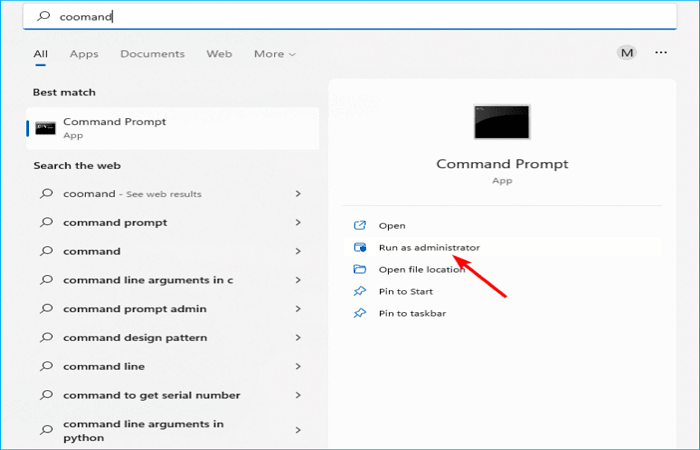
Step 3. To stop the Windows Update Service, type and enter the command "net stop wuauserv" in the Command Prompt.
Step 4. Now, type and enter "net stop bits."
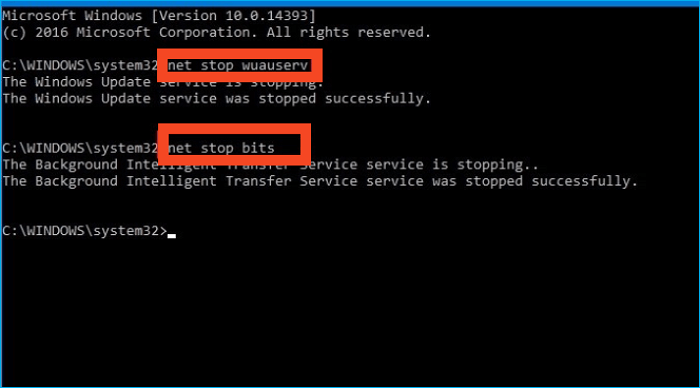
Step 5. Open "File Explorer" and navigate to this location C:\Windows\SoftwareDistribution.
Step 6. Select all the files and press CTRL+SHIFT+DEL.
Fix 2. Pause Windows 11 Update
To pause Windows 11 updates, you can go to Settings > Update & Security > Windows Update, and then click on the "Pause updates for" option. This will allow you to choose a time frame of 7 to 35 days to pause the updates, giving you more time to prepare for the update or address any issues that may arise. After the selected time period, Windows will automatically resume the update process.
Step 1. Click on the "Start" button and search for "Settings."
Step 2. To pause Windows updates, select "Update and Security" from the Settings menu, then click on the "Pause updates for 7 days" option on the right side window.
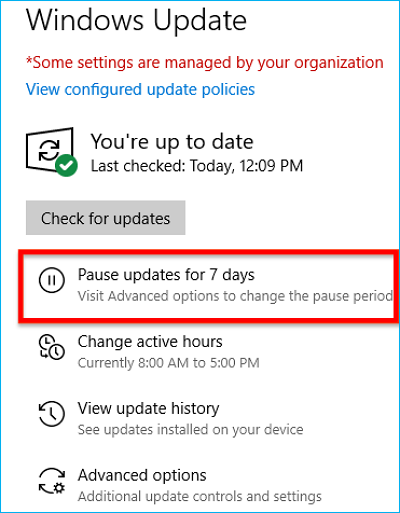
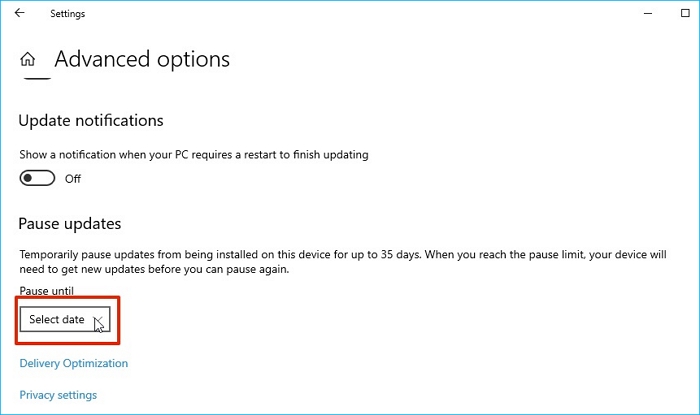
Step 3. To stop Windows from notifying you to update to Windows 11 for more than 7 days, click on "Advanced options," and under the "Pause until" section, click on the "Select date" drop-down and select the maximum allowed date to pause the update. This will prevent Windows from reminding you to update for up to 7 days.
Fix 3. Modify the Windows Registry
If you've incorrectly edited the Windows registry, don't panic! First, restart your computer in Safe Mode. Then, restore your registry from a backup using Qiling Disk Master.
Step 1. To open the registry editor, press the Windows key + R on your keyboard, then type "regedit" in the Run dialog box that appears, and press Enter. This will open the registry editor.
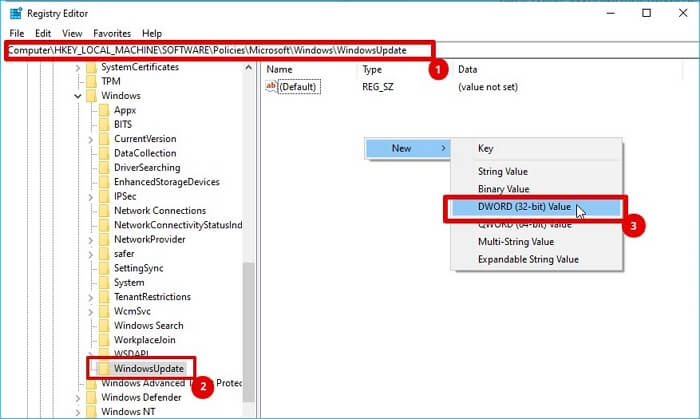
Step 2. Navigate to the following location:
HKEY_LOCAL_MACHINE\SOFTWARE\Policies\Microsoft\Windows\WindowsUpdate
Step 3. Right-click on the right-side window and select "New" followed by "DWORD (32-bit) Value."
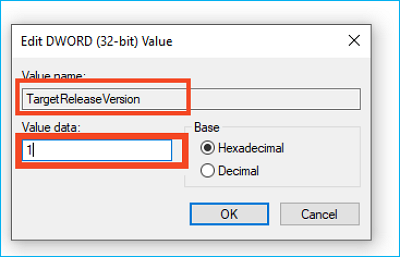
Step 4. The TargetReleaseVersion value was set to 1, indicating the latest version of the release.
Step 5. Now, right-click again and select "New," followed by "String Value."
Step 6. To rename the String Value as TargetReleaseVersionInfo, open the Registry Editor by double-clicking on the TargetReleaseVersionInfo file.
Step 7. Under "Value data," type "21H2" and press the "Enter" key.
Step 8. Restart your PC.
Fix 4. Change Group Policy Settings
To modify group policies, you should back up your PC first to prevent any potential damage. Then, open the Local Group Policy Editor by searching for "gpedit.msc" in the Start menu.
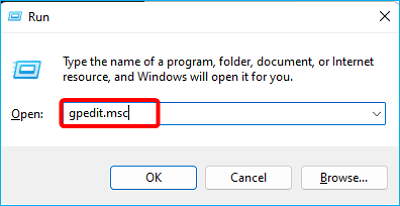
Step 1. To open the Group Policy Editor window, press the Windows key + R to open the Run dialog box, and then type gpedit.msc in the text field and press Enter. This will open the Group Policy Editor window.
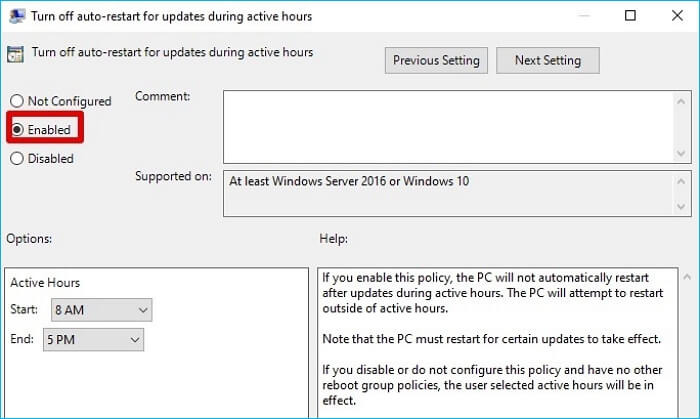
Step 2. To disable auto-restart for updates during active hours, go to "Turn off auto-restart for updates during active hours," then click on "Computer Configuration" and finally "Administrative Templates".
Step 3. Now, select "Windows Components," followed by "Windows Update."
Step 4. To enable and set the start and end times for your PC's active hours, select "Enable" and then adjust the start and end times to match your PC's active hours.
Step 5. To select the target feature update version, go back and select "Select the target feature update version," followed by "Computer Configuration" and "Administrative Templates."
Step 6. Select "Windows Components," followed by "Windows Update" and "Windows Update for Business" in the Local Group Policy Editor.
Step 7. Click on Disable," followed by "OK."
If you like this post, share it on your social platforms to help more people discover its valuable content!
The Final Words
To stop the Windows 11 update pending restart message on your Windows PC, try one of the solutions carefully chosen for you. If you're considering methods that involve Registry files or Group Policy settings, it's essential to back up your PC first. You can try disabling the Windows Update service, stopping the Windows Update service, or using the Registry Editor to modify the Windows Update settings. Alternatively, you can use the Group Policy Editor to configure the Windows Update settings.
Backing up your PC is essential to prevent malfunctioning due to mistaken registry file modifications or deletions, or changes to the group policy. Thankfully, Qiling Disk Master is an amazing program that can quickly back up your PC, and you can follow our steps to do so right away.
FAQs on How to Stop Windows 11 Update Pending Restart
Here are some more answers to your questions regarding Windows updates.
1. How to stop Windows update while it is downloading?
To stop a Windows update while it's downloading, click on the "Settings" window, then the "Updates" menu, and select "Pause update for 7 days". This will pause the downloads immediately and resume them after 7 days. You can pause the updates again by selecting the same option.
2. What would happen if I shut down my PC while it was updating?
Running a registry cleaner or using a registry repair tool can potentially cause system file corruption, leading to boot issues, BSoD screens, and data loss. This can happen because these tools may inadvertently delete or modify essential system files, causing problems with your PC's operation.
3. How long does it take Windows to update a PC?
The update speed depends on factors like internet speed, update size, and SSD/HDD write speed, affecting how quickly Windows updates your PC.
Related Articles
- Full Guide: How to Fix HP Laptop Black Screen
- How to Open RAR Files on Windows
- How to Set Separate Wallpapers on Dual Monitors in Windows 10/11
Adding wallpapers to dual monitors can be done in various ways, with the simplest method being to use the settings app to personalize the setup. - Solve Silicon External Hard Drive Not Showing Up [Windows & Mac]
Is your silicon external hard drive not showing up on your Mac or Windows? Discover some excellent solutions in this article to help your system recognize your hard drive and offer fixes for all of the issues. - How to Find A Chrome Account and Password
If you're trying to find a Chrome account and password, this article is for you. We'll explore two different methods to help you locate your Chrome account and password. - How to Find/Redeem Game Key on Epic Games (Complete Guide)
Can't find your Epic Games product key? Learn how to find and redeem game keys on Epic Games, plus bonus tips for transferring games to another PC or drive.
Products
Articles & Tutorials
- Data Recovery
- Data Backup
- File Recovery
- File Backup
- System Backup and Restore
- Disk and Partition Clone
- Technical articles
- Mobile articles
- Disk Master Help
- Windows Data Recovery Tutorials
- Windows Secure Delete Tutorials
- Windows Partition Management Tutorials
- Windows File Backup and Restore Tutorials
- Windows System Backup and Restore Tutorials
- Windows Disk Backup and Restore Tutorials
- Windows Clone Tutorials