Solve Silicon External Hard Drive Not Showing Up [Windows & Mac]
External silicon hard drives are beneficial due to their portability and storage capacity, making them easy to use as they simply plug into your device and become functional.
If your Mac or Windows computer can't recognize your Silicon external hard drive, you may encounter issues with it not showing up in Disk Utility or Searcher, leaving you unable to access your files and potentially losing everything saved on the drive.
If your Silicon external hard drive is not showing up on your Windows or Mac PC, there are several steps you can take to resolve the issue. First, ensure the drive is properly connected to your computer.
Why Silicon External Hard Drive Not Showing Up
The inability of your computer to detect the Silicon external hard drive can be caused by several factors. Some common reasons include software or driver issues, faulty USB ports, or compatibility problems between the drive and your computer's operating system. Additionally, issues with the drive's power supply, overheating, or physical damage to the drive or its cable can also prevent it from being detected.
- Incorrect file system format.
- Dead USB ports.
- Driver-related problems.
- A corrupted or broken external hard drive.
- Wrong or damaged data cable.
- The drive is not formatted correctly.
- System bugs won't allow displaying the connected external drives.
- Silicon External Hard Drive partitioning issues.
If your Silicon external hard drive is not appearing in Windows or Mac, despite being in perfect working order, follow the given instructions to resolve the issue.
Further Reading: Format An External Hard Drive That Is Not Visible
How to Fix Silicon External Hard Drive Not Showing Up
If your Silicon external hard drive is not showing up, try the fixes below to quickly and effectively solve the issue. First, ensure the drive is properly connected to your computer and the power cord is securely plugged in. Next, restart your computer and check if the drive is recognized.
Fix Silicon External Hard Drive Not Showing Up on Windows
If your Silicon external hard drive is not showing up on your Windows, you can try the following solutions: Check if the drive is properly connected and turned on, then restart your computer. If the issue persists, try updating your Windows to the latest version, and ensure that the drive is formatted in a compatible file system such as NTFS.
- 1. Try Another Port or Computer
- 2. Format External Hard Drive
- 3. Fix Corrupted File System
- 4. Update Silicon Drivers
1. Try Another Port or Computer
If your Silicon external hard drive isn't working, it's possible that the issue is with the port you're using to connect it. Try unplugging the drive from your device and plugging it into a different port or using it with a different computer to see if the problem persists. The damaged port could be the cause of the issue.
The issue may be with the hub connecting the Silicon hard drive to the computer, as it sometimes fails to provide enough power to the drive, causing it to malfunction.
If the Silicon Hard Drive is still not visible on your screen, there might be another problem.
If you have a drive partitioned with a different file system, such as Linux's ext4 or a Mac's APFS, you'll need to reformat it with a file system that Windows can read, like NTFS, exFAT, or FAT32.
With Qiling Disk Master, you can effectively format a Silicon external hard drive to its full size with any file system, such as NTFS or FAT32, to support various systems and devices. To do this, download Qiling Disk Master and follow the steps below.
Step 1. Launch Qiling Disk Master, right-click the partition on your external hard drive/USB/SD card which you want to format and choose the "Format" option.

Step 2. Create a new partition label, file system, and cluster size for the selected partition.

Step 3. To start formatting your external hard drive, USB, or SD card, click the "Proceed" button. This will initiate the formatting process, which will erase all data on the device.

Step 4. In the Warning window, click "Yes" to continue.
You can reformat your HDD using Windows built-in tools like Disk Management or Diskpart, which allows you to format the HDD to work with your Windows operating system. This process can be completed through your Windows system, and once done, you can verify that your system can access the data.
If the file system of your hard drive is corrupt, you might not be able to access all the stored data. Repairing damaged system files may be necessary to restore your HDD to a working state.
The Qiling Disk Master can help locate and repair a damaged HDD using its "Check File Systems" feature, allowing for easy file system repair in a few simple steps.
Step 1. Right-click the target partition that has a problem.
Step 2. Choose "Advanced" > "Check File System".
Step 3. Confirm if you want to hide the partition or not.
Step 4. In the Check File System window, select the option to "Fix the error on the disk".
Step 5. Click "Proceed" to check errors on your partition.
Qiling Disk Master is an excellent tool for all your disk partitioning and management needs, offering features such as checking and fixing system files or directory corruption errors, and being easy to access and use, with quick results.
Your chances of successfully fixing the Silicon external hard drive not showing up issue are better with the fixes above, but the problem can persist due to driver issues, outdated drivers, or your system not recognizing your device.
Windows Update automatically updates drivers to ensure they are compatible with the system, making it a safe and trustworthy method for updating drivers.
Follow the steps below to update your HDD manually:
Step 1. Connect the external hard drive to your computer.
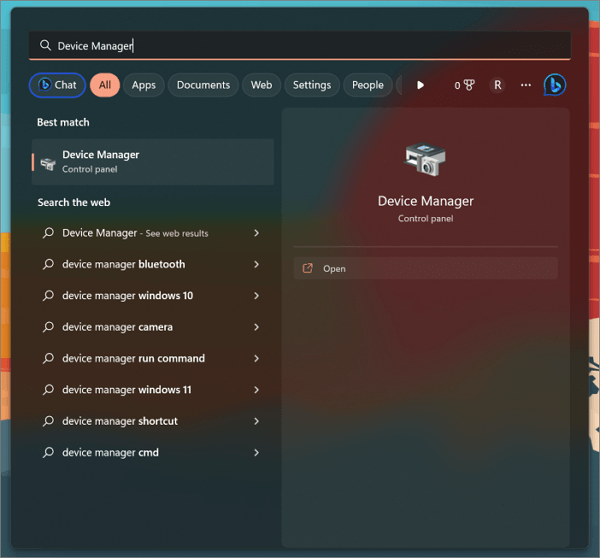
Step 2. To access the Device Manager, click on the "Start" menu and type "Device Manager" in the search box. This will open the Device Manager window, where you can view and manage the hardware devices connected to your computer.
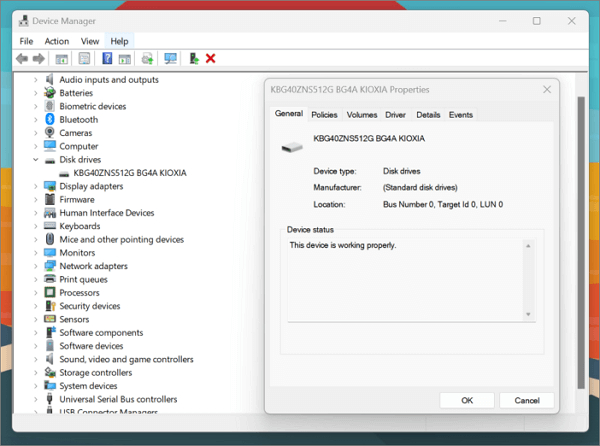
Step 3. The external hard drive can be located in the Device Manager window by opening it and looking for the external hard drive under the "Disk drives" category.
Step 4. Right-click on the external hard drive, select the "Properties" tab and click the "Driver" tab.
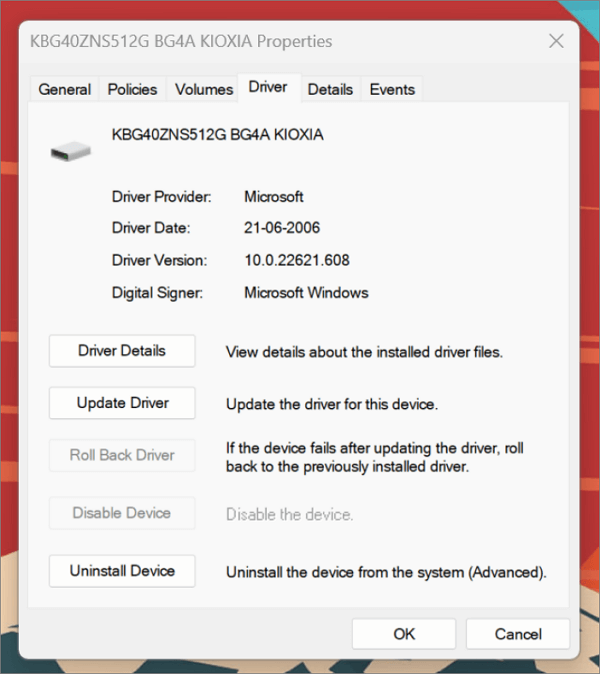
Step 5. To update the drivers, select the "Update Driver" button, and Windows will automatically update to the latest drivers.
To update drivers, visit the manufacturer's website for your device, or download them manually from the source to ensure a secure and up-to-date installation process.
Fix Silicon External Hard Drive Not Showing Up on Mac
To troubleshoot the issue of a Silicon external hard drive not showing up on a Mac, start by checking the USB port and cable for any damage or issues. Ensure the drive is properly connected and powered on.
To fix the issue of a hard drive not showing up, it's recommended to reset NVRAM, which can be done by following the steps below:
Step 1. Restart the Mac or shut it down.
Step 2. To reset your Mac, press the "Options + Commands + P + R" keys while turning it back on, and hold them for at least 20 seconds. If it seems to restart, release the buttons after the second start.
Your Silicon external hard drive can now be used on your Mac and should appear without issues.
2. Format the External Hard Drive
Using the built-To format a hard drive on a Mac, open the Disk Utility app, select the hard drive you want to format from the sidebar, click on the "Erase" button, choose the format type (such as APFS or Mac OS Extended), and then click on the "Erase" button again to confirm the format.
Step 1. Connect the external hard drive to your Mac using a USB or Thunderbolt cable.
Step 2. Go to "Applications," then "Utilities," and look for "Disk Utility."
Step 3. To format a hard drive, select the drive you want to format and click the "Erase" button. This will erase all data on the drive.
Step 4. To set up the hard drive, select a file system, such as NTFS, HFS+, or APFS, and give the hard drive a name, like "My External Drive".
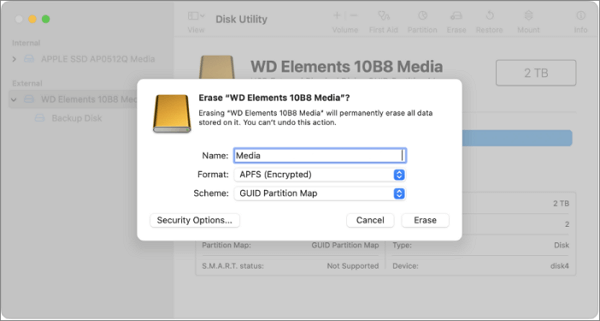
Step 5. Click the "Erase" button to begin formatting the external hard drive.
Once the formatting process is complete, the hard drive should show up on your Mac without any issues, allowing you to use it as needed.
If your external hard drive is not showing up on your Mac, try using different ports and cables to connect it. Similar to the Windows fix, this may resolve the issue.
If your Silicon external hard drive is not showing up on your Mac, try using a different port on your Mac, as a damaged port might be the cause of the issue.
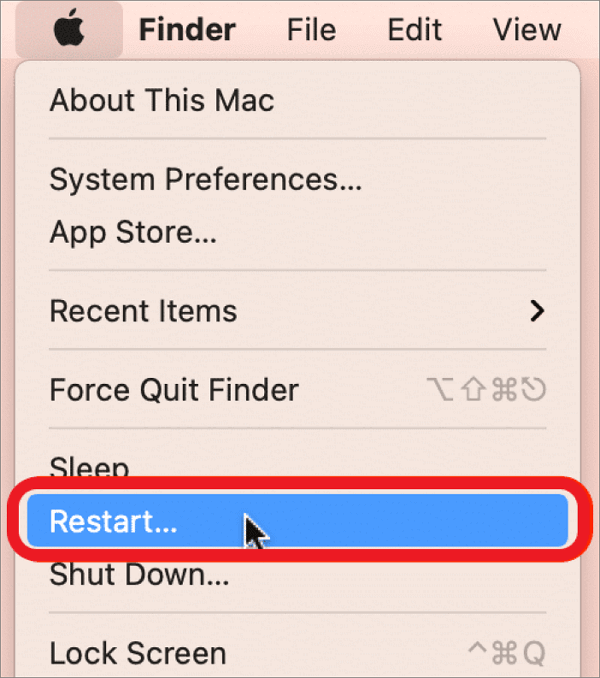
Rebooting your computer stops all programs and processes, giving you a fresh start and a faster, better-functioning computer. This simple solution can even resolve issues with your USB disk not booting, as sometimes the problem lies with macOS itself. By restarting, you may be able to resolve the issue and get your USB disk up and running again.
Step 1. Open the "Apple" menu and choose "Restart" to restart.
Or you can:
Step 1. Press and hold the power button on your device until it turns off, then release it and press the power button again to turn it back on. This will restart your device and resolve the issue.
Conclusion
If a Silicon external hard drive is not showing up, it's likely due to a port, cable, or device malfunction that can be fixed by replacing the cable or restarting the PC. If that doesn't work, there may be compatibility issues with the Mac or Windows and the file system on the HDD.
Using Qiling Disk Master is recommended to efficiently manage your drive and repair your hard drive's incorrect or corrupted file system, ensuring data security and detecting potential malware or viruses that may be causing the issue. This tool can help you determine the root cause of the problem and provide a solution to make your hard drive recognizable again.
We also provide valuable content about common hard drive issues. For more information, you can click on the links below to learn more about these problems and their solutions.
FAQs About Silicon External Hard Drive Not Showing Up
If your Silicon external hard drive isn't showing up on your Windows or Mac, there might be a solution. However, if you have any other questions, please see the FAQs below for more information.
1. How do I fix my external hard drive not being detected?
If your external hard drive is not being detected, don't worry, there are quick fixes to resolve the issue. You can try restarting your computer, updating your operating system, checking the USB port for any issues, and ensuring the external drive is properly connected to the correct USB port. Additionally, you can try using a different USB cable or port, and if the issue persists, you may want to try formatting the external drive or seeking further assistance from the manufacturer or a professional.
Step 1. First, download and update hard drive drivers.
Step 2. Next, replace the cable or port.
Step 3. Finally, reformat the hard drive with the correct file format.
You can use Device Manager to find and update drivers for an external hard drive, automatically installing the latest drivers for the device.
2. What causes a hard drive not to be detected?
It could be because of the following reasons:
- Hardware malfunction (damaged cable, hub, or HDD).
- Inadequate or missing drivers.
- A file system format that is incorrect or corrupt.
3. Why is my external drive not showing up on Mac?
If your external hard drive is not being detected, it could be due to a variety of reasons such as a corrupted drive, faulty connection, outdated drivers, or the drive being incompatible with your system.
Related Articles
- Frustration and Loss: The Sandisk Extreme Pro Portable SSD Not Working
- Disk Utility First Aid Process Has Failed [with 5 Proven Ways to Fix It]
- How to Change Network Names on Windows
- How to Format External SSD for Mac [Newest & Effective Ways]
- HP Laptop Stuck on Loading Screen - Why & Fixes
If you're experiencing an HP laptop stuck on the screen error, you can resolve the issue using the troubleshooting methods mentioned in this guide. By following the best fixing tips outlined in this blog, you should be able to get your laptop up and running smoothly again. - HP Laptop Won't Turn On But Power Light Is On [Detailed Guide]
If your HP laptop won't turn on but power light is on, it could halt your daily work. The exact reason is hard to figure out, but it is better to fix the issues and get back to work. This guide offers simple solutions to fix an HP laptop won't turn on but the power light is on.
Products
Articles & Tutorials
- Data Recovery
- Data Backup
- File Recovery
- File Backup
- System Backup and Restore
- Disk and Partition Clone
- Technical articles
- Mobile articles
- Disk Master Help
- Windows Data Recovery Tutorials
- Windows Secure Delete Tutorials
- Windows Partition Management Tutorials
- Windows File Backup and Restore Tutorials
- Windows System Backup and Restore Tutorials
- Windows Disk Backup and Restore Tutorials
- Windows Clone Tutorials