HP Laptop Stuck on Loading Screen - Why & Fixes
HP laptops are popular for their high-quality graphics and advanced features, but some users have experienced the issue of their laptop getting stuck on the loading screen, causing inconvenience and frustration.
If you've used HP products, you might have encountered the HP logo screen issue, leaving you in a confusing situation. In this blog, you'll find the best solutions to help you overcome this problem and get back to using your HP device with ease.
🎯Related Reading: How to Backup HP Laptop on Windows 11/10/8/7 | Clone HP Hard Drive to SSD
Why HP Laptop Stuck on Loading Screen - Reasons
Users often assume a technical glitch is the cause when their laptop gets stuck on the loading screen. However, it's not always the case - sometimes it's just a normal situation.
So, we have decided to list the reasons here before we share the methods to fix the problem of being stuck on the HP.
- 💻The error is often caused by faulty system drives, such as flash drives, which may be malfunctioning.
- 🎛️A laptop stuck on the HP loading screen can be caused by a malfunctioning BIOS or corrupted system files from the operating system.
- ♨️A virus or malware attack can cause system errors, including the "System Restore" error, as it can corrupt system files and disrupt system functionality. This can occur when malicious software infects your system, leading to various system errors and crashes.
- ⚡Your system may also show this error because of the particular software conflict with the file.
- 🌡️The last reason for the error mentioned is the driver's incompatible working.
HP laptops can get stuck on the loading screen due to various reasons, including issues with the operating system, a virus attack, or other software-related problems.
HP Laptop Stuck Issue Effectively
To fix the loading screen error, we need to identify the root cause of the issue. The error could be due to a corrupted game file, a problem with the game's installation, or an issue with the graphics driver. We can start by checking the game's installation and ensuring that the game file is not corrupted.
- Fix 1. Disconnect External Devices
- Fix 2. Reinstall/Reset RAM
- Fix 3. Boot in Safe Mode
- Fix 4. Restore BIOS
- Fix 5. Perform a Startup Repair
- Fix 6. Reset Graphic Drivers
- Fix 7. Try Power Reset
- Fix 8. Reinstall Windows
Fix 1️⃣ Disconnect External Devices
The most common cause of a stuck screen on an HP laptop is a hardware issue. To troubleshoot this, start by checking the laptop's hardware, following these steps to identify the culprit.
- Turn off your system.
- To prepare your computer for an operating system installation, you should disconnect all external devices such as flash drives, USB drives, keyboards, and mice. This is to prevent any potential conflicts or issues during the installation process.
- Turn on your system and connect all devices one by one.
- If the root problem is caused by hardware, you will find the issue by checking and testing the hardware components.
If you're still experiencing the issue, it's possible that the reason is not related to the device you replaced. In that case, you may need to investigate other potential causes, such as software or hardware conflicts, to resolve the problem.
Fix 2️⃣ Reinstall/Reset RAM
Faulty RAM can also cause a laptop to get stuck on the HP loading screen. Try reinstalling or resetting the RAM by locating the RAM position, removing it, and reinstalling it properly.
Be cautious during reinstallation, as incorrect fixing of RAM can lead to other problems, and your laptop may run system tests if it can't find the RAM.
Fix 3️⃣ Boot in Safe Mode
Windows provides a feature called Safe Mode that can help users troubleshoot and resolve errors, while keeping their data safe. To access Safe Mode, users can boot their device with this option, which can be done by following a series of steps. This feature is useful in case of system crashes or errors, allowing users to identify and fix the issue without compromising their data.
- Turn off your system first.
- Hold the power button to turn it on.
- Press the F8 key repeatedly until you get a Troubleshoot screen.
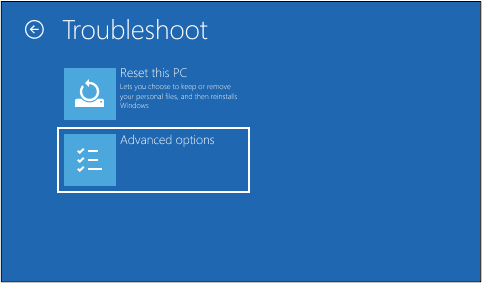
- Open the Advanced Boot Options window.
- Go to Startup Settings.
- Choose the Safe Mode from the option.
- Click on the Restart button.
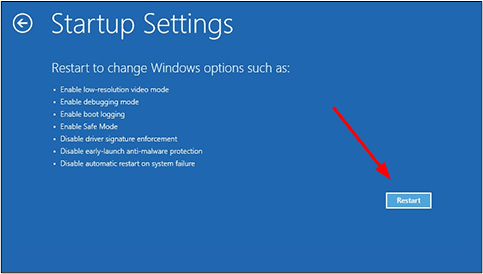
By using this feature, you can save time and effort as the Windows will automatically detect and resolve errors, eliminating the need for manual work.
Fix 4️⃣ Restore BIOS
System files can also be the culprit behind the HP laptop getting stuck on the loading screen. If restoring the system to its default settings resolves the issue, it's likely that the problem lies with the system files. In this case, you can try restoring the BIOS to its default settings by following a series of steps. This may help resolve the problem and get your laptop up and running again.
- Power off your system.
- To enter the BIOS setup on a laptop, you can use specific keys such as F8 or Windows + B while turning it on. This allows you to access and configure the basic input/output system settings, which can be useful for troubleshooting or customizing the laptop's boot order, fan settings, or other low-level configurations.
- To restore default settings, select the "Files" option and then choose the "Restore Defaults" option using the arrow keys on your keyboard.
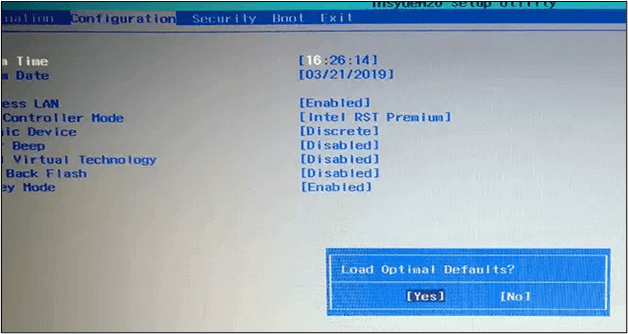
- Once the "Yes" option is shown on the screen, press Enter.
The simplest approach involves being familiar with the BIOS setup keys, and the system will handle the rest of the process automatically, without requiring manual interference.
Fix 5️⃣ Perform a Startup Repair
If you are still facing the issue, you can try this method to get it resolved.
- Press and hold the power button until the system takes you to Advanced Startup.
- Go to the Troubleshoot option.
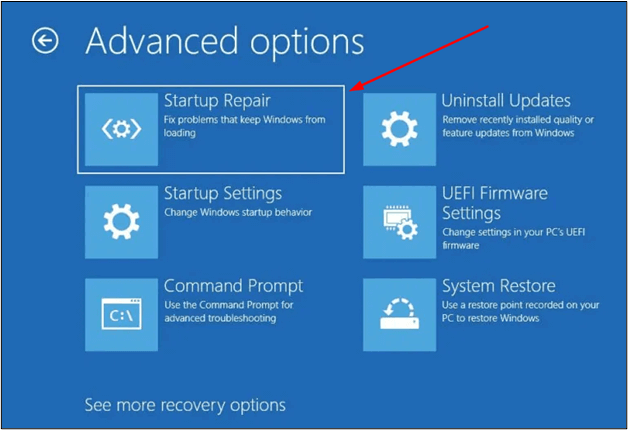
- Look for Advanced Options and click on it.
- Choose Startup Repair from the new window.
The system will be shut down. Turn it on after a few seconds to check if Windows is now on the right track.
Fix 6️⃣ Reset Graphic Drivers
To resolve system behavior issues caused by graphic drivers, follow these steps: update your drivers to the latest version, uninstall and reinstall the drivers, or reset them to their default settings. This should resolve any compatibility or outdated driver issues. If the problem persists, consider seeking further assistance or troubleshooting.
- Keep pressing Windows + Ctrl + Shift + B simultaneously.
- It will automatically understand your command and reset the graphic card drivers.
Fix 7️⃣ Try Power Reset
Try the power reset option to resolve the HP laptop stuck on the loading screen issue, as it may be related to the power source (battery).
- Turn off your laptop.
- Remove the battery from it.
- Press the power button for 15 seconds.
- Reinsert the battery.
- Connect the laptop with a power chord if necessary.
- Turn on your system to check if the system has done with the problem.
Fix 8️⃣ Reinstall Windows
If none of the above solutions work, the only option is to reinstall Windows, which may result in losing files stored on the system drive.
But you can't get rid of this error without trying this approach. So, you should reinstall Windows on your laptop, and it will be working smoothly again.
📖you may be interested: If your HP laptop is stuck in a boot loop, it's likely due to a corrupt or missing boot loader, a faulty hard drive, or a malfunctioning BIOS. To resolve this issue, try booting your laptop in safe mode, disabling any recently installed drivers or software, and running a full system scan with an antivirus program.
Nip Problems in the Bud: How to Prevent Issues Like This🔥
As you face technical issues or errors in your system, be prepared for potential problems and take precautions to ensure data safety. If you're unsure how to proceed, consider using Qiling Disk Master to help resolve the issue.
It's an intelligent backup program that keeps all data on your HP laptop safe in cloud storage, ensuring your data is secure even if your system freezes on the HP loading screen error.
Here are some features of this backup tool that make it perfect to choose for your data safety. Download it and use its advanced features to safeguard your device from all aspects.
| Feature | Description |
| 🎛️Centralized Backup | Qiling Disk Master offers a centralized backup option, allowing you to easily manage and protect your data.backup and restore quickly. |
| 🕰️Scheduled Backup | Use a cloud storage service like Google Drive, Dropbox, or OneDrive to automatically backup your important files. These services often have mobile apps, allowing you to access your files from anywhere and share them with others. You can also set up automatic backups to run at regular intervals, ensuring your data is always up-to-date and safe.schedule the backup to let the software work automatically. |
| 💾Entire Disk Cloning | You can create entire disk cloningThe image of the entire disk will be duplicated and saved on the cloud storage, which is a feature called cloud imaging. This process will create a replica of the entire disk, including all files and data, and store it in the cloud storage for safekeeping. |
| 🪄Simple Interface | Anyone can use this software due to its user-friendly interface and straightforward options, making it accessible to those without technical expertise in the field. |
To create a system image, follow these steps: create a system image on an external hard drive by going to Settings, then Update & Security, and selecting Backup. Choose the drive you want to use for the backup and follow the prompts to complete the process. This will help you restore your HP laptop to its previous state if you encounter any issues.
Step 1. On the main page, click "backup" tab page.
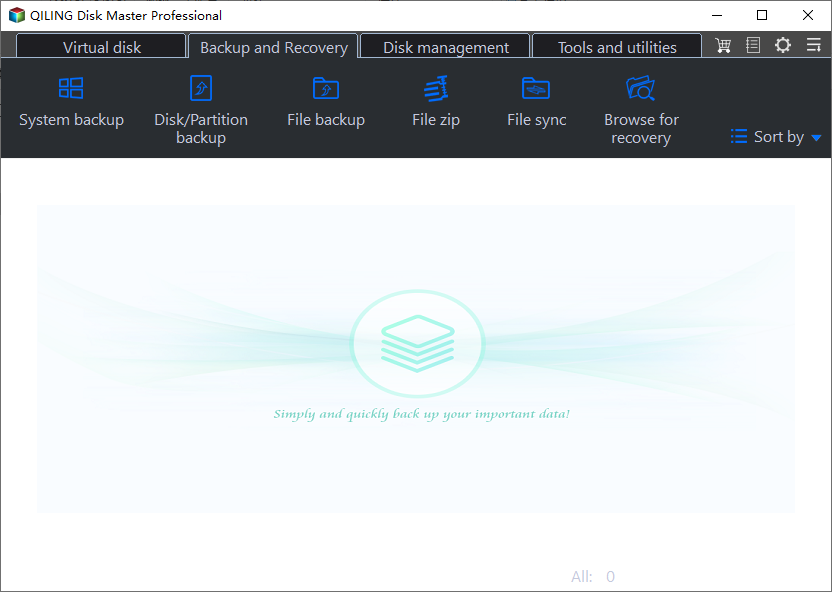
Step 2. Among the four available categories, click OS.

Step 3. Qiling Disk Master will automatically select your system partition, requiring only a selection of the backup destination.

Step 4. You can save the backup file to either a local drive on your computer or a Network-Attached Storage (NAS) device for safekeeping.
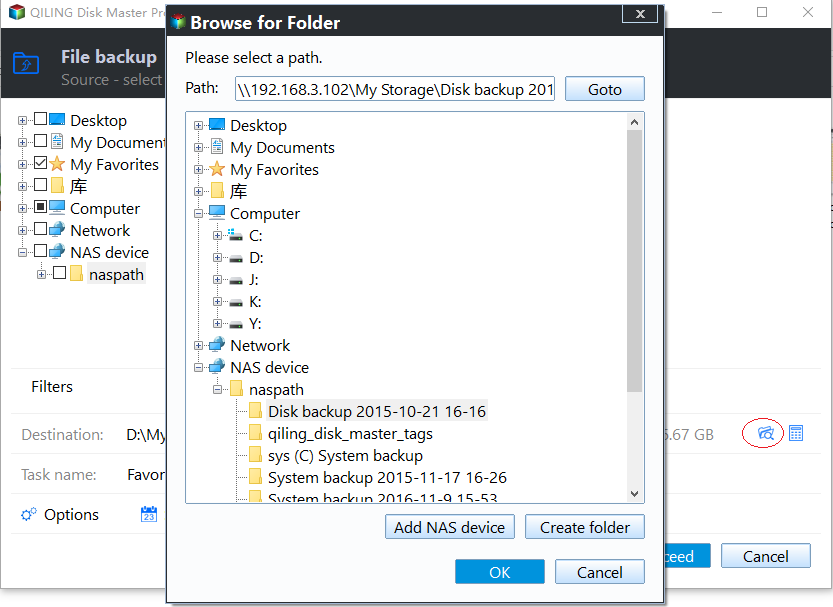
Step 5. After completing the backup process, you can check the backup status, recover, open, or delete the backup by right-clicking the backup task on the left.

Sum Up
We hope you've learned enough from this guide to fix your HP laptop stuck on the loading screen issue. By reading through this guide, you should have found the solution to resolve this problem.
To ensure your safety, we recommend using Qiling Disk Master and storing your data in cloud storage. This way, you'll be protected even if your laptop is lost, and you can easily recover your data using your cloud storage account.
FAQs on HP Laptop Stuck on HP Loading Screen
1. How do you do a hard reboot on an HP laptop?
To perform a hard reboot on your HP laptop, you can either remove the battery or press the power button for at least 15 seconds. This will force the laptop to shut down and then restart, which can be helpful if it's frozen or unresponsive.
2. How do I force a frozen HP laptop to restart?
To unfreeze your HP laptop and restart, follow these steps. First, press and hold the power button until the laptop turns off.
- Press the Ctrl + Alt + Del keys simultaneously
- It will open the list of apps that are currently running in the background.
- Explore the list and find the apps using 100% space
- Tap on the End Task to stop that application
- Exit the screen to restart your laptop
3. What keys do I press to reset my HP laptop?
To restart your HP laptop using the F11 key, press and hold the F11 key while powering on your laptop. This will initiate a system recovery process, which can help resolve issues with your laptop's normal startup.
Related Articles
- Access Denied When Copying Files Windows 10/8/7
- 6 Ways to Fix Windows Update Not Working Windows 11/10
- Automatically Copy Files When USB Drive Connected
- Steam Deck Save File Location(All You Should Know)
Many users get confused when trying to find the Steam Deck save file location. However, accessing and transferring game saves between the Steam Deck and PC is a relatively straightforward process, and this post will provide a detailed guide on how to do so. - How to Recover Lost Adobe Product Key in 3 Ways
Have you forgotten and lost the Adobe Product Key? The guideline will help you retrieve your product key by various methods along with third-party utility. - How to Recover Windows 7 Password? Try to Reset It!
Recovering a Windows 7 password can be simple with the right tool. A professional Key Finder like KeyUS can make the process a piece of cake, and following a step-by-step guide can help you reset your password with ease.
Products
Articles & Tutorials
- Data Recovery
- Data Backup
- File Recovery
- File Backup
- System Backup and Restore
- Disk and Partition Clone
- Technical articles
- Mobile articles
- Disk Master Help
- Windows Data Recovery Tutorials
- Windows Secure Delete Tutorials
- Windows Partition Management Tutorials
- Windows File Backup and Restore Tutorials
- Windows System Backup and Restore Tutorials
- Windows Disk Backup and Restore Tutorials
- Windows Clone Tutorials