Steam Deck Save File Location Guide
Game backups are essential for saving your progress in case of hard drive failures. If you're using a Steam Deck, you can backup your save games to your Windows PC or transfer saves from PC to deck, especially if cloud backup isn't supported. To access them, you'll need to know the location of the Steam Deck saves file.
While navigating the Steam Deck's save file location can be tricky, you can access all your data on AppData on Windows. However, on Linux and SteamOS, finding and saving game data can be confusing. This post aims to clarify the process, providing guidance on locating and managing your save files on these operating systems.
How to Locate Steam Deck Game Save Files on PC
You can change the default download folder on your PC to download Steam game data, but many prefer saving game data and saves on the C drive. Most game files are located inside the AppData, and you can find Steam Deck game save files on your PC by following these steps.
Step 1: Open the File Explorer on your Windows PC.
Step 2: Navigate to the default Steam Games data location by pasting C:/Program Files (x86)/Steam/steamapps/common in the search bar.
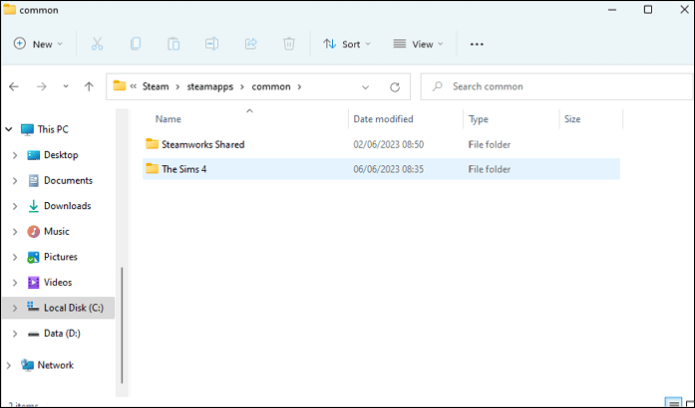
Step 3: To locate and back up your game data, navigate to the individual game folders, find the game you want to save, and either save the data or back up the entire folder to an external drive.
Do remember to share this post with your friends if it is helpful.
How to Find Game Save Files on Steam Deck
- Notice:
- The Steam Deck's Windows games use the proton layer to connect with Linux and Windows, with game files stored in a "Prefix Folder" that contains configuration information and necessary Windows bits to run the games, similar to a registry.
To navigate the compact data folder on your Steam Deck, you can follow these steps: The compact data folder is located at /home/deck/.local/share/Steam/steamapps/common/Steam on your Steam Deck. To access it, you can use the file explorer app on your Steam Deck, or you can use the terminal app to navigate to the folder and view its contents.
Step 1: Find the SteamID.
Every Steam and Non-The Steam Deck stores game files associated with a unique Steam ID, allowing for seamless access and management of games on the device.
You can find the ID on SteamDB for Steam games, and for non-Steam games, use third-party tools to get the ID.
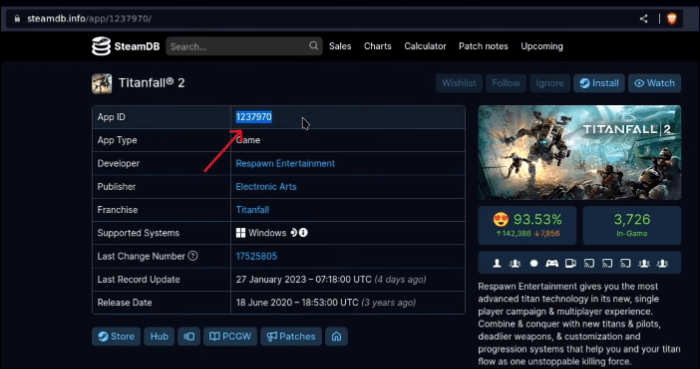
Step 2: Move to the Compact data folder.
/home/deck/.steam/steam/steamapps/compact data/
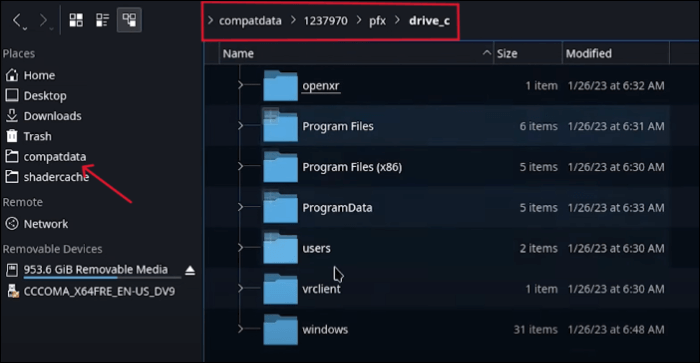
Step 3: Now, navigate to /SteamID/.pfx/drive_c and save the game's storage location in various locations. (SteamID- Unique SteamID associated with different games).
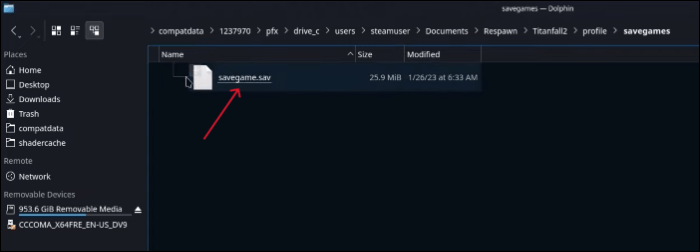
Step 4: To find the save game files location on the Steam Deck, go to the PC gaming wiki, enter the game's name, and look for the specific instructions on how to locate the save game files for that particular game on the Steam Deck.

Step 5: To find the Game Save files, navigate to the folder where the game saves are stored. This is usually a specific directory designated by the game itself, but it can vary depending on the game and the platform you're playing on.
Pro Tip - Backup Steam Deck Save File to Keep Your Game Safe
It's uncertain whether a hard drive failure will erase data, potentially losing game save progress and other important information. To prevent this, it's recommended to back up your data, and a tool like Qiling Disk Master can help with this. With Qiling Disk Master, you can back up your data once and then set up scheduled and automatic backups for your game saves, ensuring your progress is safe.
Qiling Backup allows you to schedule backups with advanced options. It can create system backups, clone disks, and back up files securely, helping protect your Steam Deck saves and other important data.
Key Features of Qiling Disk Master:
- Back up your PC to a cloud drive.
- Advanced backup and clone solutions to create backups.
- A complete backup, management, and restoration tool.
- Allows multi-path backup options with cloud storage.
To save your game file, you can follow these steps:
Step 1. Click "Select backup contents" to initiate a backup.

Step 2. There are four data backup categories, File, Disk, OS, and Mail, click File.

Step 3. On the left side, local and network files will be displayed, allowing you to browse and select the files you want to back up by extending the directory.

Step 4. To store the backup, follow the on-screen instructions to select the location where you want to save the backup.

Click "Options" to encrypt the backup with a password, set up a backup schedule, and initiate a backup at a certain event, among other customization options for the backup process.

Step 5. You can save the backup to a local disk, Qiling's online service, or a NAS.

Step 6. Qiling Disk Master allows users to back up their data to a third-party cloud drive and also to its own cloud drive, providing a convenient and secure way to store and protect their data.
To back up data to a third-party cloud drive, select Local Drive, navigate down to add Cloud Device, add your account, and then log in.
Step 7. To start the backup process, click "Proceed". Once the backup is complete, it will be displayed as a card on the left side of the panel. To manage a backup job further, right-click on it.
How to Transfer Game Files to PC/Steam Deck
To transfer files between your PC and Steam Deck, download the Warpinator tool. This software simplifies the process by allowing you to drag and drop files, as long as both devices are connected to the same network, eliminating the need for manual downloads and extensive preparation.
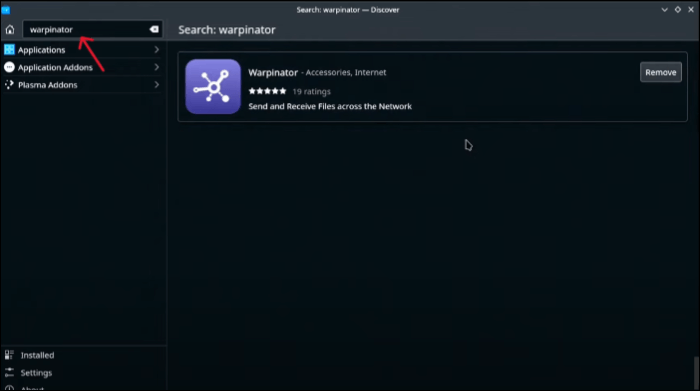
Step 1: From desktop mode on your Steam Deck, go to Discover, search for Warpinator, and install it.
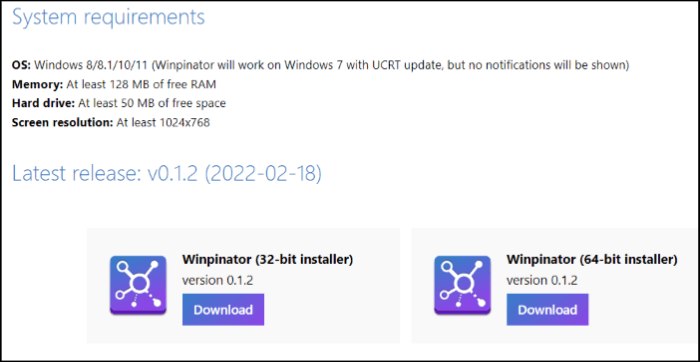
Step 2: To transfer files from Windows to Steam, install the Windows version of Steam, which will allow you to access and transfer files from your Windows computer to Steam.
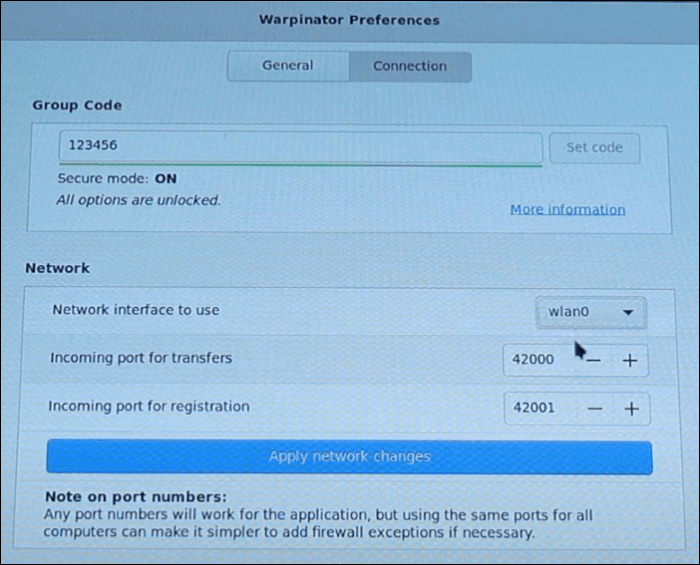
Step 3: When you first launch the Warpinator, you're prompted to set a Group code. Enter a group code and enable it, then select "Wlan0" under Network Interface to use and click Apply Network Changes.
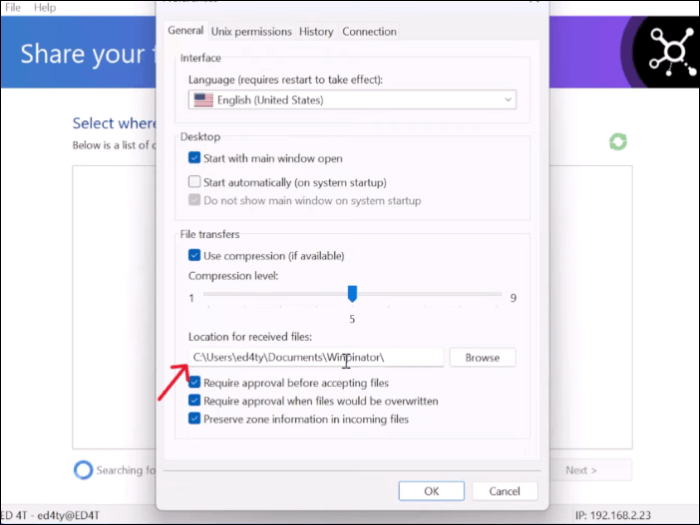
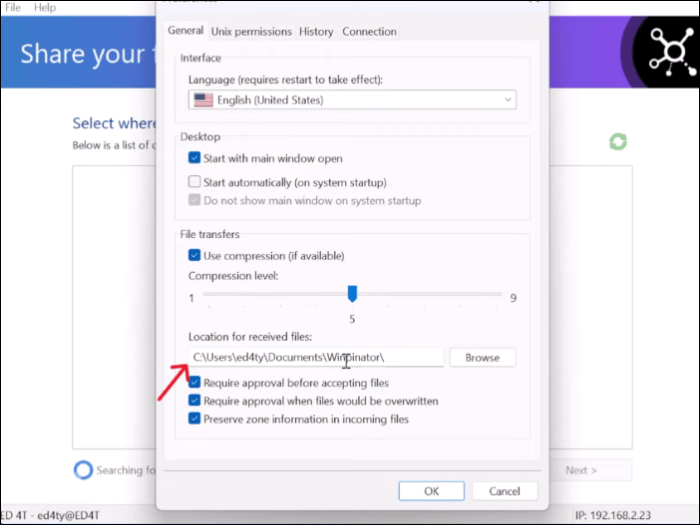
Here, under the General tab, you can choose the location to save files (if you are receiving them) under the location for received files drop-down.

Step 4: On the Windows PC, go to File > General section, and choose the location to save the received files.
To connect the PC and Steam Deck under the Connection tab, enter the group code, the same as Steam Deck and WiFi, for the "Network interface to use." This will establish a connection between the two devices.
- Tip
- To resolve the issue, disable the Windows Firewall settings. If the connection still doesn't work, try re-establishing the connection by repeating step 2.
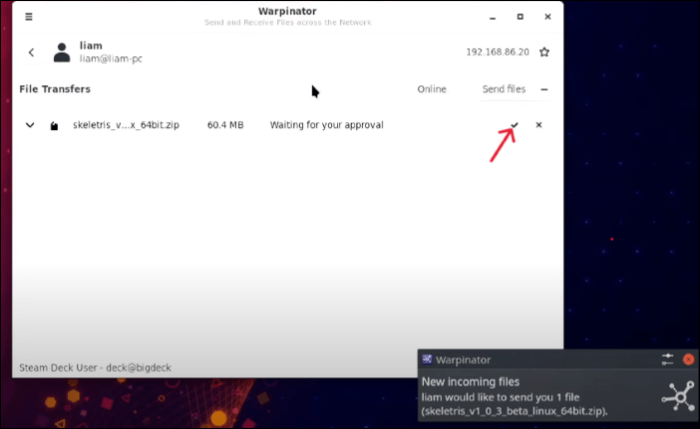
Step 5: Now, browse the files on Steam Deck/PC and send them. Accept the file transfer in PC/Steam Deck to start the transfer process.
Sum Up
Finding the Steam Deck save file location can be a challenge, but it's essential to back up your game progress and continue playing. The Steam Deck save file location can be tricky to find, but this guide will help you locate it and transfer files between your PC and Steam Deck. By following these steps, you'll be able to access and manage your game saves with ease.
To avoid data loss and game progress deletion, create backups of game saves using Qiling Disk Master, a one-stop solution for backup and recovery needs.
FAQs on Steam Deck Save File Location
The Steam Deck save file location is typically found in the following path: /home/deck/.local/share/Steam/steamapps/common/your_game_name/saves. You can access this location by using the Steam Deck's file explorer or by accessing the game's directory via the Steam client on your PC.
1. How do I save Steam Deck files to my SD card?
- To access Desktop mode on the Steam Deck, hold the power button until the system shuts down, then press and hold the power button again until the Steam Deck turns back on and displays the desktop interface. This allows you to interact with the system in a more traditional desktop environment, similar to a PC.
- Connect the SD card to your Steam Deck, ensuring it's formatted in the required format for use with the device.
- To move the Steam Deck files onto the SD card using the Warpinator, you can follow these steps: First, ensure that the SD card is properly inserted into the Steam Deck. Next, launch the Warpinator app on your computer.
2. Can you use multiple SD cards on Steam Deck?
The Steam Deck allows users to expand their storage capacity by using multiple microSD cards, which can be inserted into the device's microSD slot. This feature is particularly useful for gamers who have large game libraries or want to store multiple games at once.
3. Does uninstalling Steam delete saves?
If you sync your Steam files to Steam Cloud, your game saves will be automatically stored in the cloud and can be used as a backup, even if you uninstall the game. Once you install Steam on any device, all of these saved game files will be downloaded automatically.
Related Articles
- External Hard Drive Lifespan: How to Prolong It [5 Ways]
- What Laptop Hard Drive Size Should I Use [2024 Explanation]
- How to Solve 'Can't Delete Partition on SD Card' [100% Working Solutions]
If you're experiencing issues with deleting a partition on your SD card in Windows, this article can help. It explains why Disk Management may not allow you to delete the partition on your SD card and provides solutions to make space available on your SD card. - How to Solve Can't Delete Volume on USB [100% Working Solutions]
Are you facing issues of can't Delete Volume on USB in Windows? This article discusses the issue of why Disk Management does not delete the volume on USB and provides appropriate solutions with proper guidelines so that you can make space in your USB drive. - How to Fix Overwatch Voice Chat Not Working on Windows 11/10
Are you facing the Overwatch voice chat issue? Now you can fix Overwatch voice chat not working by using the practical solutions we suggested. - Palworld Save File Location & Config File on PC/Steam/Xbox
Find Palworld save file and config file locations on PC, Steam, and Xbox, and learn how to back up game saves safely.
Products
Articles & Tutorials
- Data Recovery
- Data Backup
- File Recovery
- File Backup
- System Backup and Restore
- Disk and Partition Clone
- Technical articles
- Mobile articles
- Disk Master Help
- Windows Data Recovery Tutorials
- Windows Secure Delete Tutorials
- Windows Partition Management Tutorials
- Windows File Backup and Restore Tutorials
- Windows System Backup and Restore Tutorials
- Windows Disk Backup and Restore Tutorials
- Windows Clone Tutorials