What Laptop Hard Drive Size Should I Use?
The hard drive is a crucial component of a laptop, responsible for storing and processing data. There are two main types of hard drives: HDD and SSD, which differ in size and storage capacity. To determine the correct laptop size, articles like the one from Qiling can be helpful resources. Learning about the different types of hard drives and their specifications can be a valuable investment in understanding laptop technology.
Overview of Physical Hard Drive Size
A hard drive has two types of sizes: physical size and storage capacity. The physical size refers to the physical dimensions of the hard drive, usually measured in inches, with 2.5 inches being common for laptops and 3.5 inches for desktops. The storage capacity, on the other hand, refers to the amount of data the hard drive can store, with larger capacities allowing for more files, programs, and data to be saved.
The table below provides information on the lengths, widths, and heights of various hard drives, offering a comprehensive overview of their physical dimensions.
| Comparison | 💻2.5 Inch | 🖥️3.5 Inch |
|---|---|---|
| 🔎Length | 100.5 mm (3.95") | 147 mm (5.79") |
| 🔎Width | 69.85 mm (2.75") | 101 mm (4") |
| 🔎Height | 7 mm (0.28") | 26 mm (1.03") |
It's unlikely to see a 3.5-inch hard drive in a laptop, as they typically use 2.5-inch drives. However, if you want to use a 2.5-inch drive on a desktop, you may need a special bracket to install it in the 3.5-inch drive bay.
Hard drives are still a popular choice for notebook computers due to their affordability and large storage capacity, making them a practical option for users.
What Laptop Hard Drive Size Do I Need
For a laptop, you'll typically need a 2.5-inch hard drive, which comes in various sizes such as 320GB, 500GB, 1TB, and 2TB. The size you need depends on your storage needs, but a good starting point is a 500GB or 1TB drive. You can also consider a solid-state drive (SSD) for faster performance and lower power consumption. Make sure to check your laptop's specifications to ensure compatibility with the hard drive size you choose.
🧩Laptop HDD Size
When selecting a hard disk drive (HDD), consider both the storage capacity and rotational speed of the drive. This will help you make an informed decision and choose the right HDD for your needs.
Hard drives with larger storage capacities tend to be better than those with smaller capacities, and faster RPMs make the drive more sensitive.
The size of the hard drive needed for a laptop depends on the user's needs, with general guidelines being: 16-32 GB for basic tasks like browsing and office work, 64-128 GB for general use, 256-512 GB for heavy users, and 1 TB or more for professionals or those who need to store large files. Ultimately, the choice depends on the individual's storage needs and budget. It's also worth considering the type of hard drive, such as solid-state drives (SSDs) which are faster but more expensive.
- For home users, a 250-500GB laptop hard drive size is sufficient, with 500GB being a common and sufficient choice for a standard laptop system.
- We suggest buying at least 1 TB of storage for commercial use. File sizes are increasing, and laptop applications are getting larger. Additionally, the operating system itself takes up around 20 GB of hard drive space.
🧩Laptop SSD Size
Finding large SSD drives for laptops is challenging, with the maximum capacity often being 1 TB, which is more expensive than traditional hard drives.
- Many laptops now come with 256 GB SSD drives, which is often sufficient for regular home users.
- For heavy users and business users, a 512 GB SSD or 1 TB is recommended, depending on budget.
Here, you can click the link below to learn about the basics of SSDs and how they differ from HDDs in terms of functionality and performance.
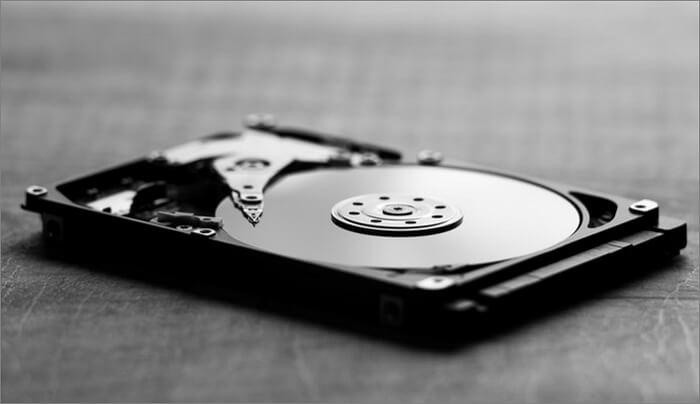
A Solid-State Drive (SSD) works by storing data on interconnected flash memory chips, allowing for faster access and transfer times compared to traditional Hard Disk Drives (HDDs). Unlike HDDs, which use spinning disks and mechanical heads to read and write data, SSDs use electrical signals to write and read data directly to the flash memory chips, resulting in faster loading times, improved performance, and increased durability.
Before diving into the differences between SSDs and HDDs, let's first understand what an HDD is. A Hard Disk Drive (HDD) is a traditional storage device that uses physical disks and mechanical heads to read and write data. On the other hand, a Solid-State Drive (SSD) uses flash memory to store data, eliminating the need for mechanical parts, making it work differently from an HDD.
How to Manage Laptop Hard Drive Size
You can manage your laptop hard drive in Disk Management and Qiling Disk Master Free. They are both free and safe disk management tools. This guide explains how to use both tools one by one. First of all, if you don't have much computing experience, I suggest you use Qiling Disk Master Free, which is specially designed for novice users.
Manage Laptop Hard Drive Size via Qiling Disk Master Free
You can't change the capacity of a hard disk, but you can use it flexibly by managing the capacity of each partition. To do this, you can use a tool like Qiling Disk Master Free, which allows you to extend or shrink partitions, create or delete partitions, and even move them around. This can be especially helpful for managing hard drive size on a laptop.
Here, I set "extend volume on hard drive" as an example to tell you how to use Qiling Disk Master. You can use Qiling Disk Master to extend the volume on your hard drive by following the steps: first, launch Qiling Disk Master and select the hard drive you want to extend the volume on; then, click on the "Extend Volume" button and select the size you want to add to the volume; finally, confirm the operation and wait for the process to complete.
Step 1. Shrink partition to free up space to extend partition.
If the hard drive has enough unallocated space to extend the target partition, proceed to Step 2. Otherwise, free up space by deleting unnecessary files, deleting partitions, or shrinking other partitions to create enough unallocated space. Once sufficient space is available, proceed with extending the target partition.
- To resize or move a partition, navigate to the Partition Manager section, right-click on a partition adjacent to the target partition, and select "Resize/Move" from the context menu.
- To free up space, drag the partition ends to create unallocated space behind the target partition.
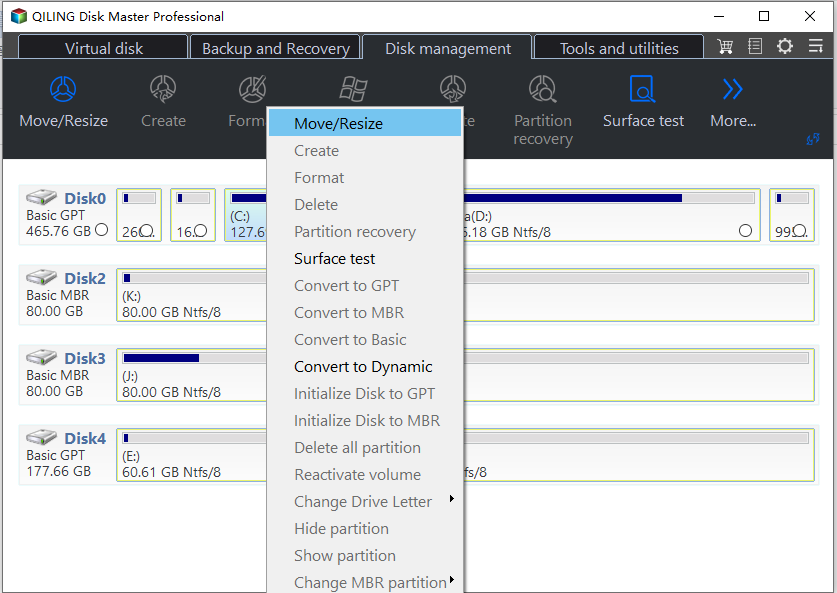
Step 2. Extend the target partition.
To extend the target partition, simply drag the partition handle into the unallocated space. This action will allow you to increase the size of the partition and make use of the available space.

Step 3. Keep all changes.
Click the "Proceed" button to keep all changes.

This tool can perform various partition management tasks, including merging partitions on SSD or HDD, initializing a hard drive or SSD, and managing unallocated space, in addition to expanding and shrinking partitions. It can be downloaded now.
Manage Laptop Hard Drive Size via Disk Management
Disk Management is a reliable disk partition manager in Windows that can help you perform basic disk partition operations. You can check and manage your laptop hard drive by following the simple steps provided, which allow you to easily manage your disk and perform various operations.
Step 1. You can access Disk Management in two ways:
- Right-Click the Windows Start icon and select Disk Management from the list.
- Press the Windows + R keys, then type "msc" and press Enter. This will open the Computer Management console, where you can manage various system settings and resources.
Step 2. To access additional features, select a partition or disk on the main interface, then right-click to view a list of available options.
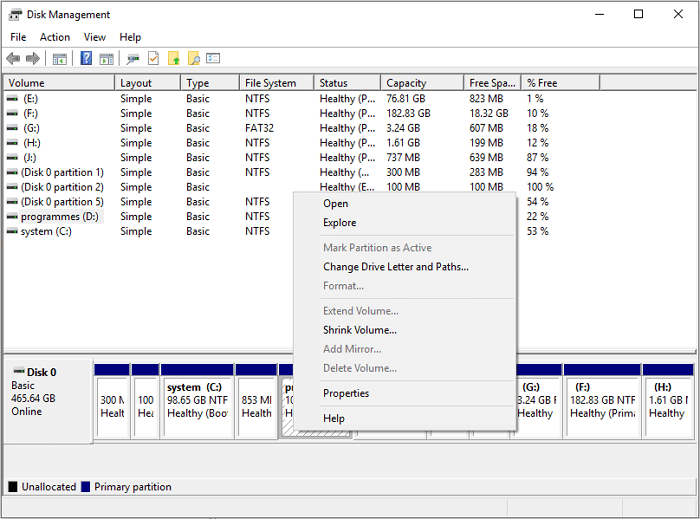
You can use this tool to manage your hard disk partitions, including shrinking, extending, formatting, deleting, or creating new partitions.
Upgrade Laptop Hard Drive Size
Upgrading the laptop hard drive to a solid-state drive (SSD) is a good option when the original hard drive capacity is too small, offering improved performance and faster speeds.
To upgrade your laptop's hard drive to a high-speed SSD or a larger HDD, you'll need an SSD and a reliable cloning tool like Qiling Disk Master. Follow these steps to transfer your OS and other data from the old HDD to the SSD:
Step 1. Launch Qiling Disk Master, go to the tools tab, select "Clone OS Disk".
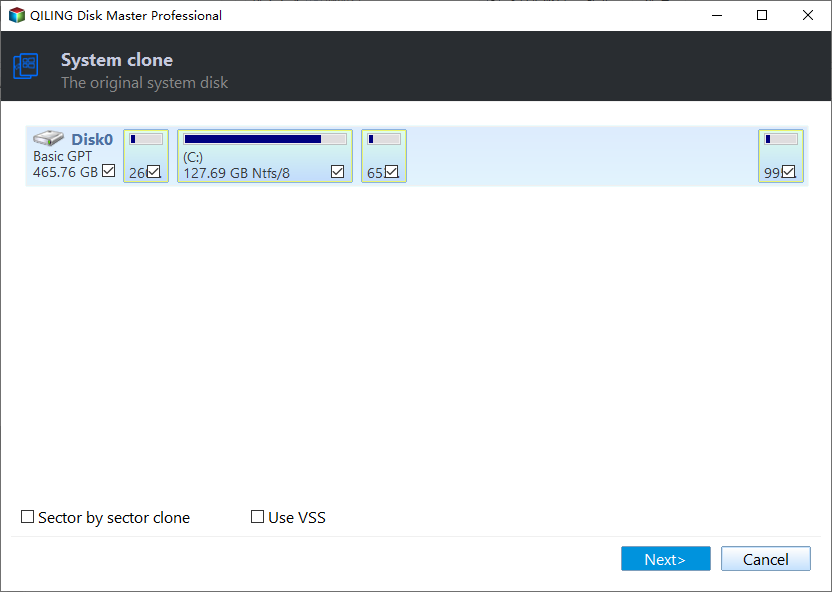
Step 2. Select the target new drive where you want to clone the OS to, and click "Next".

Step 3. To start the OS cloning process, view the disk layout and click "Proceed" to initiate the cloning process.

Click "Yes" to confirm that you want to continue the OS disk cloning process.

You May Also Like:
Conclusion
Now that you know about common laptop hard drive sizes (physical size and storage capacity) and how to manage/upgrade a laptop hard drive, you can confidently choose the right size laptop hard drive or solid-state drive for your needs. If you're unsure about the size of your laptop's hard drive, this article's advice can guide you in making the right choice. Additionally, if you need to upgrade your laptop's hard drive, the detailed tutorials provided here will walk you through the process. If This guide offers answered your question, please share it with others.
Laptop Hard Drive Size FAQs
Do you know what hard drive size is suitable now? This guide offers answered this question. Here, read the following questions to get more information.
1. Is 256GB a lot for a laptop?
256GB of storage is sufficient for occasional internet browsing and TV watching, but 128GB may be enough for basic use. However, 512GB is recommended for those who need to process large files or enjoy gaming.
2. What is the laptop's hard drive size?
2.5-inch, typically 2.5-inch hard drives are used for laptops, while 3.5-inch hard drives are used for desktop computers.
3. What does GB mean for an HDD in a laptop?
Hard disk capacity is measured in gigabytes (GB) or terabytes (TB), with 1TB being equivalent to about 1,000GB. This means that a larger hard drive can store more data and files.
4. What is the size of a standard desktop hard drive?
3.5 inch. 3.5 inches. 3.5 inches refers to the size of the data platters, not the size of the hard drive mechanism. Generally, 2.5-inch drives are used in laptops, and 3.5-inch drives are used in standard desktop computers.
Related Articles
- How to Use Diskpart to Set Boot Partition in Windows 10 [2023 New Guide]
- 2 Most Effective Ways to Install/Run Windows 10 on Mac (2023 Guide)
- 4 Ways to Open Microsoft Management Console [2023 Step-by-Step Guide]
- 6 Ways to Fix Windows Update Not Working Windows 11/10
- What Is RAID 10 and What Are Its Benefits?
Are you looking for a brief guide on RAID 10? RAID 10 is a data storage configuration that provides both speed and redundancy. Here's everything you need to know about it! - Raid Array Data Recovery Glossary
A comprehensive RAID array glossary covering all essential terms from A to Z. Learn RAID terminology including striping, mirroring, parity, hot spare, and more for data recovery.
Products
Articles & Tutorials
- Data Recovery
- Data Backup
- File Recovery
- File Backup
- System Backup and Restore
- Disk and Partition Clone
- Technical articles
- Mobile articles
- Disk Master Help
- Windows Data Recovery Tutorials
- Windows Secure Delete Tutorials
- Windows Partition Management Tutorials
- Windows File Backup and Restore Tutorials
- Windows System Backup and Restore Tutorials
- Windows Disk Backup and Restore Tutorials
- Windows Clone Tutorials