6 Ways to Fix Windows Update Not Working Windows 11/10
Windows update not working Here are six effective ways to help you out on a Windows 10 or Windows 11 computer:
| Workable Solutions | Step-by-step Troubleshooting |
|---|---|
| Fix 1. Restart Windows Update Service | The initial method to fix this issue is to restart the Windows Update service. You need to...Full steps |
| Fix 2. Run Windows Update troubleshooter | Windows 10/11 has an in-built troubleshooter to fix any issue related to Windows Update...Full steps |
| Fix 3. Reset Windows Update Registry Keys | In your Windows system, there are chances that the registry keys are corrupted or modified. So, resetting...Full steps |
| Fix 4. Run a DISM and SFC Commands | DISM and SFC can fix corrupted system files that may be the reason for the Windows update not working...Full steps |
| Fix 5. Perform System Restore |
Use System Restore to roll back your system to a previous state before the Windows Update issue occurred. |
| Fix 6. Clean Install Windows 10 or Windows 11 | If the issue is not fixed after applying all the methods, a clean installation of Windows might...Full steps |
Microsoft regularly releases updates for Windows 10 and Windows 11 every month, which enhance the operating system's performance, add new features, and address security vulnerabilities. When an update notification appears on your computer, you can download and install them through the Windows update option.
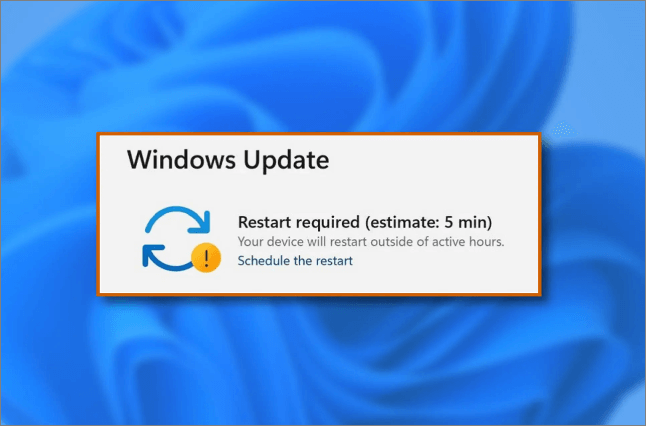
If you're experiencing issues with Windows Update on Windows 10 or Windows 11, such as updates taking forever, downloading errors, or installation failures, this guide will help you troubleshoot and fix the most common problems.
Why Is the Windows Update Not Working Windows 10/11
The Windows update not working error on Windows 11/10 can be caused by various reasons, including system file corruption, outdated drivers, conflicting software, and issues with the Windows Update service itself. These problems can prevent the update process from completing successfully, resulting in frustration for users worldwide.
Incorrect registry keys - If you've recently changed or used registry keys, this could be the cause of errors with Windows updates. This is because the registry values are responsible for downloading and installing updates, and modifying them can break the Windows Update service in the background.
Stopped Windows update service - If the Windows Update service is stopped or disabled, the computer may be unable to update the operating system.
Temporary files - If you're experiencing issues with Windows updates, specifically the error that occurs when trying to download and install updates, it's possible that corrupted files in the software distribution folder are preventing the updates from working properly. In this case, trying to restore the temporary update files in the folder may resolve the issue.
Corrupt system files - Corrupted system files can prevent Windows updates from installing properly, as each file is essential for the updating process. Ensuring your system files are intact can help resolve this issue.
Third-party antivirus - In some cases, third-party antivirus or security applications can interfere with Windows updates, causing errors. Uninstalling these programs may resolve the issue.
How to Fix Windows Update Not Working in 6 Ways
If the Windows update process is not working, there are several methods to try and resolve the issue. However, if the update process encounters an unexpected error or your system fails to boot, it may lead to data loss and security risks, so it's essential to first restore all important files using a professional data recovery tool.
Secure Your Computer Data Is the Most Important Thing
You can use Deep Data Recovery to recover all the data from your Windows computer. This reliable and user-friendly data recovery software allows you to get your data back by following a few simple steps, even if your computer won't turn on. It's a trusted solution for any data loss situation.
This advanced program has an intuitive user interface that makes it easy for even beginners to operate. It allows users to restore deleted files in any format, including images, documents, and videos.
You can download this incredible data recovery software and follow the step-by-step guide to recover data in Windows 10/11.
Note: To increase the chances of successful data recovery, install a data recovery software like Qiling on a separate disk, rather than the original disk where the files were lost.
Step 1. To use Deep Data Recovery on your Windows computer, simply launch the software on your Windows 11, Windows 10, Windows 8, or Windows 7 device.

Note: You can choose different search modes based on where and why the data was lost.
Select the disk partition or storage location where you lost data and click "Scan".

Step 2. This recovery software will start scanning the disk to find all lost and deleted files. Once the scan process is complete, you can filter the results by selecting "Filter" and then "Type" to specify the types of lost files you are looking for.

Step 3. This software allows users to preview and recover lost Windows files by scanning the computer, selecting the desired files, and saving them to a safe location.
Here are six common methods to fix Windows Update not working in Windows 10/11, including running the Windows Update Troubleshooter, resetting Windows Update components, and more.
- Fix 1. Restart Windows Update Service
- Fix 2. Run Windows Update troubleshooter
- Fix 3. Reset Windows Update Registry Keys
- Fix 4. Run a DISM and SFC Commands
- Fix 5. Perform System Restore
- Fix 6. Clean Install Windows 10 or Windows 11
Fix 1. Restart Windows Update Service
To fix the issue of Windows Update not working, start by checking if the service is running, as it is responsible for updating the operating system. If it's not running, try restarting it. This simple step can often resolve the problem.
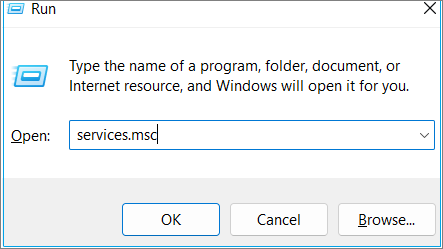
Step 1. Use Windows + R key to open the Run Window.
Step 2. Type services.msc and click "OK", or press Enter.
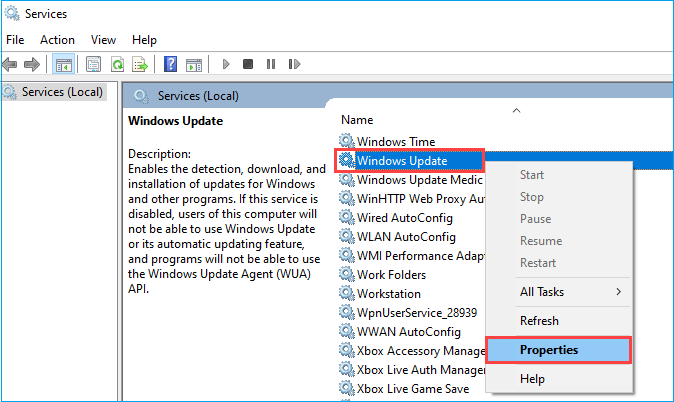
Step 3. In the Services Window, press the W key to navigate the Windows update service.
Step 4. Once you find the Windows Update Service, right-click on it and select "Properties".
Step 5. Under the Startup type menu, Select "Automatic".
Step 6. Click "OK", then select "Start" if the service is stopped.
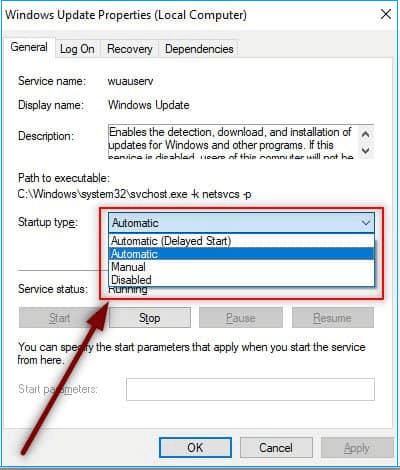
Step 7. Click "Apply" and check if the Windows update is working.
Fix 2. Run Windows Update troubleshooter
Windows 10/11 has a built-in troubleshooter that can help resolve issues with Windows Update. If you're experiencing problems with Windows Update, running this troubleshooter can identify and potentially fix the issue, making it a good starting point for troubleshooting.
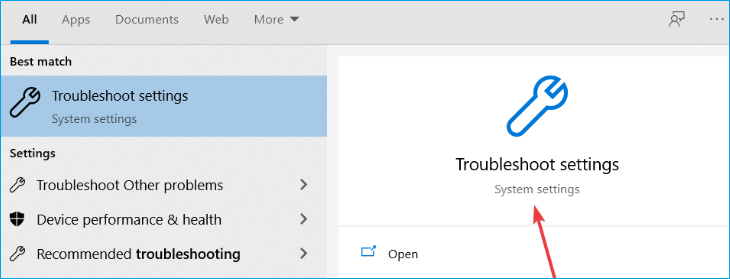
Step 1. To troubleshoot settings, go to the Start button and type "troubleshoot", then click "Troubleshoot settings".
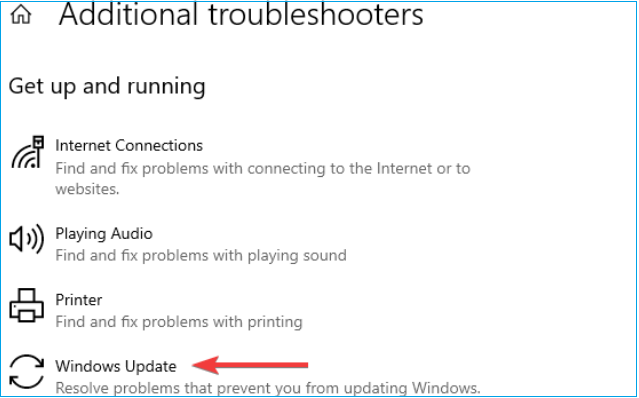
Step 2. Select "Additional troubleshooter".

Step 3. Scroll down the list and select "Windows Update".
Step 4. Click the "Run the troubleshooter" button to launch it.
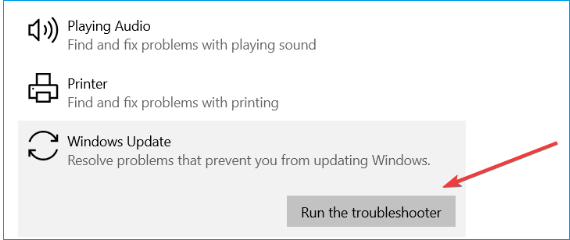
Wait until the troubleshooting process is finished, as it will provide valuable details about the issue and attempt to fix it. If the Windows update troubleshooter doesn't work and the issue persists, proceed to the next method.
Fix 3. Reset Windows Update Registry Keys
If your Windows system is experiencing issues with Windows Update, resetting the registry keys to their defaults can be a convenient solution. This can be done by following a series of steps, which include backing up the registry, deleting specific registry keys, and then resetting them to their default values. By doing so, you can resolve any corruption or modification issues that may be preventing Windows Update from functioning properly.
Step 1. Click the link to download the Windows Update Reset file.
Step 2. Once downloaded, open the file and click "Run".
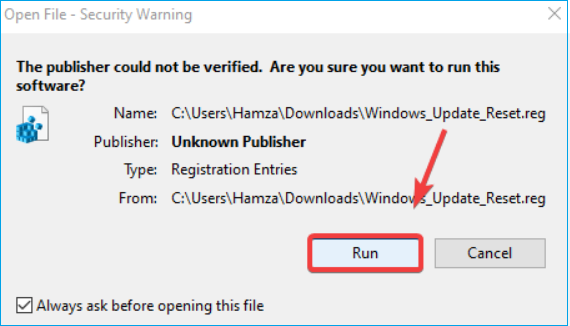
Step 3. Select "Yes" to confirm.
Step 4. After the process is complete, verify if the error has been resolved.
Fix 4. Run a DISM and SFC Commands
Deployment Image Servicing and Management (DISM) and System File Checker (SFC) are two tools used to repair Windows images and system files. If a Windows update is not working due to a corrupted file, running the following commands can resolve the issue:
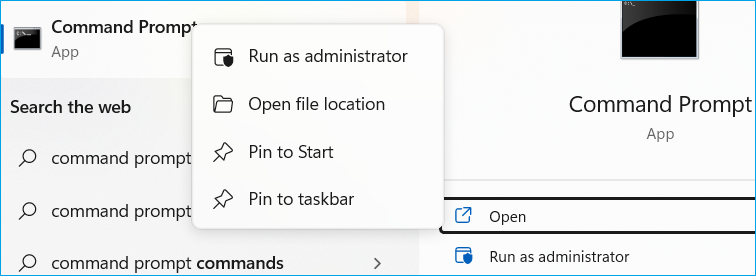
Step 1. Go to the Start Menu and type the command prompt in the search bar.
Step 2. Right-click the app and select "Run as Administrator".
The commands are:
DISM /Online /Cleanup-Image /RestoreHealth
sfc /scannow
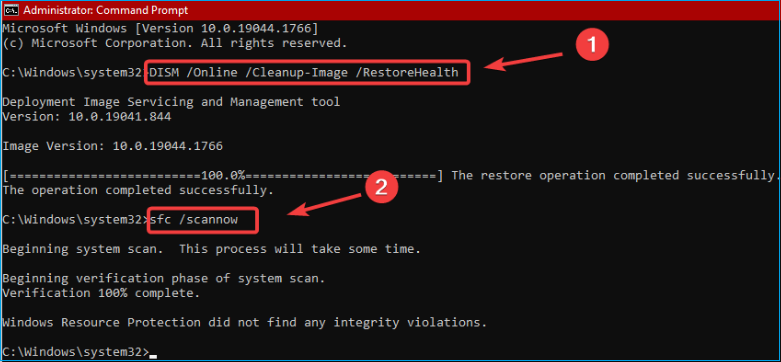
Step 3. Once the running process is complete, close Command Prompt and check if the problem is resolved. If the issue persists, you can try the next method.
Fix 5. Perform System Restore
Step 1. Go to the Start menu and select "Settings".
Step 2. At the bottom, click "Update & Security".
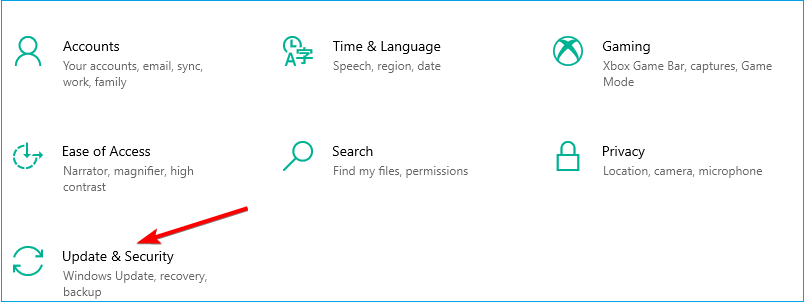
Step 3. Select the "View Update History" option.
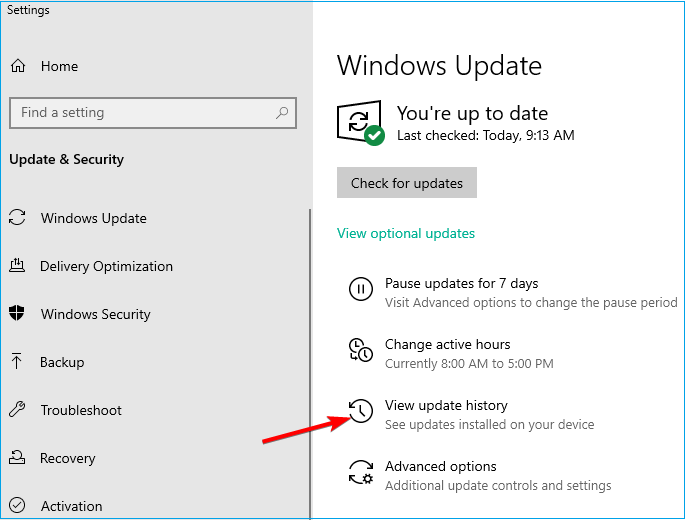
Step 4. The next window will display the list of recently installed updates on your system.
Step 5. Click "Uninstall Updates" at the top.
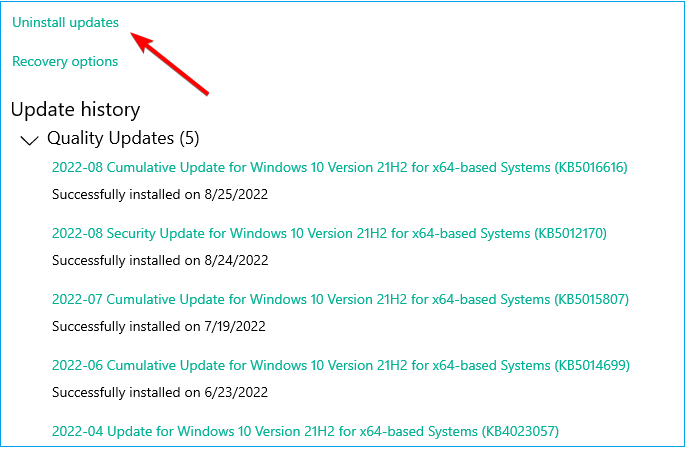
Step 6. To uninstall the latest update, click on the "Uninstall" option next to it. This will remove the update from your system.
The system restoration process will restore your Windows Operating System to a previous state, making it functional again. If system restore encounters an issue, you can attempt to undo it without losing any data.
Fix 6. Clean Install Windows 10 or Windows 11
If the issue persists after trying all other methods, a clean installation of Windows could be a viable option.
Step 1. You can download a valid version of Windows 10 or Windows 11 by clicking on any link provided.
- Notice:
- Please make sure you have a valid product key written in a safe place.
Step 2. Scroll down the page to find the Download Now option under Create Windows 11 Installation Media.
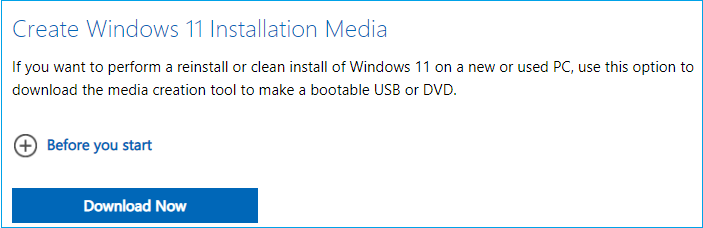
Step 3. Upgrade to the latest version of Windows 10 or 11 to experience a smoother and more efficient computing experience on your Windows device.
Final Verdicts
We hope this guide helps you understand why Windows updates aren't working on Windows 11/10 and provides solutions to fix the issue. There are various methods to resolve this problem, allowing you to upgrade to the latest version of Windows 10/11.
If you're at risk of data loss or your computer won't start due to Windows upgrade issues, use Qiling data recovery software to recover your data.
Windows Update Not Working FAQs
What are some common reasons why Windows updates may not be working?
1. How to fix Windows 11 not updating?
To fix the issue, connect your computer to the internet, go to Start Menu > Settings > Update & Security > Windows Update, and click Check for updates. This will allow you to manually install and update the system.
2. How do I force Windows 11 to update?
To check for Windows 11 updates, go to the Start Menu, select Settings, open Windows Update, and click Check for updates. If updates are available, you can install them. The most recent version is 22H2, also known as the Windows 11 2022 Update. You can also check the specific hardware requirements to update your Windows 10 to Windows 11.
3. How to delete Windows 10 updates that won't install?
Corrupted Windows Updates can prevent you from installing new updates. To resolve this issue, you can delete such Windows 10 updates in two ways.
To run Disk Cleanup, type "Disk Cleanup" in the search bar and select the top result. Then, under the "Files to delete" section, choose the types of files you want to delete and click "OK".
To resolve the Windows update issue, click the provided link to download and run the Windows update troubleshooter, which will automatically fix the problem in a straightforward and hassle-free manner.
4. How to fix Windows Update not working on Windows 11?
- Reset Windows update registry keys
- Check the Windows update utility manually.
- Keep all services about Windows update running.
- Uninstall third-party security software.
- Use Windows update troubleshooter.
Related Articles
- Can't Format External Hard Drive? 6 Ways to Help
- Dash Cam Card Full Error: How to Fix 'Dash Cam Says SD Card Full'
- How to Backup OneNote in Windows 10 and How to Restore OneNote from Backup
- How Do SD Cards Work on Different Devices [Android/Camera/Switch/Laptop]
- Hades 2 Save File Location & Config File Location on PC/Steam/Xbox
If you're having trouble finding your Hades 2 save file location, this article is for you. we will guide you through different methods to locate your game saves and config files on PC, Steam, or Xbox, including how to back up your game saves using Qiling Disk Master. - Top 8 Hard Drive Temperature Monitor Software for Windows [Pros & Cons]
Tracking hard disk temperature helps users take the right action. If overheating disk issues persist, users can use any of the hard drive temperature monitor software listed to take corrective measures.
Products
Articles & Tutorials
- Data Recovery
- Data Backup
- File Recovery
- File Backup
- System Backup and Restore
- Disk and Partition Clone
- Technical articles
- Mobile articles
- Disk Master Help
- Windows Data Recovery Tutorials
- Windows Secure Delete Tutorials
- Windows Partition Management Tutorials
- Windows File Backup and Restore Tutorials
- Windows System Backup and Restore Tutorials
- Windows Disk Backup and Restore Tutorials
- Windows Clone Tutorials