How to Use Diskpart to Set Boot Partition in Windows 10 New Guide]
Diskpart, a command-The Diskpart utility in Windows allows users to add an active marker to a hard drive partition, but a manual technique using the software Qiling Disk Master can also be used to set the boot partition in Windows 10.
Can Diskpart Set Boot Partition in Windows 10
Diskpart is a tool in Windows 10 that allows you to manage devices on your computer, including disks, partitions, volumes, or virtual hard disks. It can also be used to set the boot partition.
To use Diskpart commands, start by listing the objects on the disc, then select one to make it the active partition. Any commands you type will then operate on the currently-focused object.
However, you may also want to know how to use Diskpart commands to set an active partition. Don't worry, the next section will guide you step-by-step on how to set a bootable partition via Diskpart.
There is a link for you to learn more about an active partition before setting the partition active.
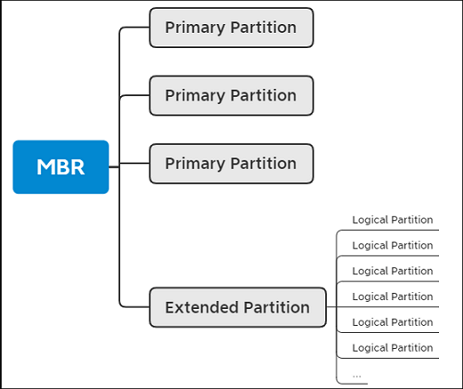
Is Primary and Active Partition the Same [Beginner's Guide]
An active partition is the partition where the computer boots from and starts the operating system, and it is typically a primary partition, although not always.
Diskpart Set Boot Partition in Windows 10 - [Step-by-Step Guide]
To make a hard drive partition bootable in Windows 10, 8, and 7, you can use the Command Prompt and Diskpart. The process involves using the built-in tools to assign a drive letter, set a partition as active, and make it bootable. This can be done via the Command Prompt using the "diskpart" command, or through the Disk Management tool.
Follow the procedures below to make the partition bootable at the command prompt:
Step 1. To access the Command Prompt, click the Windows icon, select "Search," and type "command prompt" into the search bar.
Step 2. Select "Run as administrator" by right-clicking Command Prompt.
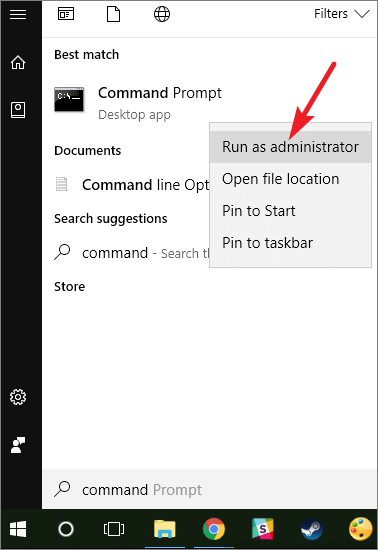
Step 3. Type "diskpart" in the Command Prompt and press Enter.
Step 4. Type the following command lines in Diskpart and press Enter each time:
- list disk
- select disk 0 (Replace 0 with your disc number)
- list volume
- select volume 3 (Replace 3 with the volume number of the target partition)
- active
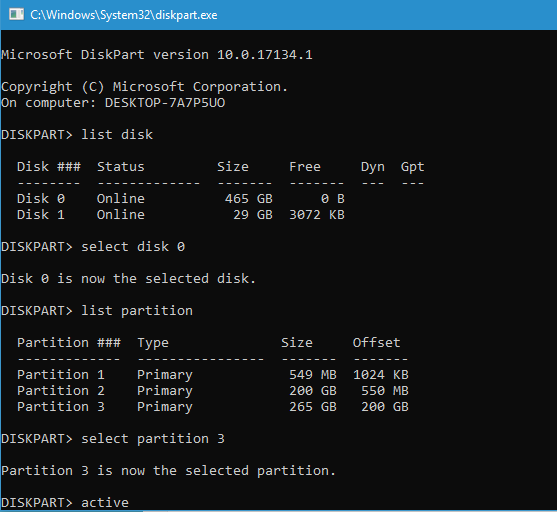
Step 5. Type exit and press Enter to close the software.
To set an active partition using Diskpart's rapid commands, you can follow this guide. However, if you're looking for a more streamlined approach, Qiling Disk Master offers the ability to make a partition bootable without requiring any commands.
Alternative to Diskpart Set Boot Partition in Windows 10
You can use Qiling Disk Master Free as an alternative to Diskpart, making managing your hard drives less of a chore. Its "set active" feature allows you to make a partition active without needing to use any commands, making it user-friendly even for beginners. Qiling Disk Master Free supports almost all popular Windows versions, including Windows XP/Vista/7/8/10/11. To get started, simply download it and follow the provided guide.
To manage your disk partition well, Qiling Disk Master has features such as resizing, cloning, and backing up disk partitions, as well as checking for bad sectors and optimizing disk performance.
- Hard drive defragmentation
- Remove active flag from partition
- Set partition active/inactive effortlessly
- Clone SD card/hard drive and make it bootable
- Create/resize/format/erase hard drive partitions without difficulty
- The file system type and cluster size can be changed using the command `fsutil behavior set AllocationUnitSize=
`. For example, to set the cluster size to 16KB, the command would be `fsutil behavior set AllocationUnitSize=16384`.
If you're having trouble with Diskpart, consider using a reliable bootable partition manager like Qiling Disk Master instead. It's easier to use and can help you manage your disk partitions with ease. Try it now!
Conclusion
The article provides a step-by-step guide to manually setting the boot partition in Windows 10 using Diskpart, as well as utilizing the Qiling Disk Master software to make a partition bootable without requiring user input.
By the way, there are some other links related to the active partition you may be concerned about. Click the following links if you are facing similar problems.
Diskpart Set Boot Partition Windows 10 FAQs
If you still have some confusion, you can go through the frequently asked question to avoid confusion.
1. How to create a boot partition using Diskpart?
Follow these steps, and you can create a boot partition using Diskpart:
Step 1. To access the Command Prompt, type "cmd" in the search box on your Windows computer, and then run it as an administrator by right-clicking on the result and selecting "Run as administrator".
Step 2. Then type diskpart and press the Enter key.
Step 3. Type these commands below, and press Enter each time:
- list disk
- select disk 1 (Replace 1 with the correct disk number)
- list volume
- select volume 1 (Replace 1 with the correct partition number)
- active
- exit
2. How do I change the boot drive?
To change the boot drive, you can turn to Qiling Disk Master, a trustworthy utility for this purpose. Follow these steps to do it.
Step 1. Launch Qiling Disk Master on your PC.
Step 2. Right-click on the new boot partition and choose "Advanced."
Step 3. Click "Set active."
3. Should I use GPT or MBR for the boot drive?
GPT allows up to 128 primary partitions, whereas MBR can only create 4 primary partitions, and MBR can't be used as the primary disk in Windows 11.
Related Articles
- Hades 2 Save File Location & Config File Location on PC/Steam/Xbox
- Windows 11 Is Getting ReFS Support for Enhanced Data Proteciton
- How to Solve Windows Can't Convert MBR to GPT [2024 100% Working Solution]
- Create Mac Bootable USB from Windows [Full Guide in 2024]
- How to Factory Reset Windows 10 [Beginner's Guide]
This article details factory resetting and teaches you how to factory reset Windows 10 in two ways. You can reset Windows 10 in a normal way or without logging in. And backing up is necessary before a factory reset. - How to Use Fdisk Format Partition in Linux [2023 Ultimate Guide]
this guide focuses on fdisk format partition in Linux. It provides detailed information about fdisk. And you will know the operations to use fdisk to format partitions.
Products
Articles & Tutorials
- Data Recovery
- Data Backup
- File Recovery
- File Backup
- System Backup and Restore
- Disk and Partition Clone
- Technical articles
- Mobile articles
- Disk Master Help
- Windows Data Recovery Tutorials
- Windows Secure Delete Tutorials
- Windows Partition Management Tutorials
- Windows File Backup and Restore Tutorials
- Windows System Backup and Restore Tutorials
- Windows Disk Backup and Restore Tutorials
- Windows Clone Tutorials