Windows 11 Is Getting ReFS Support for Enhanced Data Protection
Key Points:
- Microsoft is introducing the ReFS file system on Windows 11, which marks a significant departure from NTFS, the traditional file system used by Windows. ReFS is designed to be more robust and efficient, with features such as improved error correction, enhanced data integrity, and better performance on high-capacity storage devices. This shift to ReFS is expected to bring about improved reliability and speed for users, making it a welcome change for those who have experienced issues with NTFS in the past.
- ReFS, a file system developed by Microsoft, is initially expected to be supported on the Enterprise, Education, and Workstation editions of Windows 11, before potentially becoming the default version of Windows in the future.
- The ReFS file system is a hidden feature that requires manual enabling and cannot be directly converted from NTFS like FAT conversions.
Microsoft introduced Resilient File System (ReFS) in 2012, a next-generation file system succeeding NTFS, which addresses some of the issues associated with NTFS and is built on top of the NTFS code.
Windows 11 is getting ReFS support, allowing for more data availability, previously only available on Windows Server. A user was able to enable the hidden option to install a clean copy of Windows 11 using ReFS.
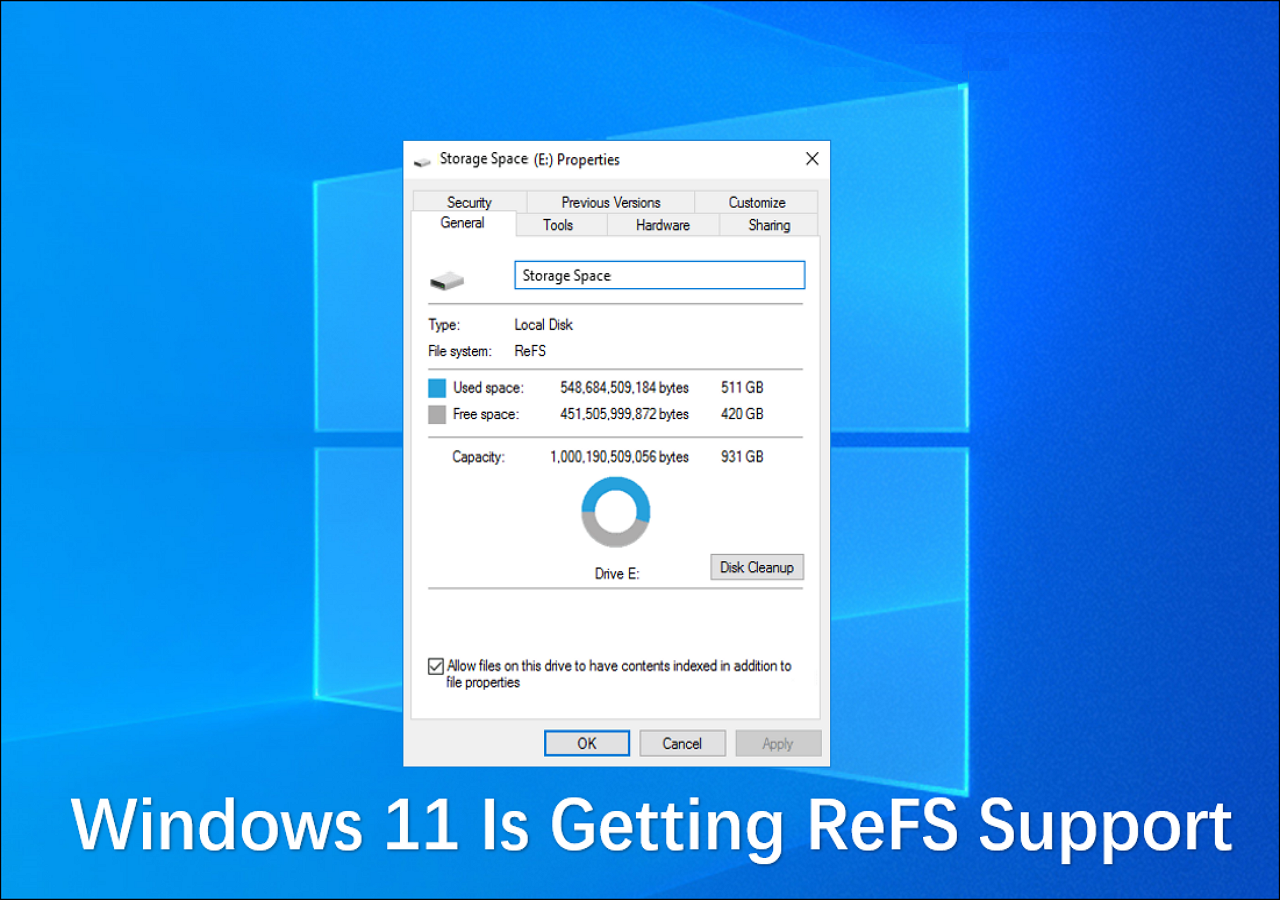
ReFS VS NTFS: Why Windows 11 Is Getting ReFS Support
Windows 11 is set to introduce support for the Resilient File System (ReFS), a file system that differs from NTFS in several key ways. Unlike NTFS, ReFS is designed to be more resilient and fault-tolerant, with features such as automatic error correction and improved data integrity.
- NTFS (New Technology File System) is the default file system in Windows operating systems, allowing efficient storage, organization, and retrieval of files on a hard drive.
- ReFS was first introduced in Windows Server 2012 and serves as a technology that addresses the limitations and meets the current needs of NTFS.
Here are the main features of the two file system formats:
| Features of NTFS | Features of ReFS |
|---|---|
|
|
ReFS outperforms NTFS in data availability and scalability, but lacks system compression and encryption support, making it ideal for large-scale data storage solutions, particularly with its built-in deduplication, data corruption detection, and space-saving features.
The ReFS file system will be supported in Windows 11, which means that Windows 11 will be able to use the ReFS file system. This is a significant change, as ReFS is a more modern and efficient file system compared to the traditional NTFS file system used by Windows. The ReFS file system has features such as improved data integrity, better performance, and more efficient disk usage, making it a more attractive option for users who need high-performance storage solutions.
Windows 11 Is Getting ReFS Support: What Does It Mean
Microsoft's ReFS file system was previously only available for Windows Server. However, with the introduction of Windows 11 Build 25276 in the Dev Channel, ReFS is now also available on Windows 11, breaking the version limit previously tied to Windows Server. This marks the first time ReFS has been available on a Windows client operating system.
ReFS, designed to replace NTFS, aims to prevent data corruption. The feature was revealed by a Twitter user running Windows 11 Professional, but ReFS is likely only supported on the Enterprise, Education, and Workstation editions of Windows 11.
Windows 11 can be installed on a ReFS partition, but it's not currently widely available on the operating system. Microsoft is still working on ReFS support for Windows 11, with potential changes possibly coming in the future.
Bonus Tip: Can I Convert NTFS to ReFS
Windows users can enable ReFS settings through registry editing, but unfortunately, Windows does not provide a direct way to convert NTFS to ReFS. To convert, you can only back up the files of a ReFS drive and reformat it. Microsoft's increasing adoption of ReFS on Windows 11 has led some to wonder if NTFS will eventually be phased out in favor of ReFS.
Windows provides tools for formatting tasks, but ReFS doesn't support Disk Management. To format a drive to ReFS, use a third-party tool like Qiling Disk Master Free, which supports all Windows systems and various file formats.
This tool has a simple interface and is easy to use, making it accessible even to those who are new to formatting. You can easily switch to ReFS or any other format you prefer.
Step 1. Launch Qiling Disk Master, right-click the partition you intend to format and choose "Format".
Step 2. In the new window, enter the partition label, select the desired file system (FAT32, EXT2, EXT3, or EXT4), and set the cluster size to your preference.
Step 3.Click the "Proceed" button to start formatting the partition to FAT32/EXT2/EXT3 or EXT4.
Step 4. Then you will see a warning window, click "Yes" in it to continue.
Qiling Disk Master is a powerful disk format tool that can solve the problem of not being able to format disks in Windows 10. It also allows for easy conversion of FAT32 to NTFS without deleting data.
Conclusion
Windows 11 is getting ReFS support, but it won't immediately replace NTFS, which is still widely used despite its many advantages, only a few organizations adopted it when it was first introduced.
Microsoft may soon replace NTFS with ReFS, as Windows 11 can be installed and booted from ReFS partitions. However, converting NTFS to ReFS is not possible, but you can format a drive to ReFS using a third-party tool like Qiling Disk Master.
FAQs About Windows 11 Is Getting ReFS Support
Windows 11 is getting ReFS support, which means users will soon be able to take advantage of the Resilient File System's features. This includes improved data integrity, better performance, and enhanced reliability.
1. How can I enable ReFS in Windows 11?
To access the ReFS file system on Windows 11, you can either use the Registry Editor to enable it or utilize the new settings to create drives with ReFS. This allows you to take advantage of the features and benefits provided by ReFS, such as improved data integrity and reliability. By following the steps outlined, you can successfully create and use ReFS drives on your Windows 11 system.
Step 1. Open GitHub and download ViveTool-vx.
Step 2. Open the zip file using File Explorer and extract its contents.
Step 3. Copy the extracted file and open the command prompt.
Step 4. Enter the command in order and press enter:
- cd c:\folder\path\ViveTool-v0.x.x
- vivetool /enable /id:42866187
2. Is ReFS better than ReFS in Windows 11?
ReFS outperforms NTFS in data protection, handling large volumes, and automatic data repair, but lags behind in innovation and overall improvement.
3. What Windows system supports ReFS?
Microsoft added ReFS file system support starting with Windows 8.1 and Windows 2012, and it is supported in Windows Server 2022 and higher versions of Windows 8.1. However, Windows 10 removed ReFS support in the Fall 2017 Creators Update.
Related Articles
- How to Fix Diskpart Failed to Clear Disk Attributes Error
- How to Fix Asus Laptop Black Screen with 10 Efficient Ways
- What Is Hard Disk Partition? Everything You Need to Know in 2023
- Xbox One External Hard Drive Format: NTFS, FAT32, exFAT? [Best Choice]
- [Solved] How to Fix Windows Update Error Code 0x8024402c
Are you receiving error 0x8024402c when updating in Windows 11? Then follow this easy guide to fix Windows update error 0x8024402c on Windows 11. It can be because of pending updates, corrupt system files, or even incorrect times on your PC. - How to Fix the Windows Key Not Working on Windows 10/11
Windows keys not working is an issue that can be frustrating. This article will explore common causes and methods to fix the problem on Windows 10/11.
Products
Articles & Tutorials
- Data Recovery
- Data Backup
- File Recovery
- File Backup
- System Backup and Restore
- Disk and Partition Clone
- Technical articles
- Mobile articles
- Disk Master Help
- Windows Data Recovery Tutorials
- Windows Secure Delete Tutorials
- Windows Partition Management Tutorials
- Windows File Backup and Restore Tutorials
- Windows System Backup and Restore Tutorials
- Windows Disk Backup and Restore Tutorials
- Windows Clone Tutorials