How to Fix the Windows Key Not Working on Windows 10/11
If you're having trouble using your Windows key, don't worry! We're here to help you resolve the issue. Your Windows key is a crucial component of your Windows operating system, and it's essential to get it working properly. If you're experiencing problems, try restarting your computer, checking for updates, or reinstalling the key.
Windows is user-friendly, occupying 70% of the operating system market, and is known for keyboard shortcuts, but sometimes experiences issues like the Windows 10 activation key not working.
What Is the Windows Key Not Working Issue
A computer keyboard is equipped with various keys, one of which is the Windows button. Pressing this button alone opens the start menu, but when combined with other keys like CTRL, ALT, or Shift, it can perform additional functions, such as switching between files, folders, and applications.
When the Windows key stops working, users lose access to various essential functions, including quickly opening the start menu, switching between Windows, and accessing desktops, rendering these operations impossible.
Users experiencing issues with the Windows key not working may want to try various fixes to resolve the problem. To do this, we can continue to investigate and find the best solutions.
What Causes the Windows Key Not Working Issue
A Windows key may stop working due to various reasons, including malware, incorrect settings, or keyboard manufacturers disabling it in gaming mode.
Your Windows key might not be working due to various reasons such as hardware issues, software conflicts, or driver problems. It could be related to a malfunctioning keyboard, a faulty keyboard driver, or a corrupted registry key.
- Windows has disabled it
- It's been locked by your keyboard (usual occurrence in Corsair, Razer, and other gaming keyboards)
- Malware or virus attack might have stopped it
- An app or service has blocked it
- Windows 10/11 Game Mode/Xbox Game bar disabling it
- Your keyboard is broken
The Windows key not working can be caused by various issues, including a faulty keyboard, a malfunctioning Windows key on the keyboard, or a bug within the Windows operating system. Let's proceed to troubleshoot and find a solution to this problem.
How to Fix the Windows Key Not Working On Windows 10/11
The Windows key on a keyboard is a convenient shortcut that allows users to quickly access various features and functions on a Windows device. However, when it stops working, users may experience difficulties. This can be caused by software conflicts, driver issues, or hardware problems. To fix the issue, users can try restarting their device, checking for software updates, and reinstalling the Windows key drivers. If the problem persists, users may need to seek further assistance from a technical support specialist.
- Method 1. Turn Off Filter Keys
- Method 2. Registry Editor Fix
- Method 3. Disable Game Mode
- Method 4. PowerShell Command
- Method 5. Perform An SFC Scan
- Method 6. Create another User Account
- More Methods...
Method 1. Turn Off Filter Keys
To turn off the filter keys, head to the Control Panel, click on "Ease of Access," then click on "Keyboard," and finally toggle the switch next to "Turn on Filter Keys" to the "Off" position. This will disable the filter keys feature on your computer.
Step 1. Head into "Control Panel".
Step 2. Search "Ease Of Access" in the search bar.
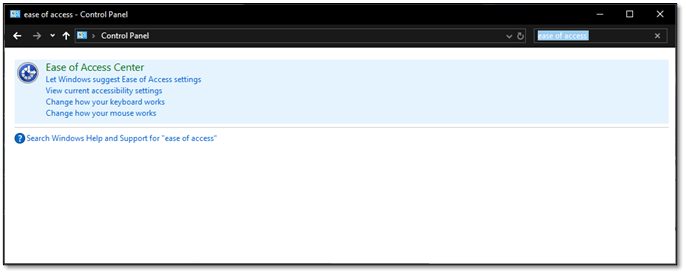
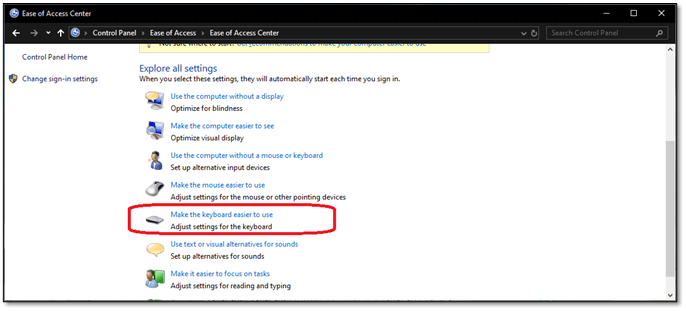
Step 3. To make the keyboard easier to use, go to "Ease of Access" and select the "Make the keyboard easier to use" option.
Step 4. Scroll down to find and uncheck the "Turn on Filter Keys" option.
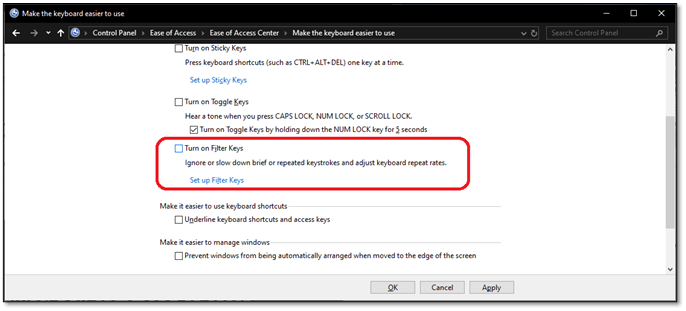
Step 5. Press Apply, then OK.
If the option is enabled, you can simply disable it to fix the issue. If it was already disabled, you can try the next method.
Method 2. Registry Editor Fix
To access the registry editor, you can type `regedit` in the Run dialog box (Windows key + R), or search for it in the Start menu. Once open, navigate to the following directory: `HKEY_LOCAL_MACHINE\SOFTWARE\Microsoft\Windows\CurrentVersion\Explorer\Shell Folders`. You can copy and paste this path into the address bar at the top of the registry editor to quickly navigate to this location. Once you're there, you can look for the specific key you're interested in and make your changes.
Step 1. Open "Registry Editor" as an administrator.
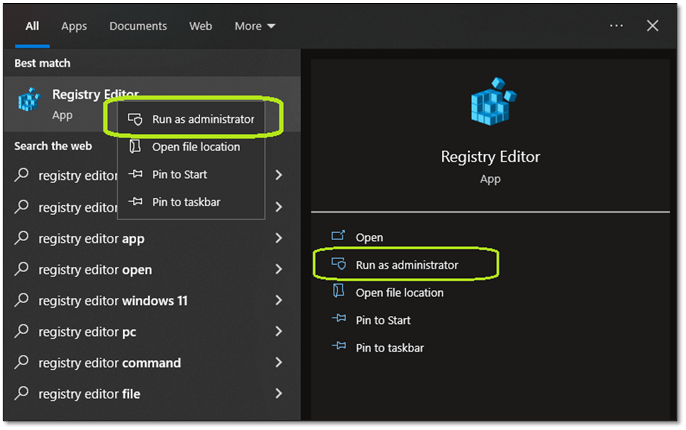
Step 2. Enter the following address in your registry editor's bar: "HKEY_LOCAL_MACHINE\SYSTEM\CurrentControlSet\Control\Keyboard Layout".
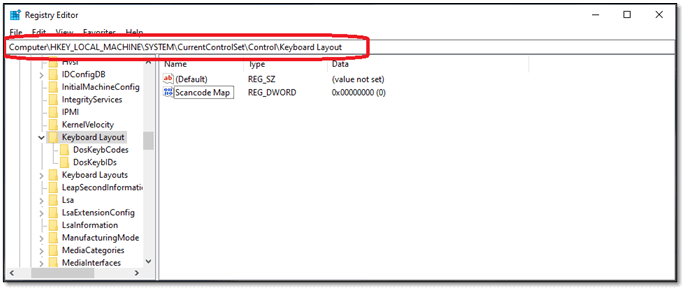
Step 3. Then find and delete the Scancode Map key.

If the Windows key is interfering with your game, try checking if the game has created a registry key to prevent this. If not, you can try creating the key yourself. This is usually done by running a command in the Command Prompt as an administrator.
Method 3. Disable Game Mode
To disable game mode, you typically need to open the Xbox Game Bar on your computer, click on the three dots in the top right corner, and select "Game mode" from the dropdown menu. From there, you can toggle off the "Game mode" switch to disable it. Alternatively, you can also disable it by going to Settings > System > Game Bar and toggling off the "Record game clips and screenshots" switch. Once you've done this, you should no longer see the Game Bar overlay on your screen when playing games.
Step 1. Head into system settings.
Step 2. Find "Gaming" and click on it.
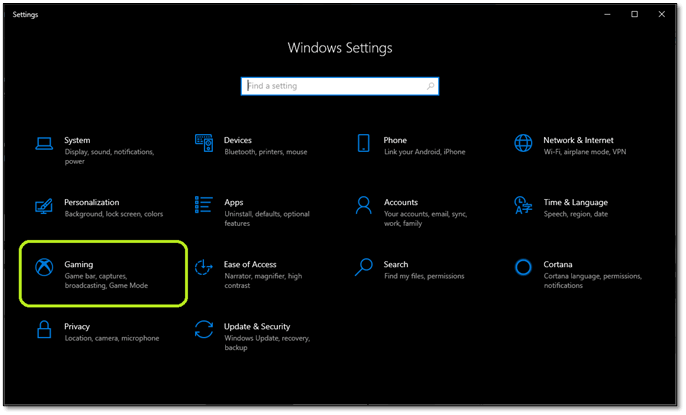
Step 3. Navigate the sidebar and find Game Mode.
Step 4. Toggle "Game Mode Off" and Disable It.
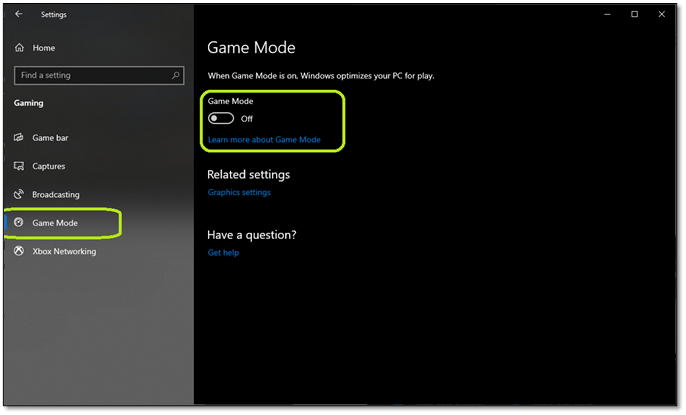
Disabling the Windows key stop feature in Windows settings may resolve the issue, but if the problem continues, try the next solution.
Method 4. PowerShell Command
Windows PowerShell is a powerful tool that allows you to troubleshoot and fix issues that might seem irreparable. By utilizing its capabilities, you can resolve problems that would otherwise require professional intervention, making it a valuable component of Windows.
Step 1. Press the Start menu button and find PowerShell
Step 2. Open PowerShell as Administrator
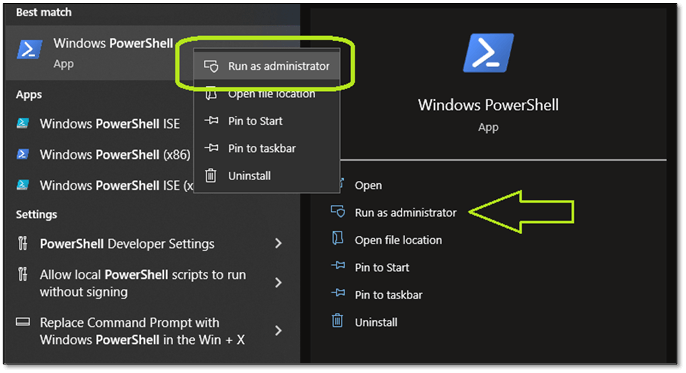
Step 3. In PowerShell, copy and paste this command.
"Get-AppXPackage -AllUsers | Foreach {Add-AppxPackage -DisableDevelopmentMode -Register "$($_.InstallLocation) \AppXManifest.xml"}"
Step 4. Then press the enter key and let it complete.
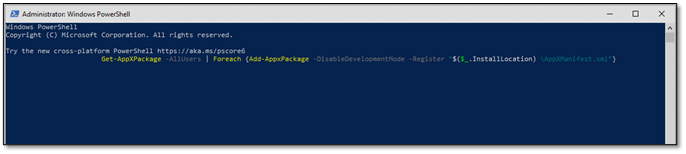
If you're experiencing issues with the Windows key not working, you can try restarting your PC or checking for any software updates. Additionally, if you're using a laptop, try pressing the Fn key in combination with the Windows key to see if it resolves the issue. If none of these methods work, it may be worth checking with the manufacturer or seeking further assistance.
Method 5. Perform An SFC Scan
To run an SFC scannow command, open the Command Prompt as an administrator, type "sfc /scannow" and press Enter. This will scan all protected system files and replace any corrupted ones with a cached copy. The process may take some time, so be patient.
Step 1. Open CMD as an administrator.
Step 2. Type "SFC /scannow" and press enter.
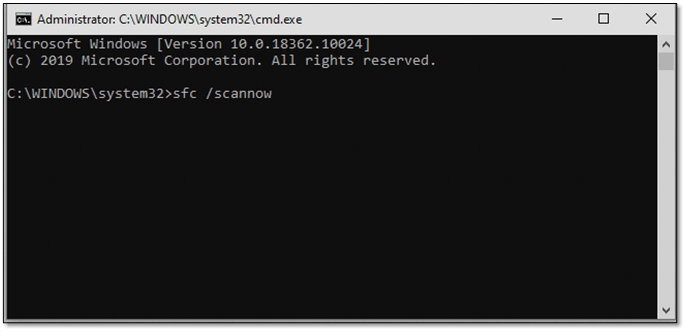
To resolve the issue, you can try resetting the Windows key functionality by running a simple command in the Command Prompt. This process might take a minute or two, depending on your PC's processing power. After completing the process, restart your device and verify if the Windows key is functioning correctly.
Method 6. Create another User Account
Sometimes, a simple thing like a user account might be causing the issue. Therefore, you must try and create a new account. Here's how:
- Go to "Settings" and head into "Accounts".
- On the sidebar, find and click "Family & other users".
- Click on "Add someone else to this PC".
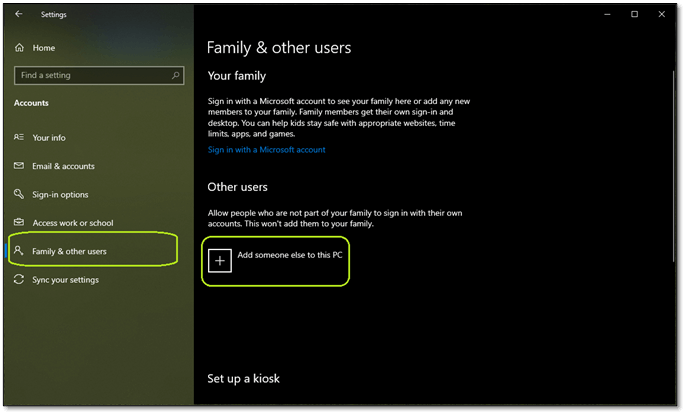
- Click on "I don't have this person's sign-in information".
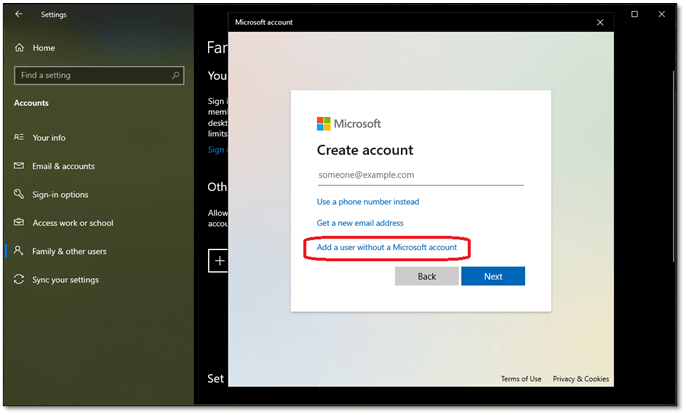
- Then click "Add a user without a Microsoft Account".

- Enter your Username and password.
After creating a new user, log out of your account or restart your PC. Then, sign in to the new user and check if the Windows key is working. If it is, you can safely delete the other users. This resolves the issue where the Windows key is not working for a user.
Method 7. Use the DISM Command
To fix a corrupted Windows or missing system file, you can use the DISM (Deployment Image Servicing and Management) tool to scan and repair any corrupt files. Here's how to do it:
- Open CMD as administrator
- Enter the following command: "Dism /Online /Cleanup-Image /StartComponentCleanup, Dism /Online /Cleanup-Image /RestoreHealth."
- Press enter
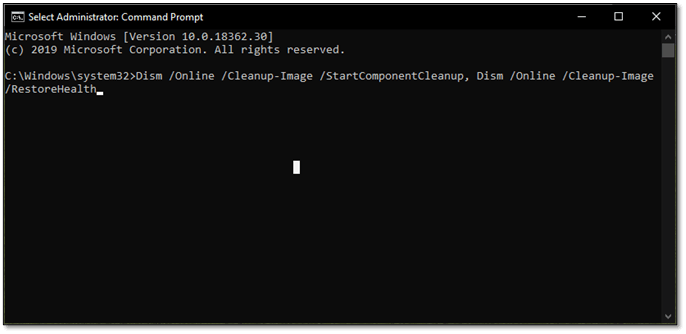
The System File Checker will replace missing files or fix/reinstall corrupted Windows apps, services, or files, which should resolve the issue. If the problem persists, proceed to the next step.
Method 8. Check The Keyboard Layout For the Windows Lock Button
If you have a gaming keyboard, it likely features a Windows lock button. Otherwise, it might have a shortcut to prevent the Windows key from working. For example, some keyboards have a key labeled "Fn" or "Function" that can be pressed in combination with another key to temporarily disable the Windows key. The specific key combination may vary depending on the keyboard model, but it's usually something like Fn + Esc or Fn + F1.
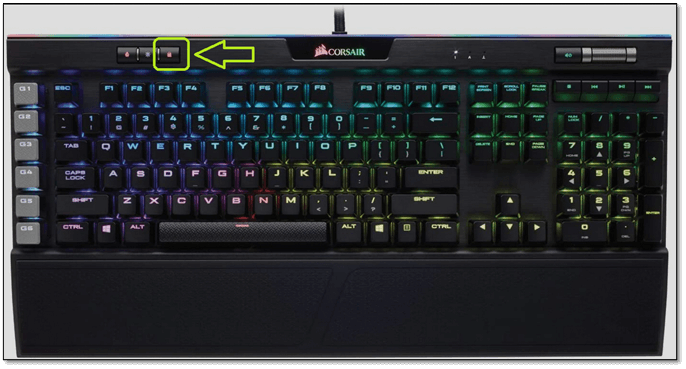
Corsair's Windows key can be toggled on and off, allowing you to lock off the Windows button to prevent accidental start menu toggling, which can be useful when playing games. If it's currently red, pressing it will turn it back on.
Some keyboards, especially those with different layouts, may require you to press the FN key in combination with the Windows button to lock or unlock the Windows key. If you're experiencing issues, check your keyboard's layout to see if it has any specific key combinations for this function.
Method 9. Unplug & Plug it Back In
Gaming keyboards also tend to have their memories. This memory allows them to remember lighting settings and other shortcuts, such as macro keys. To utilize this feature, you can save your preferred settings and recall them later, or even set up different profiles for different games or scenarios. This way, you can easily switch between various configurations to suit your needs.
- Unplug the keyboard
- Untangle the wire
- Restart the PC
- Plug it back in
If the keyboard driver wasn't loading correctly, reinstalling it might fix the issue. However, if the problem persists, it's likely that the keyboard has a hardware issue.
Method 10. Try Another Keyboard/Replace Your Keyboard
If your keyboard isn't working, try using a different keyboard. If that works, the problem is with your original keyboard. If the new keyboard also doesn't work, the issue might be with your computer or Windows. If the new keyboard has a working Windows button, the problem is definitely with your original keyboard.
Method 11. Replace the Mechanical Key
To replace a broken key on a mechanical keyboard, you can try replacing the individual keycap with a new one. This might involve purchasing a replacement keycap from the manufacturer or a third-party supplier, and then removing the old keycap and installing the new one. However, if the issue is with the switch underneath the keycap, you may need to replace the entire switch, which can be a more involved process. It's worth noting that some keyboards may not be designed to be user-replaceable, so it's a good idea to check the manufacturer's documentation or contact their support team to see if this is possible on your specific keyboard.
Step 1. Pull off the critical cap of your Windows button.
Step 2. Pull the mechanical key out with a tweezer.

Step 3. The goal is to get the keyboard into a state where the keys are not aligned properly, making it difficult to type. This can be achieved by pulling out keys, especially from the Numeric Pad or less frequently used keys, creating a situation where the user has to think carefully about which key to press. This can be a fun and challenging way to practice typing skills, and can be done with any keyboard.
Step 4. Replace the pulled-out key.
Step 5. Try to press the start button now.
If this method works, then the mechanical key is the problem, so you should buy a replacement key instead of the whole keyboard.
Conclusion
If your Windows key is not working, there are several common fixes you can try. In most cases, the issue is related to software rather than hardware, and resolving it may allow the key to function again. This means that if the problem is with the keyboard hardware, it's unlikely that the key will work again. However, if the issue is with the software, you may be able to get the key working again by trying one or more of the common fixes.
However, there are always exceptions. And the best way to find out is by using these 11 methods. So, try each method until you fix your keyboard.
Related Articles
- How to Backup Gmail Emails to Outlook for Windows 11/10/8/7
- PS4 Internal Hard Drive Format: What Is the Best & How to Format [Full Guide]
- Google Drive for Desktop VS Backup and Sync [What's the Differences]
- How to Fix User Profile Cannot Be Loaded in Windows?
- Continuous Data Protection: All Things You Need to Know
In this article, we will tell you what continuous data protection is and how continuous data protection work. This post will also find the advantages and disadvantages of continuous data protection. - How to Load Old Cyberpunk 2077 Saves on Xbox
Learn how to load old Cyberpunk 2077 saves on Xbox and manage saved game data, cloud sync, and recovery options.
Products
Articles & Tutorials
- Data Recovery
- Data Backup
- File Recovery
- File Backup
- System Backup and Restore
- Disk and Partition Clone
- Technical articles
- Mobile articles
- Disk Master Help
- Windows Data Recovery Tutorials
- Windows Secure Delete Tutorials
- Windows Partition Management Tutorials
- Windows File Backup and Restore Tutorials
- Windows System Backup and Restore Tutorials
- Windows Disk Backup and Restore Tutorials
- Windows Clone Tutorials