How to Fix User Profile Cannot Be Loaded in Windows?
Windows users have reported a "user profile cannot be loaded" error when trying to log in, often after a Windows update or when creating a new local user account.
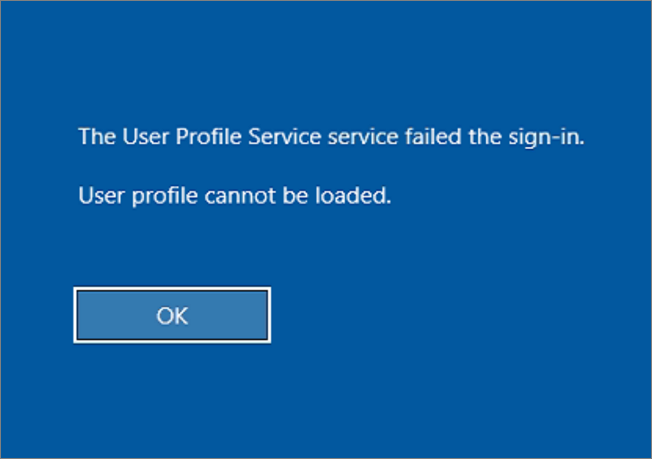
The error can occur randomly when the Windows User Profile Service fails to run during startup due to damaged or corrupt files and conflicting processes on the computer. Fortunately, there are several solutions to fix this issue and restore the PC to working order.
If the user profile cannot be loaded error is preventing you from accessing your user account on a Windows PC, try the following solutions: Run the System File Checker (SFC) tool to scan and replace any corrupted system files. Use the built-in System Restore feature to revert to a previous system restore point.
What Is User Profile
Windows computers enable users to set up multiple profiles, each containing customized directories, files, and settings tailored to an individual's preferences. This allows users to have a unique experience on their computer, with separate contents and settings for each profile, keeping them distinct from other profiles on the same device.
Windows User Profiles include local user accounts, which are further categorized into basic user accounts and administrator accounts. This feature allows for easy sharing of a computer with multiple users and efficient management of Windows computers.
Why Can't User Profile Be Loaded
The user profile cannot be loaded issue on your Windows PC can be caused by several variables, including corrupted user profile files, incorrect file permissions, a faulty Windows registry, a malfunctioning Windows Explorer, or a problem with the user's account settings.
Corrupt or damaged NTUSER.dat: The NTUSER.dat file, which stores user profile settings and preferences, may be corrupted or damaged, preventing the user profile from loading, often as a result of Windows updates or System Restore issues.
Conflicting User Profile Service configuration: The User Profile Service in Windows helps with running user profiles on the computer. If it's malfunctioning, it can cause issues like the user profile not loading. This can result in errors and problems with your user profile.
Anti-virus: Using anti-virus software on your computer can also cause user profiles to become corrupted.
An issue with the Windows registry: The Windows Registry is a database that stores settings and options for the operating system and applications, but sometimes it can become corrupted, leading to issues with user profiles, such as being unable to open a user profile on a computer.
Here are some effective ways to resolve the problem of your car not starting:
How to Fix User Profile Cannot Be Loaded
To fix the "user profile cannot be loaded" error on your Windows computer, try the following solutions. You can start by booting your computer in safe mode and then delete the corrupted user profile. Alternatively, you can try booting in Safe Mode with Networking and then rename the corrupted user profile.
- Method 1. Boot Windows into safe mode
- Method 2. Create new local user account
- Method 3. Use system restore
- Method 4. Restart the user profile service
- Method 5. Switch to the normal startup
- Method 6. Replace NTUSER.dat file
Method 1. Boot Windows into safe mode
If your Windows computer won't start, you can try booting in safe mode, which limits the number of drivers and files running on your computer. This can help you identify the issue causing the "user profile cannot be loaded" error, as fewer processes and files will be running, making it easier to pinpoint the problem.
If your Windows computer won't start normally due to corrupt software or files, you can try booting it in safe mode, which loads only the essential Windows files and applications, allowing you to access and fix the issue.
To boot your Windows PC into safe mode, follow these steps: Press the Windows key + X on your keyboard, then select Restart. As your PC restarts, keep pressing the Shift key until the Windows boot menu appears.
Step 1. On the Windows login screen, tap on the power menu at the bottom-right corner.
Step 2. To boot into the Choose option page, hold the Shift key and click the Restart option from the power menu. This will allow you to select the startup options.
Step 3. On the Choose an option page, click on "Troubleshoot", then select Advanced Options.

Step 4. Now tap on "Startup Settings" and click on "Restart" afterward.
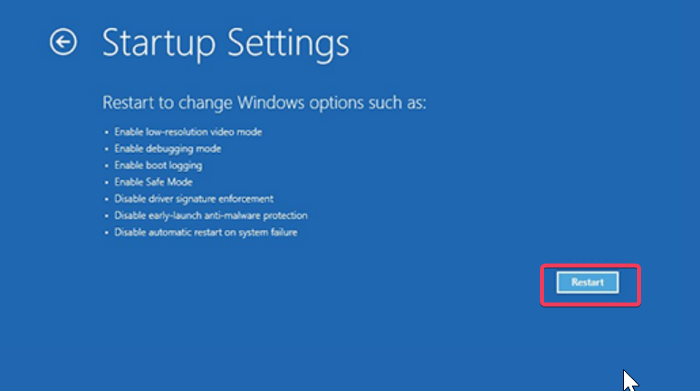
Step 5. When your PC restarts, press the "5" or "F5" key to boot into safe mode.
To access your Windows computer in safe mode, you can restart your computer and repeatedly press the F8 key until a menu appears. From there, you can select the option to boot in safe mode. This will allow you to access your computer and make changes to fix the issue.
Method 2. Create new local user account
If the issue persists after attempting various fixes, you can try transferring the corrupted data to a new local user account created in safe mode. This can be a viable solution if the original user profile has become severely corrupted, making it inaccessible. By creating a new account and transferring the data, you may be able to access the information you need.
Step 1. In safe mode, search for "Command Prompt" in the Windows Search box and open it.
Step 2. On the Command Prompt, type the command below and hit Enter.
net user /add username password
To create a user profile, use the command "useradd username" and optionally "usermod -p password username" to set a password. The "username" in the command above should be the name you want to use for the user profile, and the "password" should be the password you want to set for the profile, which is optional.
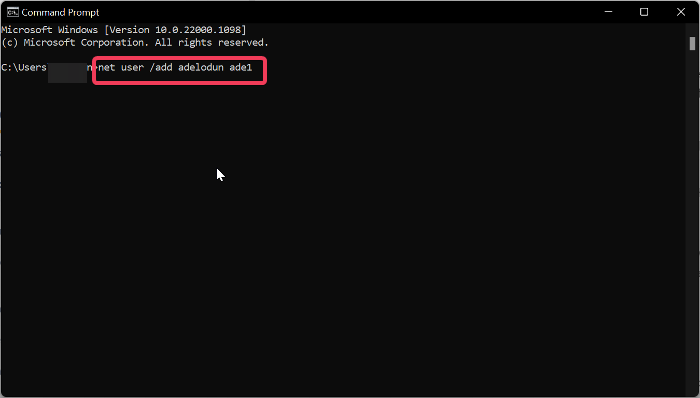
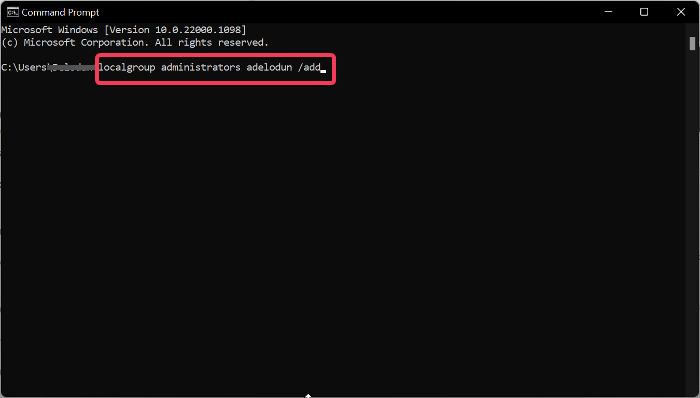
Step 3. Again, type the command below and hit Enter.
localgroup administrators username /add
To create a new user, use the command `useradd` followed by the username you want to create, which should match the name used in the user profile you created earlier. For example, if your username is `john`, you would use the command `useradd john`.
To avoid data loss, you can backup your user profile before creating a new one. If you're unable to access your profile, you can log in to the new profile, copy data from the old profile, and then delete the old profile. This process helps to preserve your important data.
Method 3. Use system restore
To resolve the "user profile service failed the logon" issue, you can restore your system to a previous point in time when the problem didn't exist, using System Restore. This will revert your computer's configuration to a state before the issue occurred, effectively resolving the problem.
To use system restore to fix this issue, follow the steps below:
Step 1. To access the power menu, click the button at the top-right corner of your login screen.
Step 2. Hold the Shift key and tap on "Restart".
Step 3. On the Choose an option page, tap on "Troubleshoot" then "Advanced Options".
Step 4. On the next page, click on "System Restore" and then tap on "Next".
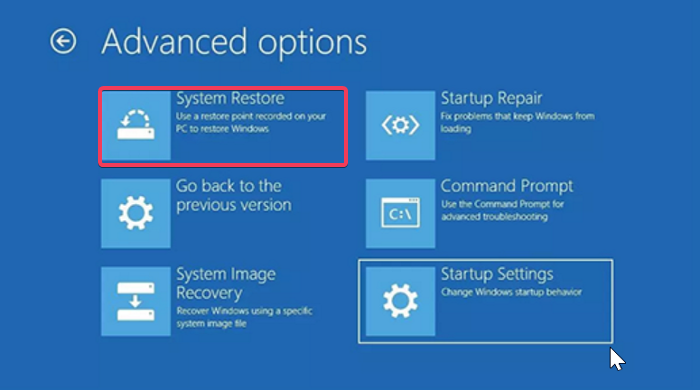
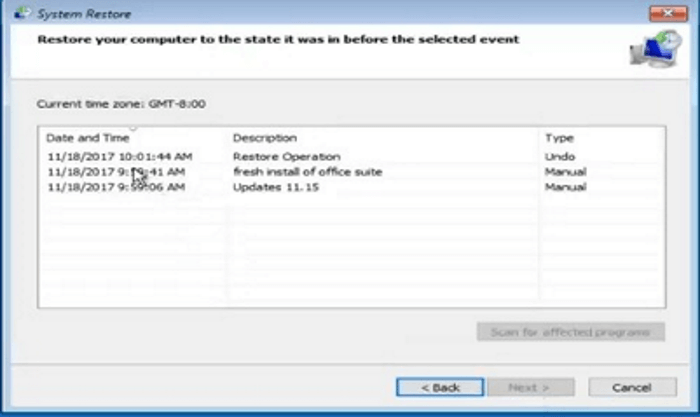
Step 5. The user should select the desired restore point and click the "Next" button.
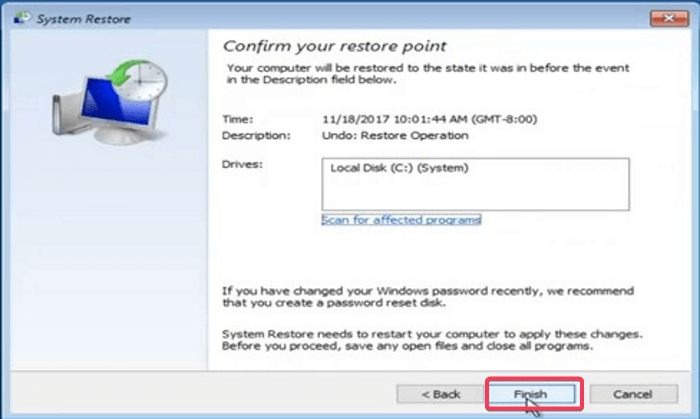
Step 6. To fix the user profile issue, tap on "Finish" after selecting the correct restore point, which will start the restore process. Once it's completed, the user profile issue should be resolved.
Method 4. Restart the user profile service
If you're encountering the "User Profile cannot be loaded" error on your computer, it's likely due to a malfunctioning or disabled User Profile Service. To resolve this issue, try restarting the User Profile Service, which may resolve the problem. If the issue persists, you can explore other troubleshooting steps to resolve the issue.
To restart the User Profile Service on a Windows PC, you can follow these steps: Press the Windows key + R to open the Run dialog box. Type "services.
Step 1. Open your PC in safe mode by using the steps in Method 1 above.
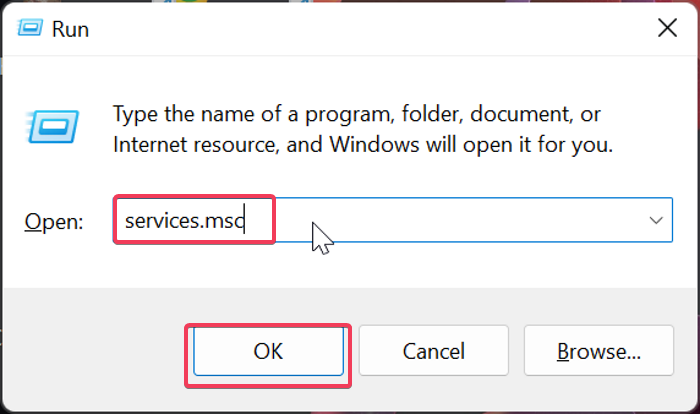
Step 2. Press Windows + R, type services.msc, and hit Enter to open the Windows Services window.
Step 3. On the Windows Services page, navigate to User Profile Service, right click on it.
Step 4. On the resulting drop-down menu, click on "Restart".
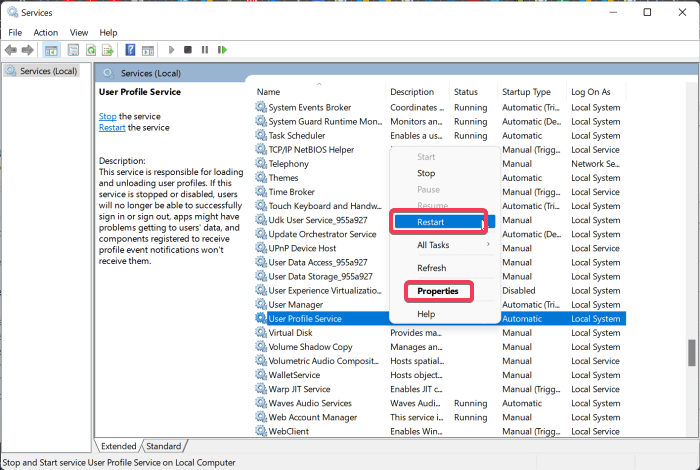
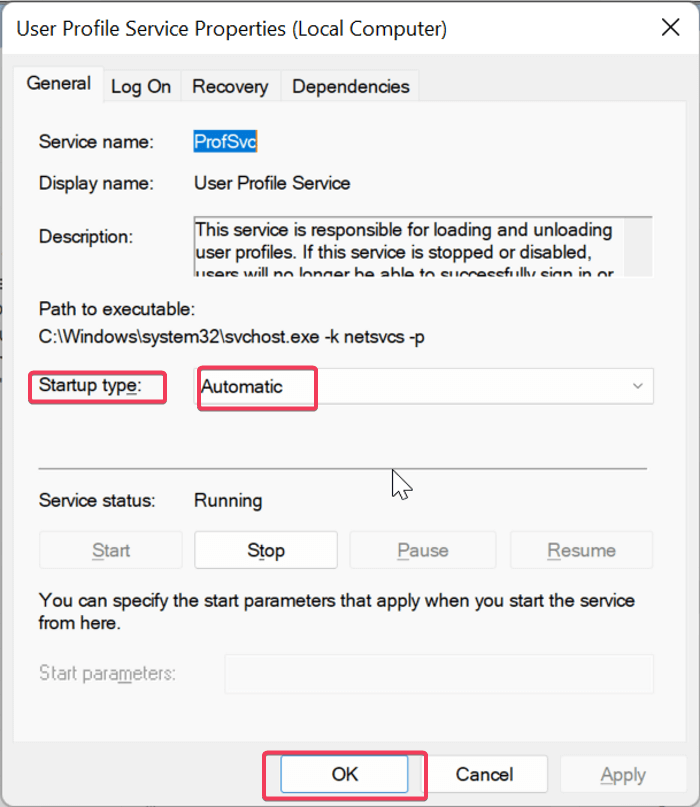
Step 5. To ensure the service is running correctly, go to the drop-down menu, tap on "Properties", and confirm that the "Startup type" is set to "Automatic".
If you delete your user profile, you can recover it by going to Settings > Accounts > Your email and accounts, then select "Manage my Microsoft account" and click on "Sign in" to access your account settings. If you're unable to recover your profile, you can create a new one and transfer your files and settings to the new profile.
Method 5. Switch to the normal startup
You may have disabled some Windows services while running your Windows computer in a clean boot state, which led to errors like this one. To resolve this, switch to a normal startup to ensure everything is set up correctly and your computer boots up without issues.
Here is how to switch to normal startup:
Step 1. To resolve the issue, boot your computer to safe mode using the steps described in Method 1 above.
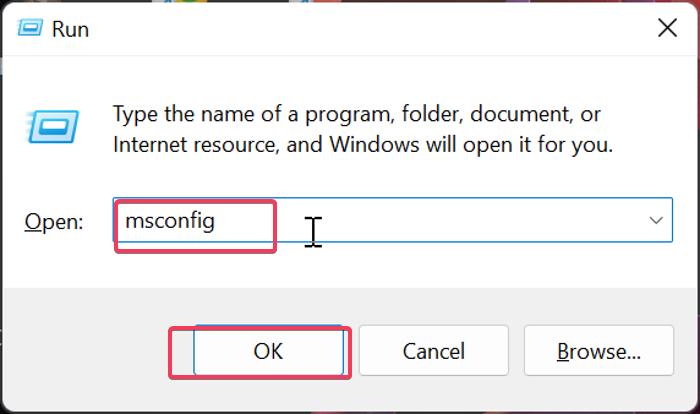
Step 2. Press Windows key + R to open the Run Command Box.
Step 3. In the box, type msconfig and hit Enter.
Step 4. To resolve the issue, tap on the "Startup" tab, select "Normal startup", then click "Apply" and "OK" to save the changes.

Step 5. Switch to the Services tab and select Enable all.
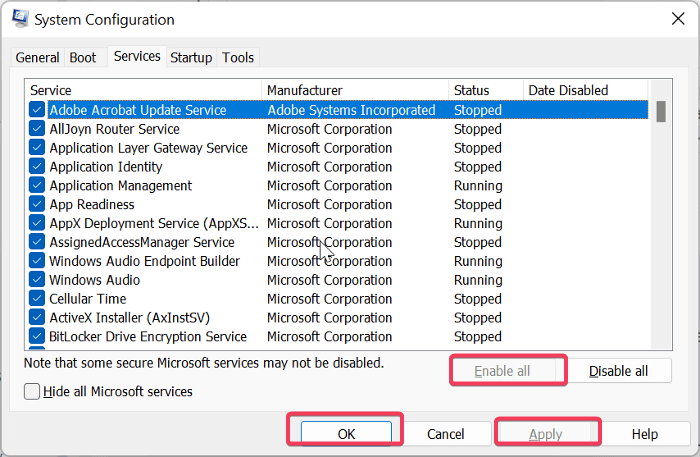
Step 6. Click on "Apply" and hit OK.
To resolve the issue, you should restart your computer. This will often resolve the problem and get your computer running smoothly again.
Method 6. Replace NTUSER.dat file
To resolve the "User profile service failed the logon" error due to a corrupted NTUSER.dat file, replace the file by following these steps:
Step 1. To boot your computer into Safe Mode, follow the steps in Method 1, which will allow you to start your computer with a minimal set of drivers and services, helping to troubleshoot and resolve issues.
Step 2. After that, press Windows + E to open File Explorer.
Step 3. Navigate to the drive Windows is installed on and open it.
Step 4. To show hidden items in a folder, click on "Users" and tap "View > Show > Hidden items".
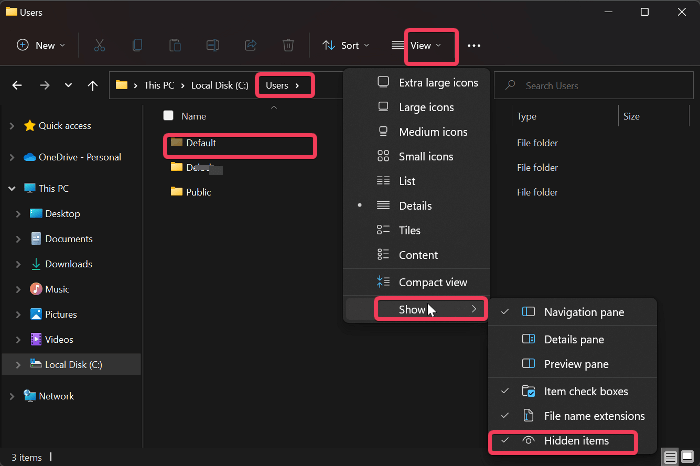
Step 5. To rename the NTUSER.DAT file, tap on the "Default" folder, right-click on the NTUSER.DAT file, and select Rename.
Step 6. Now rename the file as NTUSER.DAT.OLD.
Step 7. Go back to the Users folder, open another user profile, copy the NTUSER.DAT from there and paste it into the Default folder where you renamed the file to .OLD.
Step 8. After pasting the file, restart your computer and check if the issue is resolved.
Final Words
If you're experiencing the "user profile cannot be loaded" error on your Windows computer, several proven solutions can help resolve the issue. However, some users have reported that the problem may resurface, so it's essential to keep track of the third-party apps you use on your computer, as they are likely the root of the problem.
FAQs about User Profile
1. How do I restart the user profile Service?
To restart the User Profile Service on a Windows computer, follow these steps:
- Press Windows + R to open the Run Command box.
- Type services.msc in the box and hit Enter.
- To restart the User Profile Service, navigate to the Services window, locate the User Profile Service, right-click on it, and select "Restart" from the context menu. This will stop and then restart the service, which may resolve issues related to user profiles.
2. How do I restore a user profile in Windows 11?
To restore a user profile in Windows 11, you can follow these steps: If you have a backup of your user profile, go to the Settings app, click on Accounts, and select "Sign in with a Microsoft account instead." Then, click on "Manage account" and select "Restore profile from this PC." If you don't have a backup, you can try to restore your profile from a System Restore point.
- Press the Windows key + R keys to open the Run Command box.
- Type control panel and hit Enter.
- On the Control Panel window, click "Backup and Restore" (Windows 7) to proceed with the task.
- To select the backup location, tap on "Select another backup to restore files from" and then click on "Next".
- To continue the restore process, tap on "Browse for folders" and select the User Profile folder that was backed up, then click on "Next".
- On the next pages, select "In the original location" and click on "Restore".
3. Does System Restore recover user profiles?
System Restore can be used to recover user profiles by saving everything on the computer, including profiles, at the point when it was created.
Related Articles
- How To Switch Monitors 1 and 2 On Windows 10 Computer
- How to Fix com.apple.DiskManagement.disenter error 49153 [Ventura/Sonoma]
- How to Boot from USB Ubuntu? [Full Guide in 2024]
- Overall Solutions: How to Ungroup the Taskbar In Windows 11
Wondering how to ungroup a taskbar? Find out everything about Windows 11 Ungroup Taskbar here! - Fix System Was Unable to Find the Specified Registry Key or Value [Four Efficient Solutions!]
Fix the 'System was unable to find the specified registry key or value' error with our expert guide. We cover the most common causes and provide step-by-step solutions to fix them. Follow our instructions and get your system running smoothly again. - Tekken 8 Save File Location & Config File Location How to Back Up It
Discover the Tekken 8 save file location with our comprehensive guide. The detailed steps to save the file location and config settings of Tekken 8 can be found in the guide, which provides a thorough walkthrough for users to locate the save file and configure settings for the game.
Products
Articles & Tutorials
- Data Recovery
- Data Backup
- File Recovery
- File Backup
- System Backup and Restore
- Disk and Partition Clone
- Technical articles
- Mobile articles
- Disk Master Help
- Windows Data Recovery Tutorials
- Windows Secure Delete Tutorials
- Windows Partition Management Tutorials
- Windows File Backup and Restore Tutorials
- Windows System Backup and Restore Tutorials
- Windows Disk Backup and Restore Tutorials
- Windows Clone Tutorials