Fix System Was Unable to Find the Specified Registry Key or Value
If you're seeing the error message "System was unable to find the specified registry key or value", don't worry - it's a fixable issue. This error can prevent you from accessing certain programs or settings on your computer, but it's not a permanent problem. You can resolve it and get back to using your computer normally.
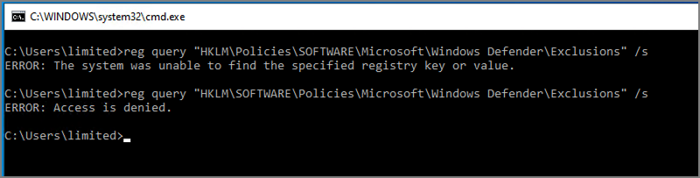
This article discusses the possible causes of an error and offers practical solutions to resolve it, aiming to provide a concise and helpful guide.
Why System Was Unable to Find the Specified Registry Key or Value
The "System was unable to find the specified registry key or value" error message can occur at any time while using your computer due to various issues, including corrupted registry entries, missing or deleted registry keys, incorrect registry permissions, or a malfunctioning registry cleaner. This error can also be triggered by a faulty system file, a software conflict, or a hardware problem. To resolve this issue, you can try running a registry cleaner, checking for malware, updating your operating system, or reinstalling the software that's causing the problem.
- 1. Deleting the wrong key: When trying to make changes to the registry, be cautious when deleting keys, as accidentally deleting the wrong key can trigger an error message.
- 2. Bad sectors: Hard drives can develop bad sectors over time, leading to errors like this one.
- 3. Corrupted registries: The Windows registry is a central database that stores settings and options for the operating system and software applications. It is a crucial part of the Windows operating system, and any corruption in the registry can result in problems such as the one you're experiencing.
- 4. Third-party program interference: Sometimes, third-party programs can interfere with the registry and cause this error to appear.
The "System was unable to find the specified registry key or value" error message is likely caused by a corrupted registry key or value, a missing or corrupted .dll file, a problem with the Windows Search service, or a conflict with a third-party software. To resolve the issue, you can try running the System File Checker (SFC) tool, running the DISM tool, or resetting the Windows Search service.
How to Fix System Was Unable to Find the Specified Registry Key or Value
Here are four solutions to try to fix the "system was unable to find the specified registry key or value" error:
- Fix 1. Check If You Are Deleting a Key or Value
- Fix 2. Fix Bad Sectors on Hard Disk
- Fix 3. Run SFC and DISM
- Fix 4. Run Clean Boot
Now that we've introduced some potential solutions for fixing the "system was unable to find the specified registry key or value" error, let's dive into how each fix can help resolve the issue. By implementing these solutions, you can troubleshoot and potentially resolve the error, allowing you to access the registry key or value that was previously inaccessible.
Fix 1: Check If You Are Deleting a Key or Value
To fix the "system was unable to find the specified registry key or value" error, carefully check if you're deleting the correct key or value, as many have accidentally deleted the wrong one, triggering the error. This involves verifying the path and name of the key or value you're trying to delete to ensure it matches the one you intended to remove.
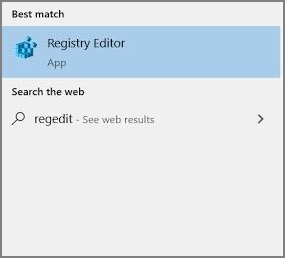
Step 1: To open the Registry Editor, simply type "regedit" into the search bar and press Enter. This will open the Registry Editor, allowing you to access and modify the Windows Registry.
Step 2: To delete a key or value, locate the key or value you want to delete. You may need to navigate through several folders to find it. Once you've found the key or value, right-click on it and select "Delete" from the context menu.
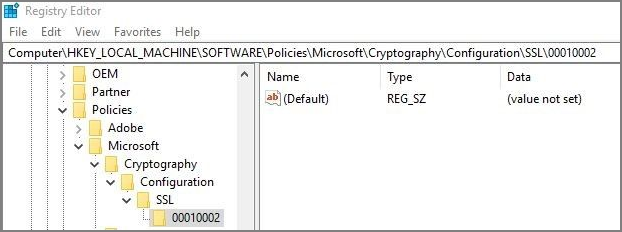
Step 3: To delete a key or value, select the correct one from the list and click on the "Delete" button. Double-check that you have selected the correct key or value, as deleting the wrong one could cause problems with your system. If you are unsure, you can perform a search online to confirm that it is safe to delete.
Step 4: You can delete the correct key or value once you have selected it.
Step 5: Close the Registry Editor and restart your computer.
Be careful when making changes to the registry, as it is a crucial part of the Windows operating system, and any mistakes can cause problems.
Fix 2. Fix Bad Sectors on Hard Disk
If the "System was unable to find the specified registry key or value" error is caused by bad sectors on your hard drive, you can resolve the issue by fixing them using Qiling Disk Master, which includes a surface test function to identify and fix bad sectors.
To fix bad sectors, download and install the software, run the disk surface test, and follow the on-screen instructions to identify and repair any issues.
Step 1. To check the disk's surface, open Qiling Disk Master, right-click the disk you want to check, and select "Surface Test" from the context menu.
Step 2. The operation will be performed immediately, and all bad sectors will be marked as red.
Qiling Disk Master is a powerful tool that can fix partition errors and corrupted file systems, allowing you to resolve issues like a UEFI boot Windows 10 failure and a SD card not showing Windows 10, and even resolve the "System was unable to find the specified registry key or value" error.
Fix 3. Run SFC and DISM
If the error is caused by a problem with the registry or other system files, you can try running the SFC and DISM utilities to fix the issue. These built-in Windows tools can repair damaged system files and may be able to resolve the problem. To use them, you can follow these steps:
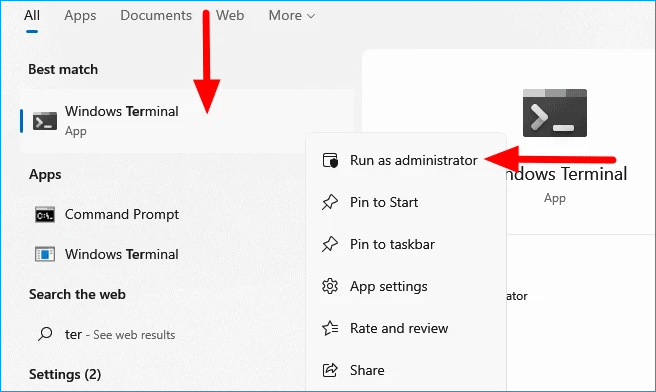
Step 1: To open the Command Prompt as an administrator, type "cmd" into the search bar, right-click on the Command Prompt icon, and select "Run as administrator".
Step 2: To run the SFC scan, type "sfc /scannow" into the command prompt and press Enter. This will initiate the scan.
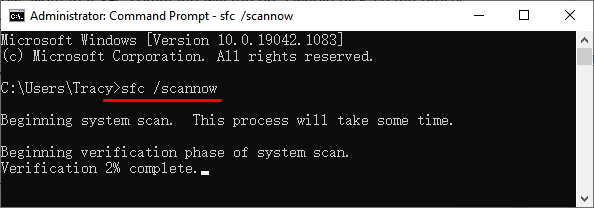
Step 3: Wait for the scan to complete, which may take a few minutes. The System File Checker (SFC) utility will then attempt to repair any issues it finds.
Step 4: In the Command Prompt, type `dism/online /cleanup-image /restorehealth` and press Enter to initiate the DISM scan.
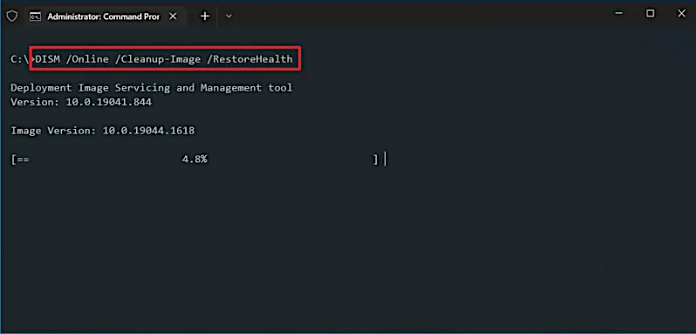
Step 5: Wait for the DISM scan to complete, which may take a few minutes. If any issues are found, the DISM utility will attempt to repair them.
Step 6: Close the Command Prompt and restart your computer.
Run the System File Checker (SFC) and then the Deployment Image Servicing and Management (DISM) tool to scan and repair corrupted system files and registry issues, which may resolve the error. These tools are not guaranteed to fix all issues, so if the error persists, consider alternative fixes.
Fix 4: Run a Clean Boot
Sometimes, third-To troubleshoot the "System was unable to find the specified registry key or value" error, try performing a clean boot. This involves starting Windows with a minimal set of drivers and programs, which can help you determine if a third-party program is causing the problem. To do this, go to the Start menu, type "msconfig" in the search bar, and press Enter. In the System Configuration window, click on the "Services" tab, check the box next to "Hide all Microsoft services," and then click "Disable all." Next, click on the "Startup" tab, and disable any unnecessary programs.
Step 1: To open the System Configuration utility, type "msconfig" into the search bar and press Enter. This will launch the utility, allowing you to access various system settings and configuration options.
Step 2: To see only third-party services running on your computer, click on the "Services" tab and check the box next to "Hide all Microsoft services" to view only the non-Microsoft services.
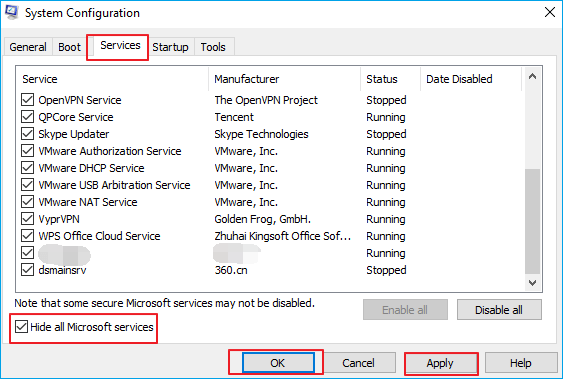
Step 3: Click the "Disable all" button to disable all third-party services.
Step 4: To start the Task Manager, click on the "Startup" tab and then click on the "Open Task Manager" button.
Step 5: To disable all startup items in the Task Manager, select each item in the list and click the "Disable" button. This will prevent all selected items from running at startup.
Step 6: Close the Task Manager and click the "OK" button in the System Configuration window to save your changes.
Step 7: Restart your computer.
Follow the steps to perform a clean boot and start Windows with a minimal set of drivers and programs, which will help troubleshoot the issue or resolve the problem.
Bottom Line
This guide addresses the "system was unable to find the specified registry key or value" error, covering common causes and solutions. It offers fixes for issues related to a corrupted registry, bad sectors on the hard drive, and interference from third-party programs, providing a comprehensive approach to resolving this error.
If you're still experiencing issues, consider using Qiling Disk Master, a tool that can resolve most disk partition-related problems. Its "surface test" feature can identify and fix bad sectors on your hard drive, potentially resolving the "System was unable to find the specified registry key or value" error. You can download Qiling Disk Master to get your computer running smoothly again.
FAQs of System Was Unable to Find the Specified Registry Key or Value
There are some frequently asked questions about the system was unable to find the specified registry key or value error. Hope these answers can be helpful to you.
1. How do I fix error access to the registry?
To resolve an "access to the registry" error, run the SFC (System File Checker) utility to repair damaged system files, or try a clean boot to isolate the issue and determine if a third-party program is causing the problem.
2. How do I fix the Registry Editor not working?
To fix a non-functional Registry Editor, run the SFC and DISM utilities to repair damaged system files, and consider performing a clean boot or restoring the registry from a previous restore point.
3. How do you locate keys and their values in the registry?
To find keys and their values in the registry, open the Registry Editor by typing "regedit" into the search bar and pressing Enter. You can then use the search function or navigate through the folders to locate the desired key or value, or use online resources to find specific keys or values.
Related Articles
- How to Factory Reset MacBook Big Sur [Latest Update]
- [Quick Steps] How to Enter Startup Repair Windows 10 in 2024
- How to Install Google Drive for Desktop on PC ☁️
- Why Can't I Format My External Hard Drive on PS4? [Ultimate Answer and Tutorial]
- QuickBooks Online Keeps Crashing [Troubleshoot with Comprehensive Guide]
Having trouble with QuickBooks Online crashing? This guide explains the reasons behind the crashes and provides solutions to fix the issue in just 5 minutes. - How to Fix Raspberry Pi Not Booting [4 Efficient Solutions]
If your Raspberry Pi won't boot, try checking the power supply, SD card, and HDMI connection. Ensure the power supply is sufficient, the SD card is properly inserted, and the HDMI cable is securely connected to both the Raspberry Pi and the monitor.
Products
Articles & Tutorials
- Data Recovery
- Data Backup
- File Recovery
- File Backup
- System Backup and Restore
- Disk and Partition Clone
- Technical articles
- Mobile articles
- Disk Master Help
- Windows Data Recovery Tutorials
- Windows Secure Delete Tutorials
- Windows Partition Management Tutorials
- Windows File Backup and Restore Tutorials
- Windows System Backup and Restore Tutorials
- Windows Disk Backup and Restore Tutorials
- Windows Clone Tutorials