How to Install Google Drive for Desktop on PC ☁️
In this article, you'll learn:
- What Is Google Drive Used for?
- How to Install Google Drive for Desktop on Windows
- How to Install Google Drive for Desktop on Mac
- Bonus Tip: Recover Lost Files from the Hard Drive
What Is Google Drive Used for?
Google Drive is a cloud-based storage space where users can store files online, providing safe backup and easy accessibility.
You might wonder why you should install Google Drive on your PC when you already have a hard drive, but there are several reasons for using Google Drive.
- 🚀Google Drive allows users to upload and store files online, freeing up space on their computer's hard drive, thereby reducing storage pressure.
- 🌐Google Drive is accessible online, allowing users to access their files from anywhere with an internet connection.
- 📚Sync photos, videos, documents, and more across multiple devices, with 15 GB of free storage that can be upgraded with a paid subscription.
To install Google Drive for desktop, you'll need a Windows 8 or up operating system for your PC, or a Mac with macOS Catalina 10.15.7 or later.
How to Install Google Drive for Desktop on Windows
Google Drive is the highest-Google Drive is a cloud storage service used globally, allowing users with a Google account to store, access, and share files easily.
To install Google Drive on Windows, follow these steps –
Step 1. Open the Google Drive download page on your browser.
Step 2. Click on "Download Drive" for the Desktop button.
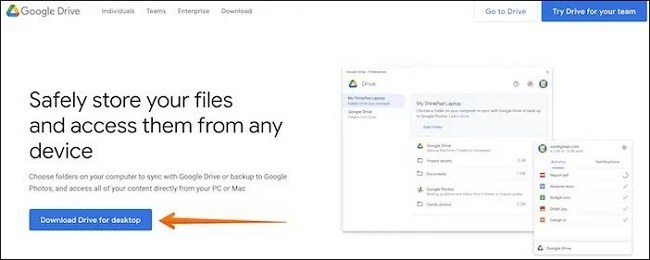
Step 3. Downloading of GoogleDriveSetup.exe will start.
Step 4. Please wait for the download to finish, then double-click the downloaded file to run it.
Step 5. Click "Install" to start the process.
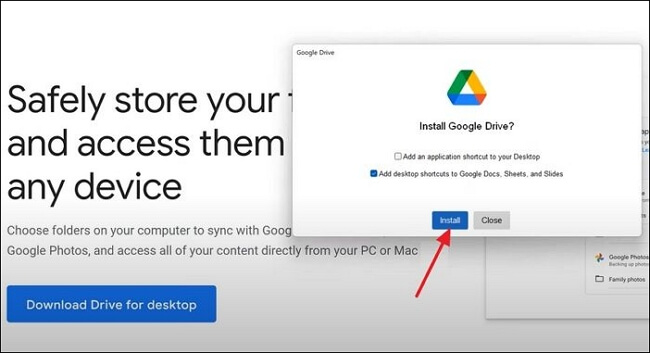
Step 6. Follow the on-screen instructions.
Step 7. When the installation is done, select "Close".
Step 8. You will see and open Google Drive on your computer.
Step 9. Double-click on the icon.
Step 10. Press the "Sign in" with Browser option.
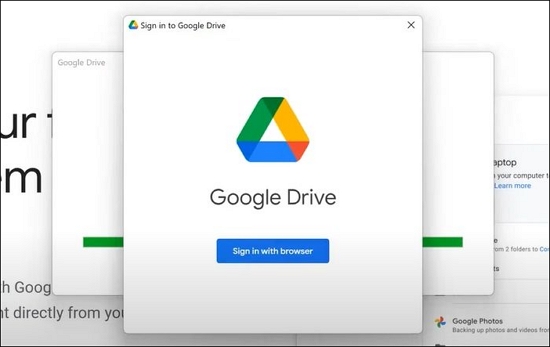
Step 11. Enter your Gmail id and password.
Step 12. Click "Next" to sign in to "Google Drive".
For more information on how to install Google Drive for desktops, we have added a video tutorial.
- 00:00 - Explanation
- 00:25 - Download Google Drive for PC
- 01:08 - Setup Google Drive on PC
- 03:00 - Change Google Drive Letter
Share the helpful method on various social media platforms such as Facebook, Twitter, Instagram, and others.
How to Install Google Drive for Desktop on Mac
To install Google Drive for Desktop on Mac, follow these easy steps, but make sure to safeguard your data first. If you're unfamiliar with opening dmg files on Mac, you may encounter difficulties with the macOS process.
To install Google Drive on your Mac, first make sure your Mac meets the system requirements. Then go to the Google Drive website, click "Get Google Drive", choose your Mac operating system, download the installer, and follow the on-screen instructions.
Step 1. Open the Google Drive download page on your browser.
Step 2. Select "Download Drive" for the desktop option.
Step 3. Downloading of "GoogleDrive.dmg" will start.
Step 4. Once it downloads, click on the program file, i.e., GoogleDrive.dmg, to initiate the installation process.
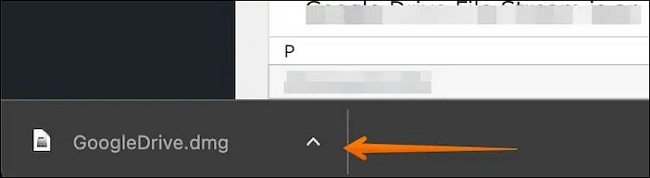
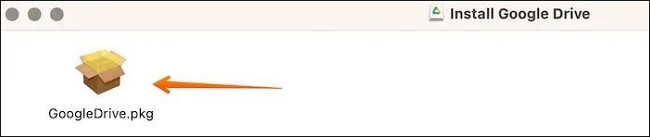
Step 5. A window will pop up; click the GoogleDrive.pkg to proceed with the installation.
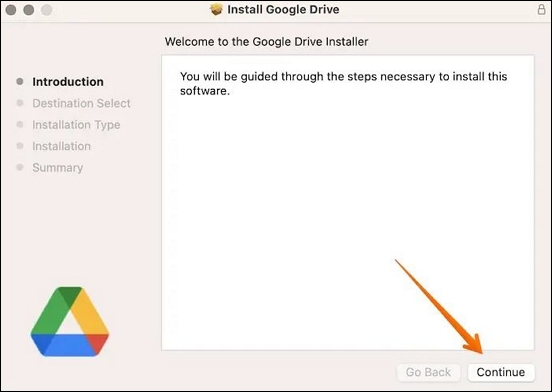
Step 6. Click on "Continue" to start the installation process.
Step 7. You can change the installation location and click on the Install button. It will then prompt you to enter the password, after which the installation process will begin.

Step 8. After installation, the Google Drive icon will be displayed in the top menu bar of your Mac, and it will open automatically when you log in to your device.
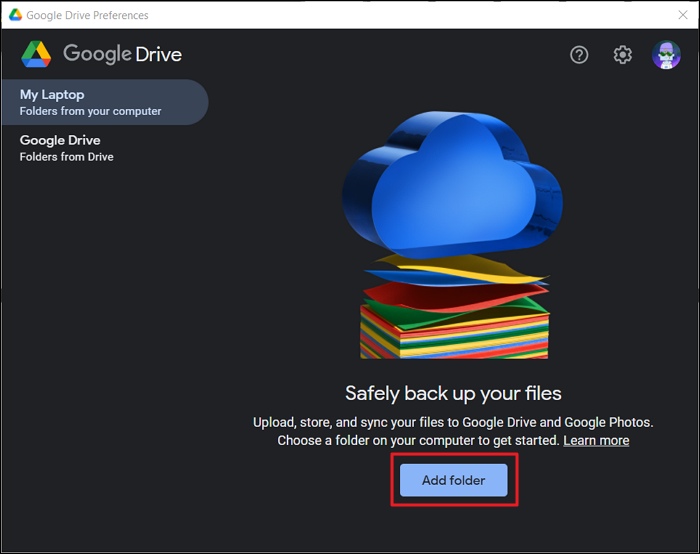
Google Drive Files Not Showing Up on PC/Phone/Mac
When uploading files and documents to Google Drive, they may not appear immediately, so be patient and check back later.
Bonus Tip: Recover Lost Files from the Hard Drive
Losing files from a hard drive can be a stressful situation, but there's hope. With the help of professional data recovery software, you can recover deleted files from Google Drive. If you're in need of assistance, Deep Data Recovery is a reliable option to consider.
The Deep Data Recovery is a highly efficient data recovery tool that allows you to seamlessly restore data such as photos, videos, documents, etc. You can also use it to recover files from dead laptops.
Deep Data Recovery is a software that enables users to recover lost data due to various reasons, including malware attacks, RAW partition recovery, and hard drive damage. It's user-friendly and has gained popularity among both novices and experts, making it a reliable solution for fixing data loss issues.
Here are the steps to use Deep Data Recovery:
Note: To increase the chances of successfully recovering lost data, install Qiling data recovery software on a separate disk drive, rather than the original disk where the files were lost.
Step 1. Launch Deep Data Recovery on your Windows computer, select the affected disk partition or storage location, and click "Scan" to begin the recovery process.

Step 2. This recovery software will start scanning the disk to find all lost and deleted files. When the scan process completes, you can specify lost file types by clicking Type, or search for the target file by remembering its name and typing it in the search box, which is the fastest way to find it.

Step 3. This software allows you to preview and recover lost Windows files by scanning the system, previewing the found files, and then recovering the selected data to a safe location.

Final Words
Google Drive is indeed a top-Google Drive is a cloud-based storage service that allows users with a Google account to store, access, and share files securely.
If you experience data loss due to a Google Drive not working issue, professional data recovery software is essential. Deep Data Recovery is a reliable and efficient tool that helps users recover different data types.
Install Google Drive for Desktop FAQs
To learn more about Install Google Drive for Desktop, check out these questions and answers below:
1. How do you fix "cannot install Google Drive in this location" on Mac?
To install Google Drive on a Mac, you need to have macOS 10.15.7 or later, and a Google account set up. The installation will add Google Drive as a folder in the Finder app, allowing you to access and use it.
2. How do I get Google Drive on my Desktop?
To get Google Drive on your desktop, download the Google Drive for Desktop program from the download page, click the "Download Drive for Desktop" button, and then click "Install" once the program file has finished downloading. Follow the on-screen instructions and sign in.
3. Why can't I see my Google Drive on my desktop?
If Google Drive is not showing on your desktop, check if you have a stable internet connection. You can also try restarting Drive to see if the issue is resolved.
4. What is the difference between Google Drive for desktop and backup and sync?
Google Drive for desktop allows users to access Shared Drive and My Drive files directly from the cloud in offline mode, whereas Backup and Sync stores drive content locally on the computer.
Related Articles
- How to Remove Bing from Chrome
- A File Error Has Occurred While Saving Word Document
- How Sonoma Game Mode Boosts Your Mac Performance
Are you wondering how sonoma game mode boosts your Mac performance? This article will guide you on how to do so with simple and easy steps! - Sorry, No Manipulations with Clipboard Allowed on Mac [with 5 Proven Fixes]
Are you facing Mac's frustrating 'Sorry, no manipulations with clipboard allowed' prompt? You'd be glad to know that we can help you with this. Here's how! - Is My Computer Running 32-Bit-or 64-Bit Windows? How to check?
Knowing whether your computer runs 32-bit or 64-bit Windows is crucial for installing compatible software and drivers. Learn how to check your system architecture and the key differences between 32-bit and 64-bit. - JPG VS JPEG: What's the Difference
Wondering what the difference between JPG and JPEG image formats is? Find it out in this JPG VS JPEG post!
Products
Articles & Tutorials
- Data Recovery
- Data Backup
- File Recovery
- File Backup
- System Backup and Restore
- Disk and Partition Clone
- Technical articles
- Mobile articles
- Disk Master Help
- Windows Data Recovery Tutorials
- Windows Secure Delete Tutorials
- Windows Partition Management Tutorials
- Windows File Backup and Restore Tutorials
- Windows System Backup and Restore Tutorials
- Windows Disk Backup and Restore Tutorials
- Windows Clone Tutorials