How Sonoma Game Mode Boosts Your Mac Performance
Apple's macOS Sonoma Game Mode is a game-changer, offering Mac users a lightning-fast and seamless gaming experience that's on par with the best in the industry.
Sonoma Game Mode The Mac is promising to improve your Mac experience, whether you're a hardcore gamer looking for continuous gaming or a creative worker looking for efficient resource use.
Sonoma Game Mode is more than just a new feature, it can completely change the game dynamics. This article will guide you through using Game Mode on macOS Sonoma, how to enable and disable it smoothly, and why it matters. You'll learn how to activate and disable it exactly when and where needed.
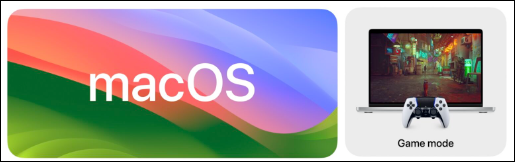
We'll provide a comprehensive guide on maximizing the benefits of macOS Sonoma's Game Mode, accompanied by a video tutorial for practical application. This will take your Mac experience to new heights, where performance meets perfection.
What is macOS Sonoma Game Mode
Sonoma for macOS Game Mode is a feature that optimizes your Mac's performance for gaming sessions or resource-intensive tasks, ensuring a smooth and uninterrupted experience.
Sonoma Game Mode is a feature that prioritizes system resources for the currently active application, preventing other background activities from consuming them. This allows for smoother and more efficient gameplay.
Upgrading to an M1 chip or later and having at least 16GB of RAM allows for smoother gaming, faster rendering, and improved performance, eliminating the need to format your Mac for better gaming.
Sonoma Game Mode eliminates distractions by preventing unexpected slowdowns and alerts, allowing your Mac to focus on your current activity, such as gaming or creative work. This feature ensures a smoother and more uninterrupted experience.
Sonoma Game Mode optimizes CPU and GPU resources, allowing for a performance boost when needed, similar to a turbocharger, which can be monitored in Activity Monitor.
Sonoma Game Mode is a feature that ensures a great user experience on Macs by optimizing performance for resource-intensive software, including games. It allows your Mac to perform well for any software that requires a lot of resources, not just games. To activate and utilize this feature, further guidance is needed.
To avoid loss or accidental deletion of game data on your Mac, it's recommended to frequently back up your important data using an external hard disk or a program like Deep Data Recovery for Mac Pro, which is an all-in-one backup and recovery solution.
Back Up Your Mac and Never Lose Data
You can back up and restore your MacBook/iMac without relying on Time Machine, iCloud, or external hard drives. To do this, you can use the built-in "Backup and Restore" feature in macOS, which allows you to create a bootable clone of your startup drive.
How to Enable/Disable Sonoma Game Mode
To activate macOS Sonoma Game Mode, go to System Settings, click on Game Mode, and toggle the switch to the "On" position. This will prioritize your Mac's resources for gaming, ensuring a smooth and uninterrupted experience. To deactivate, simply toggle the switch back to the "Off" position.
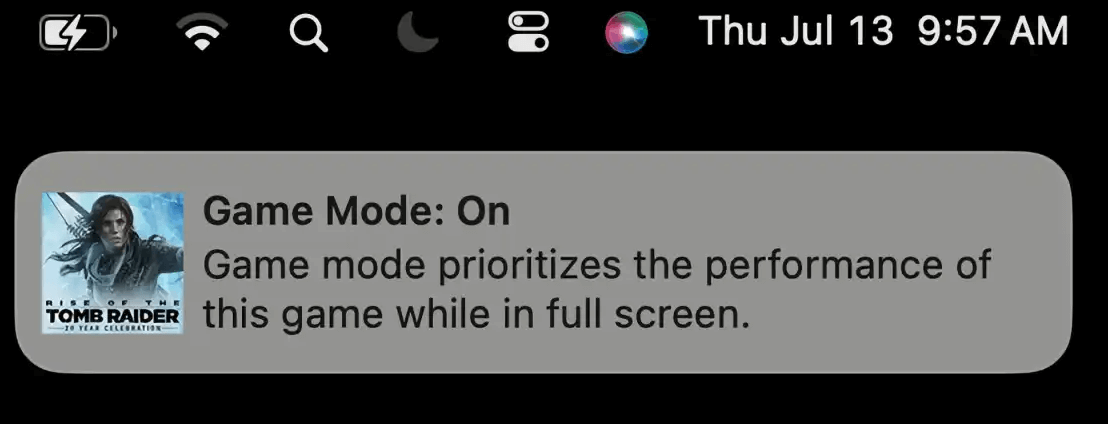
MacOS Sonoma 14's Game Mode is fully automated, automatically switching to Game Mode when a game is launched, with a notice popping up to inform the user.
To turn Game Mode on or off, click on the game controller icon in the top menu bar and select the desired option from the dropdown menu.
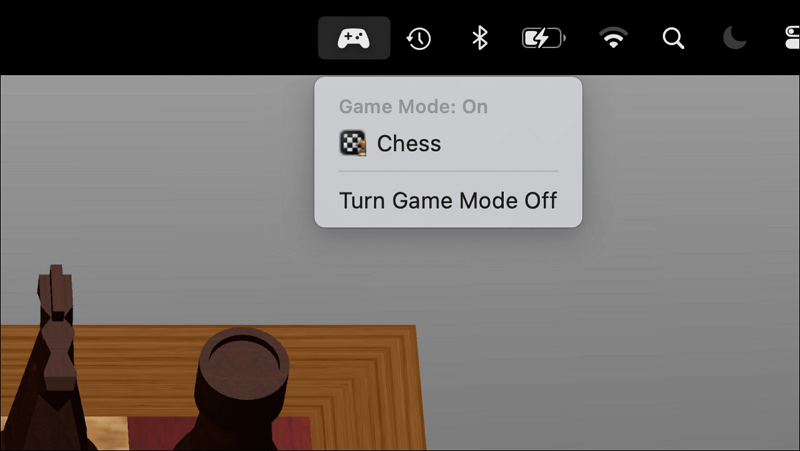
The Sonoma Game Mode on a Mac allows for switching between a gaming-focused mode and regular operation, providing a choice between modes suited for gaming and general use.
If your Mac game crashes and freezes, don't panic! You can try to abort the game process using the "Force Quit" feature. If that doesn't work, this article can provide you with solutions to resolve the issue.

Force Quit Not Working on MacBook Pro/Air
The "Force Quit" option not working on Mac can be a frustrating issue, but there are steps you can take to resolve it. To fix this problem, try restarting your Mac, as this can sometimes resolve the issue. If restarting doesn't work, try resetting the System Management Controller (SMC) and the Power Management Unit (PMU) to see if this resolves the problem.
Sonoma Game Mode is a unique and immersive experience that allows players to explore and interact with a virtual world. By combining elements of role-playing games, strategy, and exploration, Sonoma Game Mode provides an engaging and dynamic experience for players.
How to Use Sonoma Game Mode to Boost Performance
To maximize Sonoma Game Mode on your Mac, you can follow these steps: enable it in System Preferences, adjust your power settings, and close unnecessary apps. This will help improve your Mac's performance in games and other resource-intensive tasks. The detailed tutorial will guide you through the process, providing step-by-step instructions and tips to help you get the most out of Sonoma Game Mode. By following these steps, you can enhance your gaming experience and improve your Mac's overall performance.
When Game Mode is on, the computer focuses all its processing power and graphics capabilities on the game, giving it priority over other tasks and background processes.
I ran the Age of Empires game on my MacBook while also playing Assassin's Creed in Game Mode, with Age of Empires running in the background. The game continued to function normally and without any issues on my end.
The laptop's performance in running Age of Empires and Assassin's Creed was significantly impacted when running in Game Mode. The scores for Age of Empires dropped from 2300 with a single CPU to 1431, and from 12139 with 2 CPUs to 7890. This suggests that the Game Mode slowed down the processing speed of Age of Empires.
Conclusion
macOS Sonoma's Game Mode enhances the overall performance of your Mac, not just gaming, by optimizing resources and improving visuals and multitasking.
To boost your Mac's performance, you can activate Sonoma Game Mode, which redirects resources to where they're needed most, making it ideal for gamers and power users. By doing so, your Mac becomes more capable of handling tasks such as gaming and content creation.
Sonoma Game Mode FAQs
Sonoma Game Mode is a unique game mode in Garena Free Fire that offers a fresh and exciting
1. What is Game Mode macOS Sonoma?
Mac OS X Sonoma's Game Mode is a performance optimization feature that prioritizes the currently running program, making games and other resource-intensive activities run more smoothly.
2. What does Game Mode do on macOS?
Game Mode optimizes your Mac's performance by prioritizing resources for the current program, minimizing interruptions, and reducing system load, allowing for a smoother and more efficient computing experience.
3. What is the Game Mode on my MacBook Air?
Game Mode is a feature available on certain Mac models, including the MacBook Air, that can be activated to enhance gaming and application performance.
4. Is macOS Sonoma stable?
macOS Sonoma has seen recent updates that have improved its stability and performance. It's recommended to always use the latest system software version for optimal results.
Related Articles
- 8 Ways to Fix Migration Assistant Not Working on Mac
- How to Fix Overwatch Voice Chat Not Working on Windows 11/10
- 6 Solutions to Mac Recovery Mode Not Working [2023 Guide]
- [Solved] Windows 7 Fail to Boot with 0x0000007B BSOD Error
- [Detailed Answer] Is Cloning A Hard Dive Safe & How to Clone
Cloning a hard drive can be a safe process if done correctly, but it can also pose risks if not done properly. To clone a hard drive safely, you can use software like Qiling Disk Master, which can create an exact copy of your hard drive, including all files, programs, and settings. - Is It Safe to Buy a Used SSD or Not [Full Guide 2023]
Do you want a used SSD for your PC/laptop/PS4/PS5/Steam Deck/Xbox? However, is it safe to buy a used SSD, or is it a bad idea to buy a used SSD? You will find a correct answer in this article which teaches you to buy a nice used SSD.
Products
Articles & Tutorials
- Data Recovery
- Data Backup
- File Recovery
- File Backup
- System Backup and Restore
- Disk and Partition Clone
- Technical articles
- Mobile articles
- Disk Master Help
- Windows Data Recovery Tutorials
- Windows Secure Delete Tutorials
- Windows Partition Management Tutorials
- Windows File Backup and Restore Tutorials
- Windows System Backup and Restore Tutorials
- Windows Disk Backup and Restore Tutorials
- Windows Clone Tutorials