[Detailed Answer] Is Cloning A Hard Drive Safe & How to Clone
Cloning a hard drive is generally a safe process, but it's not entirely risk-free. The process involves making an exact copy of the original drive, including all data, operating systems, and applications. However, there are some potential risks to consider, such as data corruption or loss during the cloning process, especially if the original drive is failing or has bad sectors.
I was intrigued by the developer's concern about cloning their hard drive, and my search revealed that many people are indeed worried about this issue. It's clear that your data is valuable to you, and I'm here to provide an answer to put your mind at ease.
So, is cloning a hard drive safe? Let's find out!
Is Cloning A Hard Drive Safe
Yes, Cloning a hard drive using a 3rd-party application is perfectly safe, but using traditional tools can be risky if not done correctly, as it may lead to file loss due to misconfiguration.
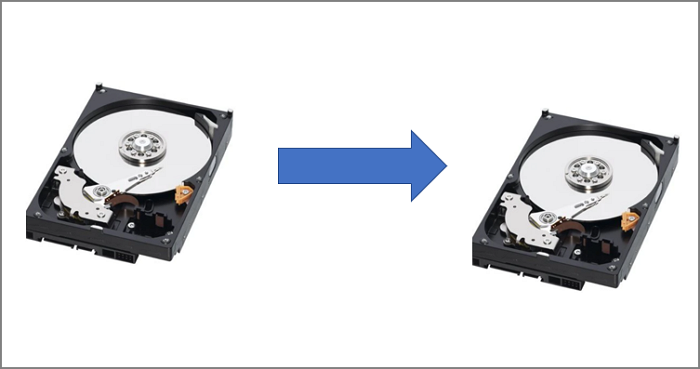
Since third-Party cloning programs are designed to be user-friendly, allowing people of all ages and computer knowledge levels to easily clone their hard drive without worry.
Why Clone A Hard Drive
Cloning a hard drive creates a replica of your hard drive's data on another hard drive or an SSD, including boot records, themes, settings, and more, and is useful for backing up and restoring your computer's configuration, and also serves as a safety net in case the original drive fails or is damaged.
1. Upgrading to a larger hard drive
Cloning your hard drive allows you to transfer all data from an old hard drive to a new one, making it a good option to upgrade to a larger hard drive. For example, if your previous hard drive was 500 GB and the new one is 4 TB, the entire 500 GB of data will be copied onto the new drive, leaving the remaining 3.5 TB of space on the new drive available for use.
2. Upgrading to SSD from HDD:
Upgrading from a hard drive to a solid-state drive (SSD) can significantly improve a computer's performance, with faster boot speeds, file transfer speeds, and app launch times. Creating a clone of the hard drive can also benefit from the SSD's speed.
Now that we've covered the basics of cloning, its benefits, and safety concerns, let's move on to the practical side of things. To safely create a clone of your hard drive, you can follow a series of steps that I can guide you through.
- Important
- Before we start, you should ensure two things:
- 1. To ensure your important files and data are safe, use a reputable backup software to create a backup of your hard drive. This will prevent the cloned data from overwriting the original data.
- 2. Ensure the target drive has enough free space to accommodate the cloned data, exceeding the original drive's capacity.
How to Clone a Hard Drive Safely
Qiling Disk Master is a disk doctor and magician that allows you to create a clone of your HDD or SSD with just a few clicks, completing the process in a matter of minutes. It also enables cloning partitions or the system.
The software is user-friendly and can be easily navigated by a young adolescent, making it simple to create a clone of the hard drive.
Here's how to create a clone of your hard drive safely using Qiling Disk Master:
Guide 1. Clone Partition
Follow the steps to clone the partition on the hard drive:
Step 1. Select "Tools" tab page. Click "Clone Partition".
Step 2. Select the source partition and click "Next".
Step 3. Choose your the target partition and click "Next "to continue.
- Cloning a partition to an existing partition requires backing up or transferring data from the destination partition beforehand, to prevent it from being overwritten during the cloning process.
- Check warning message and confirm "Yes".
Step 4. Click Proceed and wait for the clone to complete.
You can find instructions on how to clone a partition or system reserved partition in a video tutorial.
Guide 2. Clone Hard Drive
Follow the steps to clone the entire hard drive:
Step 1. Select the source disk.
- To clone an operating system or data disk, click on the "Tools" tab page and then select the "Clone OS Disk" or "Clone Data Disk" option.
- Choose the source disk and click "Next".
Step 2. Select the target disk.
- Select the desired storage drive, such as a hard disk drive (HDD) or solid-state drive (SSD), as the destination and proceed by clicking "Next".
- Read Warning message and confirm "Yes" button.
Step 3. To view the disk layout and edit the target disk partition size, you can use the `fdisk` command in Linux. This command allows you to view the current partition table, create, delete, and resize partitions, as well as set the bootable flag for a partition. By using `fdisk`, you can modify the disk layout to suit your needs, such as increasing or decreasing the size of a partition.
Then click "Continue" when the program warns it will wipe out all data on the target disk. (If you have valuable data on the target disk, back up it in advance.)
You can customize your disk layout by selecting "Autofit the disk", "Clone as the source" or "Edit disk layout", with the last option being recommended if you want to leave more space for the C drive.
Step 4. Click "Proceed" to start the disk cloning process.
After cloning the hard drive, you can boot your computer from the cloned drive and set it as the boot disk by following the necessary steps.
Step 1. Reboot your computer and press F2/F8/Del to enter BISO.
Step 2. Change the boot order and choose the cloned drive.

Qiling Disk Master is a powerful system clone software that allows you to clone Windows to an external hard drive, new SSD, or other devices, making it a great tool for backing up and upgrading your system.
Aiseesoft Disk Copy has more advanced functions beyond just cloning, including converting MBR to GPT without losing files, resizing partitions, creating bootable partition managers, and recovering lost partitions, among other features.
If you're unsure about any aspect of this procedure, our support team is always online to help.
Qiling experts are available 24/7 to provide one-on-one manual services, helping to resolve system or disk cloning startup issues. They offer free evaluation services and use their expertise to diagnose and resolve disk cloning or system disk boot problems.
- 1. Target disk becomes unbootable or SSD won't boot after clone.
- 2. The target disk is unable to boot after performing customized partition operations, indicating a potential issue with the partition table or boot sector. This could be due to incorrect partitioning, misaligned partitions, or a corrupted boot sector.
- 3. To clone an OS disk to a new drive and have the PC boot without any issues, you can use a cloning software that can create an exact replica of the original disk, including all operating system files, settings, and applications. This process involves selecting the source and target drives, initiating the cloning process, and verifying that the new drive is bootable and functioning properly.
Conclusion
Cloning a hard drive is considered safe and relatively easy, thanks to third-party programs like Qiling Disk Master, which have made the process more straightforward and secure.
You can use Qiling Disk Master to create or delete partitions, resize or extend partitions, and recover lost partitions on your new hard drive or SSD.
Get started with cloning your hard drive by downloading Qiling Disk Master and following the easy process - it's that simple!
FAQ of Is Cloning A Hard Drive Safe
Here is some more information about cloning a hard drive.
1. Is it better to clone or image a hard drive?
Cloning a hard drive creates a replica of it, which is faster to restore and get started, while creating an image of a hard drive allows for multiple clones and provides more backup options.
2. Is it safe to clone HDD to SSD?
Cloning your HDD to an SSD is a safe process, and you can use Qiling Disk Master to make the transfer easily.
3. Why would you clone a hard drive?
Cloning a hard drive is a solution where the entire drive, including settings and files, is replicated on another drive, allowing for a seamless transition and immediate access to all data and configurations. This is often the preferred method for those looking to upgrade or replace their hard drive.
Related Articles
- How to Fix Flashing Folder with Question Mark on Mac Without CD
- [Fixed] Windows 7 Build 7601 This Copy of Windows Is Not Genuine
- SD Card Not Showing Up on Steam Deck? What to Do?
- Windows 10 Cumulative Update Failed to Install & Download - How to Fix?
If you're experiencing issues with Windows 10 cumulative updates failing to install, this guide is for you. It will walk you through various methods to troubleshoot and resolve this problem, ensuring your computer runs smoothly and efficiently. - NetBIOS: What It is, How It Works and How to Use It
NetBIOS is a network protocol that allows devices to communicate with each other on a local area network (LAN). It works by assigning a unique name to each device, which can then be used to identify and access shared resources. - NTFS VS APFS: What Are the Differences? [2023 Updated]
This article covers all here is NTFS vs APFS. We will help you to figure out what are the differences between them.
Products
Articles & Tutorials
- Data Recovery
- Data Backup
- File Recovery
- File Backup
- System Backup and Restore
- Disk and Partition Clone
- Technical articles
- Mobile articles
- Disk Master Help
- Windows Data Recovery Tutorials
- Windows Secure Delete Tutorials
- Windows Partition Management Tutorials
- Windows File Backup and Restore Tutorials
- Windows System Backup and Restore Tutorials
- Windows Disk Backup and Restore Tutorials
- Windows Clone Tutorials