Windows 10 Cumulative Update Failed to Install & Download - How to Fix?
User Case: Failed to Download and Install Windows 10 Cumulative Update
Windows 10 is one of the most widely used versions of Windows globally, boasting advanced features not available in previous versions. However, users often encounter significant issues while navigating the operating system.
Users often encounter issues with the Windows 10 cumulative update failing to install, which prevents them from updating their Windows and utilizing its services smoothly.
If you're experiencing issues with Windows updates, I recommend checking out a blog by Qiling that provides solutions to the problem of updates failing to install in Windows 10. By reading this blog, you can learn some fixes to resolve the issue.
How to Fix Windows 10 Cumulative Update Not Installing or Downloading
If you want to use Windows' advanced and latest features, you need to keep your Windows up to date. However, if you're facing a Windows update error and can't update it, don't worry, we've got some fixes that you can follow to find the required solution.
- Fix 1. Run Windows Update Troubleshooter
- Fix 2. Restart the BITS Service
- Fix 3. Run SFC and DISM to Repair System Files
- Fix 4. Reset Windows Update Components
- Fix 5. Temporarily Disable Antivirus Software
- Fix 6. Repair Install Windows 10 Using the ISO File
Fix 1. Run Windows Update Troubleshooter
To resolve the error, utilize a Windows update troubleshooter, which is a built-in function that can identify and fix issues without manual intervention. Run the troubleshooter by following the steps to let it automatically find and solve the problem.
Step 1. Go to "Settings" of your system.
Step 2. Search for "Troubleshoot" and open it.
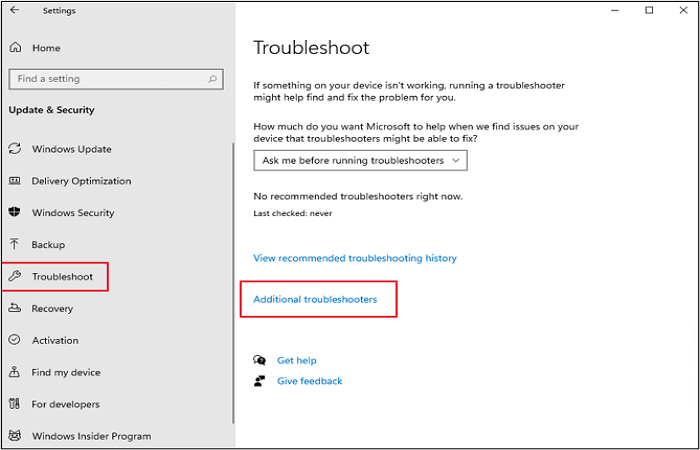
Step 3. Look for "Additional Troubleshooters" and click on it.
Step 4. Find the "Windows Update" and open it.
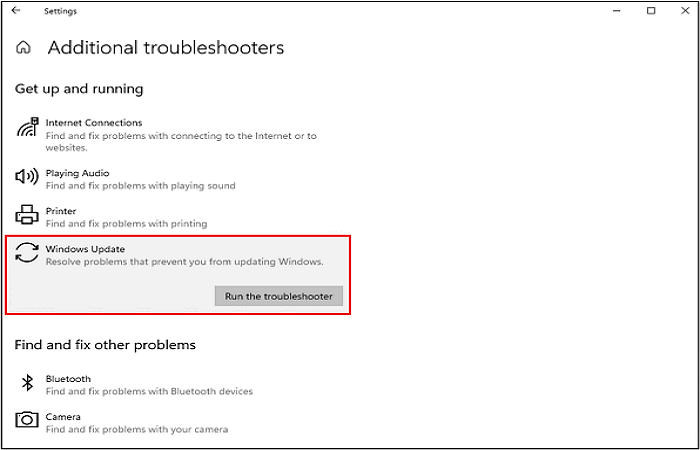
Step 5. Click on the "Run the Troubleshooter."
Step 6. Wait until the system has been processed after following the on-screen instructions to confirm the troubleshooting.
It is recommended to restart your computer to let the system safely keep the changes. After that, check if the Windows update error has been solved. If not, proceed to the next step, which may help resolve the issue.
Also see:
Fix 2. Restart the BITS Service
If the Background Intelligent Transfer Service (BITS) stops working on your Windows 10 computer, you can manually restart it to resolve the issue and allow updates to be installed. To do this, go to the Services console, find BITS, right-click on it, and select "Restart". This should resolve the issue and allow Windows 10 to install updates again. If you're unable to access the Services console, you can also try restarting your computer in Safe Mode and then restarting the BITS service.
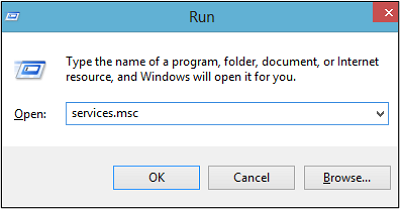
Step 1. Open the "Run" dialogue box.
Step 2. Type "services.msc" and click the "Enter" key.
Step 3. Look for the "Background Intelligent Transfer Service" option and open it.
Step 4. Find the "Startup Type" and change it to "Automatic."
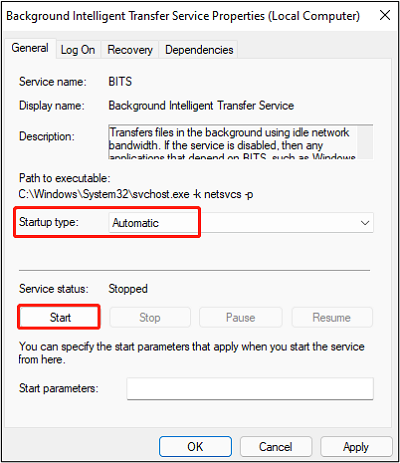
Step 5. Click the "Start" button, then click "OK" to save the changes.
To resolve a Windows update fails error, you can try restarting the BITS service in Windows. This can be done by opening the Command Prompt as an administrator, typing "net stop bits" and pressing Enter, followed by "net start bits" and pressing Enter again.
Fix 3. Run SFC and DISM to Repair System Files
To resolve Windows 10 update failed errors, you can also check for corrupted system files. You can use the built-in Windows feature, the system file checker, to find the error and resolve it smoothly. Run the SFC and DISM commands to repair your system, following the steps to do so.
Step 1. Type "Command Prompt" in the search bar and open it.
Step 2. Give the following command "DISM.exe /Online /Cleanup-image /Restorehealth" and tap the "Enter" key.
Step 3. Wait until you see the message "The operation completed successfully."
Step 4. Type the command "sfc /scannow" in the command prompt window and press the enter key. This will initiate a system file check and automatically fix any corrupted system files.
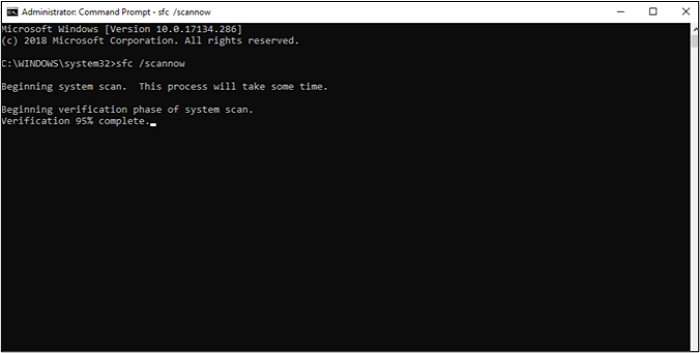
Step 5. Once the system shows a notification "Verification 100% complete", type "Exit" and press Enter.
To resolve the issue, you can try reinstalling the cumulative update for Windows. This may help repair the error caused by system files. You can check the Windows update history to see if the issue has been resolved with the latest cumulative update.
Fix 4. Reset Windows Update Components
The Windows update component is a part of the operating system that keeps Windows up to date. Resetting this component may resolve the issue of the Windows 10 cumulative update failing to install.
Step 1. To open Command Prompt in Windows, press the "Windows + R" key on your keyboard to open the Run dialogue box, then type "cmd" in the box and press Enter. This will open the Command Prompt window, where you can type commands to interact with your computer.
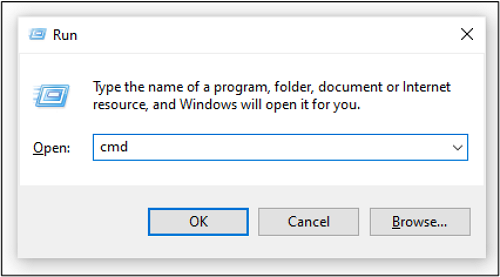
Step 2. Type the following commands in the command prompt and press the "Enter" key after each command:
- net stop bits
- net stop wuauserv
- net stop appidsvc
- net stop cryptsvc
Step 3. Now, type the following commands one by one and press "Enter" every time
- Ren C:\Windows\SoftwareDistribution SoftwareDistribution.old
- Ren C:\Windows\System32\catroot2 Catroot2.old
Step 4. The above keys will stop the Windows update components.
Step 5. To start Windows components, type the following commands and press Enter each time: `winmgmt /sal /v /l` to start the Windows Management Instrumentation service, `services.msc` to open the Services window, `taskmgr` to open the Task Manager, `dism /online /get-targetedinfo` to get targeted info, and `sfc /scannow` to scan for corrupted system files.
- net start bits
- net start wuauserv
- net start appidsvc
- net start cryptsvc
Step 6. Exit the command prompt and restart your computer.
If you're unable to download and install Windows 10 updates, you might need to try the next method to resolve the issue. It might be possible that you are able to download and install Windows 10 updates now. If not, you should try the next method to get rid of this problem.
Fix 5. Temporarily Disable Antivirus Software
If a third-party app like antivirus software is interfering with Windows 10's update process, try disabling it temporarily to see if that resolves the issue.
To install Windows 10 updates, you'll need to temporarily remove a specific antivirus program. This will allow the updates to install normally. Once the updates are complete, you can reinstall the antivirus program and continue using it as usual.
Fix 6. Repair Install Windows 10 Using the ISO File
If you're still experiencing issues with the updates fail to install error, you can try installing Windows 10 using the ISO file. To do this, download the ISO file from the official Microsoft website and follow the simple steps to proceed. This may be a viable option if other methods have not worked for you.
Step 1. Go to the folder where you have saved the "Windows.iso" file.
Step 2. Double-click on the file to mount it.
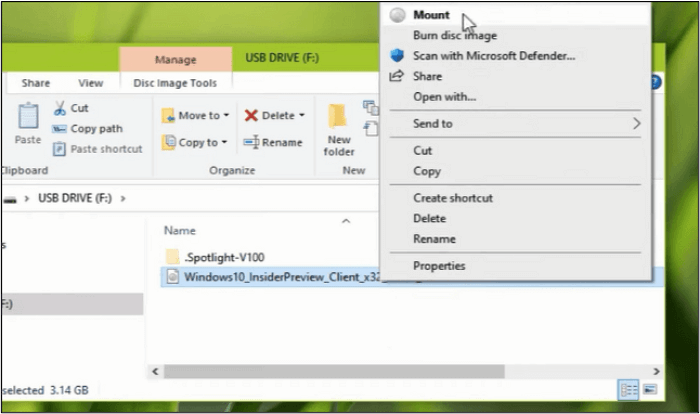
Step 3. Double-click on the mounted drive to open it, then click on the setup.exe option.
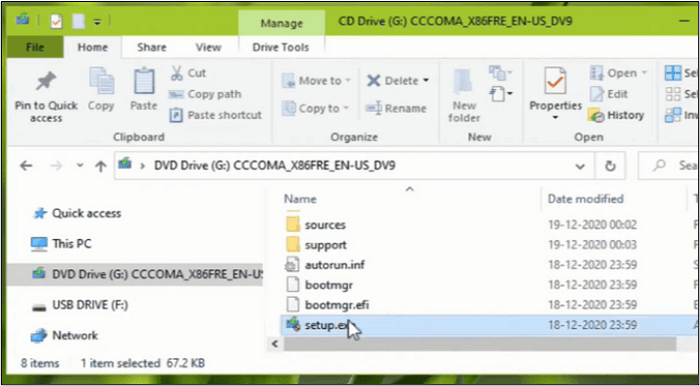
Step 4. Click on the "Yes" button when asked.
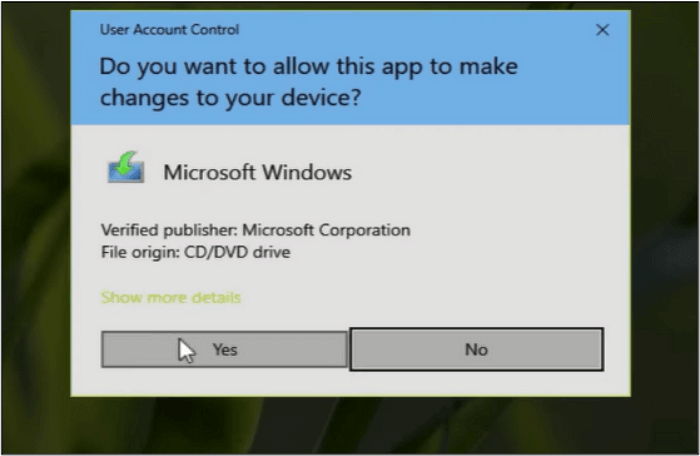
Step 5. Check the box asking for "License Terms" to accept them.
Step 6. Follow the on-screen instructions to complete the installation.
The updates to Windows 10 were manually installed, resolving the error and allowing the system to operate smoothly without any limitations or errors, such as failed updates.
Share this post to help more people.
Pro Tip: How to Backup Your System Before Windows Update
Windows update failure can be a threatening error to your system and its stored data. The reason is your system may face an instant shutdown that may lead you to lose your data. So, you should keep yourself safe in all such conditions and backup data to secure it. For this, Qiling Disk Master, a professional Windows backup app, can help.
Qiling Disk Master Pro is a tool that creates an exact copy of Windows in a Cloud storage space, allowing for easy restoration of lost files or folders through a simple procedure.
The software allows for scheduled backups, ensuring that data is stored in multiple locations to prevent loss due to technical issues. This enables users to easily recover their data without any hassle.
Qiling Disk Master
- It can help transfer Windows to another computer
- One-click backup and restore with a simple interface
- It can create a system image on a USB flash drive.
- It can create full, incremental, and differential backups
- The service offers 250GB of free cloud storage to back up PCs to the cloud.
Qiling Disk Master provides a range of features, including creating backups, cloning hard drives, imaging disks, and compressing backups, making it a versatile tool for data protection.
Step 1. Launch Qiling Disk Master on your computer, and click Backup and recovery on the home screen.

Step 2. To back up your Windows operating system, click on "System backup" to start the backup process.

Step 3. Your Windows operating system information and all system related files and partitions will be automatically selected so you don't need to do any manual selection at this step. Next, you'll need to choose a location to save the system image backup by clicking the illustrated area.

Step 4. The backup location can be a local drive, external hard drive, network, cloud, or NAS, with external drives or cloud storage being recommended for preserving system backup files.

Step 5. The Windows system backup process allows for customization settings such as enabling an automatic backup schedule in daily, weekly, monthly, or upon an event, and making a differential and incremental backup. These settings can be accessed through the Options button. Once selected, click "Proceed" to begin the backup process. The completed backup task will be displayed on the left side in a card style.

Why Is Windows 10 Cumulative Update Not Installing
The Windows 10 cumulative update failed to install error can be frustrating, but it's often a result of not understanding the underlying reason behind the problem. Without a clear understanding of the cause, you may find yourself investing a lot of time trying different solutions or even resorting to reinstalling Windows. However, with a brief discussion on the topic, we aim to shed some light on why this error occurs, providing a smoother path to resolving the issue.
The most common reason behind this and many other technical computer errors is corrupted system files, which were likely damaged by a recently installed program.
Another common reason for the issue is incompatible drivers installed on your system, which means your system is running on outdated drivers that may not be compatible with the current update.
You may be unable to use the Windows update service due to various issues, and to run Windows updates and get your system back on track, you need to overcome these problems. If you're unsure how to do so, keep reading to learn about the necessary steps.
To Wrap Things Up
We've shared 6 effective tips to resolve Windows 10 cumulative update failed to install errors, and we hope you've learned them briefly to tackle the issue. To be safe in case of any accidental error, we recommend taking a backup using Qiling Disk Master.
This tool can replicate your files, folders, or disks quickly and efficiently, saving you time. The process of backing up data and restoring it is straightforward, making it suitable for all computer users, regardless of their technical expertise. Its simple interface makes it easy to use.
FAQs on Windows 10 Cumulative Update Failed to Install & Download
1. Is a cumulative update for Windows 10 necessary?
Installing cumulative updates for Windows 10 is mandatory, as failing to do so may lead to conflicts with existing settings and display various errors.
2. What is the difference between an update and a cumulative update?
A normal update is a general update released for a specific purpose, like security critical error solutions, whereas a cumulative update includes all previous and new updates, focusing on different sections of Windows.
3. How do I get rid of cumulative updates?
You can remove cumulative updates using the following steps.
- Go to "Settings" and look for "Windows Update."
- Find "Update history" and click on it.
- Choose "Uninstall updates" and confirm if asked.
Related Articles
- Monster Hunter Rise Save File Location [Detailed Information]
- How to Downgrade from Monterey to Big Sur [macOS 12 to 11]
To downgrade from Monterey to Big Sur, follow these three proven methods. Downgrading macOS Monterey becomes straightforward with these steps. If you lost some of your critical data while downgrading the macOS, Deep Data Recovery could be your great helper. - How to Fix Drag and Drop Not Working [8 Ways Included]
Fix drag and drop not working in Windows with practical methods for File Explorer, system settings, mouse issues, and app conflicts. - How to Fix DRIVER_IRQL_NOT_LESS_OR_EQUAL Error | 10 Ways on Windows 11/10
The DRIVER_IRQL_NOT_LESS_OR_EQUAL error, which appears on a Blue screen with the stop code 0x000000D1, typically occurs when a system's built-in drivers, such as network adapters, incorrectly use a memory address while executing their task. - Windows 11 Keeps Crashing - All Methods to Fix
Fix Windows 11 keeps crashing with practical troubleshooting tips for drivers, system files, updates, hardware, and startup problems. - Overall Solutions: How to Ungroup the Taskbar In Windows 11
Wondering how to ungroup a taskbar? Find out everything about Windows 11 Ungroup Taskbar here!
Products
Articles & Tutorials
- Data Recovery
- Data Backup
- File Recovery
- File Backup
- System Backup and Restore
- Disk and Partition Clone
- Technical articles
- Mobile articles
- Disk Master Help
- Windows Data Recovery Tutorials
- Windows Secure Delete Tutorials
- Windows Partition Management Tutorials
- Windows File Backup and Restore Tutorials
- Windows System Backup and Restore Tutorials
- Windows Disk Backup and Restore Tutorials
- Windows Clone Tutorials