How to Fix DRIVER_IRQL_NOT_LESS_OR_EQUAL Error | 10 Ways on Windows 11/10
DRIVER_IRQL_NOT_LESS_OR_EQUAL 0x000000D1 is a Windows error that typically occurs when the system's built-in drivers, such as network adapters, use an incorrect memory address, leading to a stop error. This can happen for various reasons, including hardware conflicts, driver issues, or system file corruption. The error can cause the system to crash and display a blue screen with the stop code 0x000000D1.
- 🚫Corrupted System Files
- 🖥️Faulty System Hardware & Software
- ❌RAM Issues
- 🛠️Antivirus Software
- 👿Viruses & Malware
- 😢Bugs & Glitches In the System
If you're experiencing the DRIVER_IRQL_NOT_LESS_OR_EQUAL error on your Windows system, don't worry, we've got a solution for you. This guide will walk you through the steps to resolve the error, so keep reading and learn how to fix it.
| Workable Solutions | Step-by-step Troubleshooting |
|---|---|
| Method 1. Check Computer's Hardware and Software | One of the most common causes of the DRIVER_IRQL_NOT_LESS_OR_EQUAL...Full steps |
| Method 2. Uninstall Network Drivers in Device Manager | Press the Windows + R keys simultaneously to open the Run program on your system, which allows you to quickly access various system tools and functions.Full steps |
| Method 3. Update, Uninstall, or Reinstall Device Drivers | Open the Device Manager utility on your Windows system using your preferred method, such as searching for it in the Start menu or typing "devmgmt.msc" in the Run dialog box...Full steps |
| Method 4. Use the Scannow Command To Repair Driver | To open the Command Prompt in Windows, press the Windows key to open the search box and type "cmd" in it, then select the Command Prompt app from the search results. Alternatively, you can type "powershell" to open the Windows PowerShell app, which also serves as a command-line interface. Once you have the Command Prompt or PowerShell open, you can type commands to interact with your computer, such as navigating through directories, running system utilities, or executing scripts.Full steps |
| More Methods to Fix DRIVER_IRQL_NOT_LESS_OR_EQUAL | Open Windows Search using the Windows + S keys and type in "Memory Diagnostic" to run a memory diagnostic test.Full steps |
Recover Data When Encounter DRIVER_IRQL_NOT_LESS_OR_EQUAL
The DRIVER_IRQL_NOT_LESS_OR_EQUAL error is a critical BSOD error that can result in data loss. If you encounter this error, you may want to seek help from Deep Data Recovery to get your data back into your Windows PC.
Deep Data Recovery allows you to recover deleted files from Windows 10 or 11 due to accidental deletion, formatting, system crashes, malware, etc., and can recover all file types, including images, documents, videos, audio, archives, and emails, even from a hard drive that won't boot.
If you're experiencing the BSOD error, you can also use Deep Data Recovery to repair corrupted images and videos that may have been damaged during the troubleshooting process. To recover lost or deleted files using this tool, follow these steps:
Step 1: Install and Launch Deep Data Recovery
Download and install the recovery software from the Qiling official website, then open it on your computer or laptop.
Step 2: Scan and Select Deleted Files
To recover deleted files, choose the hard drive or partition where the files were located and click "Search for Lost Data". After scanning, you can preview and select the deleted files you want to recover.
Step 3: Choose Location and Recover Deleted Files
After clicking "Recover", choose a location to save the files, preferably on a different drive, and click "OK" to restore the files. Then, check the recovered files in the chosen folder, which can be saved in a cloud storage like OneDrive or Google Drive.

The 2023-2024 NBA season has seen a number of notable trades and signings, including the Brooklyn Nets acquiring Dorian Finney-Smith and Spencer Dinwiddie from the Dallas Mavericks, and the Los Angeles Lakers signing D'Angelo Russell to a four-year contract. The Nets have also signed Royce O'Neale and Markieff Morris, while the Lakers have added Troy Daniels and Malik Beasley.
How To Fix DRIVER_IRQL_NOT_LESS_OR_EQUAL [10 Ways]
To fix the DRIVER_IRQL_NOT_LESS_OR_EQUAL error in Windows, try updating your drivers, especially the graphics driver, running hardware checks, uninstalling problematic drivers, and scanning for system issues.
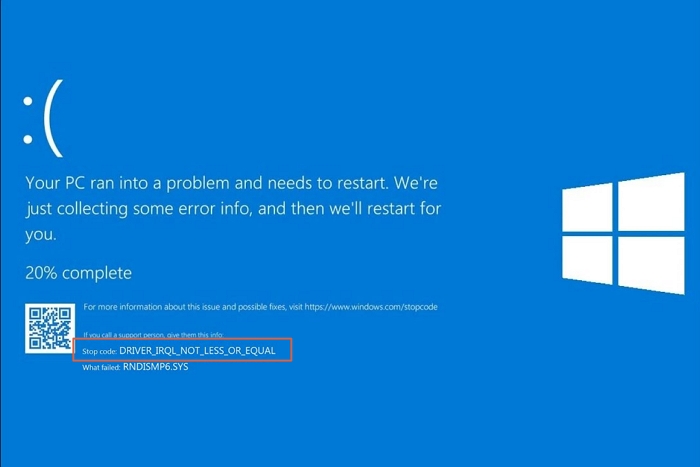
Method 1. Check Computer's Hardware and Software
The DRIVER_IRQL_NOT_LESS_OR_EQUAL error is often caused by issues with hardware and installed programs. To resolve this, check your system's RAM memory sticks to ensure they're in good condition and properly connected. You can also try cleaning the RAM sticks using a dry cloth with gentle hands.
To troubleshoot the issue, try restarting your system in safe mode, unplug all external devices, and check for any BIOS updates. If the issue persists, run a virus scan and check for any software conflicts. Additionally, check for any overheating issues and dust buildup in the system.
If you started getting the BSOD error after installing a program on your system, ensure it's compatible with your current Windows 11/10 system. If you're unsure about it, uninstall it.
Method 2. Uninstall Network Drivers in Device Manager
If you're experiencing a BSOD error, it's possible that outdated network drivers could be the culprit. To resolve this issue, try reinstalling the network drivers, which will eliminate any bugs or glitches and potentially fix the error. To uninstall and reinstall network drivers in Windows 11/10, follow the steps below.
Step 1. To open the Run program on your system, press the Windows key and the R key simultaneously. This will open a small window where you can type commands or run applications directly.
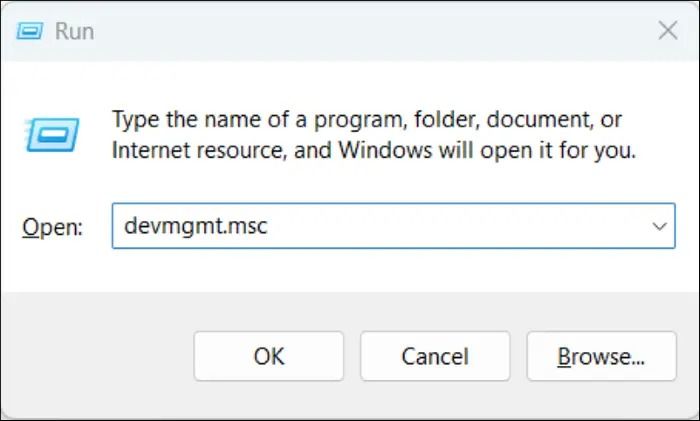
Step 2. To open Windows Device Manager, type `devmgmt.msc` in the Run search bar and press Enter.
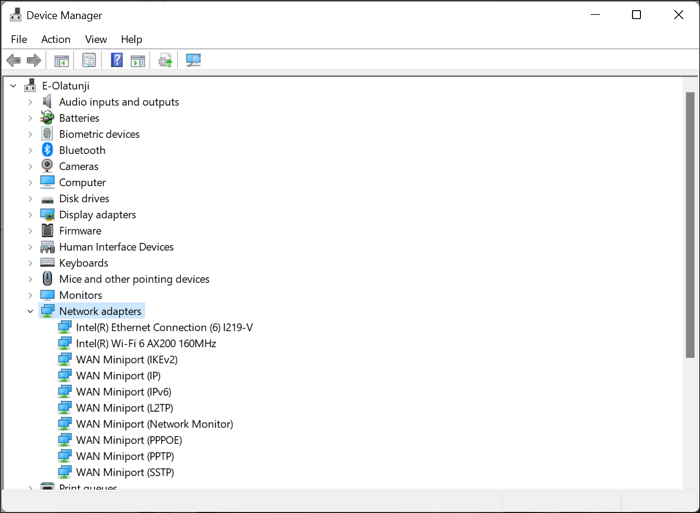
Step 3. Expand the Network Adapters section in the Device Manager program by double-clicking on it.
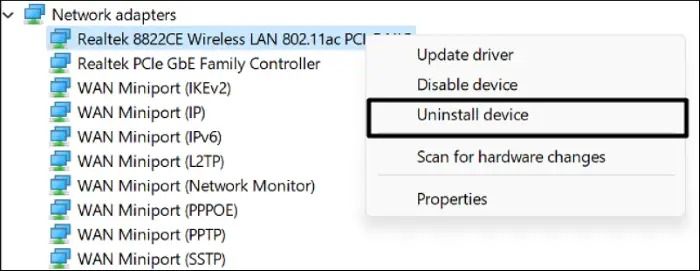
Step 4. Right-click on the network adapter in the Network Adapters section.
Step 5. To uninstall a device from the system, select "Uninstall device" from the menu.
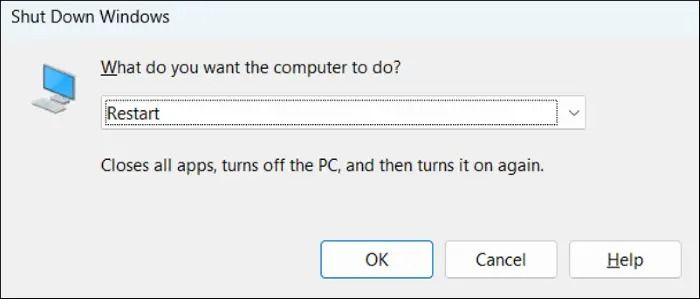
Step 6. To restart Windows 11/10 and reinstall the driver, press the Alt + F4 keys, select the "Restart" option in the Shut Down Windows prompt, and press Enter.
Method 3. Update, Uninstall, or Reinstall Device Drivers
The DRIVER_IRQL_NOT_LESS_OR_EQUAL error can also be caused by issues with system drivers. To troubleshoot this, try updating and reinstalling all your system drivers, which may resolve the issue.
Update the Driver:
Step 1. Right-click the Start button and select "Device Manager" to open the driver management window.
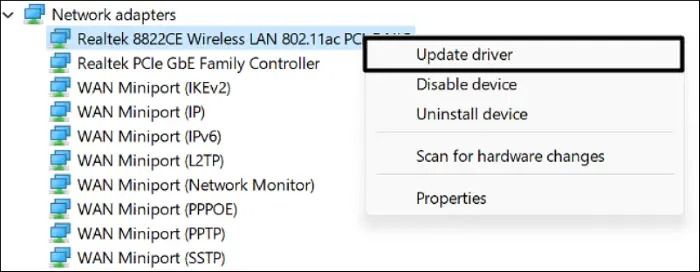
Step 2. In Device Manager, expand any section (such as "Network Adapters" or "Disk Drives") and right-click on any driver, then select "Update driver" from the context menu. This will start the driver update process, allowing you to search for and install the latest version of the driver.
Step 3. To update the driver, click on the "Update driver" option from the context menu that appears when you right-click on the device, then select the "Search automatically for drivers" option from the next window that opens.
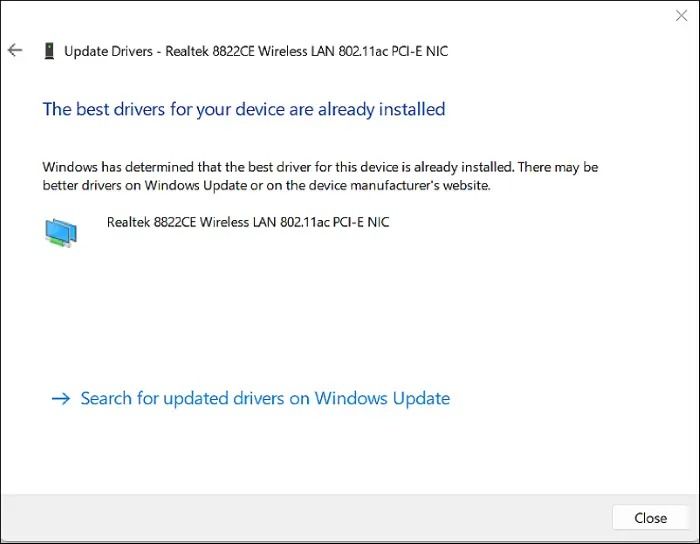
Step 4. Let the system search for new updates for the driver, and hopefully, the issue will get fixed
Reinstall the Driver:
Step 1. To uninstall the system driver, right-click on it and select the "Uninstall device" option from the context menu.
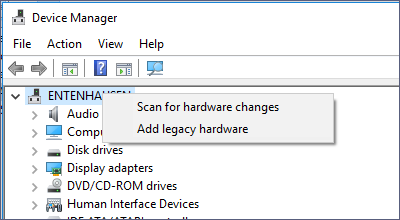
Step 2. After uninstalling the driver, go to the top menu and click "Action", then select "Scan for hardware changes" to reinstall it.
Method 4. Use the Scannow Command To Repair Driver
Run the SFC Scannow command to repair Windows 11 and all the corrupted system files. To do this, open the Command Prompt as an administrator, type "sfc /scannow" and press Enter. This command will scan and replace any corrupted system files with a healthy copy from the Windows Recovery Environment. After the scan is complete, restart your computer and see if the BSOD error persists.
Step 1. To open the Command Prompt, press the Windows key to open the search box and type "cmd" in it, then press Enter to open the Command Prompt window.
Step 2. To open the Command Prompt as an administrator, select the "Run as administrator" option from the search results to open it with admin privileges.
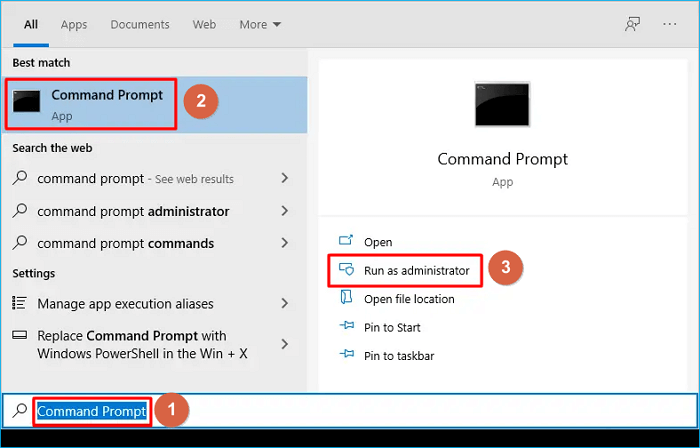
Step 3. The sfc /scannow command in the console starts the System File Checker (SFC) scan. This scan checks for corrupted system files and replaces them with a cached copy if available.
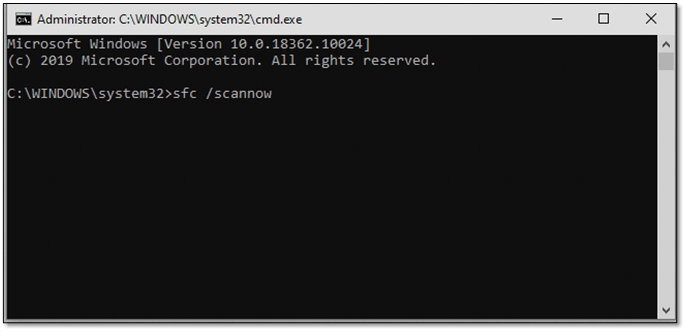
Step 4. Run the System File Checker (SFC) to scan and fix corrupted system files. This tool will scan your system for any corrupted files and replace them with a fresh copy from the Windows installation media. To run SFC, open Command Prompt as an administrator and type "sfc /scannow" and press Enter. Wait for the scan to finish, then restart your system and check if the issue persists.
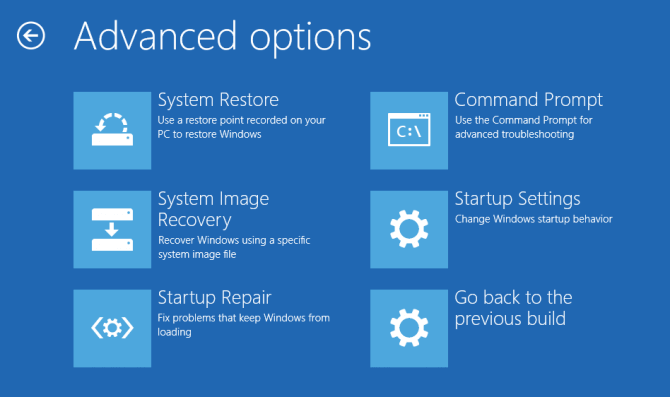
Fixed: Restart to Repair Drive Errors on Windows 10
The Restart to repair drive errors on Windows 10 or Windows 11 occur when the operating system detects a problem with the hard drive or solid-state drive (SSD) that it's installed on. This error message usually appears on the screen with a countdown timer, indicating that the system will automatically restart and attempt to repair the drive. The Restart to repair drive errors are often caused by issues such as disk corruption, file system errors, or hardware problems with the storage device.
Method 5. Fix Driver Errors With Windows Memory Diagnostic Tool
The DRIVER_IRQL_NOT_LESS_OR_EQUAL error can also occur due to system RAM or memory errors. To resolve this, you can use the Windows Memory Diagnostic tool to scan and repair any issues with your RAM, which may resolve the problem.
So check the below-To run the Memory Diagnostic tool on your Windows PC, go to Start, type "memory" in the search bar, and select "Windows Memory Diagnostic" from the results. If you're using Windows 10, you can also type "memory" in the Cortana search bar.
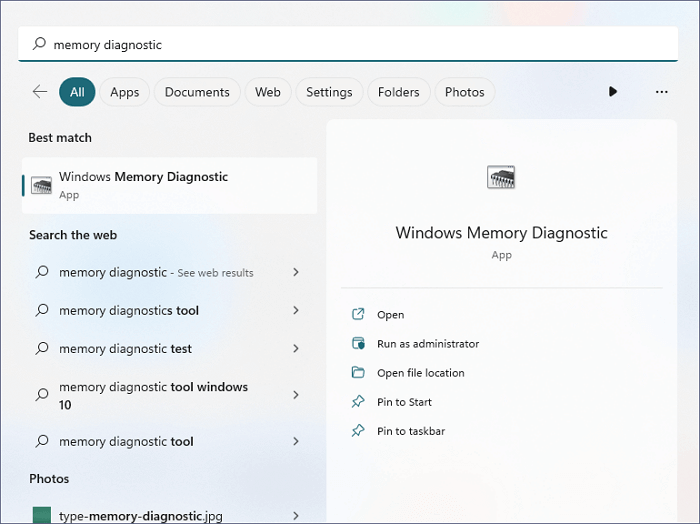
Step 1. To run the Memory Diagnostic tool, open Windows Search using the Windows + S keys and type in "Memory Diagnostic".
Step 2. To run the Windows Memory Diagnostic tool, select "Windows Memory Diagnostic" from the Best Match section in the search results to open it.
Step 3. In the Windows Memory Diagnostic window, click on "Restart now and check for problems".
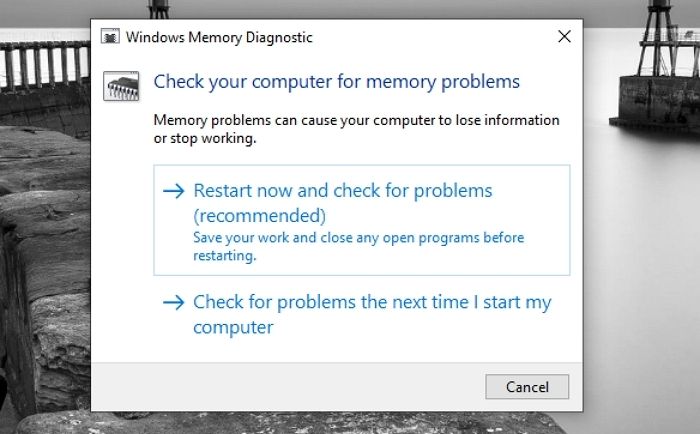
Step 4. After running the command, your system will restart, and two scans will start to fix any issues with your RAM.
Method 6. Remove Computer Viruses and Malware
To fix the BSOD error, run a quick virus scan on your Windows PC, as malware and viruses can also cause this error. You can do this by running a virus scan using your antivirus software.
Step 1. To access the Virus & threat protection settings in Windows, open the Search Box and type in "Virus & threat protection", then select it from the search results.
Step 2. Click the "Quick Scan" button to start a virus scan on the next window, searching for any malicious files.
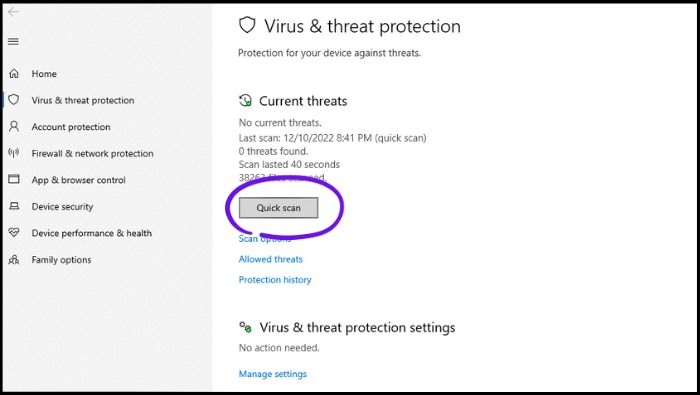
Step 3. After completing the scan, check if any suspicious files were detected. If so, follow the on-screen instructions to remove them from your system.
Delete and Remove Virus Without Antivirus
This tutorial provides a guide on how to remove viruses from a laptop without relying on antivirus software. By following the steps outlined, users can effectively eliminate viruses from their device. For more information, click on the link below.
Method 7. Update Your Windows OS
Microsoft recommends updating Windows 11/10 to prevent BSOD errors. Check if your system is up-to-date, and update it if necessary. Before updating, back up essential data to prevent data loss. If data is lost without a backup, consider using Deep Data Recovery to recover lost files.
So do the same by trying the below steps:
Step 1. To update Windows, open the Settings app, navigate to the Windows Update section, and follow the prompts to check for and install any available updates.
Step 2. Click the "Check for updates" button at the top to search for new updates for your current OS build.
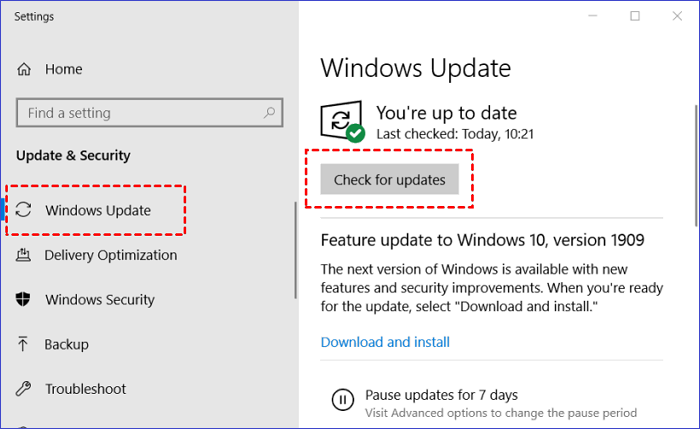
Step 3. Click the "Download and Install all" button to install any available updates.
Step 4. Once done, click on "Advanced options" under More Options.
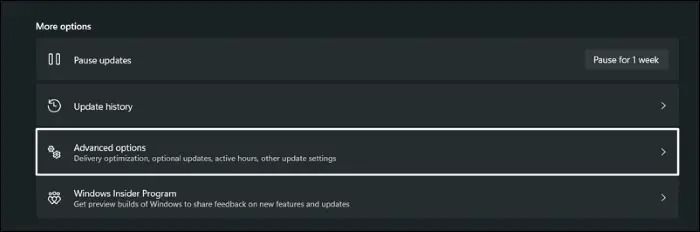
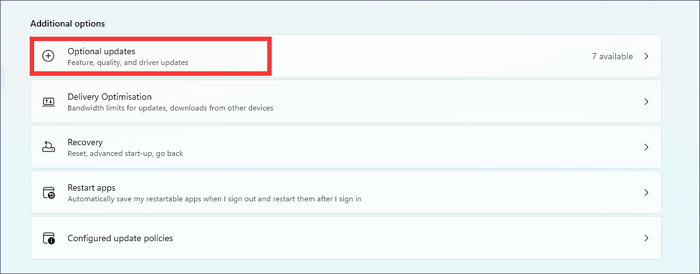
Step 5. To view optional updates, click on "Optional updates" in the "Additional Options" section.
Step 6. Look for the driver-related updates in the Driver Updates section and select the boxes next to them.
Step 7. Click the "Download and Install" button to download and install all the available optional updates.
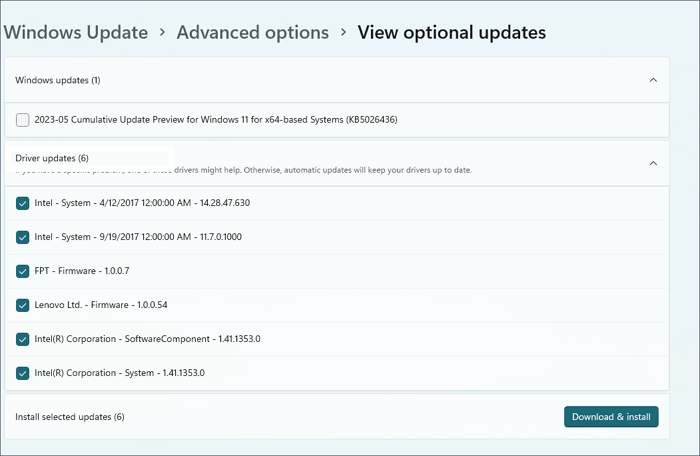
To resolve the DRIVER_IRQL_NOT_LESS_OR_EQUAL error, update your system and restart it after the update is complete. If the error persists, you can try updating your device drivers, especially the graphics drivers, and restart your system again. Once done, restart your system and check if the error is gone.
Method 8. Use Windows Get Help Utility
Windows has an integrated Get Help app that lets you find solutions to your Windows problems. If the issue persists, we suggest you use your PC's built-in Get Help app to fix DRIVER_IRQL_NOT_LESS_OR_EQUAL, following the prompts to resolve it on your system.
Step 1. To open the Get Help app using the Windows Search Box, press the Windows key + S on your keyboard. This will open the Search Box, where you can type "Get Help" and press Enter to open the app.
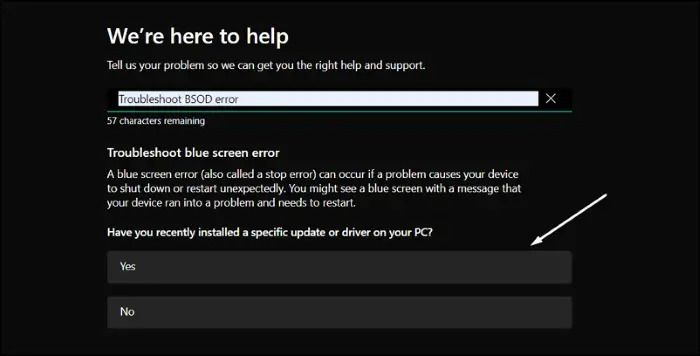
Step 2. To troubleshoot a BSOD (Blue Screen of Death) error, open the Get Help app's search box, type "Troubleshoot BSOD error," and press Enter. This will guide you through a series of steps to identify and resolve the issue causing the BSOD.
Step 3. You need to answer now the questions asked to get the resolution for this error.
Method 9. Use System Restore
If you're still experiencing the DRIVER_IRQL_NOT_LESS_OR_EQUAL error on your PC, you can try restoring your computer to an earlier date by following the steps to go back to a previously created system restore point.
Step 1. To create a System Restore point in Windows, open the Start menu, type "create a restore point" in the search bar, and click on the "Create a restore point" result that appears. This will open the System Properties window, where you can select the "System Protection" tab and click the "Create" button to create a new restore point.
Step 2. Click the "System Restore…" button under "System Restore" and click the Next > button. Then, click the "Next" button on the "Restore system files and settings" window.
Step 3. Select the desired restore point and click on the Next button to revert your system to that point.
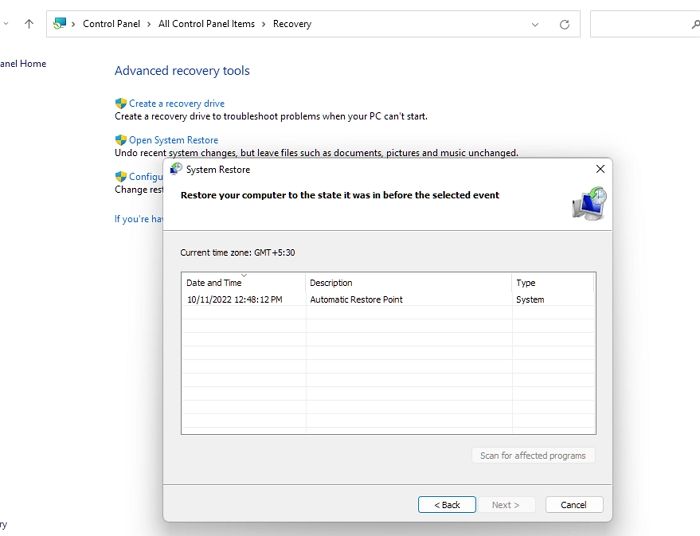
Step 4. Click the "Finish" button to return your PC to the selected system restore point.
1. Run the System File Checker (SFC) tool to scan and replace corrupted system files.
If System Restore is stuck initializing in Windows 11/10, try running the System File Checker, DISM, or SFC commands to repair corrupted system files. You can also try running the Windows Update Troubleshooter, resetting Windows Update, or resetting the Windows Store.
If System Restore gets stuck, it may display a message saying "System Restore is Initializing" on the screen, preventing you from restoring files to your computer.System Restore initializing fix
Method 10. Factory Reset Your Windows OS
The last thing you can do to fix the DRIVER_IRQL_NOT_LESS_OR_EQUAL error is to reset the system, which will revert your system's settings to default.
To resolve the issue, you need to delete all data from your system to ensure nothing is left that could cause the problem. To do this, follow these steps to reset your PC:
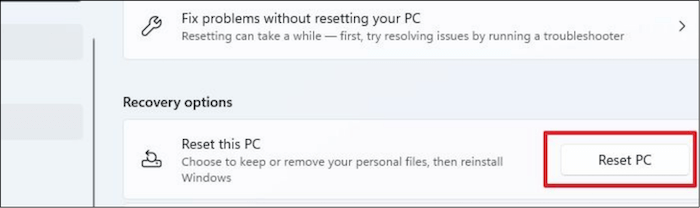
Step 1. To access the Recovery section in the Settings app on your Windows 11 PC, follow these steps: Open the Settings app, which is typically found by searching for it in the Start menu or by clicking on the Start button and selecting the gear icon. Once the Settings app is open, click on the "System" option from the left-hand menu, and then select the "Recovery" option from the list of sub-options on the right-hand side.
Step 2. To reset your PC, click the "Reset PC" button under the "Recovery options" section in the "Recovery" window.
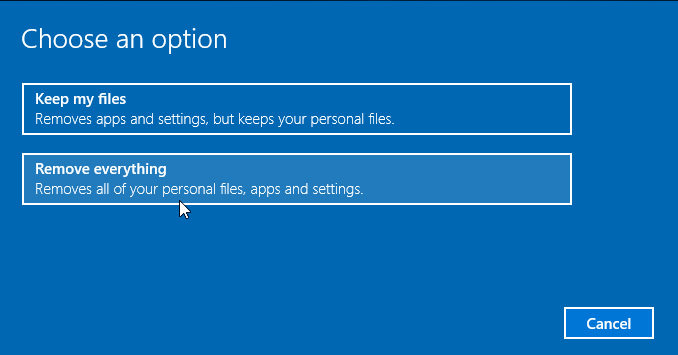
Step 3. To remove everything from your account, select the "Remove everything" option in the Choose an option window and click on Cloud download.
Step 4. You need to follow now the on-screen steps to reset your system.
If you want to recover lost files after a Windows factory reset, you can check this page for help.
How to Recover Files After Factory Reset Windows 10/11
Recovering files after a factory reset on Windows 10 or Windows 11 is possible.
Summary
When working peacefully on your system, a sudden system crash can occur, displaying the DRIVER_IRQL_NOT_LESS_OR_EQUAL error on the screen. This error can be frustrating, especially when it happens while you're working. Fortunately, we've shared several effective solutions in this troubleshooting guide to help you fix this issue.
We hope this guide helped you fix the error without losing any data. If you lost some of your stored data during troubleshooting, consider using Deep Data Recovery to recover it.
DRIVER_IRQL_NOT_LESS_OR_EQUAL FAQs
Many people have questions about the DRIVER_IRQL_NOT_LESS_OR_EQUAL error on Windows. Some common questions include: What is the DRIVER_IRQL_NOT_LESS_OR_EQUAL error? What causes this error? How to fix this error?
1. How to fix the Kernel Mode Heap Corruption error?
To fix the Kernel Mode Heap Corruption error, you can run the SFC scan to repair corrupted system files and update all system drivers to the latest build to eliminate bugs and glitches.
2. What does DRIVER_IRQL_NOT_LESS_OR_EQUAL mean?
The DRIVER_IRQL_NOT_LESS_OR_EQUAL error is caused by issues with system drivers, particularly network adapters, as well as potential problems with RAM, faulty hardware, or antivirus software. However, this error can often be resolved through troubleshooting, such as updating and reinstalling network drivers.
3. How to fix DRIVER_IRQL_NOT_LESS_OR_EQUAL on Windows 11?
To fix the DRIVER_IRQL_NOT_LESS_OR_EQUAL error on Windows 11, you can try reinstalling and updating your system's network adapters, or running an SFC scan to check for corrupted system files.
4. Can I recover data from a BSOD computer?
You can recover data from a BSOD-affected Windows computer using a third-party data recovery tool, such as Deep Data Recovery, which allows you to recover all file types, including images, videos, documents, audio, archives, and other files.
Related Articles
- Windows 11 Keeps Crashing - All Methods to Fix
- How to Get Windows 10 for Free [Full Guide in 2024]
- Office 365/2016/2013 Won't Open with 'Stopped Working' Error
- How to Fix User Profile Cannot Be Loaded in Windows?
- How to Fix Black Screen of Death Windows 10 in 8 Different Ways
Do you know how to fix black screen of death Windows 10? This article will describe the black screen of death, its causes, and how to resolve the black screen of death on Windows 10. After reading, you can pick any method to fix the black screen of death. - How to Make A Minecraft Server with Detailed Guides in 2023
Do you want to host your Minecraft Server? Do you only want to play with your closed group? Then follow this easy guide to learn how to make a Minecraft server.
Products
Articles & Tutorials
- Data Recovery
- Data Backup
- File Recovery
- File Backup
- System Backup and Restore
- Disk and Partition Clone
- Technical articles
- Mobile articles
- Disk Master Help
- Windows Data Recovery Tutorials
- Windows Secure Delete Tutorials
- Windows Partition Management Tutorials
- Windows File Backup and Restore Tutorials
- Windows System Backup and Restore Tutorials
- Windows Disk Backup and Restore Tutorials
- Windows Clone Tutorials