How to Get Windows 10 for Free [Full Guide in 2022]
You're in luck! Although the official free upgrade period for Windows 10 from Windows 7 has ended, you can still upgrade for free using the Media Creation Tool. This tool allows you to download and create a USB drive or CD/DVD to install Windows 10 on your computer. Simply go to the Microsoft website, download the Media Creation Tool, and follow the prompts to create your installation media.
Don't worry if you missed the deadline to upgrade to Windows 10 for free, as Microsoft still offers the free upgrade on its website, despite the official deadline passing.
To upgrade to Windows 10 without cost, follow our steps, and we'll also guide you through the process of activating your Windows 10 version once the upgrade is complete.
Overview of Windows 10
Windows 10 is a Microsoft operating system released in 2015 as an improvement to Windows 7 and 8.1. Initially free for upgrade for users of these versions, it is now no longer available for free. The OS supports desktops, laptops, and tablets, and offers improved features compared to its predecessors.
Windows 10 features the return of the Start Menu and the removal of vertical toolbars, offering two installation options: an upgrade or a clean install.
Windows 10 Features and their Functions
Windows 10 has several features that set it apart from other operating systems. These include its unique blend of features that make it stand out.
1. Start Menu
The feature, which was removed in Windows 8 but reintroduced in Windows 10, allows users to view two panels side by side on their screen. The left column displays the Start Menu, showcasing the most-used, pinned, and recently used apps, as well as the power button and all other installed applications.
On the other hand, the right column displays live tiles that you can conveniently reorganize, customize, or resize. This feature can be accessed by clicking the start button with a Windows logo on the bottom left of your screen, which leads to the Start Menu.
2. Cortana on Desktop
This feature allows you to interact with your desktop using voice commands, eliminating the need to physically interact with your computer. You can use Cortana to search for files, start presentations, and send emails without typing.
If you want to access a photo taken on a specific date, you can tell Cortana to pull it out for you, and it will do that diligently.
3. Xbox app
The Xbox app for Windows 10 allows you to play Xbox One games on your desktop, laptop, or tablet, with improved streaming speeds and graphics performance thanks to DirectX 12 support, and also enables linking up with friends while playing.
4. Improved Multitasking
Windows 10's multiple desktops feature allows you to manage multiple open windows by creating virtual desktops for each program, enabling easy navigation and improved multitasking capabilities.
5. Action Center
This feature centralizes all notifications from various apps, allowing you to view and respond to them from a single location, the Action Center. It aggregates alerts from different programs and provides a unified interface to manage them, enabling you to interact with the notifications without opening the individual apps. By expanding a notification, you can access additional options.
How to Get Windows 10 Free and Activate It?
Windows 7 and 8 users can upgrade to Windows 10 without any additional costs. The process involves getting Windows 10 for free and activating it on your device.
How to Get Windows 10 for Free
If you're running a genuine version of Windows 7/8/8.1 Home or Pro, you can get Windows 10 for free. To do this, go to Settings > Update & Security > Activation, and click on "Update now" under the "Go back to Windows 7, 8, or 8.
Step 1. Visit the Windows download website.
Step 2. To create Windows 10 installation media, go to the "Create Windows 10 installation media" page and click "Download tool now," which will initiate a download of the Windows 10 setup as a .exe file on your device.
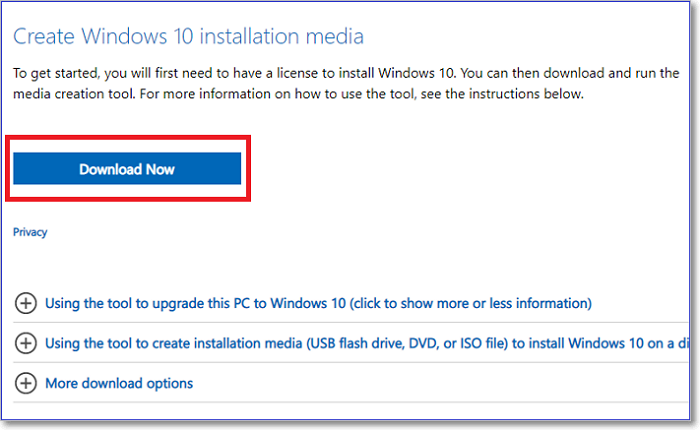
Step 3. Before launching the tool, make sure you have a complete backup of all your files and data.
Step 4. Click on the downloaded tool and follow the on-screen instructions.
Step 5. Select the "Upgrade this PC now" option under "What do you want to do?" to proceed with the upgrade process.
Step 6. Click the "Next" button.
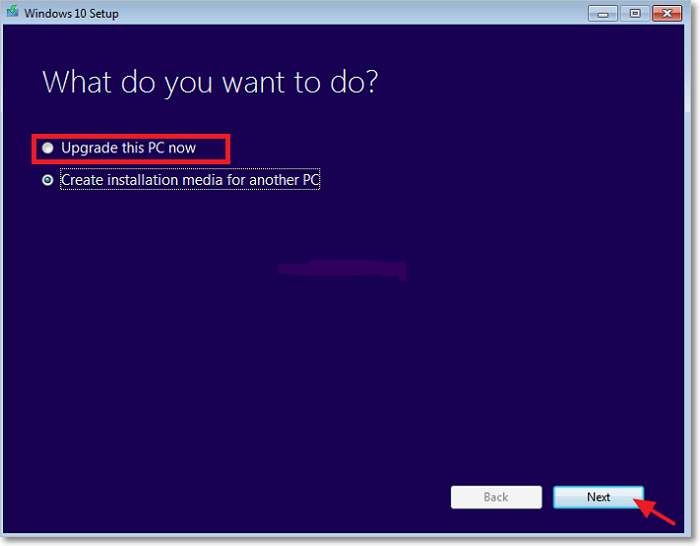
Step 7. When prompted to keep your data, choose whether you want to keep your data. When prompted to enter a product key, enter a product key for your genuine Windows license.
Step 8. Once the upgrade process is complete, go to "Settings Update & Security>Activation" where you'll see a digital license for your Windows 10.
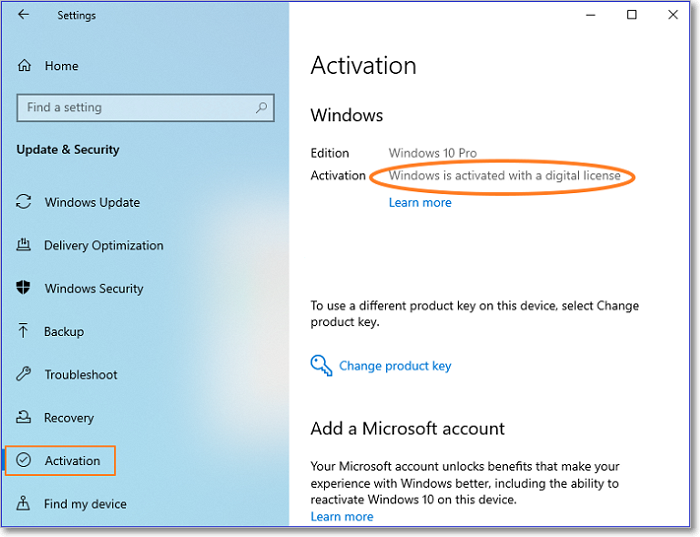
You've now upgraded to Windows 10 for free!
How to Activate Windows 10
Once you've installed Windows 10 for free on your device, the next step is to activate it. Below are the simple steps to activate Windows 10.
Step 1. Click on the Start Menu and type cmd on the search bar. This will open the Command Prompt.
Step 2. Once Command Prompt displays in the search results, select "Run as administrator."
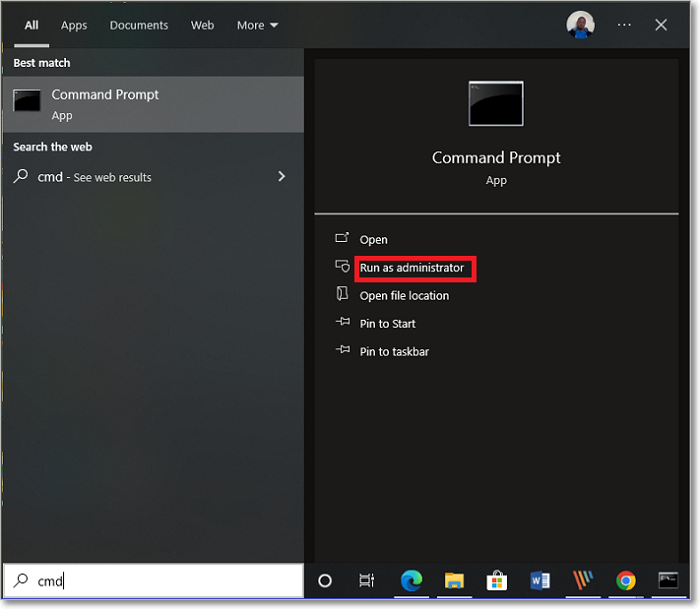
Step 3. Next, copy the command below and hit Enter. Replace "WinKey" with your Windows license key.
Slmgr /ipk
Step 4. Copy the following command and press Enter.
slmgr /skms kms.xspace.in
Step 5. Again, copy the following command and press Enter.
slmgr /ato
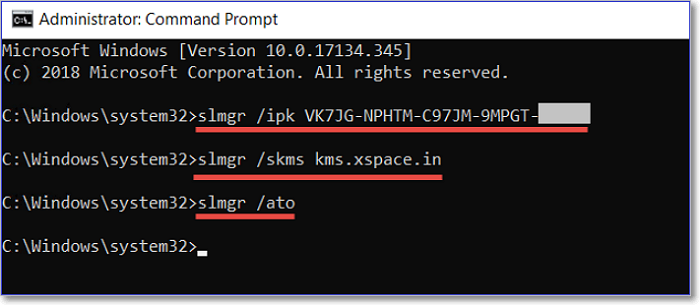
The system will automatically activate your Windows 10.
Wrap Up
You can upgrade to Windows 10 from Windows 7 or 8.1 without any charges by downloading a Windows installation media from the official Windows website, launching it, and following the onscreen instructions to complete the upgrade.
Upgrading to Windows 10 is a straightforward process that involves running a few commands to activate the upgrade upon its installation. This upgrade is highly recommended as it comes with many notable features, including improved security, performance, and a more user-friendly interface. The upgrade process is relatively seamless and will ensure that you have the latest version of Windows, which is essential for maintaining your computer's security and functionality.
- Start Menu
- Cortana on Desktop
- The Xbox app
- Improved Multitasking
- Action Center, etc
Ensure you get Windows 10 today to start enjoying these amazing features!
FAQs
Some of the common questions about getting Windows 10 include what the system requirements are, how to download and install the operating system, whether it's free or requires a purchase, and what the differences are between the various versions of Windows 10, such as Home, Pro, and Enterprise. Additionally, people may be wondering if they can upgrade from an older version of Windows, such as Windows 7 or 8, and what the process is for doing so.
1. Is Windows 10 Secure?
Windows 10 is the most secure version of Windows, protected by the "Windows Security" feature, which safeguards against various types of viruses. Windows Defender regularly scans and neutralizes potential threats, ensuring your device remains secure.
2. Is Win 11 Better than Win 10?
Windows 11 is an improved version of Windows 10, making it faster and safer, with issues from the previous version addressed.
3. Should I Update from Windows 7 to Windows 10?
It's recommended to update to Windows 10 as soon as possible, as Microsoft no longer offers technical support for Windows 7, making it difficult to resolve issues that may arise. Updating to Windows 10 will ensure continued support from Microsoft in case of any problems with the operating system.
Related Articles
- How to Fix Printer Driver is Unavailable Error on Windows 10/11 [Fixed Lately]
- Microsoft Word Files with An ASD Extension Cannot Be Opened from This Location [Fixed]
- HP Laptop Slow Startup Fixes for HP Laptop Taking Forever to Restart
- How to Fix IRQL_NOT_LESS_OR_EQUAL Error in Windows 10/8/7
- Find Windows XP Product Key/License with 4 Practical Solutions
Calling out all the Windows XP users who are trying to find or recover their missing product key to follow our guide and find Windows XP product key successfully. - Top 7 Ways To Fix A Disk Read Error Occurred in Windows 10/8/7
A disk error occurred, press Ctrl+Alt +Del to restart. This error indicates that Windows detects a hard disk problem or the process of reading the hard disk goes wrong. If faced with this disk read error, try these seven solutions to fix it in Windows 10, 8.1, 8, 7.
Products
Articles & Tutorials
- Data Recovery
- Data Backup
- File Recovery
- File Backup
- System Backup and Restore
- Disk and Partition Clone
- Technical articles
- Mobile articles
- Disk Master Help
- Windows Data Recovery Tutorials
- Windows Secure Delete Tutorials
- Windows Partition Management Tutorials
- Windows File Backup and Restore Tutorials
- Windows System Backup and Restore Tutorials
- Windows Disk Backup and Restore Tutorials
- Windows Clone Tutorials