Top 7 Ways To Fix A Disk Read Error Occurred in Windows 10/8/7
You may be prompted to press Ctrl+Alt+Del to restart, but this often doesn't resolve the issue and prevents your computer from booting correctly. This problem has affected a significant number of users on Windows 10, 8, 7, and XP. Fortunately, there are seven effective solutions to fix the "a disk read error occurred" issue, which we have compiled on this page.
| Workable Solutions | Step-by-step Troubleshooting |
|---|---|
| 1. Back Up Data Without OS | Download and Install Qiling Backup on the working computer. Click Tools...Full steps |
| 2. Check SATA Cables | Try a different port for the SATA/SATA M2 cables. If you have more than one HDD...Full steps |
| 3. Run Surface Test | Run Qiling Partition Master, right-click the disk you want to check...Full steps |
| 4. Repair MBR | Download and launch Qiling Partition Master on a new PC...Full steps |
| 5. Other Effective Solutions | Run bootrec > Check RAM Memory > Reset or Update BIOS...Full steps |
A Disk Read Error Occurred Press Ctrl+Alt+Del to Restart
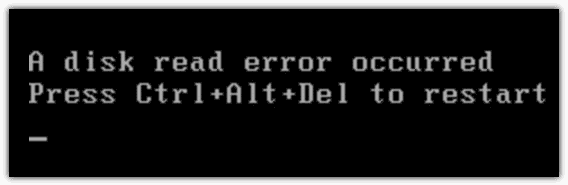
A disk read error is a frustrating computer error that prevents access to the hard drive or data. When it occurs, a message appears: "A disk read error occurred. Press Ctrl+Alt+Del to restart". This error typically indicates a problem with the hard disk or a failure in the process of reading the hard disk. Unfortunately, restarting the computer by pressing Ctrl + Alt + Del does not resolve the issue, and the same error screen persists.
Fix 1. Back Up Data Without Boot into Windows (Protect Data)
The "A disk read error occurred" issue is relatively easy to fix, but the real challenge lies in protecting the essential personal files stored on the hard drive. Users are often left puzzled, worried that any troubleshooting steps might inadvertently cause data loss, leading to a potentially irreversible disaster.
We recommend backing up data first, which can be done by exporting the data and trying to restore it on another healthy computer. This can be achieved without booting into Windows 10/8/7/XP.
To boot into Windows without the operating system, you can use Qiling Backup with a bootable media to back up and export data even when the OS fails to start or crashes. This allows you to recover data on a healthy computer.
Also read: Recover Data from Corrupted Windows OS
Fix 2. Check Hard Disk SATA Cables to Fix a Disk Read Error
If the methods in this guide don't work to fix the "A disk read error occurred" issue, try checking the SATA cables for damage. Damaged SATA cables can cause this problem, so inspecting them may resolve the issue.
Step 1. Try a different port for the SATA/SATA M2 cables.
Step 2. If you have multiple hard drives (HDDs), remove all but the one with Windows installed, and then test the system with different SATA ports and cables to isolate the issue.
If a disk read error occurs, it's likely due to faulty cables. In this case, replacing the cables should resolve the issue.
Fix 3. Run Surface Test to Check HDD If Disk Read Error Occurred
If your hard drive has a bad sector, it can cause a "disk read error occurred" issue during startup. To troubleshoot this, you can run a professional partition software to check your hard drive for bad sectors.
To make the bootable USB or CD/DVD, you need Qiling Partition Master, then restart the computer from the created device, and follow the steps to check bad sectors.
Step 1. Open Qiling Partition Master, right-click the target disk, and select "Advanced" > "Surface Test" for a quick disk check.
Step 2. The operation will be performed immediately, and all bad sectors will be marked red.
If you suspect a bad sector on your hard drive, remove it and connect it to a healthy computer. This will allow you to run diagnostic tools to identify and potentially fix the bad sectors.
Fix 4. Repair MBR to Resolve Disk Read Error
If you also meet the "A disk read error occurred" error message, it suggests that BIOS is not the problem. Then try to rebuild MBR with Qiling partition software. Follow the steps below:
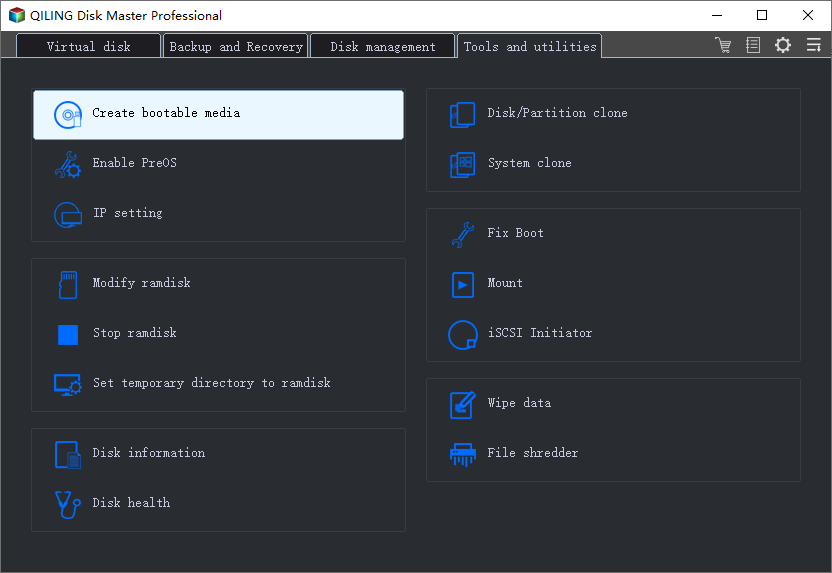
Step 1. Create a WinPE bootable disk
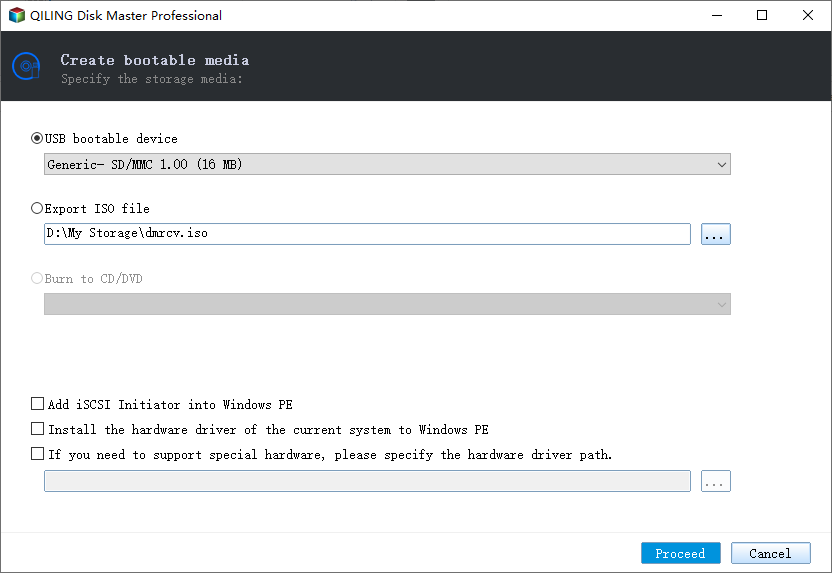
- Launch Qiling Partition Master, click "Create bootable media" on the toolbar, selecting to create the bootable disk on a USB drive or CD/DVD.
- Click "Proceed" to finish the process.
Step 2. Boot Qiling Partition Master Bootable USB
- Connect the bootable USB or CD/DVD to your PC.
- To access the BIOS screen, press F2 or Del when restarting your computer. This will allow you to set and boot from a removable device or CD-ROM drive, where Qiling Partition Master will automatically run.
Step 3. Rebuild MBR
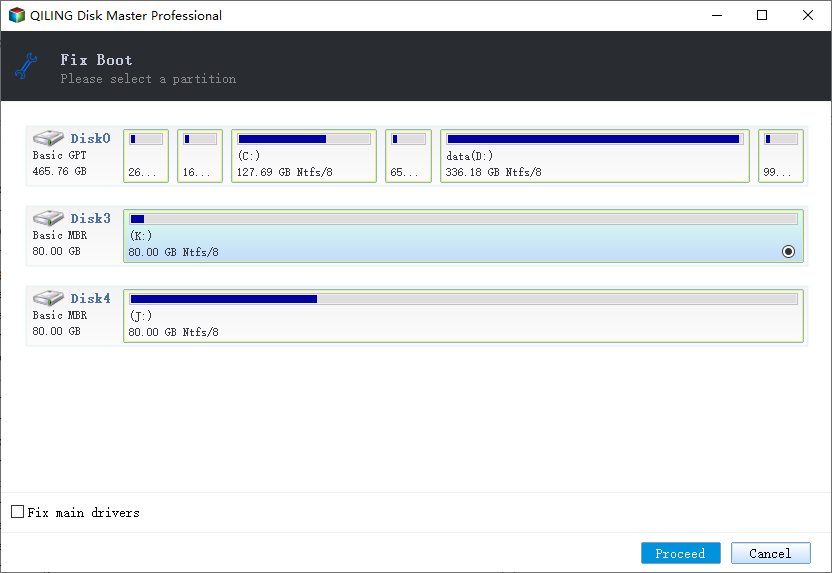
- Click the disk whose MBR is damaged. Choose "Fix boot" to continue. This will attempt to repair the Master Boot Record (MBR) of the selected disk, which is likely the cause of the boot issues.
- The current operating system is Windows 10. The MBR (Master Boot Record) type for Windows 10 is GPT (GUID Partition Table).
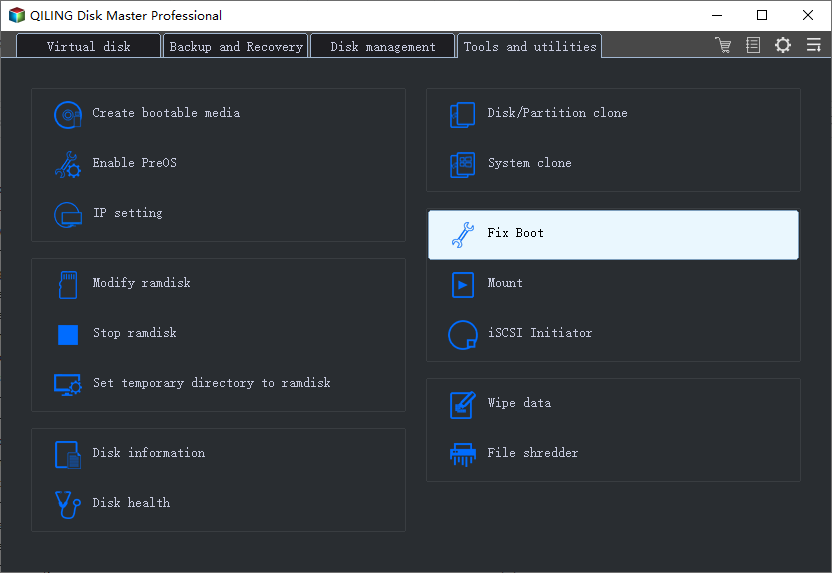
- To fix the issue, click the "Proceed" button to build the Master Boot Record (MBR). This will resolve the problem and allow your computer to boot normally again.
Fix 5. Run Bootrec to Fix A Disk Read Error Occurred
If the bootloader installation or configuration encounters errors, you may experience a "disk read error occurred press ctrl+alt+del to restart" error.
You could solve this error by following the steps below.
Step 1. To open the Command Prompt, press the Windows key + R to open the Run dialog, type "cmd" and click "OK".
Step 2. In the Command Prompt window, type those following commands and press "Enter".
bootrec /fixmbr
bootrec /fixboot
bootrec /rebuildbcd
Step 3. Restart the system and let bootrec repair MBR.
Fix 6. Check RAM Memory to Fix a Disk Read Error Occurred
A read disk error can sometimes be caused by a faulty RAM stick or slot, particularly if you've recently added new RAM to your computer.
Step 1. Remove the new RAM modules you've recently added.
Step 2. Leave only one single RAM module.
Step 3. Restart the computer.
You can also download a professional RAM test tool called MemTest86 to test your RAM. It's available at https://www.wikihow.com/Test-PC-RAM-with-MemTest86.
Fix 7. Reset or Upgrade BIOS to Fix a Disk Read Error Occurred
Resetting the BIOS to its default settings or upgrading to the latest version may be able to solve "A disk read error occurred" in Windows XP/7/8/10.
Step 1. Restart the computer
Step 2. Press the F2, F8, F12, Esc, or Del keys to boot into the BIOS.
Step 3. Find the option to reset BIOS to default.
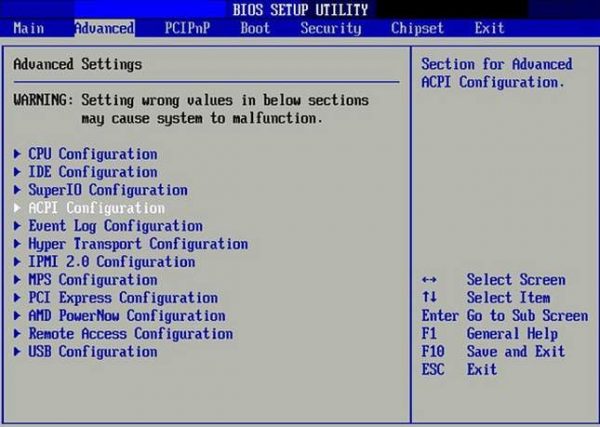
The option to reset BIOS settings to their default values is known by different names depending on the computer manufacturer and BIOS version, such as "Load BIOS Defaults", "Load Setup Defaults", "Load Default Settings", "Load Fail-Safe Defaults", or "Get Default Values".
Conclusion
If you're experiencing a Disk Read error, these practical solutions may help. If the issue persists, it's possible that your hard drive has failed or become severely corrupt, in which case, you'll need to replace it. You can use a disk management tool like Qiling to upgrade to a larger hard drive, resolving the issue.
A Disk Read Error Occurred in Windows 10/8/7 FAQs
If you're still experiencing issues after learning the seven ways to troubleshoot a disk read error, you can refer to additional resources on the topic by reading further.
How do I fix a disk read error?
There are seven ways to fix a disk read error:
- Back Up Data Without OS
- Check SATA Cables
- Run Surface Test
- Repair MBR
- Run Bootrec
- Check RAM Memory
- Reset or Upgrade BIOS
Can external hard disk be repaired?
You can repair external hard drive issues with ease if the drive is not physically damaged, and as long as that's the case, you can fix bad sectors and other problems.
How do I fix a corrupted external hard drive?
To Repair Corrupted External Hard Drive:
- Restore Corrupted File System
- Recover Data
- Repair Corrupted External Drive
- Repair External Drive without Formatting
Related Articles
- How to Upload Files to Google Drive Automatically
- [Fixed] CHKDSK Stuck at 10%, 11%, 12%, 100% in Windows 10/8/7
- [Fixed] Office 365/2016/2013 Won't Open with 'Stopped Working' Error in Windows 10
- Short DST Failed! How to Fix Hard Disk DST Short Test Failed
- Windows 10 System Interrupts 100 CPU - How to Fix?
Do you know how to fix Windows 10 system interrupts 100 CPU? You are coming to the right page if you need an idea. This article will tell you what system interrupts is, what causes it, and how to fix it. After reading this article, you can pick any method to solve system interrupts 100% CPU usage. - Overall Solutions: How to Ungroup the Taskbar In Windows 11
Wondering how to ungroup a taskbar? Find out everything about Windows 11 Ungroup Taskbar here!
Products
Articles & Tutorials
- Data Recovery
- Data Backup
- File Recovery
- File Backup
- System Backup and Restore
- Disk and Partition Clone
- Technical articles
- Mobile articles
- Disk Master Help
- Windows Data Recovery Tutorials
- Windows Secure Delete Tutorials
- Windows Partition Management Tutorials
- Windows File Backup and Restore Tutorials
- Windows System Backup and Restore Tutorials
- Windows Disk Backup and Restore Tutorials
- Windows Clone Tutorials