Windows 10 System Interrupts 100 CPU - How to Fix?
System interrupts, also known as System Interrupts or System Interrupts, are a type of CPU usage that occurs when the operating system, in this case Windows 10, is handling hardware-related tasks, such as disk I/O, network activity, and other system-level functions. This can cause high CPU usage, often reported as 100% CPU usage, due to the system's need to constantly interrupt and process these tasks, resulting in a significant drain on system resources. This issue can be caused by a variety of factors, including outdated drivers, malware, or hardware issues, and can be resolved by updating drivers, running a virus scan, and checking for hardware problems.
What Is System Interrupts on Windows 10
System Interrupts, a built-The System Interrupts process runs continuously in the background, displaying CPU usage for hardware interrupts in the Task Manager. It facilitates communication between hardware and software, examining CPU interrupts caused by lower-level system processes and services.
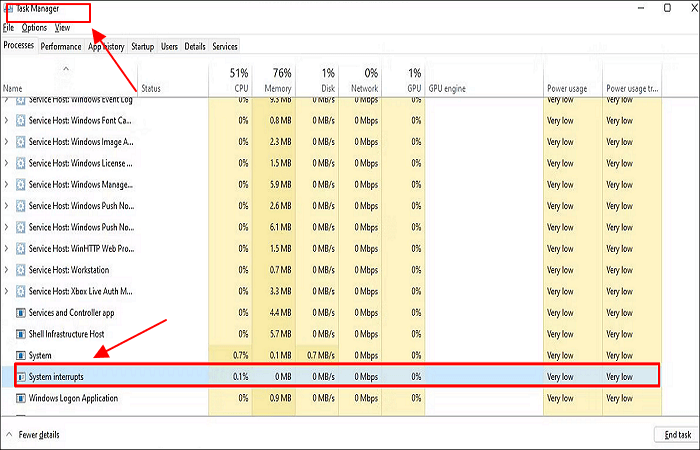
A Windows service responsible for detecting CPU faults and interrupts can sometimes cause excessive CPU usage, despite its importance.
What Causes System Interrupts 100% CPU Usage
System interruptions act as a CPU alarm system, reminding the processor of high-priority conditions that require its attention. When a scenario demands CPU focus, the processor pauses its current activity, stores it, and prioritizes the crucial task, returning to its previous state once the job is complete.
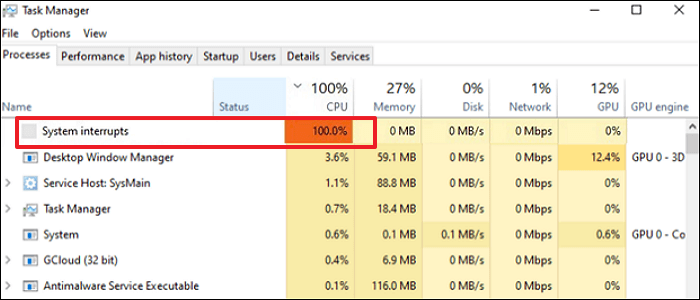
System interruptions using more than 10% of CPU resources can be a sign of a hardware fault. This is because numerous interruptions typically signify a hardware issue, which can cause system interruptions to consume a significant amount of resources, often exceeding 10% of the CPU.
How to Fix System Interrupts 100 CPU in Windows 10
After understanding what System Interrupts are and why they occur, it's time to address the issue of System Interrupts causing 100% CPU usage. To resolve this problem, you can try the following 7 solutions below.
- Solution 1. End the Process Causing High CPU Usage
- Solution 2. Update Device Driver
- Solution 3. Disable Audio Enhancements
- Solution 4. Disable USB Root Hub
- Solution 5. Disable Windows Fast Startup
- Solution 6. Check Failing Hardware
- Solution 7. Update BIOS
Solution 1. End the Process Causing High CPU Usage
If a program is utilizing your entire processor, there stands a good chance that it is not behaving properly. Therefore, you can try to end the program/software. You can perform the following steps to do so.
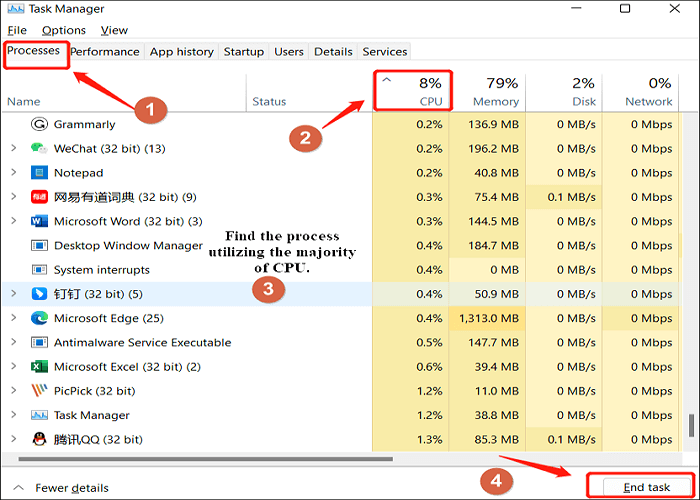
Step 1. To view CPU usage in Task Manager, press the keys Ctrl + Shift + Esc, click on the Processes tab, and then click on the CPU column.
Step 2. To identify the process that's utilizing the vast majority of your CPU, you can use the Task Manager or the Resource Monitor on Windows, or the Activity Monitor on macOS. These tools provide a list of all running processes and their corresponding CPU usage.
Step 3. Select the program and click on End task.
Solution 2. Update Device Driver
A faulty hardware driver can cause System Interrupts high CPU usage issues. To resolve this, you can update the device drivers by following the steps below.
Step 1. Press the Win + X keys, and select Device Manager.
Step 2. To expand the Device Manager dialog box, click on the arrow next to the device category, such as "Disk drives" or "Network adapters". Then, right-click on the driver you want to update or uninstall.
Step 3. To update the driver, go to the Device Manager, select the device you want to update, click on Update driver, and then select Search automatically for updated driver software.
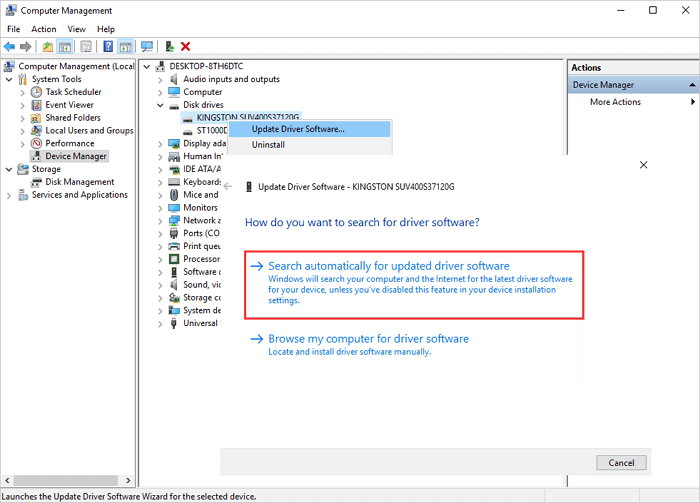
Windows will start the process of updating driver software. Wait for the PC to search for and install the latest driver software for all device drivers. Once the updates are complete, restart your Windows PC to see if the system interrupts 100% CPU usage is resolved.
Solution 3. Disable Audio Enhancements
Disabling Audio Enhancement can help resolve issues such as high CPU usage due to System Interrupts, which may occur when sound drivers using software enhancements fail to function correctly.
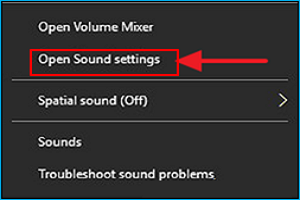
Step 1. Right-click on the Sound icon image on the taskbar and click Open Sound settings.
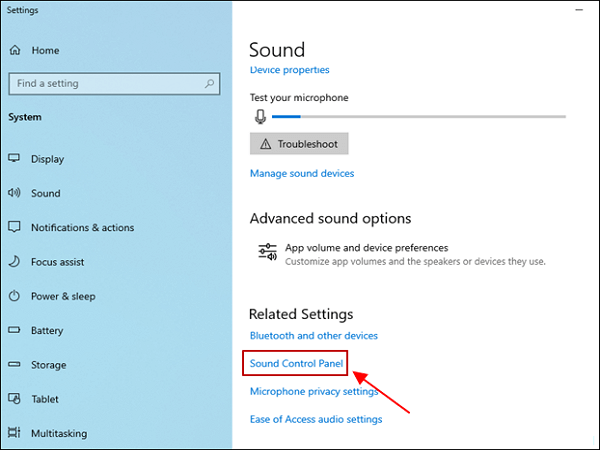
Step 2. Select Sound Control Panel.
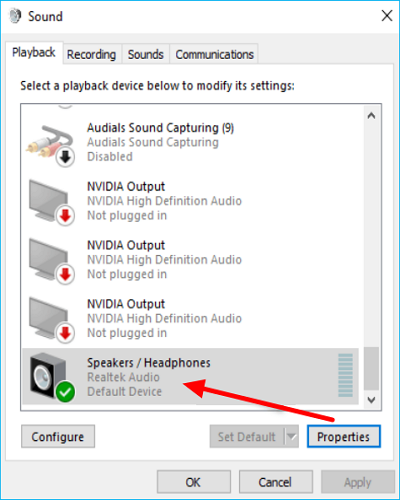
Step 3. On the Playback tab, right-click on your playback device and select Properties.
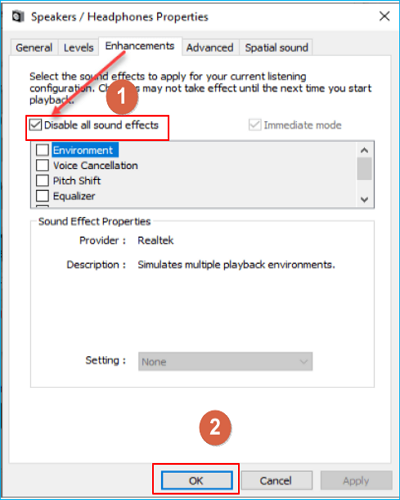
Step 4. Click on the Enhancements tab, select Disable all sound effects and click OK.
Solution 4. Disable USB Root Hub
The USB Root Hub is a software driver that connects multiple USB peripherals to a computer, allowing simultaneous connection of multiple devices to the data bus.
Step 1. Press the Win + X keys, and select Device Manager.
Step 2. To expand the category of Universal Serial Bus controllers, find and click on it in the Device Manager. This will display a list of all USB controllers connected to your computer, including any USB ports, hubs, and devices.
Step 3. Right-click on the USB Root Hub and then select Properties.
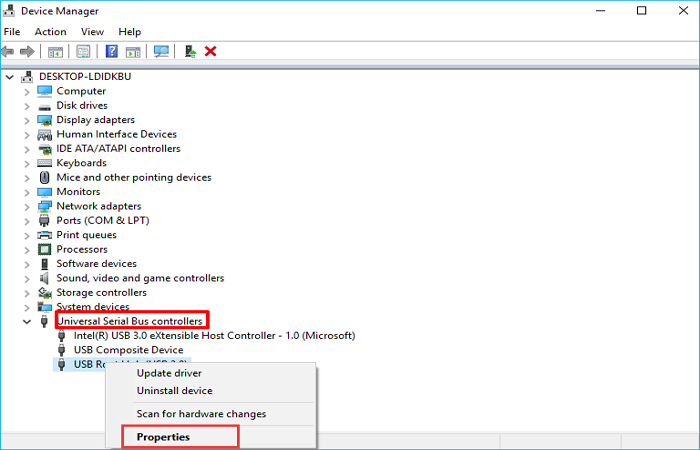
Step 4. To resolve the issue, open the Power tab in the properties and check if your mouse or keyboard is using the root hub. If not, disable it. Disable all root hubs except for the one your keyboard and mouse are using. This should resolve the problem.
Disabling the USB Root Hubs may solve the System Interrupts 100% or high CPU issue. To check, go to the Task Manager after disabling the USB Root Hubs. If the issue persists, you can reverse the changes.
Solution 5. Disable Windows Fast Startup
Disabling Windows Fast Startup can help resolve system interrupts high CPU issues by following these steps: Go to Start, then type "Power" and select "Power Options," then click "Choose what the power buttons do" and uncheck "Turn on fast startup (recommended)." This can help your computer boot up faster when shut down, but may also resolve the system interrupts high CPU issue.
Step 1. To access the Control Panel, simply type "Control" in the search box and then click on the "Control Panel" result to open it.
Step 2. Click Power Options in the Control Panel.
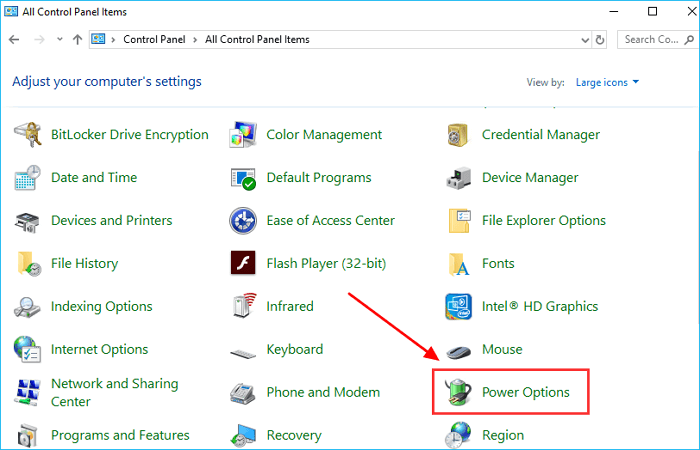
Step 3. Click Choose what the power buttons do.
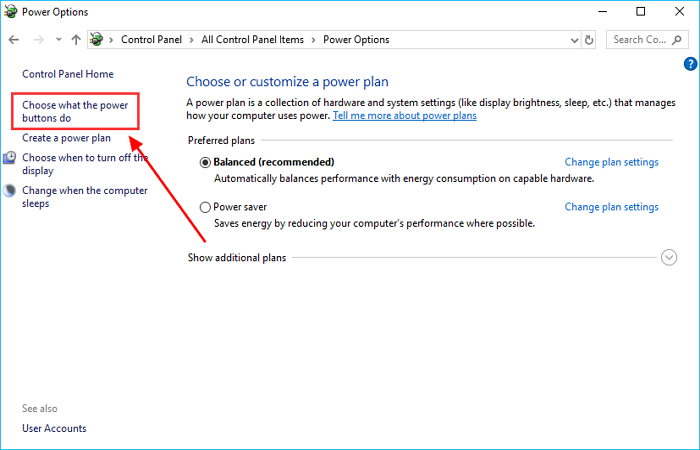
Step 4. Select Change Settings that are currently unavailable.
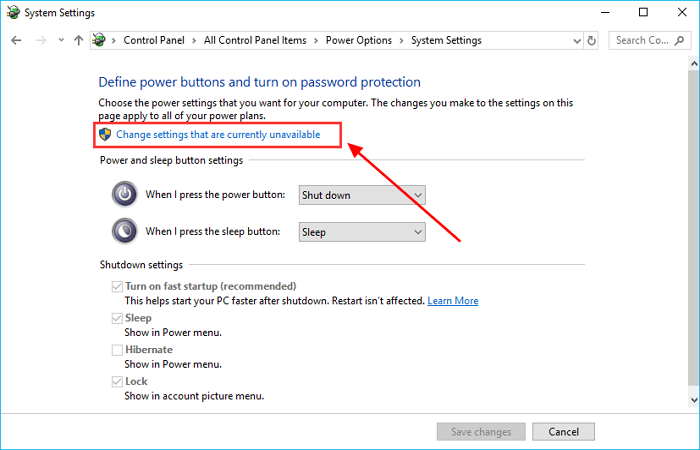
Step 5. Uncheck the box near Turn on fast startup (recommended), click Save changes, and then exit.
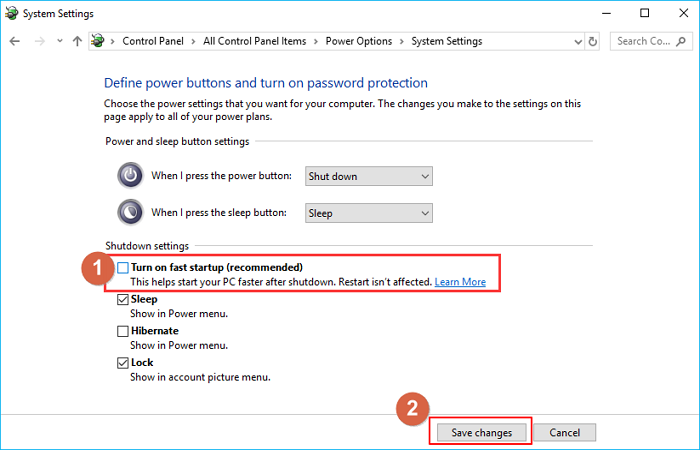
Restart your computer to see if the system interrupts high CPU issue is resolved.
Solution 6. Check Failing Hardware
If System Interrupts are causing high CPU usage, it's possible that errors on your hard drive are to blame. To troubleshoot the issue, you can follow the steps listed below to check your hard drive(s).
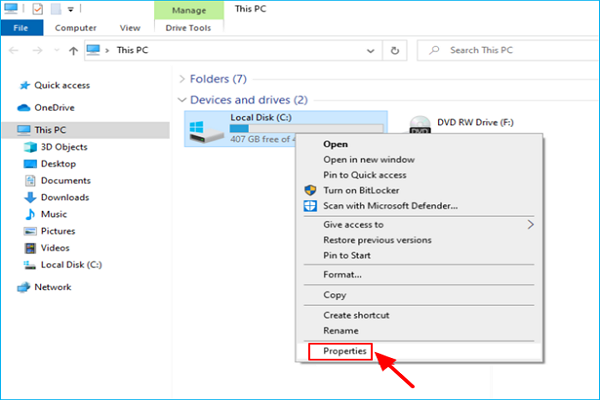
Step 1. Open File Explorer, right-click on the disk you plan to check for errors and select Properties.
Step 2. Click Check at the Tools tab.
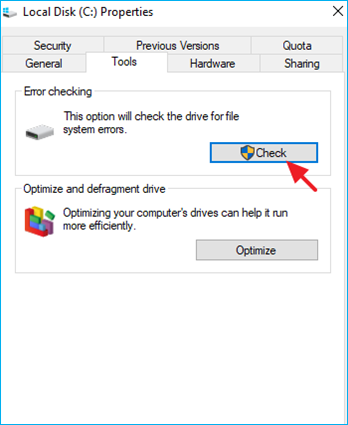
Step 3. Click Scan drive.

Step 4. If Windows detects errors on the hard drive, it can repair them automatically.
Solution 7. Update BIOS
The BIOS is the first software that runs when you boot your computer, and updating it can help resolve System Interrupts high CPU usage issues caused by outdated BIOS versions.
To do so, you need first to identify the BIOS version. You can perform the steps below to check your BISO version.
Step 1. Type cmd in the search box to launch Command Prompt.
Step 2. Type the following commands each in turn and press Enter after each.
- systeminfo | findstr /I /c:bios
- wmic bios get manufacturer, smbiosbiosversion
To update the BISO version, visit the manufacturer's website and follow the instructions provided. The website will guide you through the process of updating the BISO version to the latest version.
Note: Updating the BIOS can be a challenging task, as a mistaken operation may render your computer unbootable. Therefore, it's highly recommended to back up your Windows 10 computer before attempting to update the BIOS, to ensure your data and system are safe.
Additional Guide: How to Backup Windows 10 PC
Creating a backup of your computer is always a good idea, especially when trying to troubleshoot issues like Windows 10 System Interrupts 100 CPU usage, as it can help prevent data loss in case something goes wrong. A third-party backup software like Qiling Disk Master can be useful in this scenario.
Qiling Disk Master Pro is a professional and multi-functional backup utility for Windows 11/10/8/7 that allows automatic, scheduled, incremental, and differential backups, as well as system backups for overall data protection. It also enables saving backups to local drives, NAS, Security Zones, and the Cloud. Additionally, it allows creating ISO images from hard drives or operating systems, providing a range of valuable features.
- Create a backup of the system, file, disk, partition, etc.
- Install Windows on a new SSD without a USB.
- Clone a hard drive.
- Reinstall windows without losing games.
- Backup and recovery options.
- Create a WinPE emergency bootable disk.
- 250G free cloud storage.
The following are the detailed steps to create a system backup for a Windows PC.
Step 1. On the main page, click "Select backup contents".

Step 2. Among the four available categories, click OS.

Step 3. Qiling Disk Master will automatically select your system partition, so you only need to choose a backup destination.

Step 4. You can save the backup file to either your local drive or a network-attached storage (NAS) device.

Step 5. After completing the backup process, you can verify the backup status, restore, access, or remove the backup by selecting the backup task from the list.

Final Thoughts
To fix the Windows 10 System Interrupts 100 CPU usage issue, it's essential to ensure your CPU has a low background consumption rate, regardless of whether you have a basic or high-performance CPU. If you're experiencing this problem, you can try any of the solutions provided in this article to resolve the issue.
Creating a backup of your computer is a good practice because whatever happens, you can quickly restore your data using the backup. Qiling Disk Master is a nice helper for you. Just try it! would be a better response.
FAQs
1. Why is my CPU usage suddenly so high?
High CPU utilization can indicate various issues, including an application misbehaving and consuming the full processor, or a virus or adware infection that requires immediate attention.
2. Are 100% CPU spikes normal?
Your machine is using its CPU to capacity, which is typically fine but might cause slight slowdowns when performing computationally demanding tasks, such as running games. Computers often use close to 100% of the CPU when running such tasks.
Related Articles
- How to Fix Black Line on MacBook Screen [5 Methods]
- Fix: Scanning and Repairing Drive Stuck at 0, 10, 100... in Windows 10
- The Operation Could Not Be Completed Because the Volume is Dirty [SOLVED]
- Windows Mail Backup and Restore [Everything You Need Know]
Learn how to back up and restore Windows Mail data, including where mail files are stored and how to protect emails before system changes. - Windows 7 Stuck on Welcome Screen (Fixed with 5 Ways)
If your Windows 7 computer stuck on Welcome screen out of some reasons, you can refer to this article and find effective solutions. - How to Fix Windows Backup Error Code 0x8078002a [5 Methods]🔥
People often use Windows backup to create a system image or back up important files in case of data loss, but may encounter error code 0x8078002a during the process.
Products
Articles & Tutorials
- Data Recovery
- Data Backup
- File Recovery
- File Backup
- System Backup and Restore
- Disk and Partition Clone
- Technical articles
- Mobile articles
- Disk Master Help
- Windows Data Recovery Tutorials
- Windows Secure Delete Tutorials
- Windows Partition Management Tutorials
- Windows File Backup and Restore Tutorials
- Windows System Backup and Restore Tutorials
- Windows Disk Backup and Restore Tutorials
- Windows Clone Tutorials