How to Fix Windows Backup Error Code 0x8078002a [5 Methods]🔥
Using the built-in Windows backup tool can be an effective approach for data backup, but encountering Windows backup error code 0x8078002a can be frustrating. This system-generated error occurs when trying to access specific files on the local drive or external USB on a computer. The causes of this error can be attributed to incorrect Windows installation, corrupted system files, or incorrect usage of an external hard drive. Understanding the causes and possible solutions can help users successfully perform backups and ensure the safety of their valuable data.
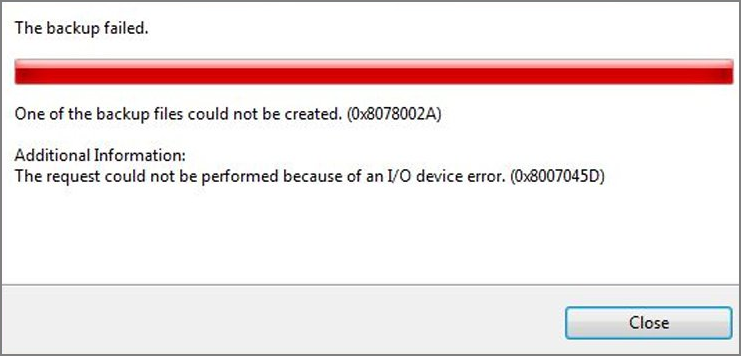
How to Fix Windows Backup Error Code 0x8078002a
Here are the fixes you may use to fix the Windows Backup error code 0x8078002a: To fix the Windows Backup error code 0x8078002a, try running the Windows Backup and Restore (Windows Backup) troubleshooter, check the backup location, ensure the backup drive is not full, and check for any disk errors. Additionally, you can try running the System File Checker (SFC) tool to scan and replace any corrupted system files, and also run the Check Disk (chkdsk) tool to check for any disk errors.
- Method 1: Check If the Relevant Services Are Running
- Method 2: Format Your External Hard Disk
- Method 3: Check Volume Shadow Copy and Windows Backup
- Method 4: Try DISM or SFC Scans
- Method 5: Set Up Windows Again
👍If you find it time-The following are some ways to try to fix the issue:the Windows backup alternative To back up your data quickly and safely before losing it, use cloud storage services like Google Drive, Dropbox, or OneDrive, which offer automatic syncing and versioning, allowing you to restore previous versions of files in case of loss or corruption. You can also use external hard drives or USB drives for local backups, and consider setting up a backup schedule to ensure regular backups.
Method 1: Check If the Relevant Services Are Running
- ⏱️Time Required: 3 mins
- 🙌What to Prepare: Your PC
First, you need to make sure that Windows Backup and Volume Shadow Copy services are running:
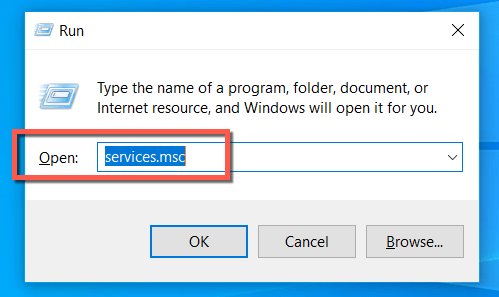
Step 1: To access the Services console in Windows, press the Win + R keys, type services.msc, and press Enter, or search for Services in the Search Bar and click it. This will open the Services console where you can view and manage various system services.
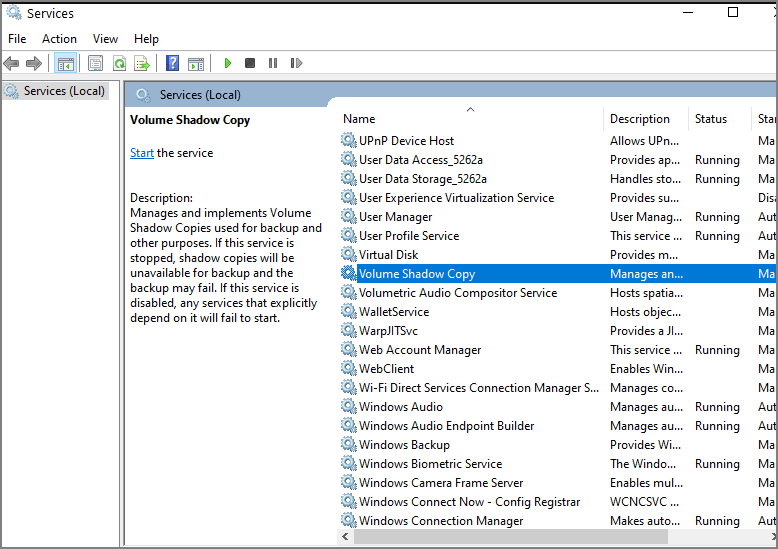
Step 2: In the new window, locate the Volume Shadow Copy service.
Step 3: Double-click the service to open Properties.
Step 4: Select Automatic from the drop-down menu under Startup type.
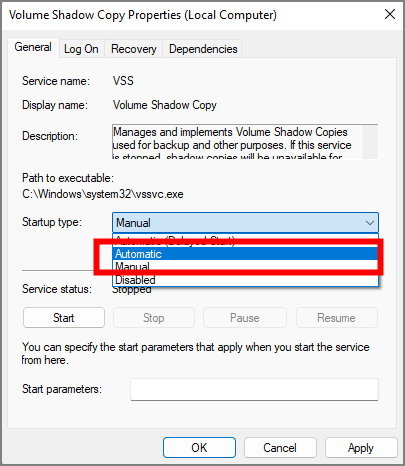
Step 5: Click Start, Apply, and OK.
Step 6: Repeat the process below with the Windows Backup service.
Method 2: Format Your External Hard Disk
- ⏱️Time Required: 10 mins
- 🙌What to Prepare: Your PC and an external hard drive
To fix the issue of external hard disk not being recognized, you can try formatting it. To do this, you can connect the external hard disk to your computer, then go to the Disk Management console, select the external hard disk, and click on "Format" to erase all data on it.
Step 1: Insert To access your external hard drive, simply plug it into your computer, then press the Win + E keys to open your File Explorer. This will allow you to browse and access the files stored on your external hard drive.
Step 2: To format an external hard drive, locate it on your computer, right-click on it, and select the "Format" option from the context menu.
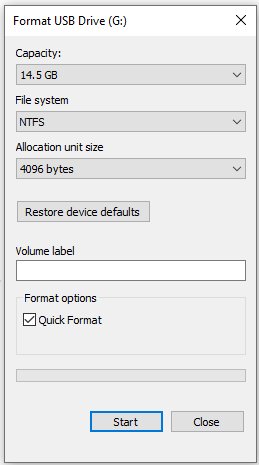
Step 3: Choose the type of file system and name your external drive under the Volume label.
Method 3: Check Volume Shadow Copy and Windows Backup
- ⏱️Time Required: 10 mins
- 🙌What to Prepare: Your PC
To confirm the status of these crucial prerequisites, follow these steps:
- Notice:
- To create a successful backup, ensure that necessary services are enabled.
First is to check the volume shadow copy:
Step 1: To open the Services window, press the Win + R keys to open the Run dialog box, then input services.msc and press Enter. This will open the Services window where you can manage and configure various system services.
Step 2: Locate Volume Shadow Copy and double-click on it.
Step 3: Ensure the Service status is running and the Startup type is set to Automatic; if not, start the service and set the Startup type to Automatic.
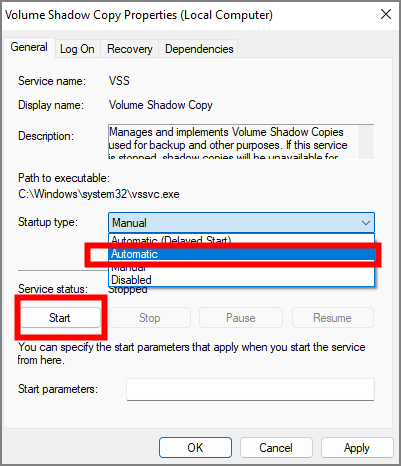
Step 4: Click on Apply and OK.
To check if Windows Backup is running, locate the Windows Backup service, ensure its Service status is running, and if not, click Start to run it. This process is similar to checking the Volume Shadow Copy service.
Method 4: Try DISM or SFC Scans
- ⏱️Time Required: 3 mins
- 🙌What to Prepare: Your PC
To fix this issue, you can run the System File Checker (SFC) and the Deployment Image Servicing and Management (DISM) scans. These tools can help identify and repair corrupted system files and components, which may be causing the issue. To do this, open Command Prompt as an administrator, type "sfc /scannow" and press Enter.
Step 1: Open Command Prompt by pressing Win + R and input cmd.
Step 2: Input sfc /scannow and press Enter.
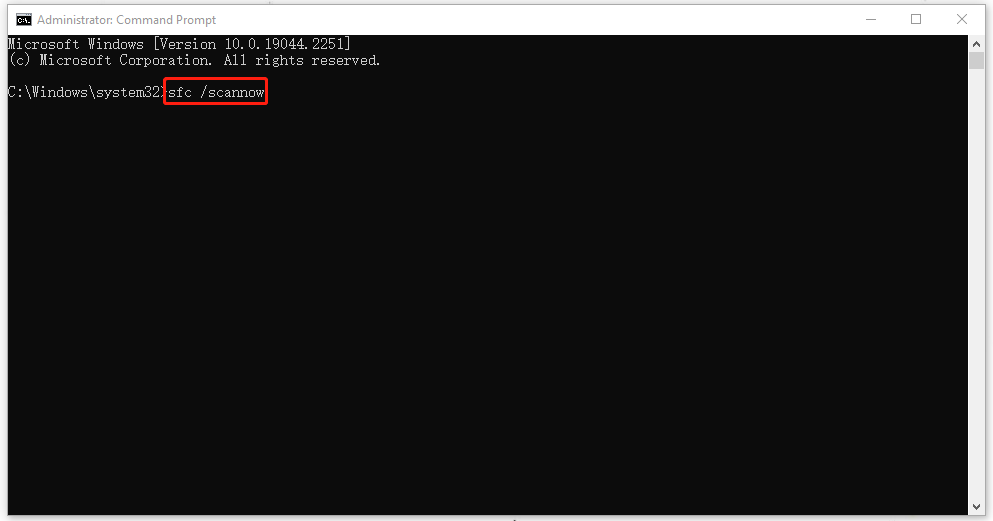
Step 3: Run the following commands, pressing Enter every time:
- DISM /Online /Cleanup-Image /CheckHealth
- DISM /Online /Cleanup-Image /ScanHealth
- DISM /Online /Cleanup-Image /RestoreHealth
Step 4: Restart the PC.
Method 5: Set Up Windows Again
- ⏱️Time Required: About half an hour
- 🙌What to Prepare: Your PC
If all the above steps fail, the only way left is to reinstall your Windows. Here is what you should follow:
Step 1: To access the recovery options, go to the Start menu, select Settings, then Update & Security, and finally Recovery.
Step 2: Click Get Started under the Reset this PC section.
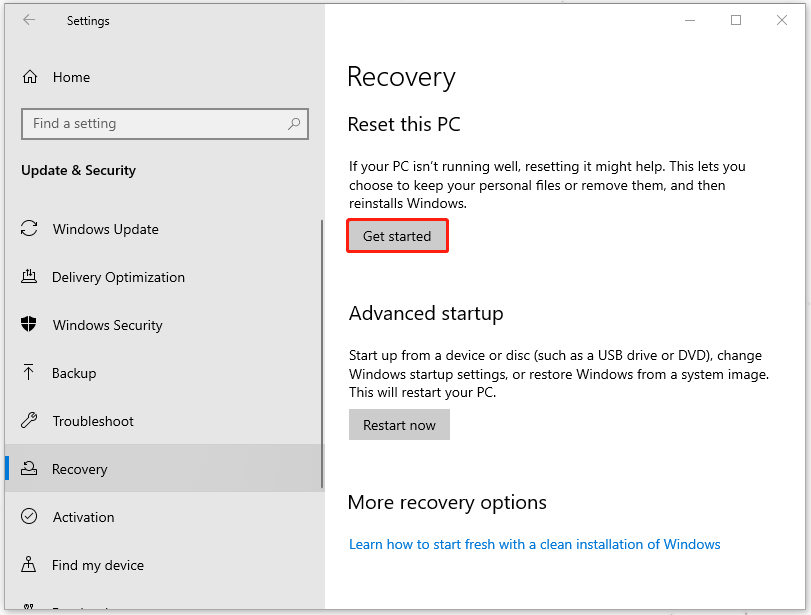
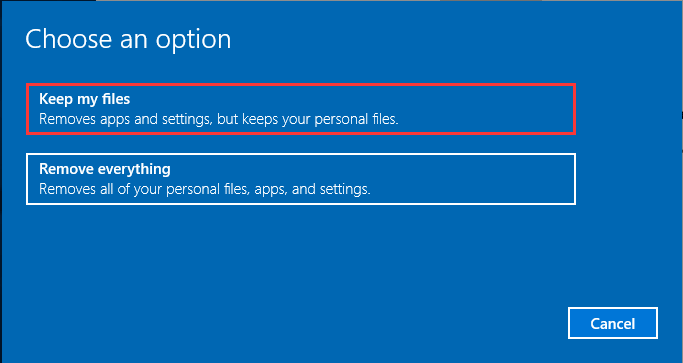
Step 3: To reinstall Windows 10 without losing data, choose the "Keep My Files" option. This will allow you to reinstall the operating system while keeping all your personal files and settings intact. This is a good option if you want to start fresh with a clean installation of Windows 10 while still retaining all your important files.
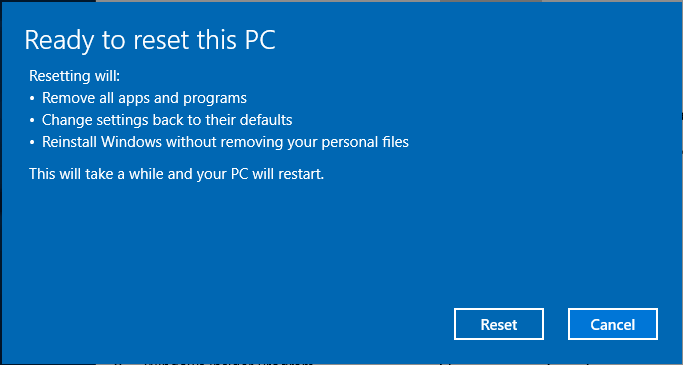
Step 4: Click Next to go on and Reset to confirm the decision.
Try Windows Backup Alternative to Back Up Data Flexibly
While Windows Backup can provide some level of data security, it's not immune to errors like code 0x8078002a. To ensure your data is truly safe and secure, we recommend using a more effective and reliable backup tool, such as Qiling Disk Master, as a superior alternative to Windows Backup.
Qiling Disk Master's user-friendly interface allows you to back up your files in safe mode, ensuring your critical information is always protected. With a simple selection process, the application takes care of the rest, resolving Windows backup problems and offering various backup alternatives. You can create different types of backups, including full, incremental, differential, disk/partition, file, system, and smart backups, giving you flexibility and peace of mind.
Sum UP
This post discusses the causes and solutions for Windows backup error code 0x8078002a, provides five effective fixes, and recommends using Qiling Backup to protect your data.
FAQs on How to Fix Windows Backup Error Code 0x8078002a
1. How do I fix the Windows backup error?
- Fix 1. Turn on System Protection.
- Fix 2. Delete the WindowsImageBackup folder.
- Fix 3. Repair the corrupted files via chkdsk command.
2. What is error 0x80780119 on Windows 10 backup?
When you create a System Restore point in Windows, it requires sufficient space on the destination drive to store all the backup files, or you may encounter errors like 0x80780119.
3. What is the error during System Restore 0x80070780?
This error occurs when a user tries to access files on their local drive or external USB, indicating they don't have permission to edit, delete, or duplicate the file.
Related Articles
- How to Fix iMessage Not Working on MacBook Air/Pro [Step-by-Step Tutorial]
- Wi-Fi not Working on Laptop, but Working on Phone | Solutions
- How to Boot from USB Ubuntu? [Full Guide in 2024]
- How to Change the Administrator on Windows 10 [Step-by-Step Guide]
- Solve Zsh: Command Not Found: Pip on Mac | 4 Fixes
If you're encountering the zsh: command not found: pip error, this issue can be resolved using one of the top 4 methods outlined in this article. - How to Fix Zsh: Command Not Found: Python [with Video]
The zsh: command not found: python issue has been addressed in this article, with the top four solutions discussed. If data is lost while resolving this problem, Deep Data Recovery for Mac can recover the lost data.
Products
Articles & Tutorials
- Data Recovery
- Data Backup
- File Recovery
- File Backup
- System Backup and Restore
- Disk and Partition Clone
- Technical articles
- Mobile articles
- Disk Master Help
- Windows Data Recovery Tutorials
- Windows Secure Delete Tutorials
- Windows Partition Management Tutorials
- Windows File Backup and Restore Tutorials
- Windows System Backup and Restore Tutorials
- Windows Disk Backup and Restore Tutorials
- Windows Clone Tutorials