How to Fix iMessage Not Working on MacBook Air/Pro [Step-by-Step Tutorial]
iMessage is Apple's all-Apple's free messaging service, available on all its platforms and devices, is a top-notch and protected way for users to communicate with each other, offering a normal and secure chatting experience.
iMessage may fail on Mac due to common issues such as pictures failing to load after a long idle time on a sleeping Mac, among other reasons.
If you're experiencing issues with iMessage not working on your Mac, don't worry, as there are several solutions to resolve this problem. You can try restarting your Mac, checking your internet connection, and ensuring that iMessage is enabled in System Preferences.
| Workable Solutions | Step-by-step Troubleshooting |
|---|---|
| Method 1. Make Sure iMessage Is Enabled Correctly | Open Messages on your MacBook Air or Pro, and you need to sign in to Messages with your Apple ID...Full steps |
| Method 2. Reset iMessage and Reboot Your Mac | Start the Messages application, and opt for Messages > Settings from its menu bar; open the iMessage...Full steps |
| Method 3. Restart Message App in Activity Monitor | Utilize the Command + Space keys, and look for Activity Monitor. Press the Return key...Full steps |
| Method 4. Sign in to iMessage Again on Your Mac | Start the Messages application, and hit the Messages option located beside the Apple symbol...Full steps |
| Other Methods | You can disable Focus Mode on Mac, sync iMessage Manually, and update macOS...Full steps |
To detect iMessage on your Mac, go to Messages > Settings, then select iMessage and toggle on Messages in iCloud. This will allow you to see if iMessage is enabled.
Without delay, let's see the reasons for iMessage not working on Mac and the potential fixes.
Why Is iMessage Not Working on Mac
There could be various reasons why iMessage isn't working on Mac, including a glitch with Apple's iMessage server or within the Messages app, or simply needing to adjust your settings. Additionally, it's possible that your Mac needs to be updated, which could resolve the issue.
To check if your macOS has been updated, go to "Settings > System Preferences > Software Update" and see if you receive a notification that your macOS is updated. If not, proceed to troubleshoot the iMessage not working issue on your Mac.
How to Fix iMessage Not Working on Mac
If iMessage on Mac isn't working correctly, there are several methods to fix the issue. Firstly, check if iMessage is enabled on your Mac and iPhone, and that your phone number is entered correctly.
Method 1. Make Sure iMessage Is Enabled Correctly
To troubleshoot issues with iMessage not working on your Mac, ensure you have enabled iMessage correctly. To do this, go to System Preferences, then click on Messages, and finally, click on the "iMessage" tab. Make sure that "Enable this account" is selected and that your Apple ID is entered correctly.
Step 1. To access the Messages app on your MacBook Pro/Air, open the Messages app, which can be found in the dock or in the Applications list in the Finder.
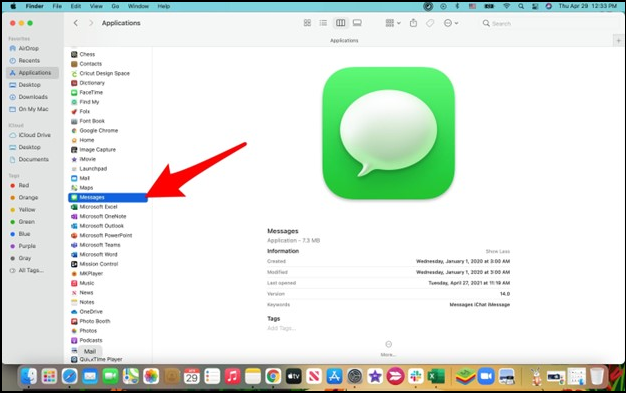
Step 2. To access Messages with your Apple ID, you need to sign in and complete the two-step verification process.
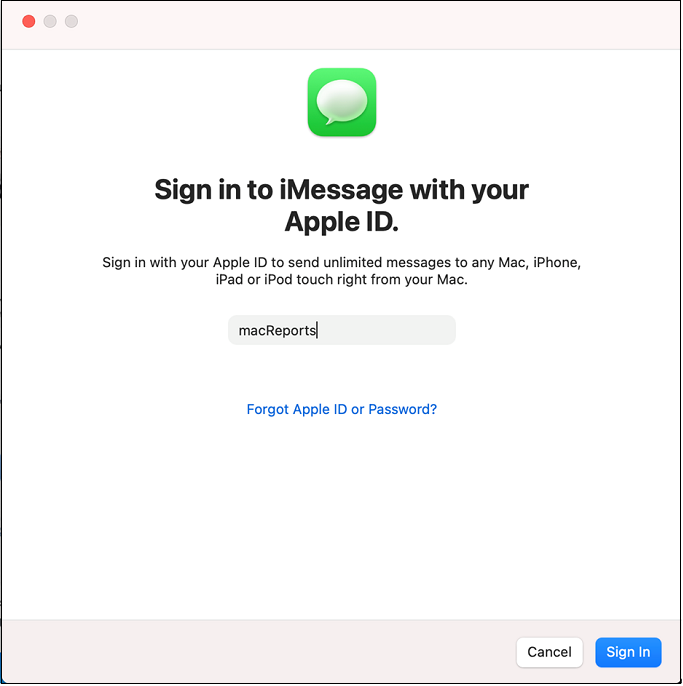
Step 3. You may now access your messages. In this step, you can notice the contact numbers instead of the contacts.
To resolve the iMessage not working on Mac issue, check the internet connection, restart the Mac, and ensure that the phone and Mac are signed in to the same Apple ID. Also, try resetting the System Configuration and checking the iMessage settings on both the Mac and iPhone.
Method 2. Reset iMessage and Reboot Your MacBook
Rebooting your system daily can help fix various faults, but don't forget to resolve iMessage issues. To reset iMessage on your Mac, turn it off, reboot, and then turn it back on.
Step 1. The Messages application can be started, and from its menu bar, "Messages > Settings" can be chosen.
Step 2. To disable iMessage in iCloud, go to the iMessage tab, and uncheck the box next to "Enable Messages in iCloud" under your Apple ID.
Step 3. To restart your MacBook Pro/Air, go to the Apple menu in the top-left corner, click on it, and select Restart. After restarting, go back to Messages > Preferences > iMessage and toggle the switch back to "On" to enable iMessage again.
How to Hard Restart Mac or MacBook [2023 Update]
If your Mac suddenly stops responding or faces technical issues, there are three ways to perform a hard restart. You can press the power button on your Mac to force it to shut down, or if that doesn't work, try pressing Command (⌘) + Option (⌥) + Power buttons simultaneously to initiate a shutdown. Alternatively, you can also press Command (⌘) + Option (⌥) + Shift + Power buttons at the same time to force your Mac to shut down and restart.
Method 3. Restart Message App in Activity Monitor
Follow these steps to troubleshoot a frozen Messages app on your Mac: Open the Activity Monitor, find the Messages process, click on it, and then click the "X" button to quit the process. This will close the Messages app completely, allowing you to restart it without any issues. By doing so, you can resolve the problem and get the app working properly again.
Step 1. To access Activity Monitor on a Mac, press the "Command + Space" keys to open Spotlight, and then type in "Activity Monitor" in the search field. This will quickly locate and open the Activity Monitor application, allowing you to view and manage system processes, memory usage, and other system information.
Step 2. Press the "Return" key, and commence the app.
Step 3. To close the Messages app on a Mac, locate it in the list of open apps, click on it, and then click the "X" mark at the top of the window to shut it down completely. This will close the Messages program and free up system resources.
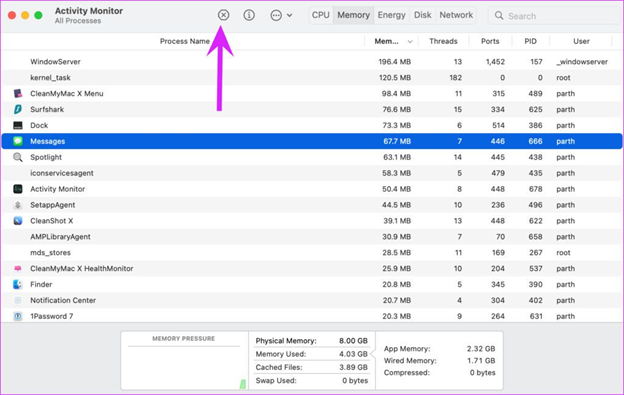
To resolve the issue, simply restart the messaging application. Once you've done that, reopen the messaging application; everything should function normally now.
Open Task Manager on Mac [Activity Monitor]
You can open Task Manager on your Mac computer, also known as Mac Activity Monitor, using four simple methods. Read more > (Note: I removed the extra text at the end as it's not necessary for a rewritten paragraph) Let me know if you'd like me to make any further adjustments!
Method 4. Sign in to iMessage Again
To fix iMessage not working on Mac, try signing out of your Apple account and signing back in. You can do this by clicking on Messages > Preferences > Accounts, then select your Apple ID and click on "Sign Out". Wait for a few seconds, then sign back in with your Apple ID and password. This usually resolves the authentication issue and gets iMessage working again on your Mac.
Step 1. Start the Messages application on the Mac.
Step 2. To access the Messages preferences, click on the Messages option located beside the Apple symbol at the top of the screen, and then select "Preferences".
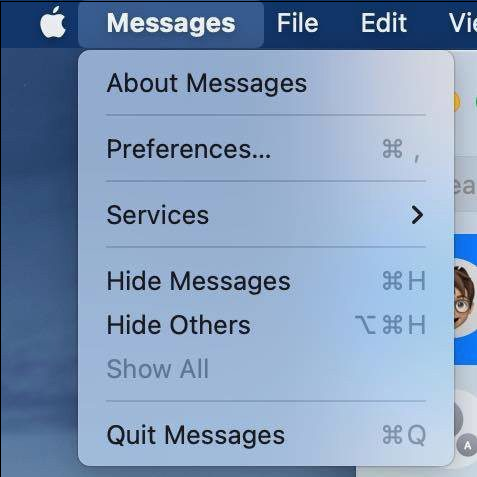
Step 3. To sign out of iMessage, go to the iMessage tab and select the option to sign out, which is located beside the Apple ID.
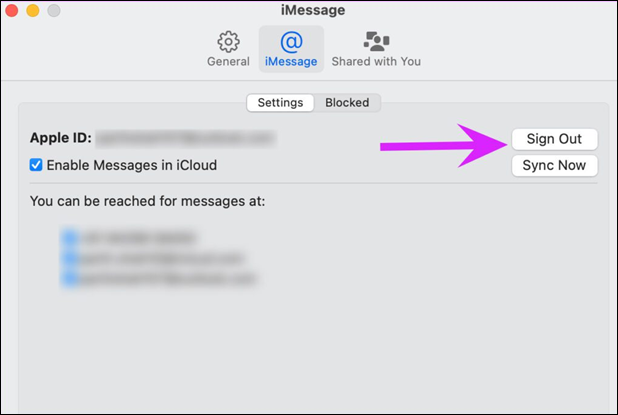
To verify that your Mac retrieves fresh messages, relaunch the Messages app after authenticating through the same Apple ID.
Method 5. Disable Focus Mode on Mac
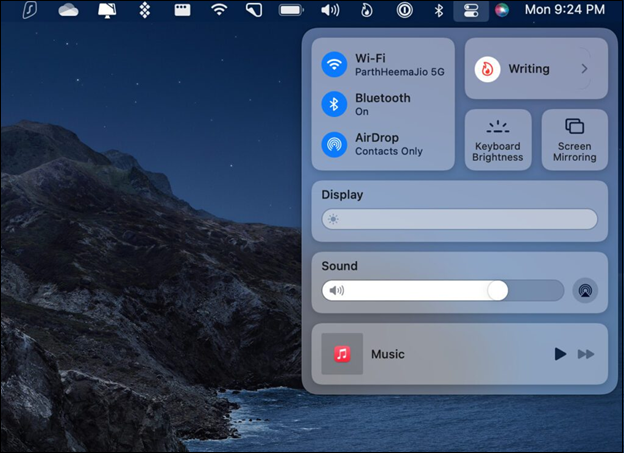
To disable Focus mode on Mac, follow these steps: while using Focus mode on Mac, Messages will never disturb you with the newest iMessage notifications on Mac. You can disable Focus mode by following the steps below.
Step 1. Visit the notification center.
Step 2. To disable Focus on Mac from the Control Center menu, go to the menu bar, click on the Control Center icon, then select "Do Not Disturb" and toggle it off. Alternatively, you can opt for the latest texts by going to Settings > Messages > Text Messages > "Show Previews" and selecting "Always".
Method 6. Sync iMessage Manually
To resolve issues with iMessage not working on your Mac, you can try syncing it manually. This involves going to System Preferences, then clicking on Apple ID, and finally clicking on "Sync Now" to ensure all your iMessage settings are up to date. Additionally, checking your iMessage account status and verifying that your Mac and iPhone are connected to the same Apple ID can also help resolve any syncing issues. If you're still experiencing problems, restarting your Mac and checking for any software updates may also be necessary.
Step 1. To launch Messages on your MacBook, look for it in the Applications list in the Finder.
Step 2. Hit "Messages" in the menu bar.
Step 3. Select "Preferences" to open it.
Step 4. Select "iMessage".
Step 5. Select the box "Enable Messages in iCloud".
Step 6. To close the window, click the red "X" button, and your changes will be auto-saved.
To keep your iMessage communications in sync, you can try syncing them manually by going to "Preferences" and selecting the iMessage tab's "Sync Now" option. If that doesn't work, try logging out of Messages and back in again. This should resolve any issues with syncing.
If you can't find some messages or accidentally deleted data from iMessage, a powerful data recovery software called Deep Data Recovery for Mac can help you recover deleted iMessage data among other file types in various situations.
To recover lost or deleted iMessage data, install the Qiling data recovery software and follow the prompts to retrieve your lost messages with just a few clicks.
Step 1. Select the partition that stores your lost/deleted iMessage.
Step 2. Click "Scan" and choose the data you want to restore.
Step 3. Click "Recover" to get it back, and save it to a secure location.
Method 7. Update macOS
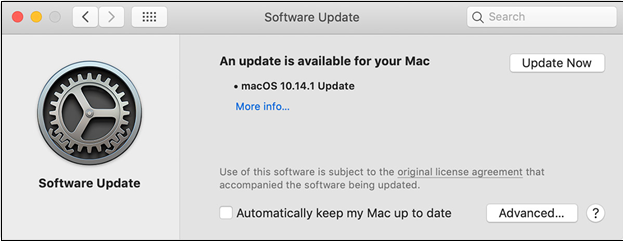
You must double-To troubleshoot issues with iMessage on your MacBook, ensure your macOS is up-to-date by checking for the latest update. If the issue persists, consider updating to the most recent macOS version, which may resolve the problem and provide access to the latest iMessage features. You can follow these steps to update your macOS:
Step 1. Opt for "System Preferences" from the Apple menu,
Step 2. Hit the "Software Update" to search for the latest updates.
Step 3. Click "Update Now" to update macOS.
Conclusion
The solutions to the "iMessage not working on Mac" problem are all described above, and hopefully, one will be effective for you. Irrespective of popular belief, iMessage is quite important globally. The issues and fixes listed above should help resolve any issues you're experiencing with iMessage on your Mac.
In the US, iMessage is the go-to texting service, but its downtime can lead to wasted work hours. To avoid this, try the suggested tips.
iMessage Not Working on Mac FAQs
Go through the below-If your iMessage is not working on your Mac, it might be due to a software issue, internet connectivity problem, or a problem with your Apple ID. Check if your Mac is running the latest version of macOS, and ensure that iMessage is enabled in System Preferences.
1. How do I get my iMessage to work on my Macbook?
To set up iMessage on your MacBook, you'll need to enter your Apple ID and password in the Mac's Messages application, then sign in, ensuring you use the same Apple ID on all devices.
2. Why won't my iPhone Messages connect to my Mac?
To find the "Messages > Preferences > messages" option, open the Messages app on your Mac, then check if the same Apple ID is logged in on both devices.
To verify Text Message Routing on your iPhone, go back to the previous screen, and remove your Mac from the list if it has been enabled. Then, restart your iOS device. This will ensure that your Mac is properly connected and your texts are being routed correctly.
3. Why is my iMessage suddenly not working?
If iMessage suddenly stops working, it's likely due to a lack of a reliable broadband connection, such as 3G, 4G, or 5G, or a weak WiFi signal.
If your iMessage fails to send due to a lack of WiFi or cellular connection, try accessing the internet via Safari to see if you have a connection.
4. Why am I not getting texts on my Macbook?
Ensure your Mac is connected to the internet, open a webpage in Safari to confirm, and check that the date and time are set correctly. Also, verify the contact's email or phone number is entered properly.
Related Articles
- How to Use Diskpart to Set Boot Partition in Windows 10 [2023 New Guide]
- Windows Solution: Can't Create Restore Point Windows 10
- [2023 Guide] macOS High Sierra Download and Install
- How to Factory Reset an Acer Laptop on Windows 10/8/7
- Hyper-V vs. VMware: Which Is the Better Choice for You?
When it comes to choosing between Hyper-V and VMware for your virtualization needs, there are several factors to consider. Compare features, pricing, scalability, and security to find the best hypervisor for your business. - What Is Immutable Backup? [All You Need to Know]
Immutable backup creates tamper-proof data copies that cannot be modified or deleted. Learn how immutable backups protect against ransomware and ensure data integrity for your business.
Products
Articles & Tutorials
- Data Recovery
- Data Backup
- File Recovery
- File Backup
- System Backup and Restore
- Disk and Partition Clone
- Technical articles
- Mobile articles
- Disk Master Help
- Windows Data Recovery Tutorials
- Windows Secure Delete Tutorials
- Windows Partition Management Tutorials
- Windows File Backup and Restore Tutorials
- Windows System Backup and Restore Tutorials
- Windows Disk Backup and Restore Tutorials
- Windows Clone Tutorials