4 Ways to Reinstall Windows Without Losing Games or Apps
Reinstalling Windows can be a lengthy process that cleans all faulty, outdated, and unused system drivers, but it also poses a risk of losing apps, saved items, and other important data. However, there are ways to reinstall Windows without losing games or apps, and it's possible to save your important data by taking necessary precautions during the installation process.
With a small share of work, you can prevent data loss and protect the games and apps on your computer.
Why You Need to Reset or Reinstall Windows PC
People often reset or reinstall their PC Windows to resolve issues with their computer.
- Reinstalling Windows can help recover from Windows or system crashes, potentially recovering all lost data.
- Using this tool can be a great help in preventing Windows troubleshooting and eliminating any critical errors that may occur in Windows.
- Upgrading outdated apps can be a straightforward process. By following these steps, you can ensure that your apps are running with the latest features and improvements.
- When upgrading or repairing a computer, it's often necessary to shut down the computer completely before making any changes. This is because many computer components, such as the processor, memory, and storage, are sensitive to power and can be damaged if they are accessed or modified while the computer is still running.
- Reinstalling Windows can help remove unnecessary junk files and erase bloatware, leading to improved PC performance.
Can I Reset Windows Computer While Keeping Games
By default, a standard Windows reset or reinstallation will remove your games and apps.
Resetting the PC only preserves personal files saved in the user folders, not installed apps or games. Therefore, it is best to back up your games and apps before reinstalling Windows to ensure they are not lost. After reinstalling Windows, you can restore your games from the backup.
How Do I Reinstall Windows Without Losing Games or Apps
Reinstalling Windows can be a challenge, but there are ways to do it without losing your programs. Fortunately, there are four effective methods that can help you reinstall Windows smoothly, allowing you to keep all your installed programs intact.
- Solution 1. Using Professional Backup Software
- Solution 2. Creating a Bootable USB Flash Drive
- Solution 3. Creating a Custom Refresh Image
- Solution 4. Using ISO Image File
Solution 1. Using Professional Backup Software
Using backup software is a crucial step in protecting your PC's data, allowing you to easily restore your files if something goes wrong during the Windows installation process. This means you can reinstall Windows without losing your games or other important data, making professional backup software like Qiling Backup a valuable tool.
Qiling Backup Home is a practical and easy-to-use backup software for Windows, allowing users to create a backup of their existing operating system, restore the system, and create different types of backups, including an iso image from the operating system.
To reinstall Windows without losing games, you'll need to create a system backup and restore it. This involves taking a snapshot of your current system configuration, including all installed games, and then restoring that backup after reinstalling Windows. By following these steps, you can ensure that your games are preserved during the reinstallation process.
Part 1. Creating a system backup.
Step 1. Launch Qiling Backup on your computer, click System Backup on the home screen to begin the backup task.

Step 2. On the next step, your Windows operating system information and all system related files and partitions will be automatically selected, so you don't need to do any manual selection. Then, you'll need to choose a location to save the system image backup by clicking the illustrated area.

Step 3. The backup location can be another local drive, external hard drive, network, cloud, or NAS, but it's recommended to use an external physical drive or cloud to preserve system backup files.

Step 4. The Windows system backup process can be customized with settings like automatic backup schedules in daily, weekly, monthly, or upon an event, as well as differential and incremental backup options, all accessible through the Options button. Upon selecting the desired settings, clicking Proceed initiates the backup process, which is then displayed on the left side in a card style once completed.

Part 2. Restoring it on your computer.
To perform system recovery on a non-bootable machine, try booting the computer through the system recovery options, available through the BIOS settings or a bootable USB drive. This allows you to access the system recovery tools and potentially restore the system to a working state.Qiling Backup emergency disk.
Step 1. Launch Qiling Backup, click "Browse to Recover".

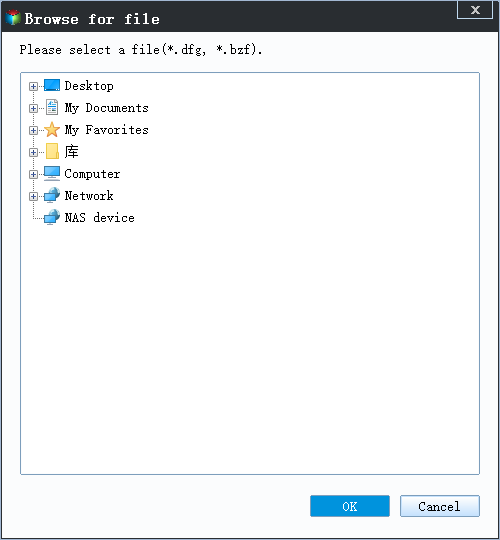
Step 2. Choose the system backup file you need from your backup destination, which was created by Qiling Backup as a .fvd file.
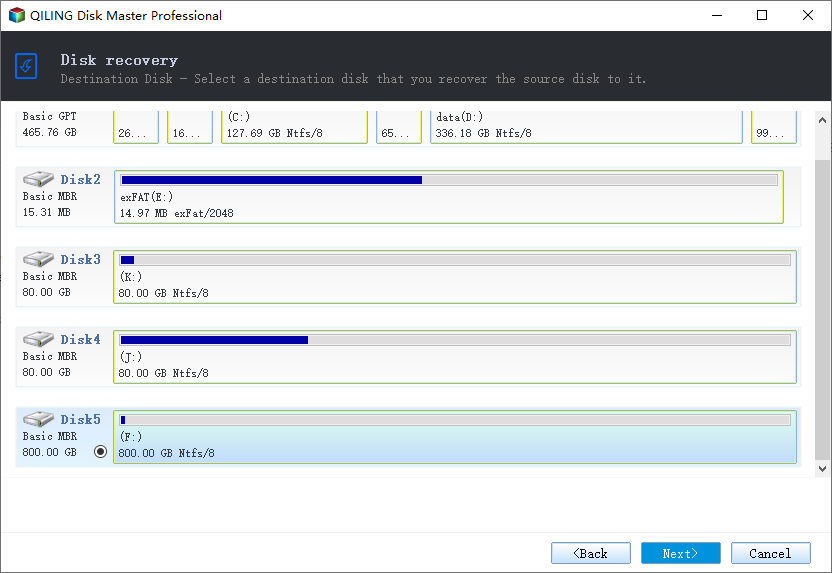
Step 3. To ensure a successful recovery, choose a recovery disk that has the same partition style as the source disk. This means that both disks should be either MBR (Master Boot Record) or GPT (GUID Partition Table) partitioned, as mismatched partition styles can prevent the recovery process from working properly.
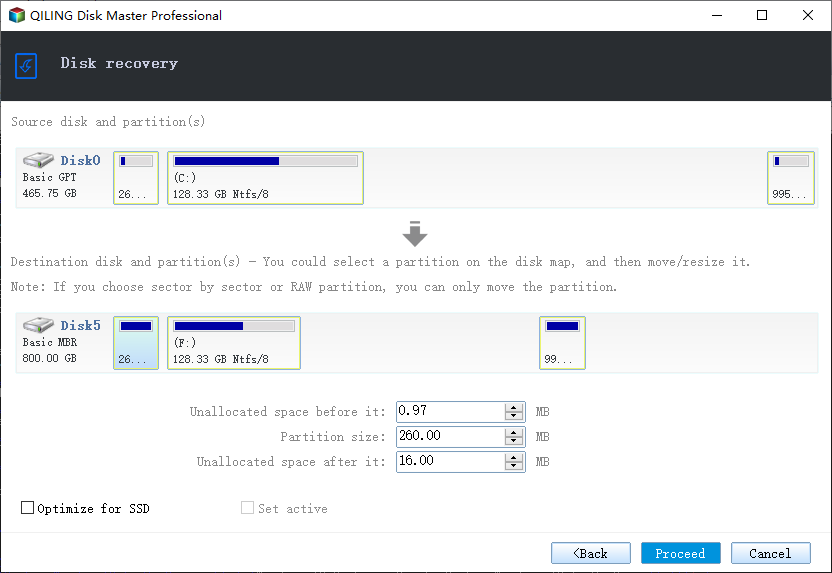
Step 4. You can customize the disk layout based on your needs, then click "Proceed" to initiate system backup recovery.
Solution 2. Creating a Bootable USB Flash Drive
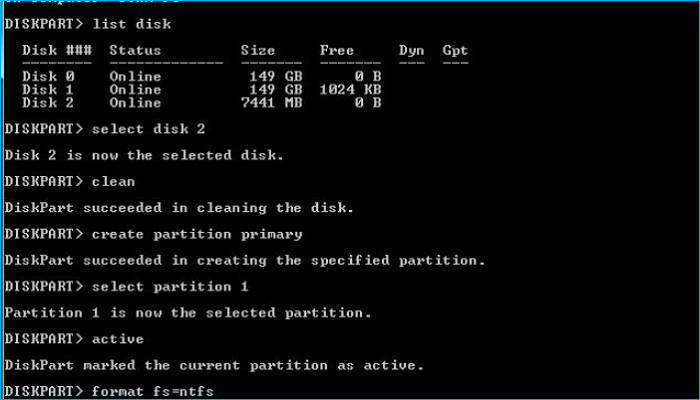
To protect your data during a Windows reinstallation, consider creating a bootable USB drive. This will enable you to restore your computer and operating system without losing any data or applications.
Creating a bootable USB flash drive is a helpful way to back up games or apps during reinstallation. This can be done manually without relying on third-party software, and the process involves a step-by-step guide.
Step 1. Insert a USB flash drive into the PC.
Step 2. Now search for "command prompt" and open its window.
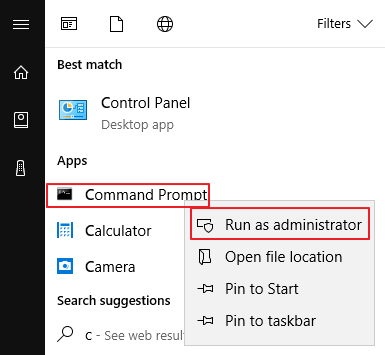
Step 3. To open the Command Prompt as an administrator, first, click on the Start menu and select "Computer" or "This PC". Next, right-click on the drive you want to access and select "Manage".
Step 4. To access the USB flash drive in the command window, click on the USB flash drive window at the command prompt. This will allow you to interact with the device.
Step 5. This process will create a bootable USB flash drive for Windows, allowing you to start your computer from the USB drive instead of the hard drive. Additionally, it will save your apps and games from getting deleted during the process, ensuring that your important data remains intact.
Solution 3. Creating a Custom Refresh Image
If you're reinstalling Windows and want to keep your games and apps, you can create a custom refresh image that includes all your favorite programs. Using the built-in Windows 8 or 10 PC settings, you can store up to two gigabytes of data on an external drive, then reinstall Windows while keeping your games and apps intact. This way, you can boot into the custom image and enjoy your installed programs without having to reinstall them.
To create a custom refresh image with games and programs, follow these steps:
Step 1. Open the Command Prompt as an administrator.
Step 2. Type the following command to create a custom refresh image: recimg /CreateImage C:\RefreshImage
Step 3. Once the command completes, the custom refresh image will be saved to the specified folder. You can now use this image to refresh your PC while keeping your games and apps intact.
Solution 4. Using ISO Image File
To prevent losing games, apps, and files when reinstalling Windows 10, you can use a Windows 10 ISO image that includes all the programs and files you want to keep intact during the installation process. This approach ensures that your desired content remains on your computer even after reinstalling Windows 10.
Step 1. Locate the Windows 10 ISO file, right-click on it, and choose Mount to proceed.

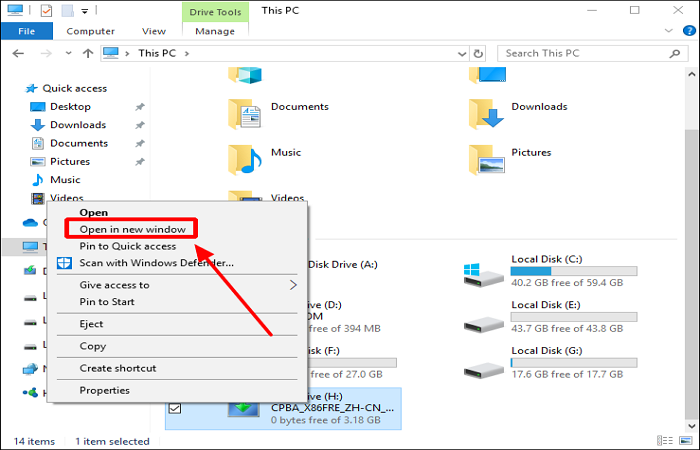
Step 2. To access the contents of a DVD drive, go to This PC, right-click on the DVD drive, and select Open in new window.
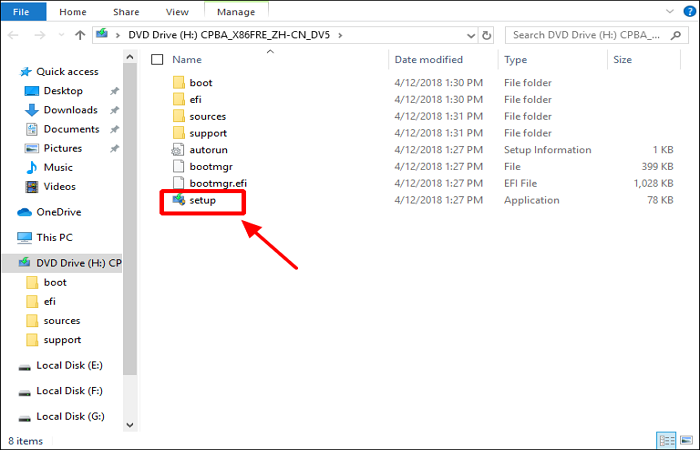
Step 3. Double-click on the setup, and then click on Yes.
Step 4. Select Download and install updates, and then click on Next.

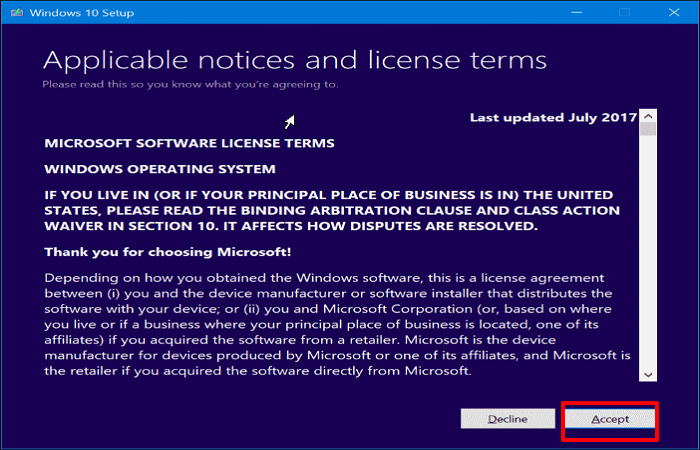
Step 5. Please wait to check for updates, and click Accept when you see the License terms.
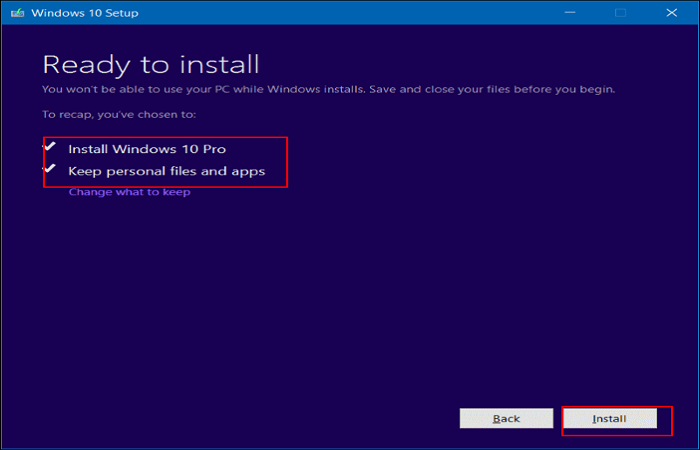
Step 6. When the "Ready to install" message appears, select "Install Windows 10" and "Keep personal files and apps" to proceed. Then, click on the "Install" button.
The Bottom Line
You can reinstall Windows without losing games by using any of the methods offered in this article. Qiling Backup stands out among the four ways as it not only helps you reinstall Windows but also allows you to perform other tasks.
FAQ
1. Can I reset Windows 10 without losing games?
Resetting your computer is a great way to get rid of any bloatware, viruses, and other malware that may be causing problems on your PC. Before doing so, make sure to back up your data to ensure you don't lose any important files or apps. This process, also known as a "fresh start," will give your computer a clean slate, allowing you to start fresh without any unwanted programs or issues.
2. Will a fresh start remove my game?
A fresh start won't remove your game, but it ensures the game runs optimally. If you want to delete the game files from the hard drive, you'll still need to do that yourself.
3. Does resetting the PC only affect the C drive?
Resetting your computer only affects the C drive, but it doesn't mean all your data will be lost. You can recover data from other drives and external disks using a data recovery tool.
4. Is it better to reset or reinstall Windows 10?
If the reset process doesn't work, reinstalling Windows 10 is often the best solution, as it will give you a fresh start and allow you to set everything up again from scratch.
Related Articles
- How to Copy/Clone Bootable USB Drive in Windows 10/8/7 (2022 Tips)
- 10 Best OS Deployment Software [Updated 2022]
- How to Backup NAS to Google Drive (2 Proven Ways)
- Free! How to Backup Windows 10 to DVD [Windows 10 Backup]
- How to Backup/Transfer Kodi(XBMC) with Addons and Settings
If you're looking to transfer Kodi with all its configurations from one device to another, a simple backup and transfer tool is a must-have. - How to Change Download Location in Windows Server
To change the download location in Windows Server, click on the “Move” option, which will display a list of destination folders. Click on “This PC” to select a new preferred download location.
Products
Articles & Tutorials
- Data Recovery
- Data Backup
- File Recovery
- File Backup
- System Backup and Restore
- Disk and Partition Clone
- Technical articles
- Mobile articles
- Disk Master Help
- Windows Data Recovery Tutorials
- Windows Secure Delete Tutorials
- Windows Partition Management Tutorials
- Windows File Backup and Restore Tutorials
- Windows System Backup and Restore Tutorials
- Windows Disk Backup and Restore Tutorials
- Windows Clone Tutorials