8 Tips | How to Fix Windows 7 Stuck on Welcome Screen
If your Windows 7 computer is stuck on the welcome screen, don't worry, as we have 8 solutions to help you resolve this issue. This problem can occur due to various reasons, so it's essential to try every solution to eliminate it. Let's look at the solutions to get your Windows 7 computer up and running again.
8 Ways to Fix Windows 7 Stuck on Welcome Screen
If your Windows 7 computer is stuck on the welcome screen, there are several possible causes and steps you can take to resolve the issue. The problem can be caused by a number of factors, so we'll walk through some of the most common problems to get your system up and running. To start, try booting in safe mode to see if the problem persists, and if so, you may need to run a system restore to a previous point when your computer was working normally.
- Fix 1. Disconnect USB Devices
- Fix 2. Disconnect from the Internet
- Fix 3. Use Boot Repair Tool
- Fix 4. Restart Windows Update Service
- Fix 5. Perform Startup Repair
- Fix 6. Run System Checks
- Fix 7. Clean Boot Troubleshooting
- Fix 8. Restore Windows
- Fix 9. Replace Hard Drive
Fix 1. Disconnect USB Devices
You may be experiencing this issue due to multiple USB devices connected to your computer, such as a keyboard, mouse, USB adapters, speakers, or Bluetooth speakers. Try disconnecting these devices. If you have Bluetooth devices connected, turn off your Bluetooth to disconnect them. This should resolve the issue.
Fix 2. Disconnect from the Internet
This problem may occur due to the internet connection. There are possibilities regarding this, so you need to disconnect the internet connection whether you have connected through a wired internet connection or a WiFi connection.
The detailed steps are as follows:
Step 1. To disconnect a wired connection, simply unplug the Ethernet cable from the device and the router, then remove the cord.
Step 2. If your computer is connected to the internet through WiFi, turn off your WiFi device until the problem is resolved.
Fix 3. Fix Windows 7 Welcome Screen with Boot Repair Tool
If the error still exists on your PC, take a third-party boot repair tool - Qiling Disk Master - for help. This software recently updated with a Boot Repair feature that helps a wide range of computer booting issues, including the Windows stuck on welcome screen error.
To fix this issue, download and install the software on a healthy computer, then create a bootable media on an external USB drive. From there, follow the steps below to troubleshoot the problem on your own.
Step 1. To create a bootable media using Qiling Disk Master, connect the external drive/USB to your computer and launch Qiling Disk Master. Go to the "Bootable Media" section and click on "Create bootable media" to proceed.

Step 2. To create a Windows installation media, select an available USB drive or CD/DVD and click "Create." Alternatively, you can burn the Windows ISO file to the selected storage media.

Step 3. Connect a bootable drive to a new computer, reboot by pressing F2/Del to enter the BIOS, set the bootable drive as the boot disk, and exit by pressing F10.
Step 4. Boot the computer again, enter the WinPE interface, and open Qiling Disk Master. From the "Tools and utilities" tab, click on "Fix Boot".

Step 5: Select the system you want to repair and click "Proceed".

Step 6. The system has been successfully repaired. Click "Finish" to complete the boot repair process.
Fix 4. Restart Windows Update Service
To resolve the issue, restart the Windows Update service by following these steps:
Step 1. Press the Windows key + R keys to open the dialogue box, type "cmd" and press the Enter button.
Step 2. Open the Command Prompt and type `cd Desktop` and press Enter. Then, type `mkdir MyNewFolder` and press Enter.
net stop wuauserv
cd %systemroot%
ren SoftwareDistribution SD.old
net start wuauserv
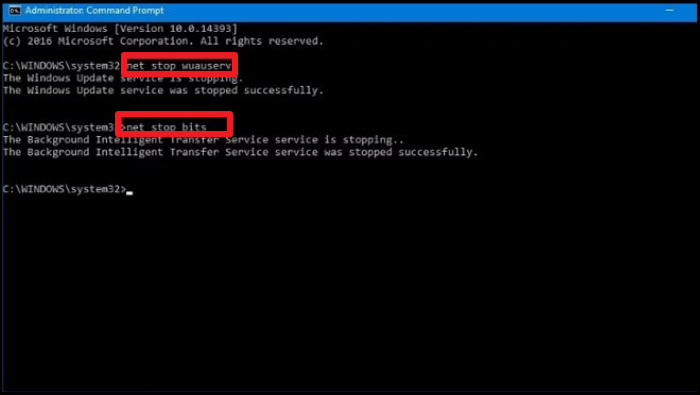
Step 3. To close the program, click on the "X" button in the top right corner of the window, then click on "Exit" in the menu that appears. Alternatively, you can type "exit" in the command line and press Enter. Finally, restart your computer to complete the uninstallation process.
Fix 5. Perform Startup Repair
To resolve the Windows 7 stuck on welcome screen issue, try this method: Press the Shift key while clicking on the Restart button in the Windows 7 boot menu. This will boot Windows 7 in Safe Mode with Networking, allowing you to troubleshoot and resolve the issue preventing the welcome screen from loading.
The detailed steps are as follows:
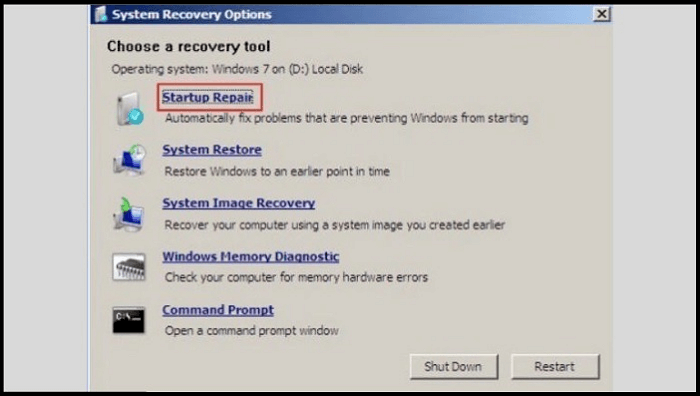
Step 1. To resolve the issue, boot your PC to System Recovery Options, and restart it using the power button. This will allow you to access the recovery environment and potentially resolve the problem.
Step 2. As your PC restarts, hold the "F8" key from your keyboard before the Windows logo appears.
Step 3. To resolve the issue, select "Repair and System Recovery" from the advanced boot options, then choose "Startup Repair" and proceed with the subsequent steps as prompted.
Fix 6. Run System Checks
Running system checks may resolve the issue if corrupted files are the cause, so it's worth taking a closer look.
Step 1. To start booting, insert the Windows bootable media drive into your PC or laptop.
Step 2. Select language and click "Next".
Step 3. To open Command Prompt, press the "Shift" and "F10" keys from your keyboard.
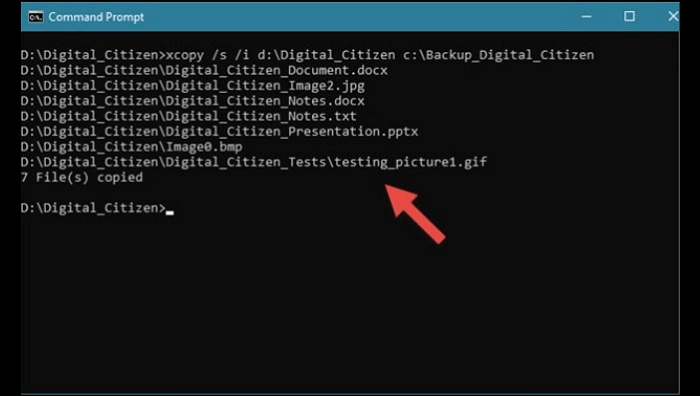
Step 4. Open Command Prompt, then navigate to the Documents folder by typing `cd C:\Users\username\Documents` (replace username with your actual username) and pressing Enter. Create a new folder named NewFolder by typing `mkdir NewFolder` and pressing Enter.
sfc /scannow
chkdsk c: /f /r
bootrec /fixmbr
bootrec /fixboot
bootrec /scanos
bootrec /rebuildbcd
Step 5. To resolve the issue, go to the Task Manager, find the problematic process, right-click on it, and select "End Task". Then, write "Exit" and press the "Enter" button to close the Task Manager and restart your PC/Laptop.
Fix 7. Clean Boot Troubleshooting
The issue may be caused by a misconfigured driver or another reason. To resolve it quickly, you can try clean boot troubleshooting. This involves following detailed steps to isolate the problem and potentially fix it. Would you like me to provide the steps?
Step 1. Click the Windows "Start" button from the bottom left corner, and type msconfig in the opened search bar or dialogue box.
Step 2. To enable selective startup, click on "Selective Startup" and deselect the "Load Startup items" option located under the "Selective Startup" section.
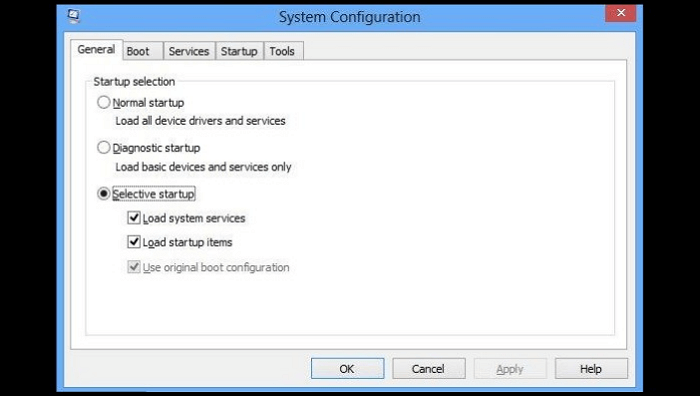
Step 3. To hide all Microsoft services, go to the "Services" tab, click "Hide all Microsoft Services" from the bottom left corner, then click "Disable All" from the bottom right and confirm with "OK".
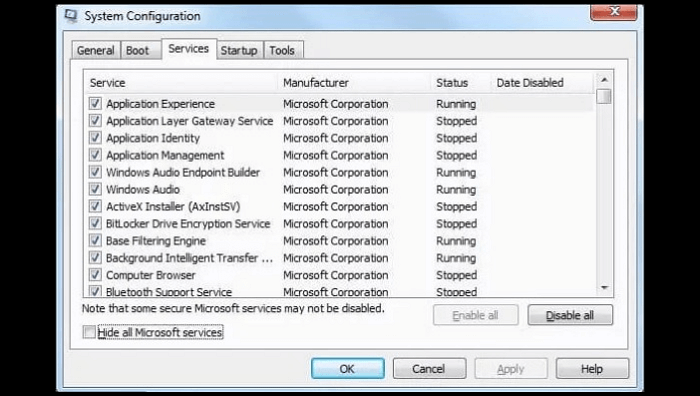
Step 4: Click "Restart" when prompted.
Fix 8. Restore Windows
If you've enabled system restore and created a restore point, you can revert to a previous configuration that worked well. To do this, go to Start, type 'system restore' in the search bar, click on the System Restore option, select the restore point you created, confirm your choice, and let the system restore to the selected point. Wait for
Step 1. To restore Windows to a previous state, go to the Control Panel, then System Properties, followed by System Protection, and select System Restore.

Step 2. Once the pop-up appears, click "Next" to start the system's restore wizard.
Step 3. From the list, select a restore point, confirm the restoration and click "Finish".
- Notice:
- You need to check the list of affected programs to understand if you are deleting an essential update or program.
Fix 9. Replace Hard Drive
If the above solutions don't work, it's likely that the hard drive is dead and needs to be replaced. In this case, you'll need to get a new hard drive and reinstall all programs, including the Windows operating system.
Bonus Tip After Solving Stuck on Welcome Screen
If you've managed to solve the problem, congratulations! If not, don't worry, you now have a better understanding of how to resolve the issue with Windows 7 getting stuck on the welcome screen. As with any device, machines can malfunction, and it's essential to be prepared for such situations. In this regard, we're here to help with an additional tip and a permanent solution, the Qiling Disk Master Pro. This convenient tool allows you to back up your crucial data, ensuring it remains safe in case of any potential disaster. With Qiling Disk Master Pro, you can recover your data whenever you need it.
You can refer to the following steps to use this nice software.
Step 1. Launch Qiling Disk Master on your computer, click "Create Backup" on the home screen, and then select the backup contents by clicking the big question mark.

Step 2. To create a backup of your Windows operating system, click on the "System backup" option to initiate the backup process.

Step 3. In Windows, the system information and all system-related files and partitions will be automatically selected, so manual selection is not required. To proceed, you'll need to choose a location to save the system image backup by clicking on the designated area.

Step 4. The backup location can be another local drive, external hard drive, network, cloud, or NAS, with external drives or cloud storage being recommended for preserving system backup files.

Step 5. The Windows system backup process can be customized with options such as setting an automatic backup schedule for daily, weekly, monthly, or event-based backups. Additionally, differential and incremental backup settings are available through the Options button. Once selected, clicking Proceed initiates the backup process, which is then displayed on the left side in a card style, showing the completed task.

You should use Qiling Disk Master to protect your data and make a safe backup because it allows you to create a full backup of your data, ensuring that your important files are safe in case of a system failure or data loss. With Qiling Disk Master, you can easily restore your data to its previous state, minimizing the risk of losing valuable information.
Because of:
- Qiling Disk Master allows you to back up your computer to the cloud drive.
- You can clone, upgrade or transfer your system smoothly.
- It provides a security zone and offers ransomware backup solutions.
- 250GB cloud storage is available for free, allowing users to enjoy its benefits without any cost.
- And many other countless benefits and very easy features.
- You can realize system backup and restoration.
Don't wait any longer! Download Qiling Disk Master Pro to enjoy its numerous benefits and features, and rest assured that you're protected from potential data disasters.
The Bottom Line
To resolve the issue of your computer getting stuck on the Windows 7 welcome screen, consider disconnecting it from the Internet or USB devices. Alternatively, you can try restarting the Windows Update Service, performing a Startup Repair, running system checks, or using Clean Boot Troubleshooting. If none of these solutions work, you may need to restore Windows to its original settings.
If the above methods don't resolve the issue of Windows 7 stuck on welcome screen, replacing a hard drive will solve your problem. In the end, don't forget to leave your valuable feedback. Also, you can tell us, if you have any other solutions to resolve Windows 7 stuck on welcome screen issue. We'd love to learn from you.
FAQs on Windows 7 Stuck on Welcome Screen
You may also have questions below:
1. Why is my computer stuck on the starting Windows screen?
Windows 7 is no longer supported by Microsoft, as it's been retired, and the company has released newer versions of Windows. The operating system is also around 13 years old, having been released in 2009, making it outdated and vulnerable to security threats. This is one of the main reasons people face issues with it.
Many Windows 7 users face the issue of their computer freezing or shutting down unexpectedly. This problem can be caused by a variety of factors, including running out of memory on the main drive or the presence of a virus. To resolve this issue, users can try the solutions discussed above, which include checking for viruses, running disk cleanup, and adjusting system settings to optimize performance. By trying these solutions, users can eliminate the problem and ensure their computer runs smoothly and efficiently.
2. Why is my Windows 7 not loading?
If your Windows 7 isn't loading, it could be due to a software or hardware issue. Software problems might include malware or virus attacks, outdated drivers, or lost or corrupt system files. Hardware issues could be related to the power supply unit, motherboard, or overheating, while connected USB devices might also cause problems. These potential faults can prevent your computer from loading Windows 7.
3. How do I start win7 in Safe Mode?
To start Windows 7 in Safe Mode and diagnose or fix issues, follow these steps:
Step 1. Restart your PC/Laptop.
Step 2. Press "F8" instantly after turning it on.
Step 3. Press the Windows key + X and select Settings. Click on Update & Security, then Troubleshoot, and finally Advanced options. Select Restart now, then select Troubleshoot, Advanced options, and finally Startup Settings. Press the Restart button and select Safe Mode.
4. What do I do if my computer is stuck on the welcome screen?
If your computer is stuck on the welcome screen, try disconnecting the internet or USB devices, then try alternative solutions such as restarting the Windows Update Service, performing a startup repair, running system checks, doing a clean boot troubleshooting, and restoring Windows.
Related Articles
- Mac Software Update Not Working | 6 Proven Ways to Fix It [macOS Sonoma Included]
- Best NAS for Home Media (2023 Selected)🏅
- How to Open PowerShell on Windows 10? [Step by Step]
- [8 Fixes] How to Fix Windows 10 File Sharing Not Working After Update 1803/1809/1903
- You May Not Install to This Volume Because It Is Currently Being Encrypted
Fix the macOS message you may not install to this volume. Learn causes, disk format checks, and safe installation options. - How to Fix Zsh Command Not Found Brew Error [Mac Terminal Guideline]
This article addresses the zsh command not found brew error on Mac or Linux, providing five fixes to resolve the issue. It offers step-by-step instructions to resolve the zsh command not found brew problem on a Mac using the terminal.
Products
Articles & Tutorials
- Data Recovery
- Data Backup
- File Recovery
- File Backup
- System Backup and Restore
- Disk and Partition Clone
- Technical articles
- Mobile articles
- Disk Master Help
- Windows Data Recovery Tutorials
- Windows Secure Delete Tutorials
- Windows Partition Management Tutorials
- Windows File Backup and Restore Tutorials
- Windows System Backup and Restore Tutorials
- Windows Disk Backup and Restore Tutorials
- Windows Clone Tutorials