You May Not Install to This Volume Because It Is Currently Being Encrypted
When you see the error "You may not install to this volume because it is currently being encrypted" on your Mac, it's likely due to the operating system's attempt to protect your data during the encryption process. This can happen when you're trying to install software, update your operating system, or perform other system-related tasks.
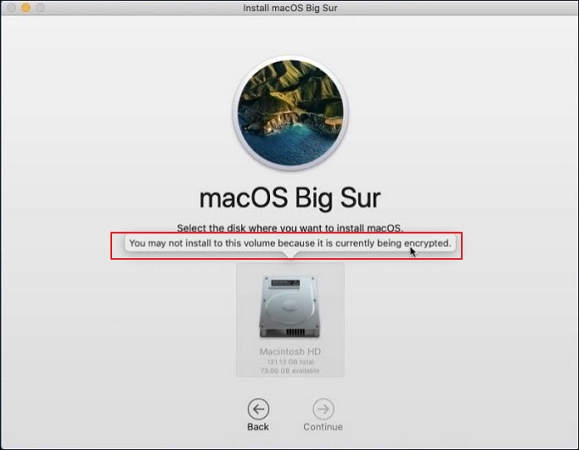
This article will explore the reasons behind the encryption process, discuss ways to resolve the issue, and provide guidance on data recovery from an encrypted hard disk, offering essential information for those facing the problem or seeking to understand more about Mac encryption.
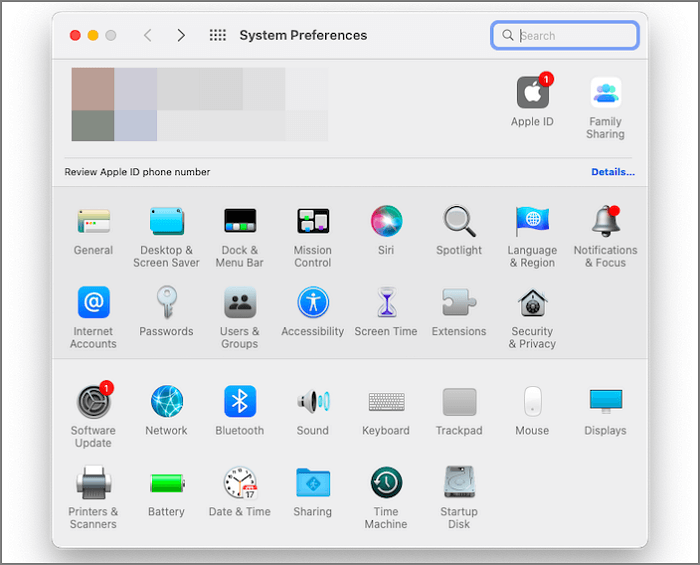
To encrypt your Mac's hard drive, you have two reliable methods to choose from. The first method is to use the built-in FileVault encryption feature, which can be enabled from the Security & Privacy preferences.
For professionals and individuals storing sensitive information on their Mac, there's a risk of valuable data being stolen from their hard drive. This is a concern, especially for those who handle confidential information.
Why the Mac Volume Is Encrypted
When you see the message "You may not install to this volume because it is currently being encrypted," it means the Mac volume is being encrypted, and here are the reasons why this happens.
🔑Reason 1. Encryption software installed on the computer
If you've installed encryption software like FileVault on your Mac, it automatically encrypts your disk to safeguard your data.
⏫Reason 2. Operating System updates
Updating your Mac's operating system, especially to a newer version, may initiate the encryption process as part of the security enhancements.
👋Reason 3. Other causes of encryption
Certain actions, such as manually encrypting the volume or configuring security settings to enable encryption, can also initiate the encryption process.
😈Reason 4. Malware or security threats
Malicious software or security threats can cause a Mac volume to be encrypted without the user's knowledge or consent, leading to unauthorized access and potential data loss.
🛑Reason 5. Stuck encryption process
The encryption process may get stuck or interrupted, causing an error message that prevents installation to the volume due to various factors.
Understanding the reasons behind the encryption process can help diagnose the cause of the issue and determine the appropriate solution.
How to Fix the Currently Being Encrypted Volume on Mac
If you're encountering an error message that's preventing the installation of something due to encryption, there are a few possible solutions. One approach is to disable encryption temporarily, which can be done by going to your computer's settings, finding the section related to encryption, and turning it off. Alternatively, you could try reinstalling the software or app, as sometimes the issue might be specific to the installation process rather than the encryption itself.
- Solution 1. Wait for the encryption process to complete
- Solution 2. Decrypt the volume
- Solution 3. Disable encryption temporarily
- Solution 4. Create a new volume for the installation
Solution 1. Wait for the encryption process to complete
Be patient and let the encryption process finish, as it can take a significant amount of time depending on the disk size and data amount, and monitor the progress through the encryption status indicator in the Disk Utility or encryption software.
Solution 2. Decrypt the volume
Step 1. If you need to proceed with the installation immediately, you can decrypt the volume.
Step 2. To open the "Disk Utility" application, go to the "Utilities" folder within the "Applications" folder and click on the "Disk Utility" icon.
Step 3. Select the encrypted volume from the sidebar and click the "File" menu.
Step 4. To decrypt a volume, select "Decrypt [volume name]" from the menu and follow the on-screen instructions to start the decryption process.
If you find one of the methods helpful in installing this volume, please share it on social media platforms like Facebook, Twitter, Instagram, and others to help others who may be struggling with the same issue.
Solution 3. Disable encryption temporarily
To install macOS on an encrypted volume without decrypting it, you can temporarily disable encryption.
Step 1. Click on the Apple menu, then select System Settings from the dropdown list, and finally choose Privacy & Security from the sidebar options.
Step 2. Switch to "FileVault", and then toggle "Turn off Encryption".
Solution 4. Create a new volume for the installation
Step 1. If the above solutions do not work or you prefer to keep the current encrypted volume intact, you can create a new volume for the installation, allowing you to maintain the original encrypted state of your system.
Step 2. Open the "Disk Utility" application.
Step 3. Select the encrypted volume from the sidebar and click the "Partition" tab in the Disk Utility app.
Step 4. To create a new partition, click the "+" button below the volume layout.
Step 5. Configure the partition size and other settings according to your needs.
Step 6. Once the new partition is created, the next step is to install the macOS operating system on the newly created volume. This process involves setting up the operating system on the new partition, which will serve as the primary drive for the Mac.

macOS Update VS. Clean Install: Which One to Choose
This guide explains the difference between upgrading to a new version of macOS and doing a clean install, helping you decide which option is best for your needs. Whether you're looking to upgrade to the latest operating system, or start fresh with a new installation, this guide will walk you through the pros and cons of each approach. Read more >>
If you're unable to install an encrypted volume on your Mac, there are a few solutions you can try. First, ensure that you have enough free space on your startup disk, as the installer needs room to create a new volume. You can also try disabling System Integrity Protection (SIP) or decrypting the volume, which may resolve the issue. However, be aware that decrypting or disabling encryption may compromise the security of your data, so proceed with caution and make sure you have appropriate backups before making any changes.
How to Recover Data from Mac's Encrypted Hard Disk
If you experience data loss due to encryption or other reasons, Deep Data Recovery for Mac can help you recover deleted files. This powerful software supports the latest macOS Ventura and offers various intelligent data-restoring solutions, allowing you to recover deleted, formatted, or inaccessible files from internal and external hard drives.
Deep Data Recovery for Mac provides a user-friendly interface and advanced scanning algorithms, resulting in a high success rate in data recovery. This software offers a reliable solution for users to recover lost or deleted files, with a simple and intuitive design that makes it accessible to both technical and non-technical users.
- ✅Deep Scan: A software scans the entire system to locate and recover lost partitions on a Mac, even in severe data loss scenarios.
- ✅Preview Function: The software allows you to preview recoverable files before initiating the recovery process, saving you time and effort by enabling you to assess the recoverability of your files and make informed decisions before proceeding.
- ✅Selective Recovery: The software offers the flexibility to choose specific files or file types for recovery, which minimizes the recovery time.
- ✅Support for Various File Formats: A software that can recover various file formats, including documents, photos, videos, audio files, archives, and more, from different storage devices and systems.
To learn more about Deep Data Recovery for Mac and download the software, follow these steps.
Note: To create a backup, click on "Disk Backup" on the left. This allows you to recover data from a backup image if the disk is damaged or data is accidentally deleted or lost.
Step 1. Select the location
After updating to macOS Sonoma/Ventura/Monterey/Big Sur, select the disk where you lost data, then click "Search for lost files" to recover it.

Step 2. Find lost data after the scan
Deep Data Recovery for Mac scans the selected disk volume, displaying the results on the left pane, allowing users to find specific data using file type and file path.

Step 3. Recover data after macOS update
Select the target files that were unknowingly lost during or after the update and click the "Recover" button to recover them.

Final Thoughts
Encountering the error message "You may not install to this volume because it is currently being encrypted" on your Mac can be frustrating, but it's not insurmountable. The issue often arises due to the encryption process, which can be caused by various factors, including software updates or disk encryption. To resolve this, you can try restarting your Mac, checking for any pending software updates, or using the built-in Disk Utility to stop the encryption process.
If you experience data loss during encryption, Deep Data Recovery for Mac can help you recover your files. This software is recommended for Mac users who need assistance finding lost files and restoring them effectively.
Not Install to Volume Because It Is Currently Being Encrypted FAQs
Here are 4 additional questions about fixing "you may not install to this volume because it is currently being encrypted". Check here for the answers.
1. What does it mean when your Mac is encrypted?
When your Mac encrypts a disk or volume, it converts the data into an encrypted format to protect sensitive information and enhance data security.
2. How do I unlock an encrypted disk on a Mac?
To unlock an encrypted disk on a Mac, start by clicking on the lock icon in the Disk Utility window, then enter your administrator password to authenticate. Next, select the encrypted disk from the list on the left and click on the "Unlock" button.
- Step 1. Open the Disk Utility application on your Mac.
- Step 2. Select the encrypted disk from the sidebar.
- Step 3. Click on the "File" menu and choose "Unlock [disk name]."
- Step 4. Enter the password associated with the encrypted disk and click "Unlock" to access the contents.
3. How to install macOS on an encrypted disk?
To install macOS on an encrypted disk, you can either wait for the encryption process to complete before initiating the installation or create a new volume for the installation.
4. What does it mean when a volume is encrypted?
When a volume is encrypted, the data on it is converted into an unreadable format that can only be accessed with a decryption key, protecting it from unauthorized access and ensuring its confidentiality and integrity.
Related Articles
- How to Lock Mac Screen [7 Fast Ways to Lock Mac]
- Top 8 Hard Drive Temperature Monitor Software for Windows [Pros & Cons]
- Fixed: Windows 10 Will Not Update with Error Code 0x80240fff
- Wi-Fi not Working on Laptop, but Working on Phone | Solutions
- 3 Best Ways on How to Backup Registry From Command Line
Learn how to back up the Windows registry from command line before system changes, troubleshooting, or software edits. - [4 Easy Ways] How to Backup SD Card on Samsung
Learn how to back up an SD card on Samsung devices. Save photos, files, and app data to a computer, cloud, or another drive.
Products
Articles & Tutorials
- Data Recovery
- Data Backup
- File Recovery
- File Backup
- System Backup and Restore
- Disk and Partition Clone
- Technical articles
- Mobile articles
- Disk Master Help
- Windows Data Recovery Tutorials
- Windows Secure Delete Tutorials
- Windows Partition Management Tutorials
- Windows File Backup and Restore Tutorials
- Windows System Backup and Restore Tutorials
- Windows Disk Backup and Restore Tutorials
- Windows Clone Tutorials