3 Best Ways on How to Backup Registry From Command Line
Why Backup the Registry From Command Line on Windows?
Before we dive into backing up the registry from the command line, it's essential to understand why registry backups are crucial. The registry contains settings and paths to vital Windows components and third-party apps, making it a critical place to back up, especially before making significant changes or updates to your system.
To backup the registry from the command line in Windows 10/11, you can use the built-in tool called `regedit.exe` with the `/a` option. This will create a backup of the registry in the default location, which is `C:\Windows\System32\config\RegBack`. To do this, open Command Prompt as an administrator, type `regedit.
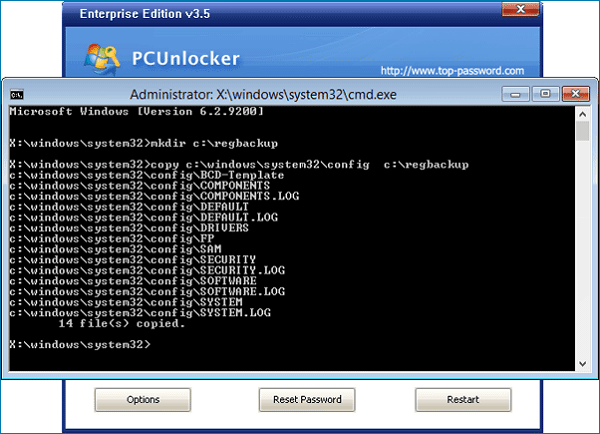
How to Backup Registry From Command Line [3 Ways]
Here are three easy methods to back up the registry from the command line. You can use the built-in command-line utility regedit.exe to export the registry, or use the command-line utility reg to export the registry, or use the command-line utility robocopy to copy the registry files.
Method 1. Using the Registry Editor
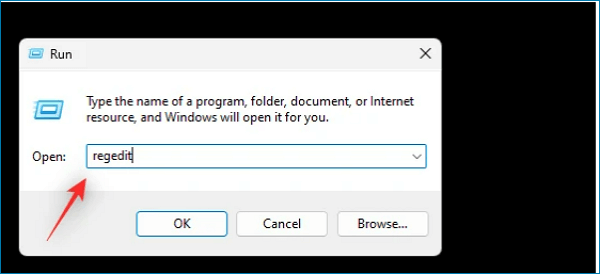
Step 1. Press the Windows key + R, then type 'regedit' into the box, and press Enter.
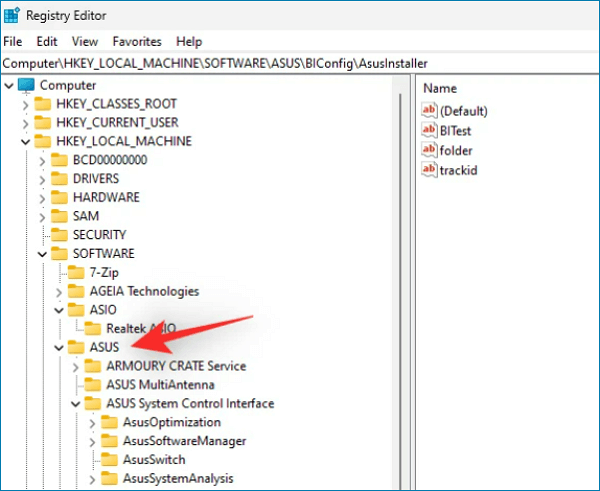
Step 2. To export a key, click and select the key you need to export from the sidebar.
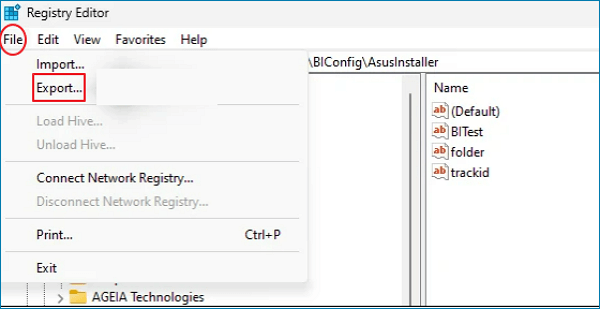
Step 3. Click File, then click Export.
Step 4. I checked the selected branch, which is for completed backups. If you want to back up an individual, please choose All instead.

Step 5. To save your backup, select a location, enter a file name, and click the "Save" button.
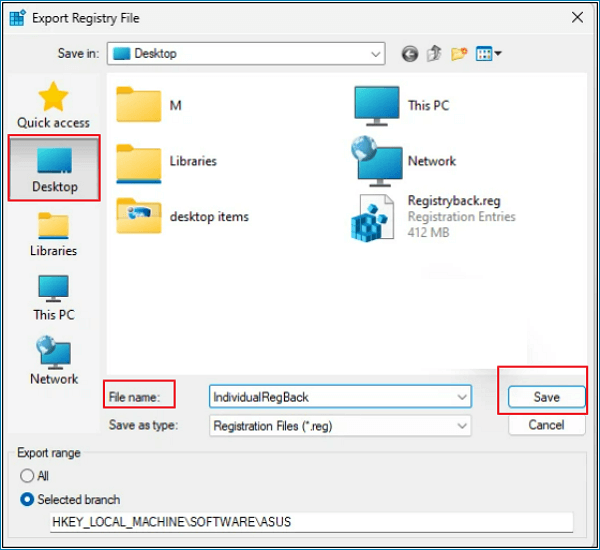
The selected registry key can be exported to a .reg file, and if needed, can be restored using the same method.
Method 2. Using System Restore
We can use System Restore to create a restore point on your system, which can be used to revert your system if something goes wrong. This feature also backs up your registry settings, allowing you to easily restore them if needed. To create a restore point, follow these steps.
Step 1. To create a system restore point, press the Windows key + S, then search for "Create Restore Point" in the search box. Click on the best match from your search results to proceed.

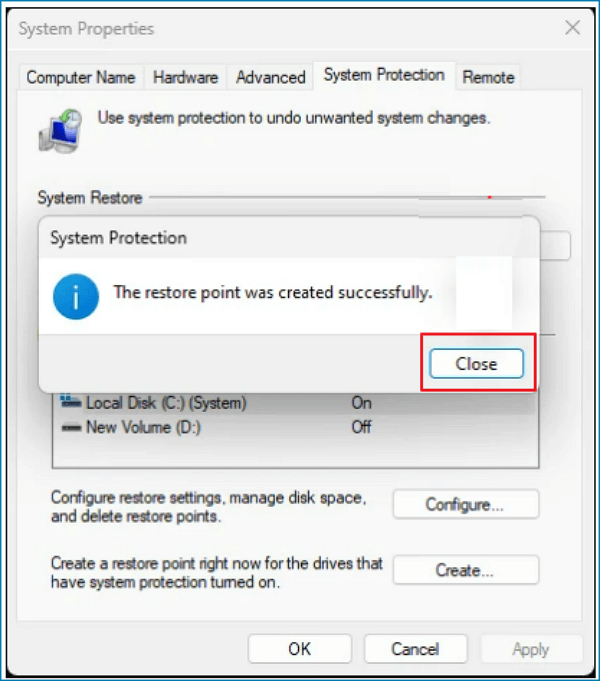
Step 2. Click Create and OK.
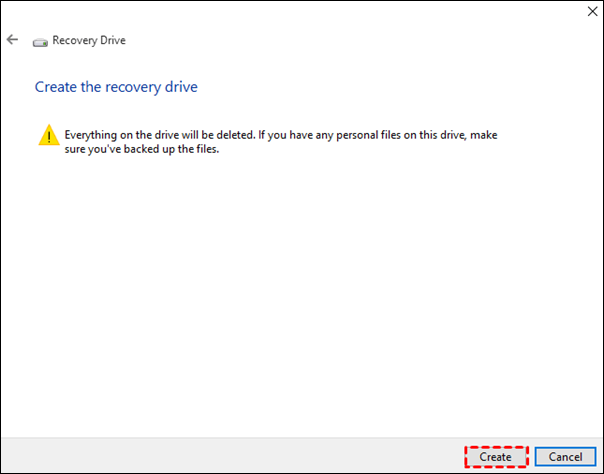
Step 3. Enter a name for the restore point, then click OK.

Step 4. Click Close after the restore point is created successfully.
Method 3. Using Command Prompt
To export specific registry keys from the Registry Editor, you can modify the above commands to include the specific key path. For example, to export the HKEY_CURRENT_USER\Software\Microsoft\Windows\CurrentVersion\Run registry key, you would use the command "regedit /e export.reg HKEY_CURRENT_USER\Software\Microsoft\Windows\CurrentVersion\Run" and then press Enter. This will export the specified registry key to a file named "export.
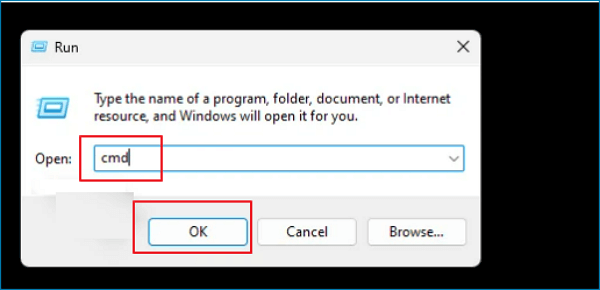
Step 1. To open the Command Prompt as an administrator, press the Windows key + R to open the Run dialog, type "cmd" into the box, press Ctrl + Shift + Enter to open the Command Prompt with administrator privileges, and then click OK.
Step 2. To export a registry key, type the command `reg export RPATH PATH/y` in Command Prompt, replacing `RPATH` with the actual path to the key you want to export and `PATH` with the desired path to save your backup. This command will create a file in the specified path with a `.reg` extension, containing the exported registry key.
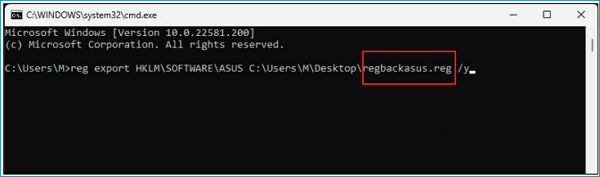
To back up the registry, you can enter the command one by one to export each selected registry key. Once executed, the key will be automatically backed up in the selected location. If you need to back up the entire registry, you can enter the following commands: `reg export HKCR PATH/y`, `reg export HKCU PATH/y`, `reg export HKLM PATH/y`, `reg export HKU PATH/y`, and `reg export HKCC PATH/y`.
Better Backup Solution: Using Trustable Backup Software
To back up the registry from the command line, you can use the methods mentioned above. However, be cautious as mistakes can lead to serious issues like boot problems and data loss. A safer alternative is to use a reliable backup software like Qiling Backup Home, which can provide a comprehensive and trustworthy backup of your computer.
Qiling Backup Home offers various backup options, including file, system, disk, and partition backups. It also allows for backing up Outlook emails and creating a system image. Once the backup is complete, it can be saved to an external hard drive or cloud drive for safe storage.
Qiling Backup is a versatile software that offers three backup methods simultaneously: full backup, incremental, and differential backups. This allows users to customize their backup schedule according to their needs, backing up daily, weekly, or monthly, providing a high level of flexibility and control.
Highlighted features of Qiling Backup Home.
- 1. All-in-one backup tool
- 2. Applicable to Windows 11/10/8/7
- 3. WinPE Bootable Disk
- 4. Security Zone Backup
- 5. Offsite Copy
Wrapping Things Up
This guide provides a step-by-step approach to backing up the registry from the command line. You can try using the registry editor, system restore, and command prompt one by one. However, to avoid data corruption or loss caused by entering wrong commands or deleting commands by mistake, I strongly recommend using Qiling Backup as a better solution.
FAQ
1. Can I copy the registry from one computer to another?
Yes. To move a registry branch, navigate to it in Regedit, select File, click Export, and save as a .reg file. Then, copy the file to your new computer.
2. Is the registry stored in memory?
The Windows registry is a critical component of a Windows system, containing various settings and configurations for the operating system, applications, and users. It is constantly accessed during runtime, making it necessary for the system to cache all or part of the registry files in memory.
Related Articles
- How to Backup Outlook Emails to Gmail [2022 Detailed Tutorial]
- [8 Fixes] How to Fix Windows 10 File Sharing Not Working After Update 1803/1809/1903
- Fix GRUB Loading Error 15, 17, 21, 22 and Recover Data
- Solved: What Is Taking Up Space on My Hard Drive in Windows 10/8/7
- How Long Will An SSD Hold Data Without Power (SSD Lifespan)
There are various myths surrounding SSDs, including how long they can hold data without power. To set the record straight, find answers to your questions and more here. If you're experiencing data loss on your SSD drives, consider running Qiling SSD data recovery software to recover your lost data. - Introduction to Gigabyte and Terabyte: How Many Gigabytes Are There in a Terabyte
How many gigabytes are in a terabyte? Learn the answer: 1 TB = 1,024 GB (binary) or 1,000 GB (decimal). Clear explanation of GB vs TB storage units with real-world examples.
Products
Articles & Tutorials
- Data Recovery
- Data Backup
- File Recovery
- File Backup
- System Backup and Restore
- Disk and Partition Clone
- Technical articles
- Mobile articles
- Disk Master Help
- Windows Data Recovery Tutorials
- Windows Secure Delete Tutorials
- Windows Partition Management Tutorials
- Windows File Backup and Restore Tutorials
- Windows System Backup and Restore Tutorials
- Windows Disk Backup and Restore Tutorials
- Windows Clone Tutorials