[4 Easy Ways] How to Backup SD Card on Samsung
Backing up your Samsung phone's SD card is crucial, and there are several practical methods to do so. It's essential to back up your SD card to prevent data loss in case your phone is damaged, lost, or upgraded. Fortunately, there are four efficient ways to back up everything on your Samsung SD card, making it easy to protect your valuable data.
Why Is Samsung SD Card Backup Important
If you're a Samsung phone user, it's essential to back up your SD card. As a small-size storage media, SD cards are a great solution for storing essential data like pictures, videos, audio, and documents for Android phones, tablets, cameras, and music players, and have become the default memory card standard for most electronic devices.
Using an SD card on your phone can lead to data loss if you're not careful. Frequent use can result in mistaken deletion, virus or malware infection, and other issues that can cause you to lose data on the card. To prevent this, it's essential to back up your SD card before formatting it, which will ensure your data is safe even in the worst-case scenarios. By taking this precaution, you can recover your data using SD card data recovery software if needed, and keep your important files and memories protected.
How to Back up Samsung SD Card with 4 Possible Ways
Backing up your SD card on a Samsung phone is easy and can be done in several ways. To create a backup of an SD card, you can use various methods, which I will outline below. This will help protect your important files and data in case your SD card is lost, damaged, or corrupted. I will introduce four easy ways to help you create a backup of an SD card on your Samsung phone, making it simple to safeguard your files and data.
| Workable Solutions | Step-by-step Troubleshooting |
|---|---|
|
Solution 1. Backup Samsung Phone SD Card via Cloud APPs |
Cloud apps provide an easy and quick way to back up your SD...Full steps |
| Solution 2. Manually Copy Data on Samsung SD Card | Manually backing up a Samsung SD card is a good and easy way...Full steps |
| Solution 3. Sync Samsung SD Card to OneDrive | Once you connect an SD card to your computer, OneDrive will treat...Full steps |
| Solution 4. Using SD Card Backup Software | As mentioned above, when you connect an SD card to your...Full steps |
Solution 1. Backup Samsung Phone SD Card via Cloud APPs
Cloud apps offer a simple way to back up your Samsung phone's SD card. While Samsung's Cloud service is no longer available, you can download alternative apps like Google One, which provides a convenient way to back up your data.
Google One allows you to automatically back up vital files on your phone, such as photos, contacts, and messages, by following these steps:
Step 1. To get started, download and install the Google One app for your phone from Google Play.
Step 2. You can register an account if you don't have one, which will give you 15G of free storage space.
Step 3. Set up your backup by tapping "Set up data backup" on the Home screen, selecting the desired content on the next screen, and then tapping "Back up now".
Note: The app must be kept open on your phone during the backup process, or the backup will stop.
Solution 2. Manually Copy Data on Samsung SD Card
Manually backing up a Samsung phone SD card involves transferring data from the card to an external hard drive, USB, or computer, which is a time-consuming and labor-intensive process suitable for small amounts of data.
The following are the detailed steps to copy data from one SD card to another external drive, USB, or laptop.
Step 1. Remove the SD card from your phone and connect it to your computer.
Note: You can connect your SD card to your computer via an SD card reader or memory card reader.
Step 2. To access the SD card on your Windows computer, open the File Explorer by clicking on the Start button, then select "This PC" or "Computer" from the left-hand menu. From the list of available drives, select the SD card to open its contents in a new window.
Step 3. To copy data from an SD card, press "Ctrl + C" on your keyboard while the SD card is connected to your computer or external storage device. This will copy the selected data to the clipboard.
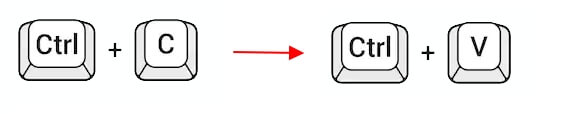
Step 4. Wait for the process to be completed.
Solution 3. Sync Samsung SD Card to OneDrive
When you connect an SD card to your computer, OneDrive will treat it as part of your local storage, allowing you to easily sync it with the OneDrive desktop app. However, please note that OneDrive only offers 5GB of free cloud storage.
Here are the steps to sync a Samsung SD card to OneDrive in one paragraph:
Step 1. Download and install the OneDrive desktop app on your computer.
Note: OneDrive is preinstalled on Windows 10 and 11, and can be accessed by searching for it in the search box.
Step 2. You can log in to OneDrive on your computer and it will automatically create a OneDrive folder on your computer, where you can store and sync your files.
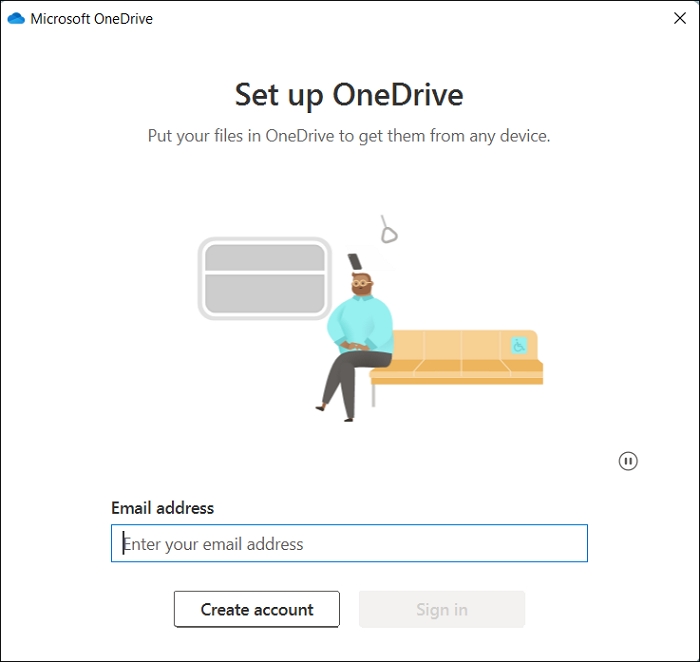
Step 3. To access the OneDrive folders on your laptop, insert your SD card and open File Explorer. Navigate to the SD card connected to your laptop, and then head to the OneDrive folders.
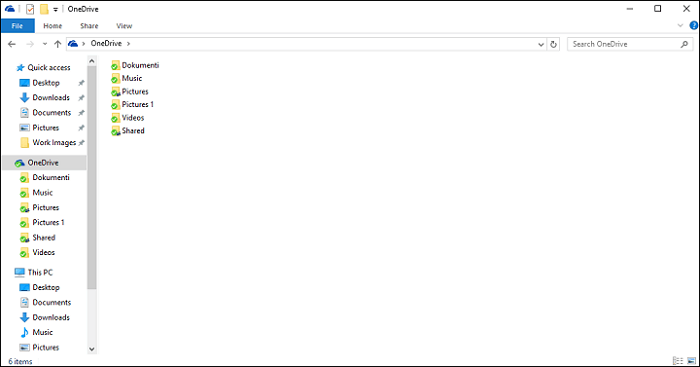
Step 4. To sync files or folders from an SD card to the OneDrive folder, you can copy and paste the desired items from the SD card to the OneDrive folder on your device. This process involves physically accessing the SD card, navigating to the desired files or folders, and then copying them to the designated OneDrive folder on your device.
Solution 4. Using SD Card Backup Software
When you connect a Samsung phone's SD card to your computer, it will be treated as part of the local storage, making it possible to back up the SD card using software like Qiling Backup, a reliable and good option for SD card users.
Qiling Backup Home is a multi-functional backup and recovery tool that supports Windows 11/10/8/7, offering various backup types, including system, file, disk, and partition backups, with scheduled, incremental, and differential backup capabilities, and automatic external hard drive backup and hard drive cloning, with 250G of free cloud storage.
To back up the SD card using the SD card backup software, follow these steps: download and install the software, then connect the SD card to the computer using a card reader or USB adapter, select the SD card as the source and choose a destination for the backup, and finally, click the "Backup" button to start the process. The software will then copy the data from the SD card to the computer, creating a backup of the card's contents.
Step 1. Start with selecting the Disk backup button.

Step 2. It is available to back up a whole disk or a certain partition. Choose the one you need.

Step 3. Select the destination where you want to save the backup.

Step 4. For disk/partition backup, you can choose to save the backup to a local drive or to a Network-Attached Storage (NAS) device.

Step 5. After the backup process is completed, your task will be displayed at the left. You can click the "Advanced" button on the task to further manage your backup, such as recovering it, creating an incremental backup, and more.

Final Thoughts
Backing up an SD card on Samsung For Samsung phone users, backing up data from the SD card is crucial to avoid data loss. There are four methods to do so: using Cloud apps, manually copying the SD card, backing up the SD card to OneDrive, and utilizing Qiling Backup. Any of these methods can be used according to individual needs, but Qiling Backup is particularly recommended as it allows for easy backup creation and offers additional Cloud storage space.
FAQs
1. Does formatting an SD card delete everything?
Formatting an SD card will erase everything, including junk or corrupted files, on Windows, Mac, and Android devices.
2. How do you store your SD card?
Keep the SD card dry and clean, protect it from extreme temperatures, and avoid dropping, bending, or breaking it. Also, keep it away from strong magnetic fields, as they can cause flash memory data loss.
3. Does Samsung Smart Switch transfer SD card?
Samsung Smart Switch can transfer data from an SD card by creating a backup of the files you want to transfer, accessed through the SD card icon in the top right corner of the interface.
Related Articles
- A Beginner's Guide | How to Install Hard Drive in PC?
- Top 8 Ways to Fix Kernel Mode Heap Corruption BSOD Error
- How to Boot Computer from USB and Make A Portable OS
- Fix IE Browser Shuts Down Suddenly in Windows 10/8/7 Error
- How Many Megabytes Are There in a Gigabyte
Want to know how many megabytes are there in a gigabyte? Read this guide thoroughly to learn more about megabytes and gigabytes to know the exact answer. Read to know how many megabytes are there in a Gigabyte. - Solved: How to Activate Protection System in Windows? - Qiling
What is a protection system in Windows? And how to activate protection system or access it? As a windows user, you must be keen on how to open Restore Point to keep the computer safer. This article will guide you through these questions.
Products
Articles & Tutorials
- Data Recovery
- Data Backup
- File Recovery
- File Backup
- System Backup and Restore
- Disk and Partition Clone
- Technical articles
- Mobile articles
- Disk Master Help
- Windows Data Recovery Tutorials
- Windows Secure Delete Tutorials
- Windows Partition Management Tutorials
- Windows File Backup and Restore Tutorials
- Windows System Backup and Restore Tutorials
- Windows Disk Backup and Restore Tutorials
- Windows Clone Tutorials