How to Boot Computer from USB and Make A Portable OS
Introduction
If your PC is not working as expected, or you're facing issues like the Blue Screen of Death, you might want to consider booting from a USB drive. This can help you troubleshoot and potentially resolve the problem. To do this, you'll typically need to create a bootable USB drive using a tool like a Windows installation media or a Linux distribution, and then set your PC to boot from the USB drive instead of the internal hard drive. This can be a useful troubleshooting step, but it's always a good idea to back up any important files before making any changes to your system.
Booting a computer using a USB flash drive can be a convenient option for various reasons, such as trying the latest version of a Linux distribution or installing Windows on a computer system with no other options. This post will provide a step-by-step guide on how to boot a PC using a bootable device.
How to Boot a Computer from USB?
Before we start, you'll need to create a bootable USB drive. If you don't have access to your PC, you can use another PC to create the bootable drive, which will allow us to proceed with the core steps.
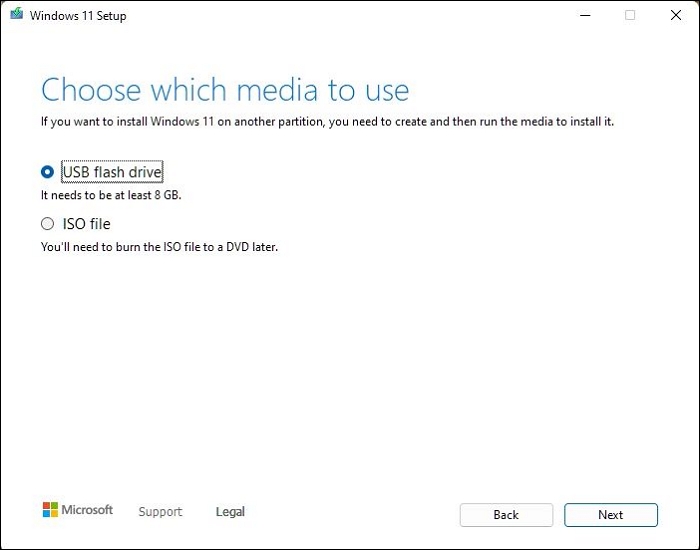
Step 1: To start the Windows 10 installation process, download the Windows Media Creation Tool from the official website and launch it. Once launched, look for the Windows Installation Media option on the download page. This will guide you through the process of creating a bootable USB drive or CD/DVD to install Windows 10.
Step 2: To begin, plug in the USB drive to your computer. Next, launch the Media Creation Tool and accept the terms of use.
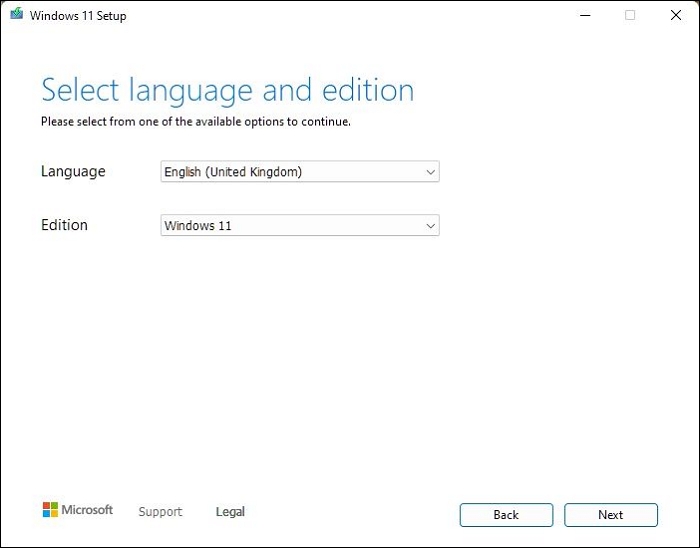
Step 3: Wait until it completes the initial checks. Then select language and Windows edition.
Step 4: Select the USB flash drive and click Next. Then, select the drive and click Next.
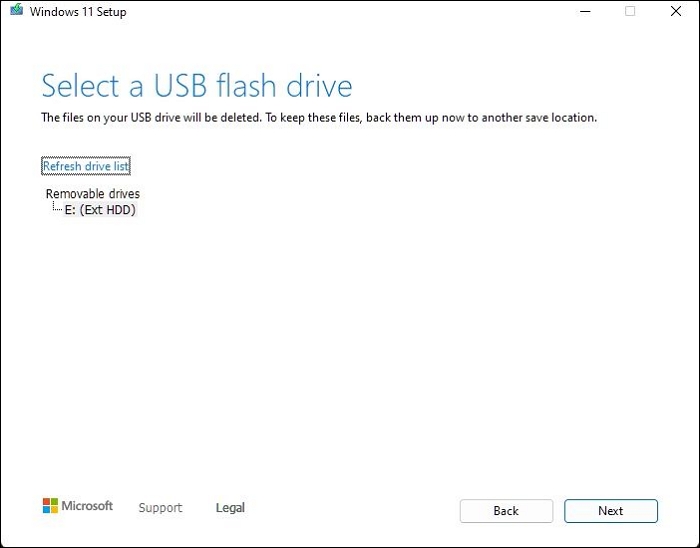
Insert the USB drive into your computer, and follow the instructions on the screen to complete the process. Once the process is complete, the USB drive will be bootable and ready to use.
Step 5: To access the UEFI or BIOS settings, you need to restart your PC and press the DEL or F2 button as soon as it boots up. This will allow you to enter the settings and make any necessary changes.
Step 6: To change the boot order, navigate to the Boot order section, and set the USB drive as the first boot priority, followed by the storage devices. This will allow the system to attempt to boot from the USB drive first, and if that fails, it will then attempt to boot from the storage devices.
Step 7: Save the changes, and restart. The PC will boot from the bootable drive instead of the PC drive.
What to Do If the USB Device Won't Boot?
If you're facing issues with booting up your computer system, consider using a USB flash drive as a viable option. However, if you still encounter problems, you can try resolving them by implementing some solutions, such as.
- To boot Windows from a USB flash drive, the USB drive must be bootable. Ensure the USB drive you're using is not corrupted and was created to be bootable by your PC.
- Before attempting to boot from USB, it's essential to check if your computer system supports this option. Not all computer systems are designed to boot from USB, so verifying this beforehand will save you time and effort.
- To fix the issue of UEFI/EFI interfering with USB or CD options booting, you can enable legacy boot on your system, which allows you to quickly resolve this problem.
- If you've tried the previous solutions and still can't find a solution, check if the bootable USB drive is formatted in the correct file system. Some computer systems use NTFS, which doesn't support booting.
- When recreating the bootable USB drive, make sure to format the USB drive before writing the installation media to it. This ensures that any existing data on the drive is erased and the drive is prepared for the installation process.
- If your PC supports booting from a USB flash drive but fails to do it, you can remake a bootable drive correctly by using a different USB drive or a different operating system installation media, or by checking the BIOS settings to ensure that the USB drive is set as the first boot device. This can help resolve the issue and allow your PC to successfully boot from the USB drive.
Conclusion
The guide provides solutions to help boot from a USB drive without issues, including checking if the computer can boot from USB or if the USB flash drive is bootable.
If you're experiencing issues with your PC not booting from a USB flash drive, there are several potential reasons to consider. Firstly, check if your PC supports USB booting, and ensure that the USB drive is formatted to NTFS. Additionally, verify that your PC is configured correctly to boot from the USB flash drive. This guide has attempted to address almost all possible reasons, but if you've tried all the suggestions and still encounter issues, feel free to ask your questions in the comment section below.
FAQs
To provide complete information to our readers, we have input the most asked queries in the segment here.
1. What format does a bootable USB need to be?
If your server platform supports UEFI, you can format your flash drive to FAT32.
2. What is the best file system for bootable USB?
Bootable USB drives typically use cross-platform file systems, and exFAT is a suitable format for this purpose, as it can be easily read by both Windows and Mac computer systems, making it a convenient option for creating bootable USB drives.
Creating an exFAT bootable USB is a complex process that involves formatting the USB with multiple partitions and installing Grub on the boot partition, making it difficult to achieve, which is why most software use FAT32 for bootable USB.
Related Articles
- How to Format SD Card for Camera [Step-by-Step Instructions]
- How to Restore Files from OneDrive to PC [A Full Guide]
- More Windows Troubleshooting: Fix Freezing After an Update
- How to Sync Two External Hard Drives in Windows 10 [Two Nice Tips]
- Samsung TV USB Format: Best Choice and Efficient Tutorial
Choosing the best Samsung TV USB format can be a bit tricky, but this article will guide you through the process. By selecting the right file system format for your TV, you can ensure seamless playback of your favorite videos and movies. - How to Solve Sound Not Working on Laptop |5 Troubleshooting Tips for Laptop
When we encounter that sound not working on a laptop, we can't figure out why it may lead us anxious. This article will talk about this question and different answers to it. It may be helpful if you're experiencing sound not working on a laptop.
Products
Articles & Tutorials
- Data Recovery
- Data Backup
- File Recovery
- File Backup
- System Backup and Restore
- Disk and Partition Clone
- Technical articles
- Mobile articles
- Disk Master Help
- Windows Data Recovery Tutorials
- Windows Secure Delete Tutorials
- Windows Partition Management Tutorials
- Windows File Backup and Restore Tutorials
- Windows System Backup and Restore Tutorials
- Windows Disk Backup and Restore Tutorials
- Windows Clone Tutorials