How to Format SD Card for Camera [Step-by-Step Instructions]
How to format an SD card for a Camera? What Will You Get?
- Formatting an SD card on Windows and Mac can be a straightforward process, and it's also possible to format cards directly in a camera. On Windows, users can open File Explorer, right-click on the SD card, and select "Format" to initialize the card.
- Remember back up all important files before formatting.
Quick Navigation
How to Format SD Card for Camera on Windows
To format an SD card for a camera on a Mac, open the Disk Utility app, select the SD card from the list on the left, click on the "Erase" button at the top, and then choose "Quick Erase" from the dropdown menu. Next, select the format as "MS-DOS (FAT)" and click on the "Erase" button to confirm.
How to format SD Card in Camera
Do I Need to Format or Reformat SD Card for Camera?
When using a new SD card with your Camera, make sure to format it first to create a directory structure for organizing and storing photos and videos.
What about reformating the SD card for Camera?
🎯Formatting the SD card prevents file corruption by removing damaged or corrupted files, keeping the card healthy and preventing future problems.
🎯Formatting the card will also help to improve performance. As files are added and deleted from the card, it can start to fill up and slow down, but formatting it will keep it running at peak performance.
🎯Formatting the card can also extend its lifespan by performing regular maintenance, just like with any other storage device.
Formatting an SD card regularly can help keep your files safe and ensure your camera performs at its best, making it a quick and easy maintenance task.
What Format Should an SD Card be for a Camera?
SD cards have two formats: FAT32 and exFAT. FAT32 is an older format with a 4GB size limit, making it incompatible with larger SD cards.
ExFAT is the newer format and doesn't have a size limit, making it a better choice for cameras, but not all devices support it.
If you're using an SD card with a device that doesn't support exFAT, you'll need to format it as FAT32.
How to Format SD Card for Camera on Windows
#1. Qiling Partition Master
If you're looking for a safe and reliable tool to format your SD card, Qiling Partition Master is a great option. This partition manager makes it easy to format any SD card, including those used in digital cameras, camcorders, and other devices, ensuring your data is securely erased and the card is ready for reuse.
Qiling Partition Master is a free software to download and use.
To format your SD card, simply connect it to your computer, launch the Qiling Partition Master software, select the desired format, and click "Format." This process will take just a few minutes, after which your SD card will be ready for use, whether you're formatting an old card or setting up a new one.
Step 1. Right-click the partition of your SD card that you want to format and choose "Format" from the context menu.
Step 2. Create a new partition label, file system, and cluster size for the selected partition.
Step 3. Click the "Proceed" button to start formatting your SD card.
Step 4. Click "Yes" on the pop-up window to continue.
#2. Use File Explorer
Windows 10 offers a built-To format an SD card with File Explorer, open File Explorer, select the SD card from the left sidebar, right-click on it, and choose "Format" from the context menu. In the Format dialog box, choose the file system (FAT32, exFAT, or NTFS) you want to use, and select the allocation unit size. You can also choose to quick format the card, which is faster but may not erase all data.
1. To connect your SD card to your computer, you can use a card reader or an adapter. A card reader is a dedicated device specifically designed for reading SD cards, while an adapter can be used to connect the SD card to a USB port on your computer.
2. Open File Explorer and go to This PC.
3. Right-click on the SD card and select Format.
4. To change the file system to FAT32, select FAT32 from the drop-down menu under File System in the format dialogue box.
5. Make sure Quick Format is checked, then click Start.
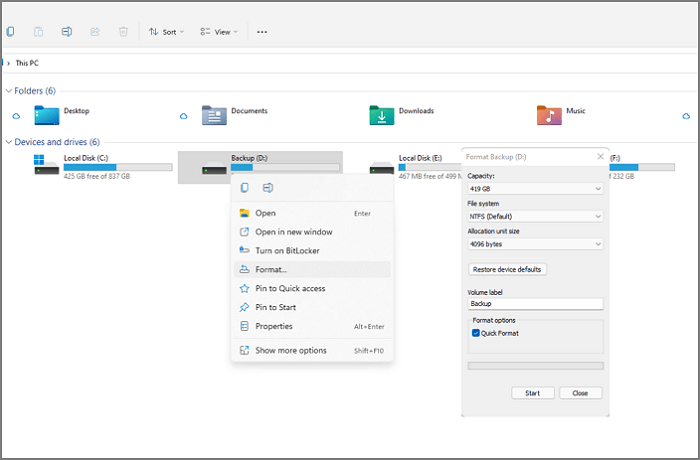
6. Once the format is complete, click Close.
7. You can now safely remove the SD card from your computer. I have completed the process of ejecting the SD card.
How to Format An SD Card for A Camera on Mac
To format SD card on Mac in three simple steps:
1. First, insert the SD card into your computer's SD card reader.
2. To open Disk Utility, go to the "Applications" > "Utilities" folder and click on the Disk Utility app.
3. To format an SD card, open Disk Utility, select the SD card from the list of devices on the left side of the window, click on the "Erase" tab, and then click the "Erase" button. This will format the SD card.
1. Connect your Android device to a computer using a USB cable.
How to format SD Card in Camera
To format an SD card in your camera, simply insert the card into the camera, go to the menu and select the option to format the card. Follow the on-screen instructions to complete the process, and the card will be ready for use. It's a straightforward process that should only take a few minutes to complete.
First, insert the SD card into your Camera.
Select the format option from the menu and confirm the formatting of the card.
The process will take just a few moments, and your SD card will be formatted and ready to use.
If you're not using a Canon camera, don't worry! Canon's official tutorial is available, but if you're looking for a more general guide, you can also refer to the video guide below to learn how to format SD cards on any camera.
Format SD Memory Cards On Any Camera! See this Video!
- 1:20 How to Format
Format SD Card for Camera FAQs
Beyond the easy how-Formatting an SD card for a camera involves erasing all data on the card and preparing it for new content. This process can be done in the camera itself or on a computer.
1. How do I format my new SD card for my Camera?
Formatting a new SD card for your camera involves setting it up to be compatible with your device and ensuring it works properly. To do this, you'll need to connect the card to your computer, whether it's a Mac or PC, and use the corresponding formatting tool. On a Mac, you can use the Disk Utility program, while on a PC, you can use the Windows format tool. This process prepares the SD card for use with your camera.
2. Why is my SD card not working in my Camera?
Three causes:
- The SD card might be locked, which prevents the Camera from reading it. To unlock the SD card, you can try moving the switch on the side of the SD card to the "unlocked" position. This should allow the Camera to read the SD card again.
- The SD card might be corrupted, which can occur if it's used on multiple devices or exposed to extreme temperatures. If corrupted, it needs to be reformatted using a computer.
- The SD card may be too large for the Camera, as it only accepts a certain size of SD card. Different cameras have different SD card size limits, so it's possible that the card being used is too big for the camera.
Related Articles
- Guide on Format Partition in Linux [Effective & Easy Solutions]
- [2 Ways] How to Boot Mac into Disk Utility/Recovery Mode with Mac Startup Keys
- What Is the Latest Version of macOS Until 2022 [Ventura]
- 8 Ways to Fix Windows 10 Error Code 0xC000000F in 2026
- How to Find Autodesk Civil 3D Serial Number and Product Key
Learn how to find Autodesk Civil 3D serial number and product key with 3 proven methods. Step-by-step guide using Orca MSI tool, Windows Registry, and Qiling Key Finder software. - How to Find Autodesk Survey (2021-2005) Product Key
Entering an incorrect product key will result in activation errors for that product. If you're looking for Autodesk 2022 Product Keys, this article provides information on that.
Products
Articles & Tutorials
- Data Recovery
- Data Backup
- File Recovery
- File Backup
- System Backup and Restore
- Disk and Partition Clone
- Technical articles
- Mobile articles
- Disk Master Help
- Windows Data Recovery Tutorials
- Windows Secure Delete Tutorials
- Windows Partition Management Tutorials
- Windows File Backup and Restore Tutorials
- Windows System Backup and Restore Tutorials
- Windows Disk Backup and Restore Tutorials
- Windows Clone Tutorials