How to Fix Black Line on MacBook Screen [5 Methods]
Seeing black horizontal lines on a MacBook screen can be caused by a loose screw or a faulty display cable, which can be easily fixed by a professional.
Mac users have encountered issues with their screens, including a black line on their MacBook screen. This guide will explore the reasons behind these display abnormalities and provide tips on resolving the problem.
Waking up to find black lines on your screen can be alarming, but it's not always a cause for concern. These lines can appear due to various reasons, and addressing them promptly is essential. Fortunately, most cases don't indicate a severe issue, and with the right solutions, you can resolve the problem. This article will delve into the common causes and provide guidance on how to fix the issue, helping you get back to using your device with minimal disruption.
| Workable Solutions | Step-by-step Troubleshooting |
|---|---|
| Fix 1. Restart Your Mac | To restart your Apple device, tap the Apple logo at the top left side of the screen and select the "Restart" option from the dropdown menu. This will initiate the restart process, and your device will shut down and then turn back on.Full steps |
| Fix 2. Lower the Temperature | Your Mac may be overheating, which can cause the fans to run at maximum capacity, leading to a noisy and potentially damaging situation. This could be due to a variety of factors, such as a clogged air vent, dust buildup, or a malfunctioning cooling system. To resolve the issue, try cleaning out any dust or debris from the vents and fans, and ensure proper airflow around the device. If the problem persists, it may be necessary to seek professional assistance to diagnose and repair any underlying issues.Full steps |
| Fix 3. Reset SMC | You need to hold down the left Option, Control, Shift, and Power keys on your MacBook to boot into Safe Mode.Full steps |
| Fix 4. Reset NVRAM | Click on the Apple sign, choose Shut Down, restart your Mac, and press 4 keys...Full steps |
| Fix 5. Use an External Display | If you're experiencing lines on your screen, try using an external display to rule out any issues with your laptop's screen. If the lines appear on the external display as well, it's likely a problem with the graphics card or the laptop's hardware. However, if the lines only appear on your laptop's screen, it could be a software issue or a problem with the screen itself. You can try updating your graphics drivers, running a virus scan, or restarting your laptop to see if the issue resolves itself.Full steps |
A black line on your MacBook screen can be a complex hardware issue that requires professional attention, but it can also be a simple software problem that you can resolve yourself.
Black lines on a MacBook screen can be caused by a variety of factors, including a faulty or damaged display, a loose or disconnected cable, a software issue, or physical damage to the screen. Other possible causes include dust or debris accumulation on the screen, overheating, or a malfunctioning graphics card. These issues can be resolved by cleaning the screen, checking and reconnecting cables, updating software, or seeking professional repair or replacement of the display.
Why Is Black Lines Showing Up on MacBook Screen
Black lines on a MacBook's screen can be caused by hardware issues, such as a faulty graphics card or loose connections, or software problems, like corrupted system files or outdated drivers, which can be resolved with troubleshooting and potential repairs.
Hardware issues could cause the lines. Such cases can include:
- 🔥Overheating: Overheating can occur due to factors like hot weather, demanding tasks, or multiple apps running in the background, causing the MacBook's CPU to work hard.
- ⚠️Hardware issues: If the screen cable is damaged, it may not display anything, or it may display distorted images. This is a common issue that can be resolved by replacing the cable or the graphics chipset, depending on the extent of the damage. In some cases, the cable might be damaged due to wear and tear, while in others, it might be damaged due to physical stress or accidental damage.
- 💻Screen burn-in: This typically occurs when an LCD screen shows the same picture for an extended period, but it's uncommon to cause horizontal or vertical lines on your MacBook screen.
- ❌Display connection problems: Loose connection ports, or unstable data transmission, may also cause the display to be abnormal.
Software problems, such as software conflicts, power management issues, and outdated graphics drivers, can cause a MacBook screen to go black and unresponsive or remain running.
If your MacBook screen goes black but still running, don't panic! This issue can be caused by a software problem, overheating, or a hardware issue. To resolve it, try restarting your MacBook in safe mode, checking for software updates, and running a disk cleanup.
If your MacBook screen is going black but still running, there are several effective ways to fix the issue. You can try restarting your MacBook in safe mode, resetting the System Management Controller (SMC), and resetting the Parameter RAM (PRAM). Additionally, checking for software updates, running a diagnostic test, and cleaning dust from the screen and vents can also resolve the problem.
How to Fix Black Line on a MacBook Screen [5 Ways]
Before considering more complex solutions, try the basics first, such as restarting your Mac. If you're not comfortable with hardware adjustments, it's best to consult a qualified technician for assistance.
To prevent data loss, back up your important files using Deep Data Recovery before fixing the black line display error on your Mac.
Back Up Your Mac and Never Lose Data
You can back up and restore your MacBook or iMac without relying on Time Machine, iCloud, or external hard drives. To do this, you can use the built-in "Archive and Install" feature in macOS, which creates a bootable clone of your startup disk.
Fix 1. Restart Your Mac
To restart your Mac, click the Apple menu and select "Restart" from the drop-down list. Alternatively, you can press the power button on your Mac, located on the back or bottom, depending on the model. If you're using a laptop, you can also press the power button on the top right side.
Step 1. Tap the Apple sign that appears at the top left side of your screen. This will open the App Library, where you can find and organize your installed apps.
Step 2. Select "Restart" to reboot your Mac.
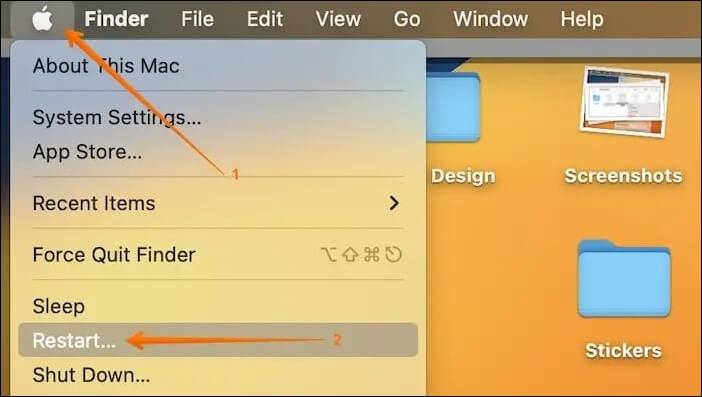
If the "Restart" button isn't working or your Mac is frozen, you can try to force restart it.
Fix 2. Lower the Temperature of Your MacBook
If the ambient room temperature is high or your Mac's fans are running at maximum capacity, it's a good idea to turn it off and let it cool down before turning it back on. This can help prevent overheating and potential damage.
Macs perform best within a temperature range of 100°F (40°C) to 192°F (89°C), but increased CPU use, like WindowServer, can cause temperature issues, so monitoring is crucial.
If your Mac's temperature exceeds a certain range, it may cause performance issues or display malfunctions. To resolve this, you can optimize your Mac's performance by following the guidelines in this article. This will help prevent overheating and ensure your device runs smoothly.
Fix 3. Reset System Management Controller on Your MacBook
Resetting SMC can also help solve the black line problem on your Mac screen. For MacBooks with a T2 chip, you can reset SMC on MacBook Pro and Air by following these steps.
Step 1. Switch off your MacBook.
Step 2. Hold down the left "Option(Alt key on Mac) + Control + Shift" keys simultaneously, and then press the power button.
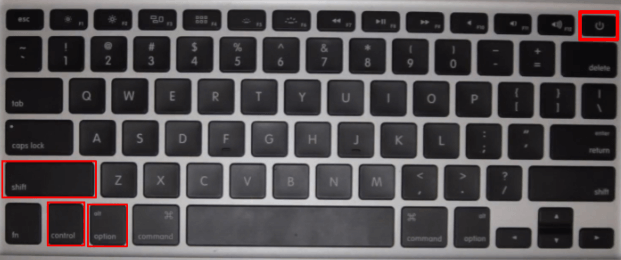
Step 3. Hold down all four keys for 5 seconds and wait for 30 seconds before releasing them.
Step 4. Turn on your MacBook.
To reset the System Management Controller (SMC) on a MacBook without a T2 chip, follow these steps: Shut down your MacBook. Locate the power button and the command (⌘) and option (⌥) keys.
Step 1. Turn off your MacBook.
Step 2. To reboot your Mac in safe mode, you will need to hold the left "Shift + Control + Option" keys simultaneously, and while holding these keys, press and hold the power button. This will initiate the reboot process.
Step 3. Keep all four keys pressed for about 5 seconds.
Step 4. Let go of the keys, wait for 10 seconds, then switch your MacBook on again.
If you've noticed a black line on your MacBook screen, don't worry, it's a relatively common issue that can be easily fixed. The black line, also known as a "black bar" or "black stripe," is usually caused by a loose or damaged cable, a faulty graphics card, or a software glitch.
Fix 4. Reset NVRAM on Your Mac
Non-Volatile random-access memory retains settings that remain unchanged despite restarting or shutting down your Mac, and resetting NVRAM can be useful when encountering problems like black lines or flickering on a MacBook screen.
The Mac contains crucial settings for booting your Mac, including selecting the startup disk, adjusting speaker volume, and configuring display resolution.
To reset NVRAM on Mac:
Step 1. Click on the Apple sign and choose "Shut Down".
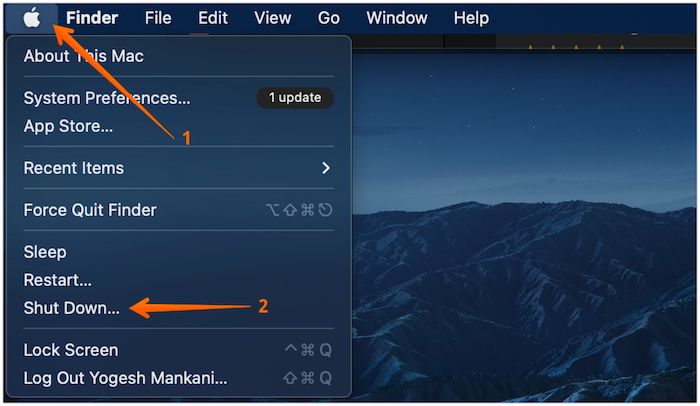
Step 2. To restart your Mac and enter the startup process, press the power button to turn it off, then press the power button again to turn it back on. As soon as you hear the boot chimes, press the "Option + Command + P + R" keys simultaneously.
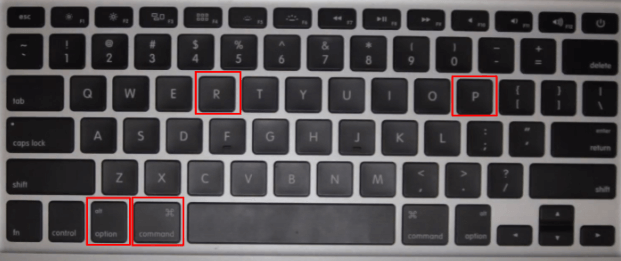
Step 3. Release the keys when you see the Apple logo twice or hear the startup sound for the second time.
Fix 5. Use an External Display
To determine if the lines on your MacBook screen are due to the display or your computer, try using a different screen, such as Apple Universal Control, to rule out any issues with your MacBook's display.
If you see colored lines on your external display, try using a different one. If the lines appear on your laptop screen, try connecting an external display to your Mac instead.
If the issue persists regardless of the display used, focus on resolving software and hardware issues with your Mac.
🏆Extra Tip: Avoid Data Loss on the Problematic MacBook
Backing up important files, videos, or documents is essential to prevent data loss, especially when dealing with hardware issues like black lines on the MacBook screen, which can permanently delete your data. To ensure your files are safe, use Time Machine to back up your Mac or consider Deep Data Recovery for Mac Pro.
Qiling Mac recovery software is a powerful tool that can recover deleted files on a Mac without Time Machine backups. It allows you to back up your essential files and recover permanently deleted files on Mac anytime you want.
Deep Data Recovery helps retrieve deleted files, even if they've been permanently deleted or removed from the Bin or Trash. It's especially useful in cases where files have been lost without a backup. To prevent this, it's recommended to backup your files quickly using data recovery software.
Step 1. To create a drive backup in Deep Data Recovery for Mac, click on "Disk Backup" and then select "Create Backup" from the main interface. Click "Next" to proceed, which will create a drive backup image file that can be used in case the original data is overwritten.
Step 2. To create a backup on your Mac, select an internal volume to back up and click "Create Backup". If using an external device, ensure it's connected beforehand.
Step 3. Save your backup in a chosen location and rename the file, then click "Save". It's not recommended to save backups on the same device as the original files to ensure data recovery.
Conclusion
Facing the black line on a MacBook screen error can be frustrating, especially since Macs are known for their reliability. However, data recovery software like Qiling can be helpful in such situations, allowing you to recover your important files and data.
Use data recovery tools like Deep Data Recovery for Mac Pro to protect your crucial data and files, which features rapid scanning, extensive recovery techniques, file preview functionality, and well-established reliability.
Black Line on a MacBook Screen FAQs
Here are the questions most people ask when they encounter the black line on the MacBook screen error:
1. Why is my Mac showing a black screen with a circle and line?
A circle with a line across it is a prohibitory symbol that indicates your Mac's startup disk has a Mac operating system, but not one that your Mac can use. To fix this, follow the steps below.
Step 1. Unplug the power cord from the back of your Mac. Wait for 10 seconds.
Step 2. To turn off your Mac, press the Power button. To turn it back on, press the Power button again and quickly press and hold the Command + R keys simultaneously until your Mac starts in Mac Recovery mode.
Step 3. In the MacOS Recovery menu, select "Disk Utility", choose your hard drive, and then choose to repair the startup disk.
2. Why does my Mac have black horizontal lines on the screen?
Black lines on your MacBook's screen can be a frustrating issue, often resulting from a variety of causes, including physical damage, display calibration problems, or issues with the MacBook's graphics card. These lines can manifest in different ways, such as horizontal or vertical lines, or even a complete black screen.
- Hardware issues: For example, you have a problem with the display itself.
- Display connection problems: Loose connection ports or unstable data transmission may also cause the display to be abnormal.
- Overheating: Overheating can occur in a MacBook due to various factors such as hot weather, demanding tasks, or running multiple apps in the background, which put a strain on the CPU.
3. How do you fix black horizontal lines on a Mac screen?
Here are five ways to fix black horizontal lines on a Mac screen:
- Fix 1. Restart Your Mac
- Fix 2. Lower the Temperature
- Fix 3. Reset SMC
- Fix 4. Reset NVRAM
- Fix 5. Use an External Display
Related Articles
- My Computer Turns on but the Screen Is Black Windows 10, How to Fix
- How to Recover Overwritten Word Document No Previous Version [Full Ways]
- How to Open Files With No Extension in Windows 10/11? [Updated 2023]
- How to Fix "Disk 1 Removable No Media" Error [2023 Detailed Guide]
- FIXED: PC Won't Boot to BIOS - 4 Ways Included
When you need to modify BIOS while your computer is running, you may find that it cannot enter BIOS. So what should you do if your PC cannot reach the BIOS? This article will describe how to fix the PC won't boot to bios issue. You can learn some troubleshooting advice in this post. - 3 Steps: How to Fix PCL XL Error in Printer Windows 10/11
If you're experiencing a PCL XL Error in your printer, try our suggested solutions to resolve the issue.
Products
Articles & Tutorials
- Data Recovery
- Data Backup
- File Recovery
- File Backup
- System Backup and Restore
- Disk and Partition Clone
- Technical articles
- Mobile articles
- Disk Master Help
- Windows Data Recovery Tutorials
- Windows Secure Delete Tutorials
- Windows Partition Management Tutorials
- Windows File Backup and Restore Tutorials
- Windows System Backup and Restore Tutorials
- Windows Disk Backup and Restore Tutorials
- Windows Clone Tutorials