My Computer Turns on but the Screen Is Black Windows 10, How to Fix
You may encounter the issue where your Windows 10 computer turns on but the screen remains black. This problem can be caused by various factors, such as frayed cables, damaged hardware, or outdated/dysfunctional drivers.
We'll cover all the possible causes of a black screen on your PC, followed by the solutions to each problem, providing a comprehensive guide to resolving the issue.
| Workable Solutions | Step-by-step Troubleshooting |
|---|---|
| Fix 1. Check Cables and Connections | Check the cords and connections when you have a black screen on your Windows 10 machine...Full steps |
| Fix 2. Windows Key Sequence to Wake | Follow the steps below to try a Windows key sequence to wake the screen...Full steps |
| Fix 3. Restore System to Last Version | If the screen turns black, you can always try restoring your PC to the last version...Full steps |
| Fix 4. Scan the Computer for Malware | A blank screen on Windows 10 might result from malware or a virus. Scan your computer...Full steps |
| 2 More Fixes | The other 2 fixes are available here for you to follow and fix the error...Full steps |
The causes include damaged cables, faulty hardware, old or outdated drivers, and more. Our guide will help you identify and resolve the issue to get your computer running normally again.
If your Windows 10 computer is displaying a black screen, the steps below can help to resolve the issue, we'll outline a series of actions to try, including verifying cables and connections, rolling back the operating system, checking for malware or viruses, upgrading or replacing device drivers, and starting the computer in safe mode. By following these steps, you should be able to troubleshoot and potentially resolve the problem with your Windows 10 computer's black screen.
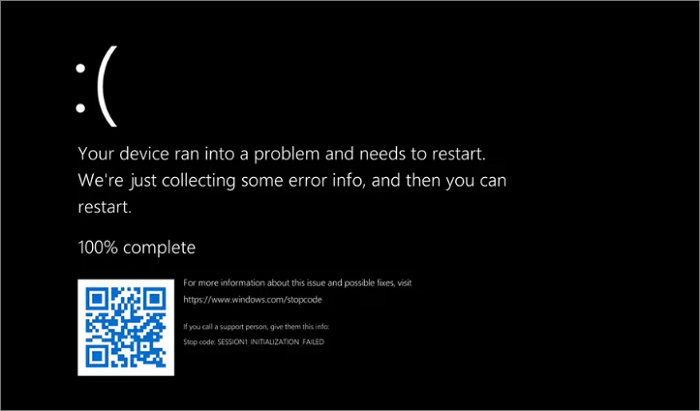
To fix the Black Screen of Death on Windows 10, try one of the following eight methods: update your graphics drivers, disable fast startup, run a System File Checker, run a DISM scan, reset your PC, boot in Safe Mode, use System Restore, or use the Windows 10 Recovery Environment to troubleshoot and fix the issue. Each of these methods can help resolve the Black Screen of Death, and you may need to try a combination of them to find the solution that works for you.
Windows 10, Microsoft's most reliable operating system to date, has been affected by errors despite its solid build and practicality, with users worldwide reporting various issues.
Causes: Why does the Computer Turn on, but the Screen Is Black
A computer that powers on but shows a black screen is often caused by poor connections, broken hardware, or faulty drivers. This can be due to a loose or damaged cable, a malfunctioning graphics card, or outdated or corrupted drivers. To resolve the issue, check the connections and cables, inspect the hardware for any damage, and update or reinstall the drivers.
🔌Reason 1. Loose Cables and Connections
Loose wires and connections are a common cause of a blank screen on a Windows 10 machine. Prolonged use of the computer can loosen the connections between its hardware components, ultimately leading to a blank screen.
If you suspect a loose cable or connection is causing your computer to not turn on, check the power cord, display cable, and any other devices connected to your computer. Verify that each component is securely connected. Try unplugging and reinserting the cables to ensure they are properly seated and functioning. This simple troubleshooting step can often resolve the issue.
🔧Reason 2. Faulty Hardware
One of the major causes of black screens is faulty hardware, such as a damaged graphics card, motherboard, or monitor.
It's recommended to check for hardware malfunctions and replace faulty components with healthy ones to ensure smooth system operation.
It's recommended to contact experts if you want to change or replace any components as it can be a risk to other neighboring components on the motherboard.
💽Reason 3. Outdated or Corrupted Drivers
The Black Screen of Death can often be caused by outdated drivers, which can prevent hardware connected to your PC from functioning properly. Ensuring that all drivers are up-to-date is crucial to resolving this issue.
To resolve the issue of the screen freezing or lagging after updating the display adapter drivers, open the device manager, check for updates regularly, and consider reverting the update if the problem persists.
How to Fix Computer Turns on but the Black Screen Windows 10
If you're experiencing a black screen issue on Windows 10, don't worry - there are solutions to try. The computer may turn on, but the screen remains black. Let's try some fixes!
| 6 Methods | When to apply |
| 🔎Check Cables and Connections | The cables and connections between the computer and the display may be loose or damaged. |
| 🔑Try a Windows Key Sequence to Wake the Screen | The computer seems to be functioning properly, but the screen remains black. |
| 🔙Restore the System to the Last Version | A recent update, software installation, or configuration changed abruptly. |
| 🔭Scan the Computer for Malware or Viruses | The malware or a virus affects the computer's performance. |
| ⏫Update or Reinstall Device Drivers | Here are outdated, corrupted, or incompatible display or graphics drivers. |
| ⛑️Boot the Computer in Safe Mode | This issue may be due to software conflicts or corrupted system files. |
1. Check Cables and Connections
When your Windows 10 machine displays a black screen, check the cords and connections to ensure they're securely attached. Verify that each cable is properly connected and fastened. You can also try unplugging and replugging the cables to confirm a stable connection.
Step 1. Unplug the device from its power source and let it cool down for at least 30 minutes before attempting to turn it on again. This will help prevent any potential electrical shock or damage to the device.
Step 2. Check the power cable, the monitor cable, and any other cables that connect to the outside of the casing to ensure they are securely connected.
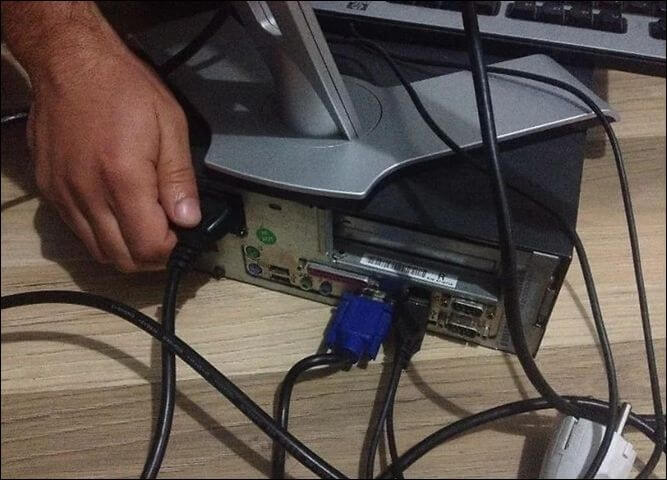
Step 3. Check for loose connections and ensure all wires are properly secured.
Step 4. Reconnect any wires or links that are loose.
Step 5. Unplug the power cord from the back of the computer and wait for 10 seconds. Then, plug the power cord back in and turn the computer on.
2. Try a Windows Key Sequence to Wake the Screen
To wake up the screen using a Windows key sequence, follow these steps: Press the Windows key + D to wake up the screen. This key combination is a shortcut to minimize all windows and show the desktop, which is a common way to wake up the screen.
Step 1. Press the Windows, Control, Shift, and B keys together.
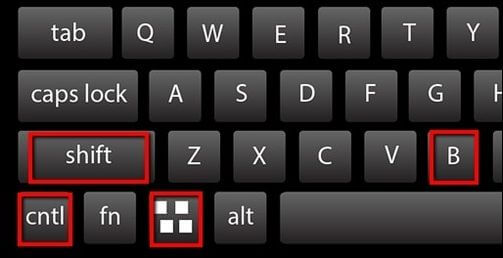
Step 2. If your screen is unresponsive, try pressing a series of keys to restart the graphics driver and bring the screen back to life.
Step 3. If the screen doesn't activate when you give it a few seconds, proceed to the next step.
If one of the methods is helpful in resolving the "Computer Turns on, but the Screen Is Black" issue in Windows 10, share it on social media platforms such as Facebook, Twitter, Instagram, and others to help others who may be experiencing the same problem.
3. Restore the System to the Last Version
If your PC screen turns black or freezes, you can try restoring it to a previous working version by restarting and pressing the F8 button to enter Advanced Boot Options. From there, navigate to the System Restore option and follow the prompts to select a previous restore point when your PC was functioning properly. This can help resolve issues and get your PC back up and running.
Step 1. To start the process, begin by turning on the computer. Once it's on, press the F11 key multiple times until you reach the "Choose an option" screen.
Step 2. Choose "Troubleshoot," then "Advanced options," then "System Restore."
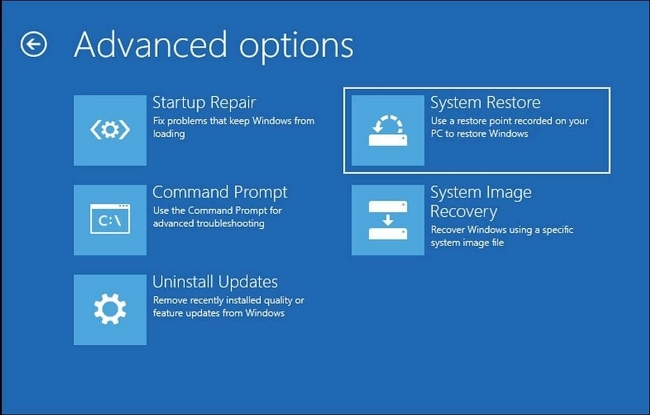
Step 3. To recover your system, select the most recent backup and restart your computer. Follow the on-screen directions to complete the process.
Step 4. Let the procedure run and check whether the problem has been fixed.
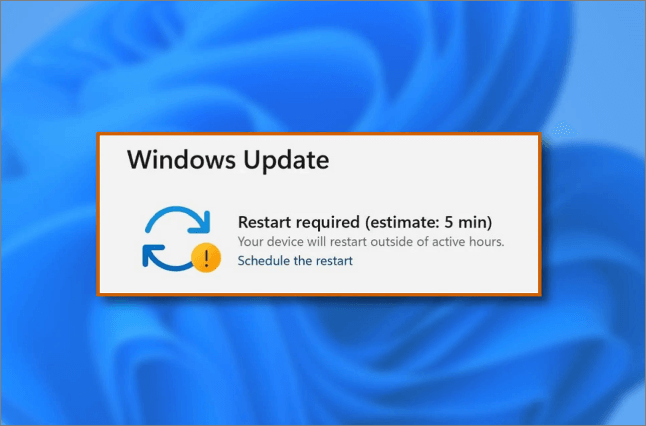
6 Ways to Fix Windows Update Not Working Windows 11/10
Here are six effective ways to help you troubleshoot and fix Windows update issues on Windows 10 or Windows 11 computers:
4. Scan the Computer for Malware or Viruses
If your Windows 10 screen is blank, it might be due to malware or a virus. To fix this, scan your computer with a reputable antivirus tool, such as TotalAV, Norton, Avast, McAfee, or Windows Defender. Follow the steps to use this software and it may help remove viruses and malware, resolving the issue.
 TOTALAV
TotalAV is an award-winning antivirus and security software that offers real-time protection against viruses, malware, and online threats.
Antivirus Protection Enabled
Step 1. Install TOTALAV antivirus software.

Step 2. Run a virus scan on your system to check for any malware or viruses that may be present. This can be done using built-in tools like Windows Defender or a third-party antivirus software.
Step 3. If you're experiencing issues with your computer, follow the on-screen instructions to address any identified risks. This may involve running a virus scan or other security checks. Once you've completed these steps, restart your machine and see if the problem persists.
5. Update or Reinstall Device Drivers
Outdated or broken drivers can cause a black screen on a Windows 10 computer. To fix the problem, update or reload the device drivers that are causing the issue, which can be done by going to Device Manager to update the drivers.
Step 1. To access the Device Manager, press the Windows key + X on your keyboard, which will open a menu with various options. From this menu, select the "Device Manager" option to open the Device Manager window, where you can manage and troubleshoot your computer's hardware devices.
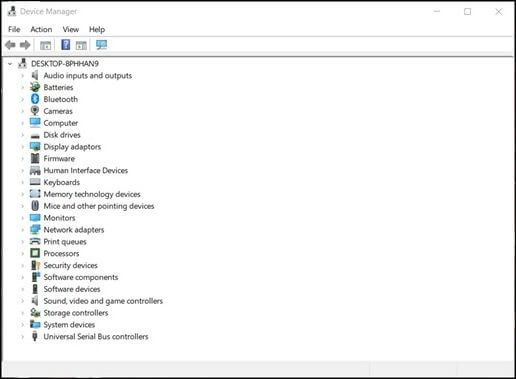
Step 2. To troubleshoot the issue, start by identifying the driver that might be causing the problem, such as the graphics or display driver. This can be done by checking the Event Viewer logs or using a tool like Driver Verifier to detect any issues with the driver.
Step 3. Right-click the driver and choose "Update driver" or "Uninstall device."
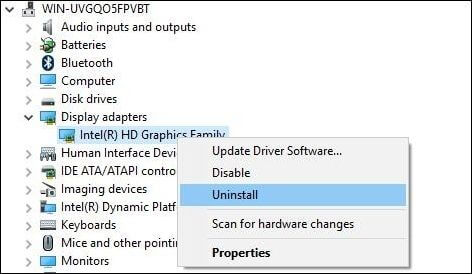
Step 4. To update the driver, follow the on-screen instructions. After uninstalling, restart Windows 10 and let it install the latest driver.
6. Boot the Computer in Safe Mode
To start your computer safely, follow the on-screen instructions to start up your Windows in safe mode. This will help you find and fix problems like a black screen, allowing you to troubleshoot and resolve issues more effectively.
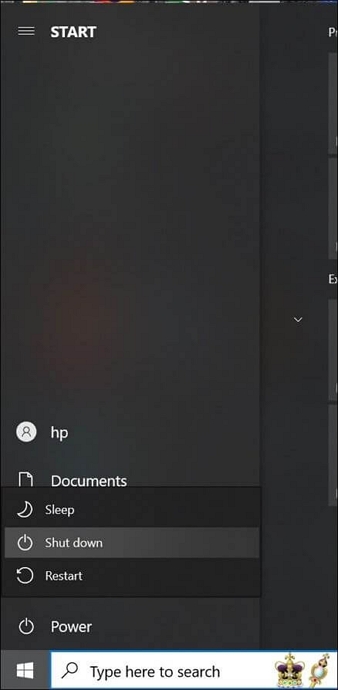
Step 1. To restart the computer, press the shift key and click on the "Power" button, then select "Restart" from the sign-in screen.
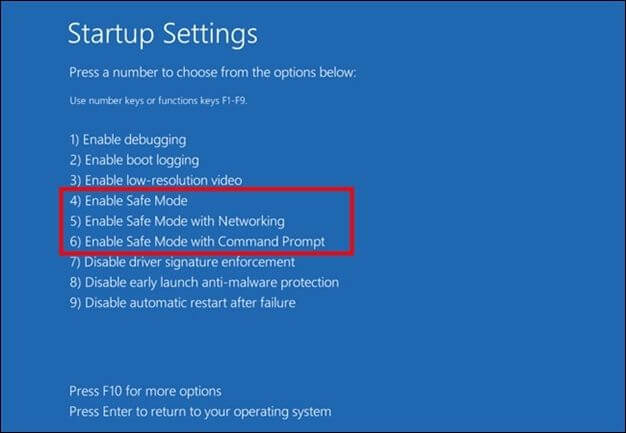
Step 2. To resolve the issue, go to the "Troubleshoot" menu, select "Advanced Options", then choose "Startup Settings" and finally click "Restart". Once the PC restarts, you can proceed with the troubleshooting process.
Step 3. Press F4 to choose "Enable Safe Mode" and F5 or F6 for the corresponding options, as shown below.
Recover Data After Fixing Windows 10 Black Screen of Death
A black screen of death can be frustrating, especially when it causes you to lose unsaved work. However, with the right tools, you can prevent data loss and troubleshoot the issue, getting your PC back up and running smoothly.
Deep Data Recovery is a software that helps recover data from hard disks, USB drives, and memory cards, including data accidentally deleted, and is useful even on the black screen of death.
- Quick and Deep Scan. Deep Data Recovery scans your hard disk quickly and deeply, locating recently deleted files with a quick scan, and uncovering lost data from formatting, system crashes, and other issues with a thorough scan.
- Multiple File Formats. This program allows you to recover various types of files, including photos, movies, documents, audio, and more, and provides a filter option to narrow down your search by file type.
- Preview before Recovery. Deep Data Recovery allows you to preview recovered files before restoring them, ensuring their integrity before being restored.
- Easy-to-Use Interface. Even non-data recovery experts can use this program to recover deleted files, as the interface simplifies the process.
If a thorough step-by-step manual is more your style, use it to easily understand how to recover data from Windows 10 that has startup problems.
Final Words
A black screen on your Windows 10 computer can be frustrating, but there are several potential causes and fixes. By following the instructions in this article, you can identify the issue, resolve it, and even use Deep Data Recovery to restore your data.
To avoid black screen issues, it's essential to maintain your hardware in excellent shape, upgrade drivers regularly, and periodically check for viruses and malware. This proactive approach can help prevent the frustration of a black screen and ensure your computer runs smoothly and perfectly.
My Computer Turns on, but the Screen Is Black Windows 10 FAQs
If the "Computer Turns on, but the Screen Is Black" issue persists after trying all previous solutions, it's likely a hardware-related problem and may require replacing the display, motherboard, or other components. If you're using a laptop, try using an external monitor to see if the issue is with the laptop's screen. If the issue persists, it's likely a problem with the laptop's display or motherboard.
1. How do you fix the black screen on a laptop with Windows 10?
Check the system's cables and connections, scan for viruses, update drivers, start the computer in safe mode, or roll back to a previous version if necessary.
2. Why is my Windows 10 laptop stuck on a black screen?
The possible causes of the issue include faulty connections, broken components, outdated software, and viruses.
3. Why is my computer on, but the screen is black?
The problem might be caused by a combination of factors such as loose wires, faulty hardware, outdated drivers, a virus infection, or incorrect display settings.
4. How do I get my computer out of black mode?
If your computer is unresponsive, use Ctrl + Alt + Delete to open Task Manager. Select and close any unresponsive programs. If that doesn't work, try restarting your computer or booting it up carefully.
Related Articles
- How to Choose and Set the Roku SD Card Format [2023 Best Ways]
- [Fixed] Boot Camp Error "The Startup Disk Cannot Be Partitioned Or Restored To A Single Partition"
- Restore Deleted/Crashed Notepad ++ Files from Backup
- (Solved!) How to Backup Gmail Emails to Another Gmail Account
- Where Do My Downloads Go? Find & Open Downloads on PC, iPhone/iPad, or Android [Beinners' Guide]
If your recent downloads are nowhere to be found. You can easily locate and open your Downloads folder on your PC, iPhone/iPad, or Android phone. - Where Is My Hosts File and How to Reset Hosts File to Default in Windows 10
Are you looking for a method for how to reset the hosts file to default in Windows? This guide helps you do that!
Products
Articles & Tutorials
- Data Recovery
- Data Backup
- File Recovery
- File Backup
- System Backup and Restore
- Disk and Partition Clone
- Technical articles
- Mobile articles
- Disk Master Help
- Windows Data Recovery Tutorials
- Windows Secure Delete Tutorials
- Windows Partition Management Tutorials
- Windows File Backup and Restore Tutorials
- Windows System Backup and Restore Tutorials
- Windows Disk Backup and Restore Tutorials
- Windows Clone Tutorials