(Top 8 Ways) How to Fix Windows 10 Black Screen with Cursor
You may occasionally be able to boot your computer correctly and view the Windows 10 login screen, but you may also have the "Windows 10 black screen with cursor" issue, which can be resolved using several solutions.
How to Fix Black Screen with Cursor Windows 10
If you're experiencing a black screen with a cursor in Windows 10, there are several potential solutions to try. You can attempt any of the methods listed below to see if they resolve the issue, which may include troubleshooting steps, system file checks, and other troubleshooting procedures.
- Fix 1. Update your Graphics Card Drivers
- Fix 2. Disable Fast Startup
- Fix 3. Update BIOS
- Fix 4. Add a New User Account
- Fix 5. Restore Windows 10 to a Previous State
- Fix 6. Run Startup/Automatic Repair
- Fix 7. Run SFC and DISM
- Fix 8. Reset your PC
Fix 1. Update your Graphics Card Drivers
If your computer's graphics card drivers are incorrect, you can attempt uninstalling or updating them to fix the Windows 10 black screen with cursor issue. To do this, you can go to the Device Manager, find the display adapter, right-click on it, and select "Uninstall device" to remove the current drivers. Then, restart your computer and let Windows 10 automatically install the latest drivers.
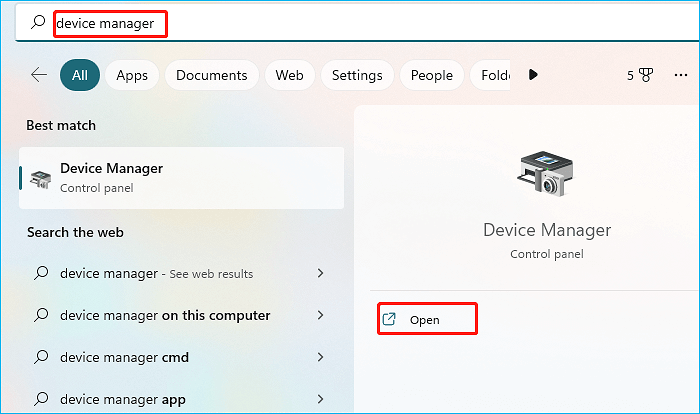
Step 1. To access the Device Manager, type "Device Manager" in the Windows search bar and open it.
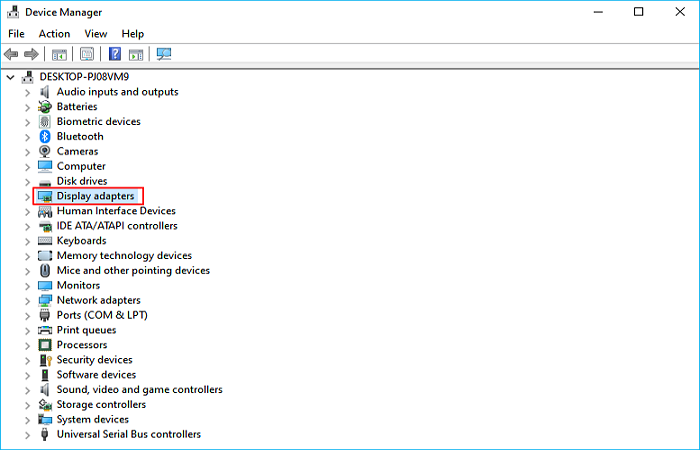
Step 2. Expand the Display adapter.
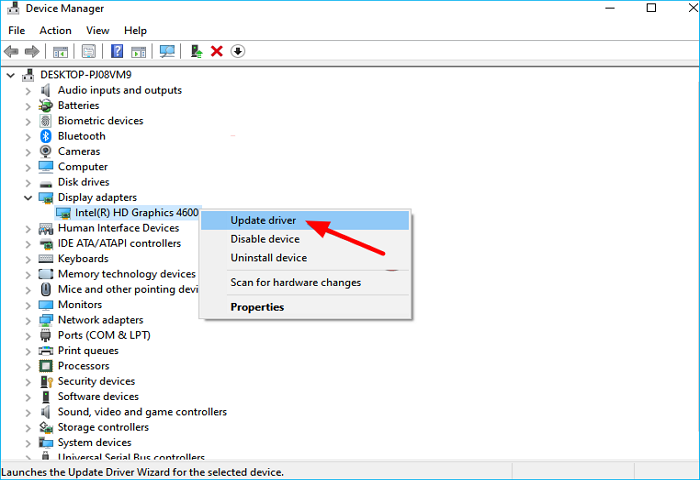
Step 3. Right-click on the graphics device and select Update driver.
Step 4. Select Search automatically for drivers.
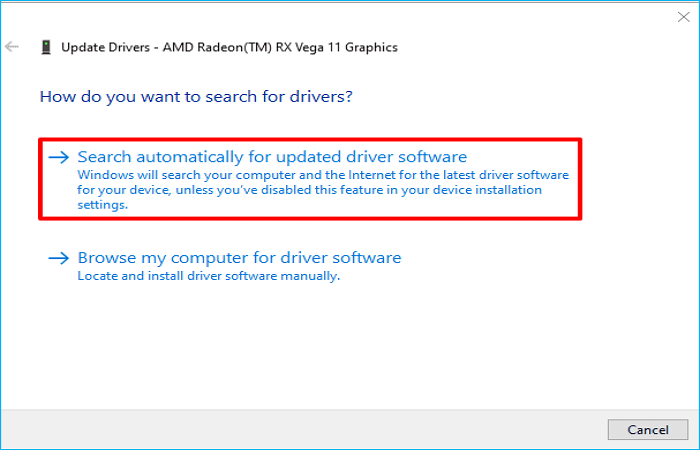
Step 5. Windows will search for a pending update and download it.
Step 6. The issue was likely caused by a missing or corrupted DLL file. To fix this, you can try reinstalling the program that uses this DLL file, or you can try to download and install the missing DLL file from a reliable source.
Fix 2. Disable Fast Startup
Microsoft included a tool called Fast Startup in Windows, which shortens the time it takes Windows to boot from sleep mode or shutdown, but can cause compatibility problems when Windows first starts up, and disabling it can solve the Windows 10 black screen with just cursor issue, and here's how to do it: 1. Go to Settings > Update & Security > Recovery. 2. Under "Restart options", toggle off "Turn on Fast Startup (recommended)". 3. Confirm the action by clicking "Yes" in the pop-up window.
Step 1. Restart your PC in Safe Mode.
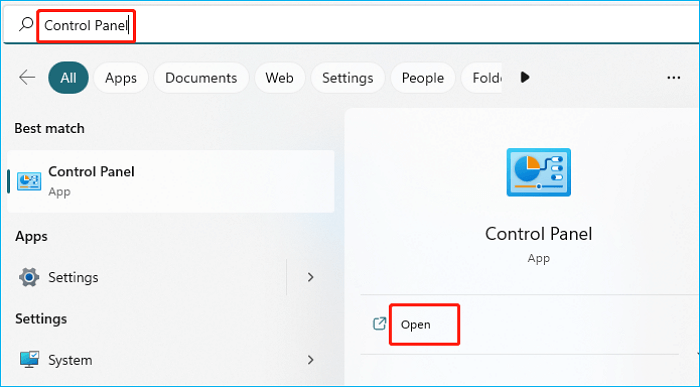
Step 2. To access the Control Panel, type "Control Panel" in the search box and click on Control Panel in the resulting pop-up menu.
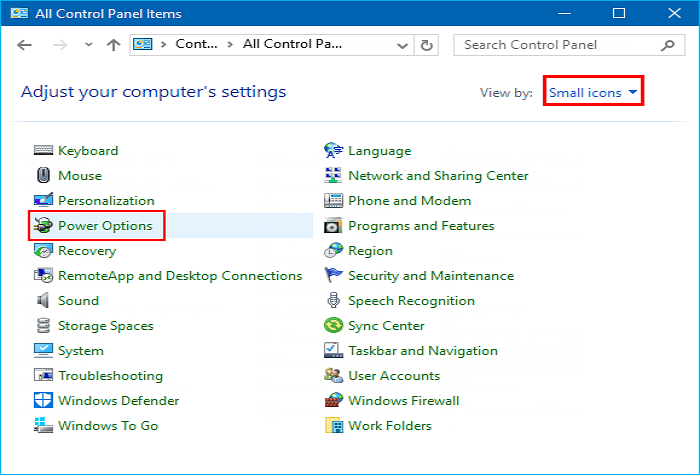
Step 3. View by Small icons and click on Power Options.
Step 4. Click Choose what the power buttons do.

Step 5. Click Change settings that are currently unavailable.
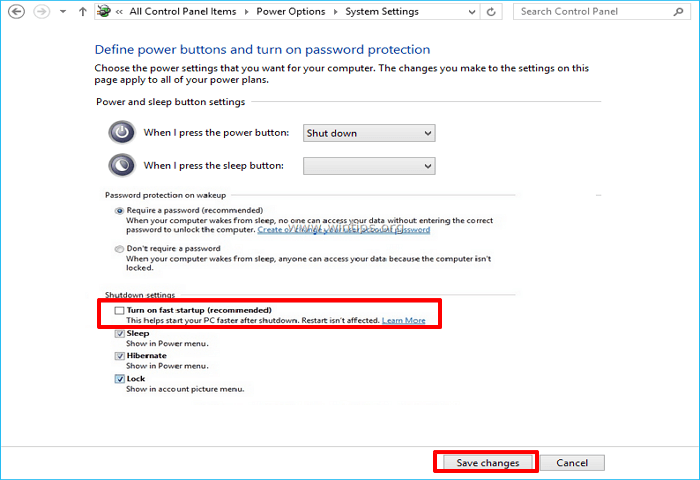
Step 6. To disable fast startup, uncheck the box next to Turn on fast startup (recommended) and click on Save changes, then close the window.
Fix 3. Update BIOS
To resolve the issue of a black screen with a cursor on Windows 10, you need to upgrade your BIOS to a more recent version, which is a process best suited for advanced users, as it can potentially cause hardware damage if not done correctly.
Step 1. To launch Safe Mode with a network connection in the Windows recovery environment, press F6.
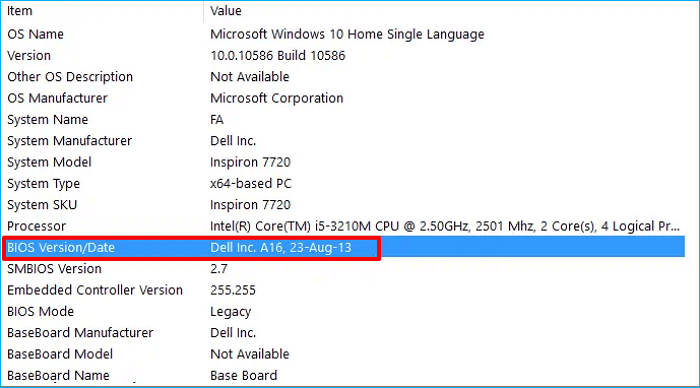
Step 2. To open System Information, press the Windows + R keys to open the Run dialogue, type "msinfo32" and press Enter.
Step 3. To find the BIOS Version, open the System Information window and note the Date and Manufacturer. Then, use a browser to search for and download the latest BIOS version from the manufacturer's website to a USB drive.
Step 4. Insert the USB flash drive with the latest BIOS file into your PC, which will restart and enter the BIOS again. Then, locate the downloaded BIOS update file and run the update.
Please note: Avoid disconnecting the power or turning off your computer while the BIOS is being updated, as this could cause damage to your computer.
Fix 4. Add a New User Account
Windows 10 can boot to a black screen with a cursor due to a corrupted user profile, but you can resolve this by swapping the functioning user profile folder with the corrupted one. To do this, you'll need to access the Command Prompt in Safe Mode, navigate to the profile folder, and copy the functioning profile to the corrupted one's location. This process can help restore your system to a working state.
Step 1. Restart your PC in Safe Mode.
Step 2. Login with an active user account.
Step 3. Navigate to the folder below:
C:\Users\{working-user-profile-name}\AppData\Local\Microsoft\Windows\Caches
Step 4. To resolve the issue, copy the Caches folder, then log in with the corrupted user account. This will allow you to access the original Caches folder and potentially resolve the issue.
Step 5. Navigate to the following folder:
C:\Users\{broken-user-profile-name}\AppData\Local\Microsoft\Windows\Caches
Step 6. Replace that Cashes folder with the folder from the working user file.
Fix 5. Restore Windows 10 to a Previous State
To restore your system to a previous operating state, you can follow these steps:
Step 1. In safe mode, type "restore" in the taskbar search box, then click on "Create a restore point" to proceed with the restore process.
Step2. To restore your system to a previous state, click System Restore in the System Protection tab under the System Properties window.
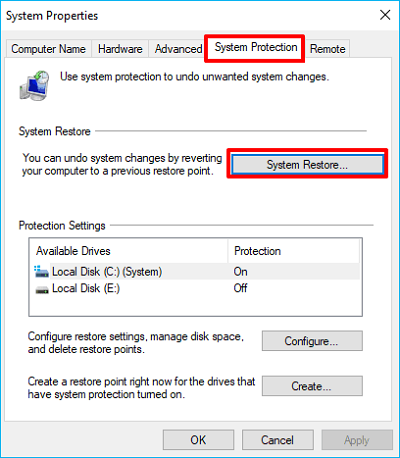
Step 3. To resolve the issue, select a previous restore point before the problem occurred and click Next, allowing the system to restore itself. This process will complete once finished.
Fix 6. Run Startup/Automatic Repair
To fix a laptop black screen with a cursor issue, you can also try running the Automatic/Startup Repair in WinRE. This process involves booting the laptop in WinRE, accessing the Troubleshoot menu, selecting the Automatic Repair option, and following the on-screen instructions to run the repair. This may help resolve any system issues that are causing the black screen problem, allowing you to access the laptop's operating system again.
Step 1. To start the Windows installation process, insert your Windows installation CD, DVD, or a bootable USB device into your computer. Then, turn on your computer and follow the on-screen instructions to boot from the installation media.
Step 2. Enter the BIOS.
Step 3. To start a Windows 11/10 computer from a DVD or USB flash drive, select the device as the primary boot disk and then start the computer from it.
Step 4. To access WinRE, click on the "Repair your computer" option in the bottom-left corner.
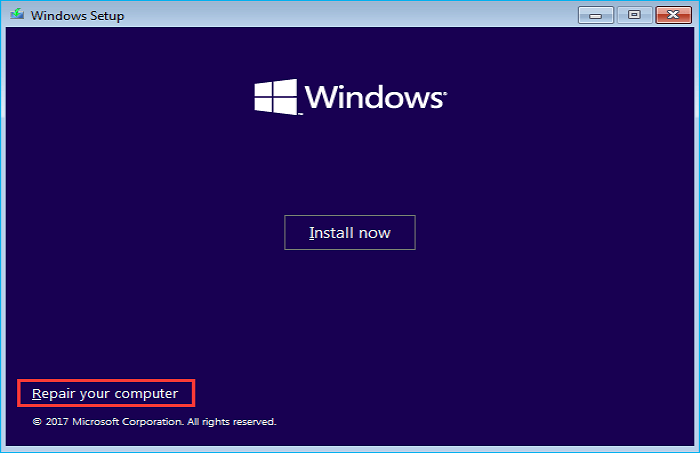
Step 5. To proceed, you must select Troubleshoot in the pop-up window.
Step 6. To advance to the following page, choose Advanced options.
Step 7. In the Advanced options window, select Startup Repair, and then wait for the procedure to be finished.
Fix 7. Run SFC and DISM
Try performing the DISM, and SFC commands to repair Windows images if the problem is still present. These commands are needed to fix damaged files, including system and DLL files. Run these commands in the terminal by following the below instructions if you can launch Task Manager.
Step 1. Type "cmd" in the search box, select it, and run as administrator.
Step 2. Type sfc /scannow and hit Enter.
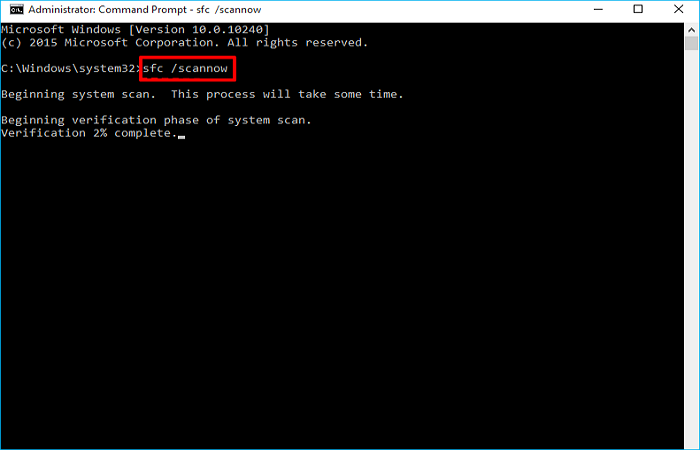
Step 3. Run the command DISM.exe /Online /Cleanup-image /Restorehealth in Command Prompt to repair corrupted system files and see if that fixes the issue. If it doesn't, you can try running the command again or seek further assistance.
Step 4. Restart your PC.
Fix 8. Reset your PC
If the previous fixes don't work, you may need to reset Windows 10, which will reinstall the entire operating system. Before doing so, it's highly recommended to create a backup of your Windows 10 PC to prevent losing important files and data.
Step 1. Restart your PC in Safe Mode.
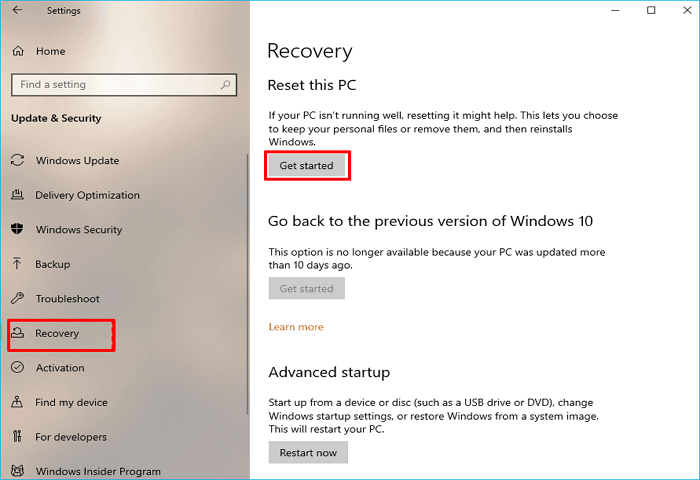
Step 2. To access settings, type "settings" in the search box, then click on "Settings" in the menu.
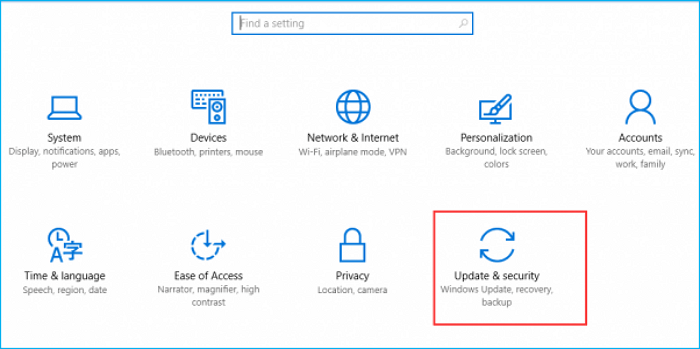
Step 3. Click on Update & security.
Step 4. Click Recovery.
Step 5. To reset your PC, click on the "Reset this PC" window and select "Get started". Follow the instructions that appear to complete the reset process.
Bonus Tip: How to Backup Windows 10 After Fixing the Issue
After resolving the bothersome problem, it's recommended to back up your computer to ensure you can restore it if something goes wrong. Windows 10 has built-in backup utilities, but you may encounter issues like a long backup time. In such cases, using a professional backup software like Qiling Disk Master Pro is a good option.
Qiling Disk Master Pro is a professional backup and recovery tool that allows you to automatically back up files, systems, disks, partitions, and computer apps, with options for full, incremental, and differential backups, and can even image a hard drive on a Windows 10 PC, all while providing a secure cloud storage zone and 250G of free cloud space.
Here is how to back up your Windows 10 PC:
Step 1. Launch Qiling Disk Master on your computer, and click on the Backup and recovery tab page.

Step 2. To back up your Windows operating system, click on the "System backup" option to initiate the backup process.

Step 3. In the next step, Windows will automatically select all system-related files and partitions, so no manual selection is required. Instead, you'll need to choose a location to save the system image backup by clicking on the illustrated area.

Step 4. The backup location should be another local drive, external hard drive, network, cloud, or NAS, with external physical drives or cloud storage being the recommended options for preserving system backup files.
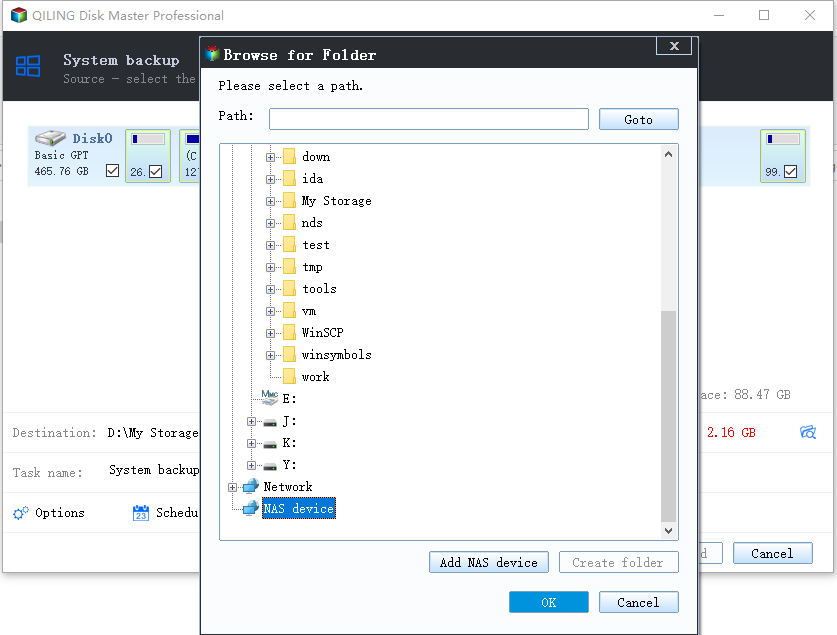
Step 5. Customization settings such as enabling an automatic backup schedule are available in the Options button, where you can choose daily, weekly, monthly, or event-based backups, and also select differential and incremental backup options. Clicking "Proceed" will initiate the Windows system backup process, which will display the completed task on the left side in a card style.

Why Is Windows 10 Booting to Black Screen with Cursor
When you update Windows, install Windows, or connect multiple displays, a black empty screen with a cursor may appear, preventing shutdown, login, or PC use, possibly due to outdated device drivers or computer usage.

Some primary causes that can be cited as the culprits are described below.
- Corrupted graphics driver.
- Corrupted system files.
- Outdated BIOS.
- Corrupted Windows update.
- Multiple monitor connection problems.
- Screen display anomaly.
The Final Say
When you encounter a Windows 10 black screen with a cursor, don't panic. You can try various fixes, such as booting in safe mode, checking for driver updates, running a System File Checker, and using System Restore. Hopefully, one of these solutions will resolve the issue.
Creating a backup of your Windows computer is essential, and using professional backup software like Qiling Disk Master Pro is a great choice. This software can back up almost everything on your computer and restore the backups to your computer or a new one, also allowing you to compress backups and back up QuickBooks automatically.
FAQs
1. Does resetting PC fix black screen with cursor?
Windows that are more likely to fix the black screen with the cursor problem in Windows will be reinstalled if you choose to reset Windows. However, all settings, applications, and files will be deleted if the PC is reset. Therefore, before completing the instructions below, it is highly recommended that you back up any crucial data while in Safe Mode. This includes backing up any personal files, photos, documents, and other important data.
2. What is the difference between BSOD and black screen?
The blue screen problem, which doesn't usually damage your computer, can be inconvenient if it occurs while working on something. The black screen error, or BSOD, is usually caused by a faulty device driver, hardware issue, or Windows software problem.
Related Articles
- How to Fix Unsupported SanDisk SD Card Error [Step-by-Step Guide]
- What Is System Restore Command and How to Use It on Windows 11/10
- How to Fix Samsung SSD Clone Failed [2024 Full Guide]
- Monster Hunter Rise Save File Location [Detailed Information]
- Windows 11 Is Getting ReFS Support for Enhanced Data Proteciton
Learn what Windows 11 ReFS support means, how ReFS differs from NTFS, and why it matters for data protection, scalability, and file system reliability. - How to Fix Windows 11 KB5026446 Update Error Efficiently
The Windows 11 KB5026446 update error may occur when the network connection is unstable or there's not enough disk space on the target hard drive. However, with the guidance provided, you can resolve this issue and update Windows 11 KB5026446 smoothly.
Products
Articles & Tutorials
- Data Recovery
- Data Backup
- File Recovery
- File Backup
- System Backup and Restore
- Disk and Partition Clone
- Technical articles
- Mobile articles
- Disk Master Help
- Windows Data Recovery Tutorials
- Windows Secure Delete Tutorials
- Windows Partition Management Tutorials
- Windows File Backup and Restore Tutorials
- Windows System Backup and Restore Tutorials
- Windows Disk Backup and Restore Tutorials
- Windows Clone Tutorials