How to Fix Samsung SSD Clone Failed [2023 Full Guide]
If you've recently upgraded from a hard drive to a Samsung SSD and are experiencing errors when cloning the drive, with error codes like 400180 [061b34], 301001 [0497c9], or others, don't worry! Samsung SSDs are the market leader in the storage space, offering incredible performance across various price segments. Your upgrade to an SSD was likely a significant improvement, but the cloning process might have hit a snag.
The "Samsung SSD clone failed" error can be frustrating, but it's often caused by a software or hardware issue. To fix it, you'll need to troubleshoot the problem.
Why Samsung SSD Clone Failed
Samsung has created the Data Migration program to configure, backup, create a clone, and for all other purposes. However, if you encounter errors with error codes or any other issues while cloning the SSD with this program, it could be due to various reasons such as software incompatibility, hardware conflicts, or corrupted files.
- The SSD has some bad sectors.
- SSD is not properly connected or disconnected.
- SSD can be encrypted; if this is the case, decrypting it will let you clone it.
- A few sectors on the SSD can be fragmented.
- SSD can be accidentally converted to a dynamic disk.
- Page files on the disk could be enabled.
- The hibernation could be on.
Now that you're aware of the reasons behind the Samsung SSD cloning failure, let's move on to the solution. By understanding the potential causes, you can take the necessary steps to fix the issue and successfully clone your Samsung SSD.
How to Fix Samsung SSD Clone Failed
Fixing the "Samsung SSD clone failed" error and creating a clone of your Samsung SSD can be achieved through seven different methods. These solutions can help you successfully duplicate your Samsung SSD, allowing you to create a backup or upgrade your storage.
- Fix 1. Check Bad Sectors
- Fix 2. Decrypt BitLocker of Samsung SSD
- Fix 3. Defrag the Drive
- Fix 4. Disable Page Files
- Fix 5. Convert Dynamic Disk to Basic
- Fix 6. Disable Hibernation Mode
- Fix 7. Try Reliable Tool to Clone Samsung SSD
To help you with your problem, I've identified seven other solutions that can be of assistance. Please continue reading to explore these alternatives and find the one that best suits your needs.
Fix 1. Check Bad Sectors
Bad sectors on an SSD indicate that a portion of the disk is corrupted, making it inaccessible to the computer. Qiling Disk Master, an all-in-one disk doctor and configuration manager, can run the Surface Test to identify and report all bad sectors.
Qiling Disk Master can quickly check and repair bad sectors on your SSD without fail, making it a reliable tool for maintaining your storage device.
Step 1. Open Qiling Disk Master, right-click the disk you want to check, and click on "Surface Test" to run a surface test on the disk.
Step 2. The operation will be immediately performed and all bad sectors will be marked as red.
Fix 2. Decrypt BitLocker of Samsung SSD
To turn off Bitlocker encryption on a Windows system, you can follow these steps:
Step 1. To access the Control Panel, click on the "Start" button and search for it, then open it.
Step 2. Open "System and security" and click "Bitlocker Drive Encryption."
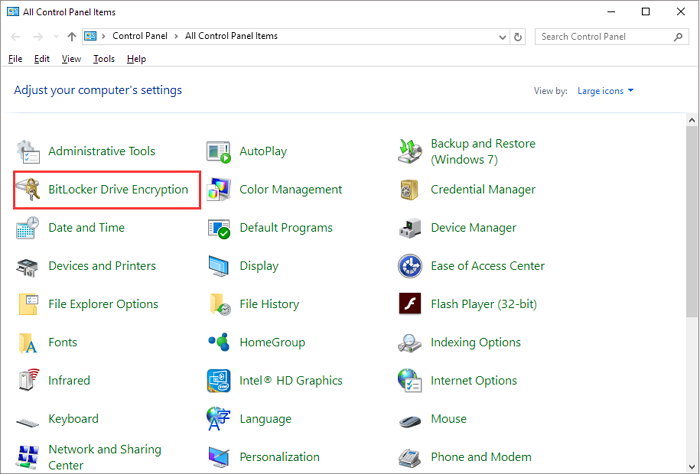
Step 3. Now click on "Turn off BitLocker."
Step 4. Click on "Turn off Bitlocker" in the popup box that opened.
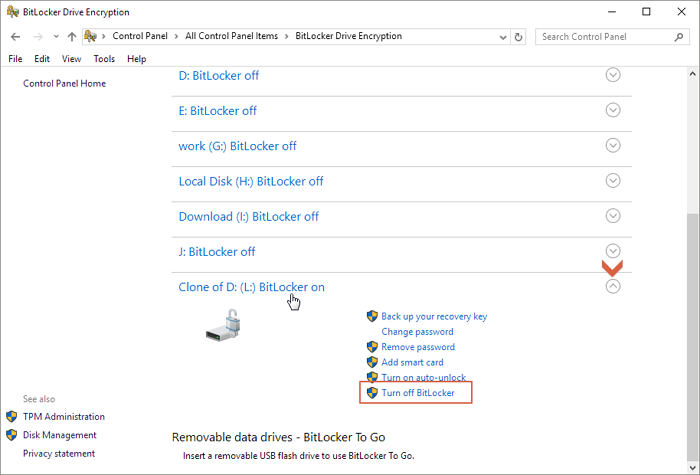
After your SSD is decrypted, try cloning your drive, and it should hopefully work now.
Fix 3. Defrag the Drive
If your SSD has many degradations, you can use a disk defragmenter to manage it. To defrag the drive, you can use built-in tools like `chkdsk` on Windows or `fsck` on Linux, or third-party software like CCleaner or Defraggler. These tools can help reorganize the data on the SSD to improve performance and reduce degradations.
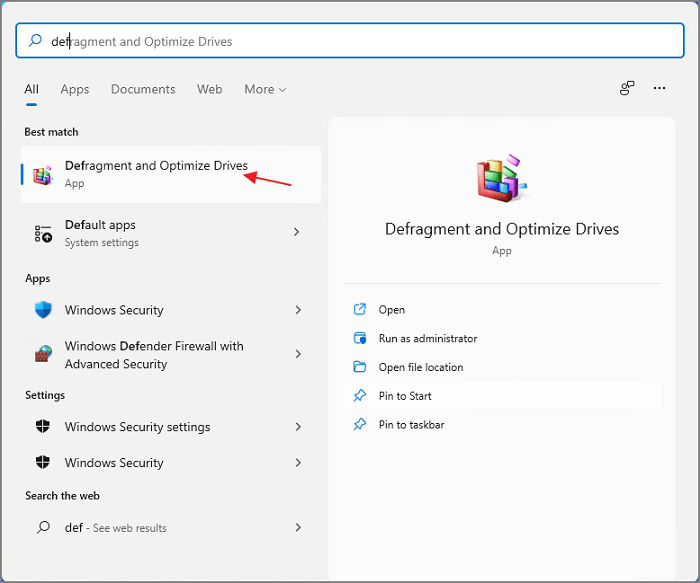
Step 1. Click on the "Windows" button and open the "Control Panel."
Step 2. Search for "Administrative tools" or "Windows tools."
Step 3. Select "Defragment and Optimize Drives" and then click "Optimize."
If the previous suggestions didn't help, you can continue exploring our other solutions for a possible answer.
Fix 4. Disable Page Files
Page files are a reserved portion of your hard disk that doubles as RAM, useful for running RAM-hungry applications when your RAM is full. This allows other apps to continue running efficiently by utilizing the set portion of the SSD as makeshift RAM.
Here's how to disable Page Files:
Step 1. Click on the "Start" button, then search for "View advanced system settings" in the search bar.
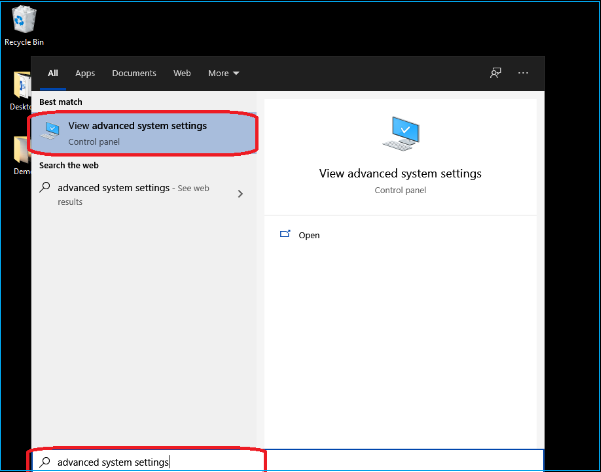
Step 2. Select "Settings" under "Performance."
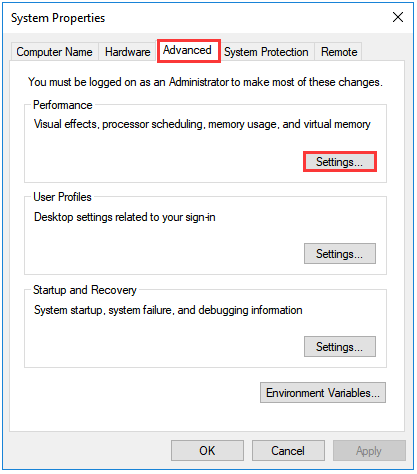
Step 3. Click on the "Advanced" tab and then "Change."
Step 4. In the Performance Options window, deselect "Automatically manage paging file size for all drives" and select "No paging files," then click on "Set."
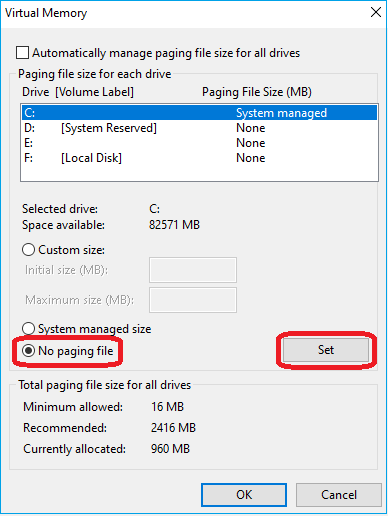
Step 5. Finally, click on "OK."
Fix 5. Convert Dynamic Disk to Basic
Using the Qiling Disk Master is a great tool for disk partitioning, allowing you to also convert dynamic disks to basic.
It is not difficult to use. Here's how:
Step 1. To get started, install and open Qiling Disk Master, then navigate to the Disk Converter section.
Step 2. Select the disk conversion mode that suits your need:
- Convert Basic to Dynamic: change a Basic disk to Dynamic.
- Convert Dynamic to Basic: change a Dynamic disk to Basic.
Step 3. Select the target disk - Basic or Dynamic, confirm you've selected the correct disk and click "Convert" to start.
Qiling Disk Master is a powerful conversion tool that can convert EXT2/EXT3 to NTFS, convert NTFS to FAT32, and convert MBR to GPT.
Fix 6. Disable Hibernation Mode
Follow through to disable the hibernation mode.
Step 1. Click on the "Start" button and search for "command prompt."
Step 2. Select "Run as administrator."
Step 3. Enter the command "powercfg /hibernate off."
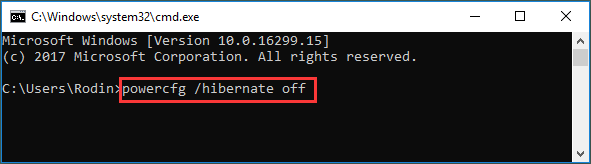
Step 4. You have successfully disabled hibernation mode.
Fix 7. Try Reliable Tool to Clone Samsung SSD
If you can't clone with Samsung's Data Migration program, use Qiling Disk Master's cloning feature to clone your Samsung SSD. It supports both disk clone and system clone, making it a reliable alternative that eliminates the possibility of failure and allows you to create a clone of your SSD in just a few clicks.
Here's how:
Step 1. Select the source disk.
- To clone a disk, click the "Clone" button from the left menu, select either "Clone OS Disk" or "Clone Data Disk" depending on your needs, and then click "Next".
- Choose the source disk and click "Next".
Step 2. Select the target disk.
- Select the desired hard drive or solid-state drive as the destination and click "Next" to proceed.
- Read the warning message and click "Yes" to confirm.
Step 3. View the disk layout and edit the target disk partition size:
To reinstall Windows, insert the Windows installation media and restart the computer. Boot from the media and select your language and other preferences, then click "Next" to start the installation process. When prompted, select the option to wipe out all data on the target disk, and click "Continue" despite the warning. If you have valuable data on the target disk, back it up in advance to avoid losing it.
To customize your disk layout, you can choose from options like "Autofit the disk", "Clone as the source", or "Edit disk layout". The latter is recommended if you want to allocate more space for the C drive.
Step 4. Click "Proceed" to start the disk cloning process.
Qiling Disk Master can also support to clone SD card, USB, or other drives.
Conclusion
Samsung's innovation in SSD technology is impressive, but like any product, their SSDs are not immune to errors or problems.
When cloning your Samsung SSD, if you encounter the error "Samsung SSD Clone Failed," try the solutions provided. Alternatively, you can use a cloning software to create a clone of your Samsung SSD immediately, bypassing the need to troubleshoot the issue.
Download Qiling Disk Master, a tool that allows you to create a clone of your Samsung SSD in just a few minutes.
FAQ of Samsung SSD Clone Failed
Here is some more information about Samsung SSD cloning failures:
1. Why is Samsung data migration not working?
It could be because of the following reasons:
- The Samsung Data Migration program is outdated.
- The hard drive or SSD doesn't have an OS installed.
- The drive can be encrypted.
- The Samsung SSD is not compatible.
- Your Samsung SSD has bad sectors.
2. How do I fix the Samsung Data Migration cloning failed?
Before cloning your SSD, it's essential to identify the root cause of the issue. Once you've pinpointed the problem, you can follow the suggested solutions to resolve it. If these steps don't work or you prefer a hassle-free cloning process, consider using Qiling Disk Master to clone your SSD quickly and easily.
3. Can I use Samsung cloning software with other SSD
You can't use Samsung Data Migration software with SSDs from other manufacturers. It's only compatible with Samsung SSDs.
Related Articles
- Free PDF Editor - Top 6 Best Free PDF Editors 2026 Update
- Tutorial on PowerShell Format Disk on Windows [Easiest Way]
- How to Format Unallocated Disk [Step-by-Step Guide]
- Full Guide: How to Fix HP Laptop Black Screen
- [5 Ways] How to Fix DISM Error 87 Option Is Unknown Windows 11/10/7
Getting DISM error 87 'the option is unknown' when running DISM commands? Learn the 5 main causes (incorrect commands, wrong privileges, etc.) and follow 5 proven plans to fix it on Windows 11/10/7 safely. - How to fix the error DNS PROBE FINISHED NO INTERNET? [A Complete Guide]
The DNS error is a common network issue that occurs when browsing the internet, caused by various reasons such as cache, cookie data, and DNS server issues.
Products
Articles & Tutorials
- Data Recovery
- Data Backup
- File Recovery
- File Backup
- System Backup and Restore
- Disk and Partition Clone
- Technical articles
- Mobile articles
- Disk Master Help
- Windows Data Recovery Tutorials
- Windows Secure Delete Tutorials
- Windows Partition Management Tutorials
- Windows File Backup and Restore Tutorials
- Windows System Backup and Restore Tutorials
- Windows Disk Backup and Restore Tutorials
- Windows Clone Tutorials